

Two distinct inputs
Lip sync uses a video clip and an audio track; a still image is not the final video input for the documented workflow.
VIDEO AND AUDIO WORKFLOW
Work from a video clip and clean audio track, then watch the generated result from start to finish. The three-frame image is an illustrative storyboard, not a playable or verified lip-sync output.
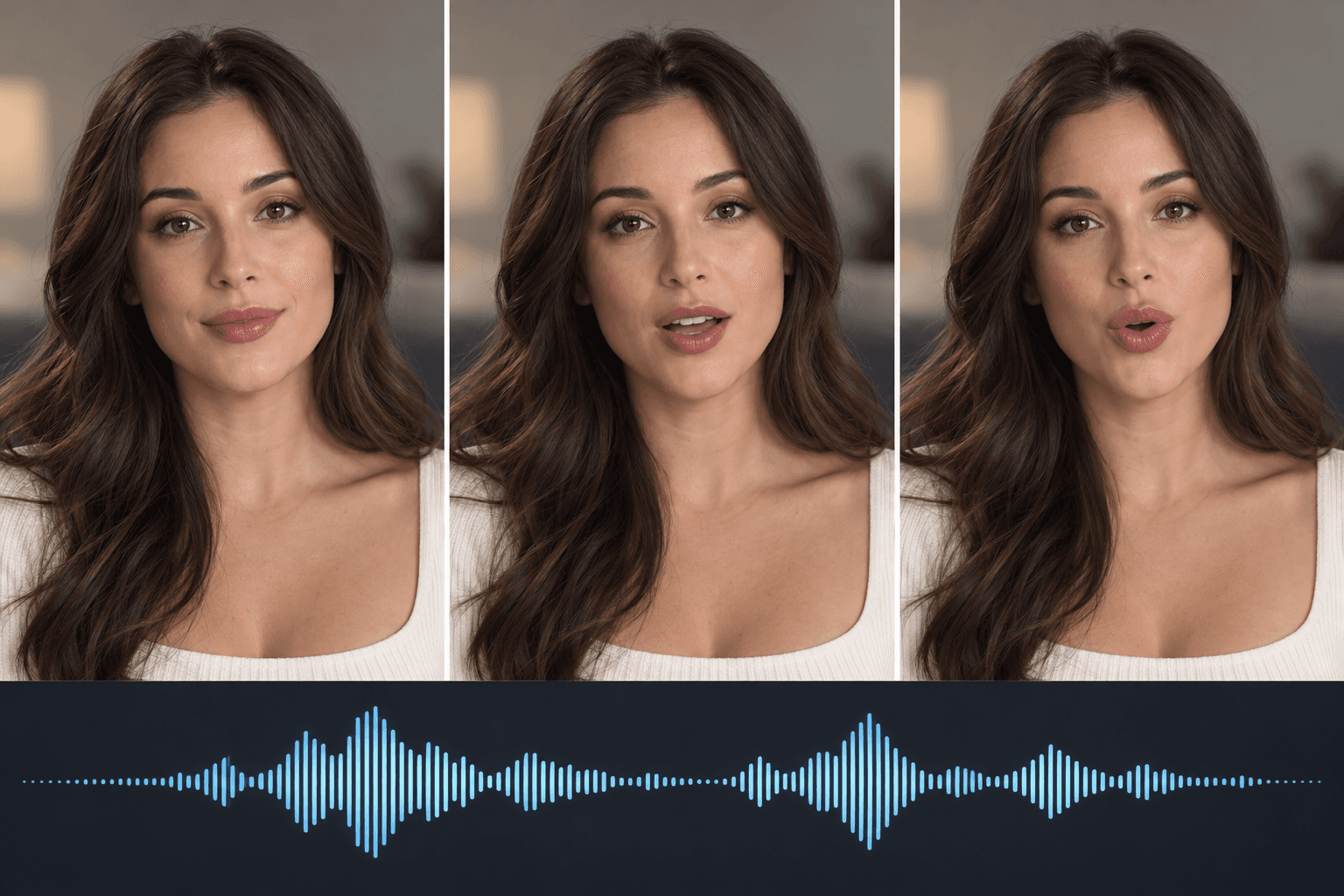
Choose a face video you have permission to use and a clean speech recording. If you only have a portrait, make a base video first.
On the Astorie canvas, add the lip-sync tool and connect the video and audio to their matching inputs.
Watch with sound. Check consonants, pauses, the final word, face consistency, and any visible artifacts before using the result.
Lip sync uses a video clip and an audio track; a still image is not the final video input for the documented workflow.
A completed render can still miss mouth shapes or pauses. Watch the result at normal speed with the original audio.
Only use people, voices, and footage for which you have the necessary consent or rights.
| Input | A face video plus a separate speech track in the documented canvas workflow. | |
|---|---|---|
| Output | A video to review with sound; the preview image on this page is only an illustration. | |
| Quality check | Inspect lip timing, identity, blinking, pauses, and the end of the clip. |
The documented Kling LipSync A2V workflow requires video and audio. If you begin with a portrait, create a short base video before the lip-sync step.
No. Review the entire render for mouth timing, expression, and visual changes before publishing it.
Open the Astorie canvas, add the lip-sync tool, and connect your video and audio there. This page does not present a two-input lip-sync widget.
Connect permitted video and audio, generate a short test, and review it with sound.