A broad style request
What to decide
- A mood with no described medium
- No decision about line or texture
- No details selected for review

Astorie
Choose a source image and a style preset, then edit the prompt if you want a different treatment. Select Create to generate your image. Preset examples use the Coastal cove input.
A vague style name leaves many choices open. Describing the medium and the details you care about gives the restyle a clear direction.
What to decide
What to describe

Work in the form above with a source image and a style brief, then compare the generated treatment with your original.
Use a sample or upload your own image through the source control. Pick a clear image whose important details you can recognize when checking the result.
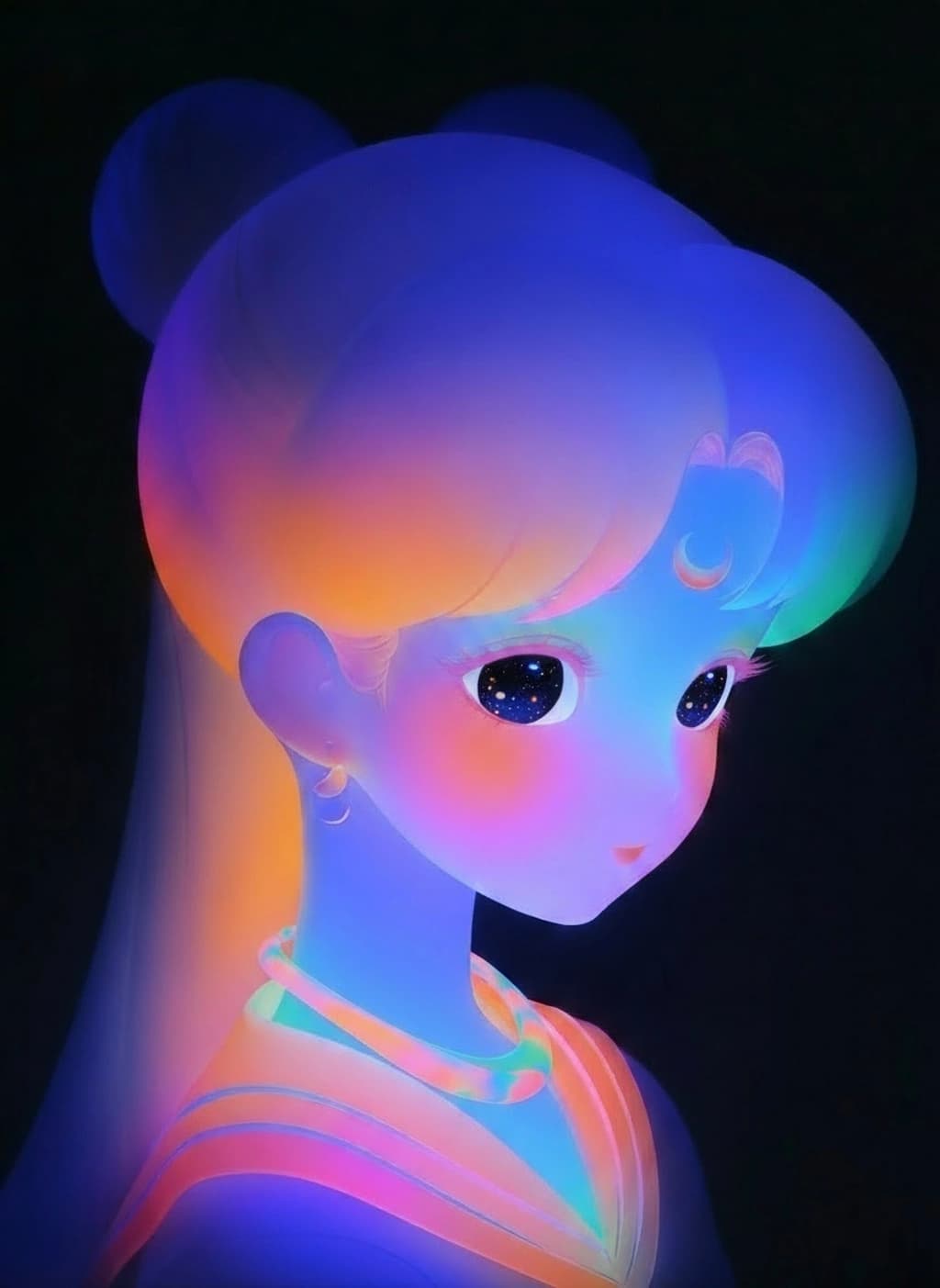
Choose Watercolor, Oil painting, Anime, Cyberpunk neon, 3D clay render or Pencil sketch. Read the starting prompt and edit it if you have a different medium or treatment in mind.

Select Create, then inspect the new image beside the original. Check faces, labels and small objects before deciding whether to revise the prompt and try again.
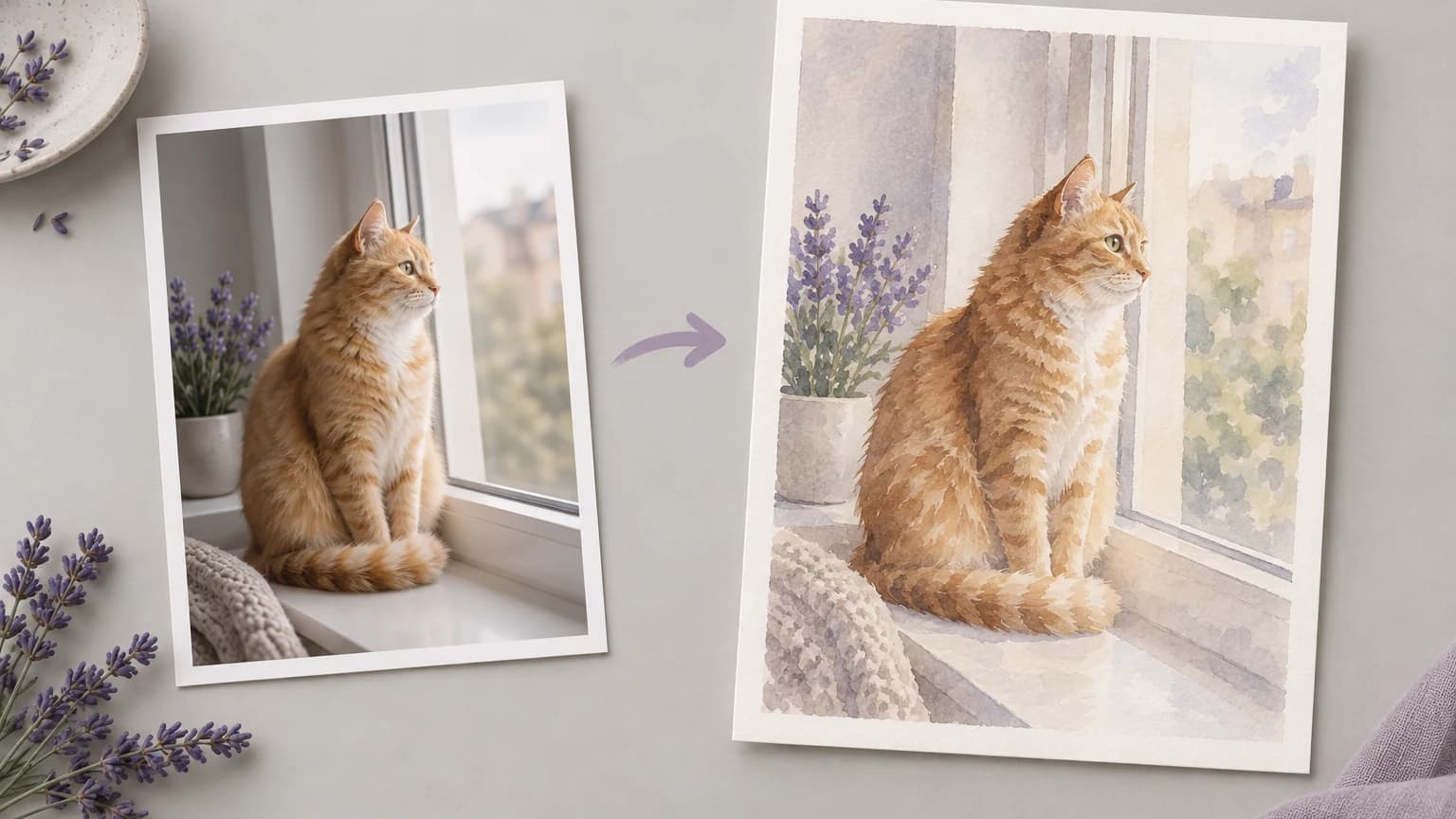
The form combines a source image with written visual direction. Use the prompt to make distinct decisions about the treatment rather than relying on a broad style label alone.
The selected image supplies the scene to reinterpret. A clear subject helps you compare versions, especially when you need to inspect a face, product outline or other recognizable detail.
Restyle an imageChoose an editable preset as a starting point for the image. Read its description, then adjust the medium or lighting to suit the scene.
Restyle an imageName the physical cues you want, such as graphite hatching, layered paper or stained-glass leading. Those details make your request more specific than an adjective such as artistic.
Restyle an imageDescribe the palette or lighting direction when it matters to the design. Separate those choices from the subject so you can judge which part of the request needs revision.
Restyle an imageName the features that matter to the image, such as the main outline or camera angle. Give those details priority when writing the style brief.
Restyle an imageFaces, lettering and product markings need particular attention after a restyle. Compare them with the source before placing the generated image in a customer-facing layout.
Restyle an imageAdapt these prompts to explore different treatments. All illustrations on this page show visual concepts; they are not screenshots or verified outputs from the current tool.


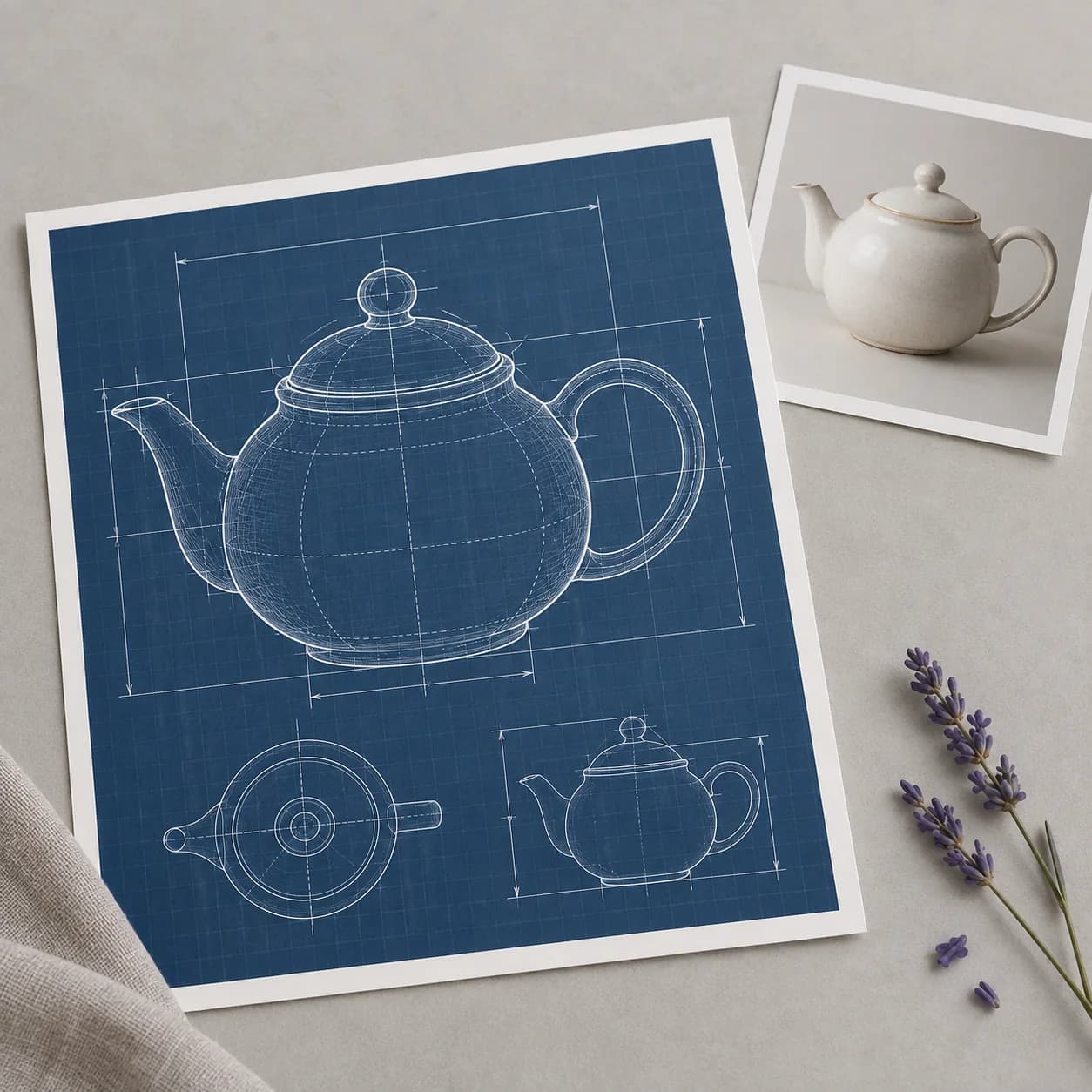
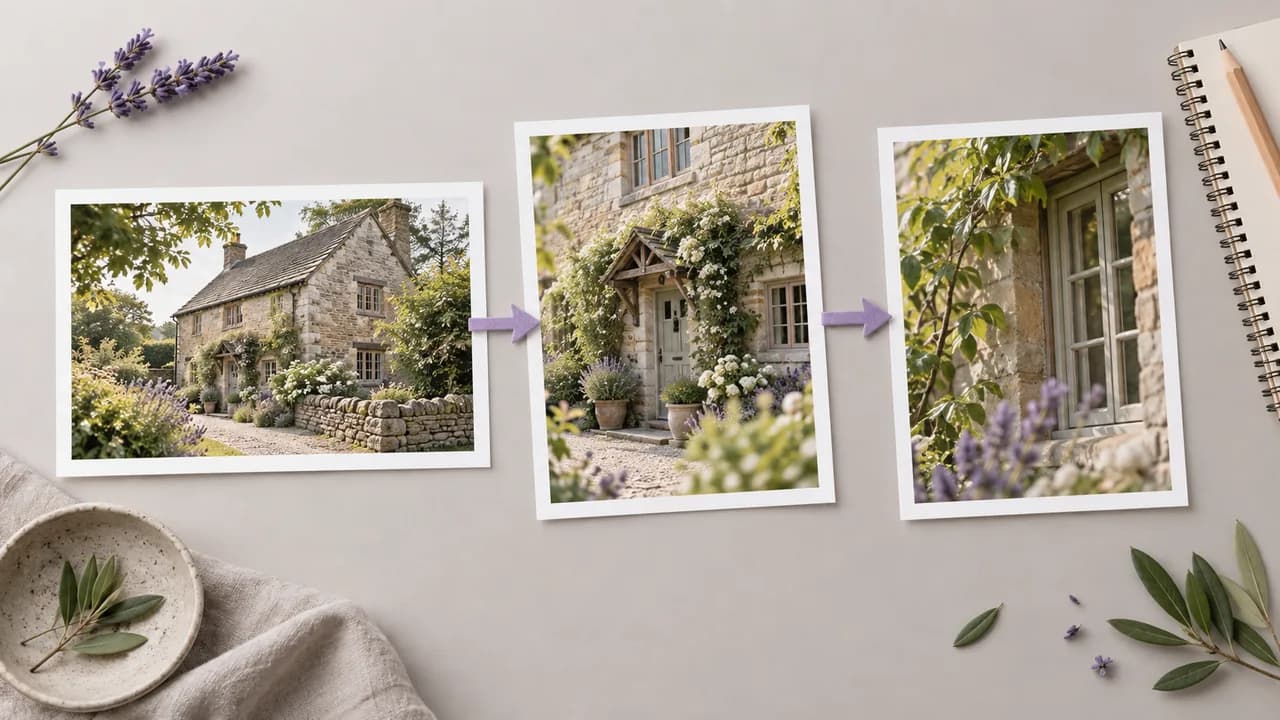
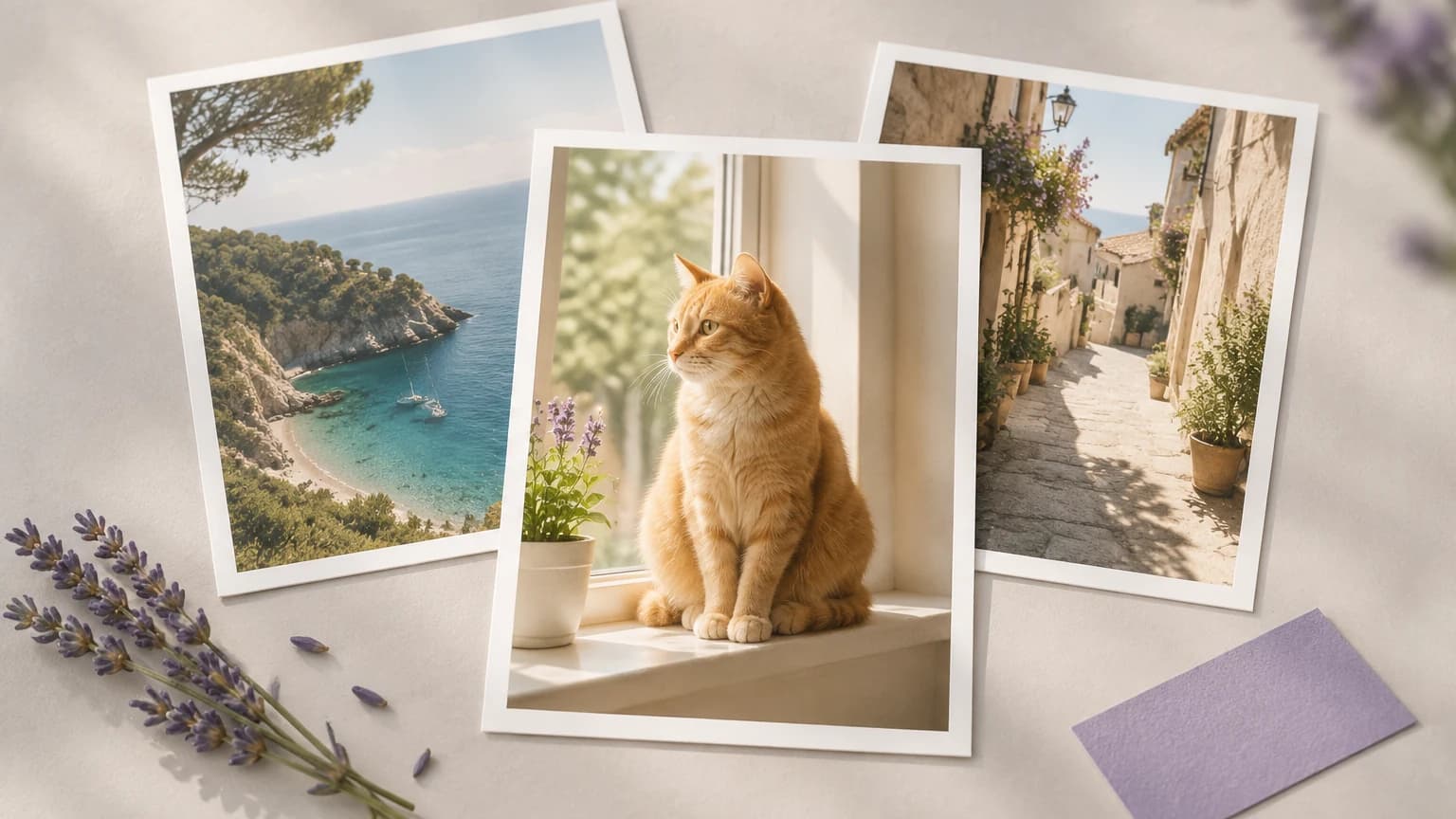
A social team has photographs with different visual tones. Try a proposed treatment on representative images, then decide which results fit the intended feed and which details need correction.
Restyle an image
An episode producer wants a recognizable direction for a series. Keep a written style brief and compare each cover proposal with the established look before accepting it.
Restyle an image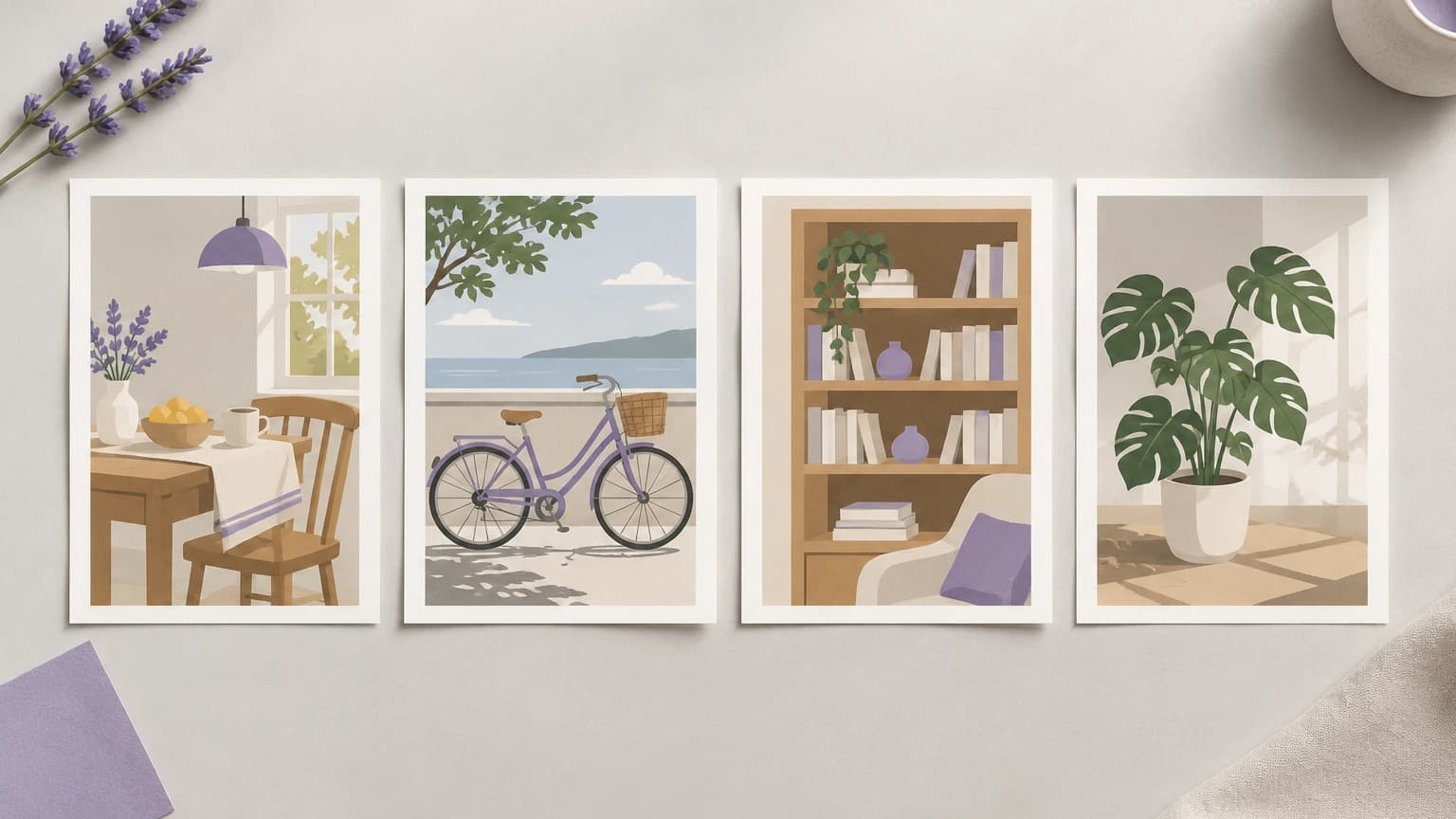
A brand team needs to discuss a proposed treatment before making finished assets. Describe the approved medium and palette, then use sample restyles as discussion material rather than final product evidence.
Restyle an image
An editor wants to explore how a photographed scene might read as an illustration. Compare drawn treatments while checking that the visual interpretation still suits the subject of the article.
Restyle an image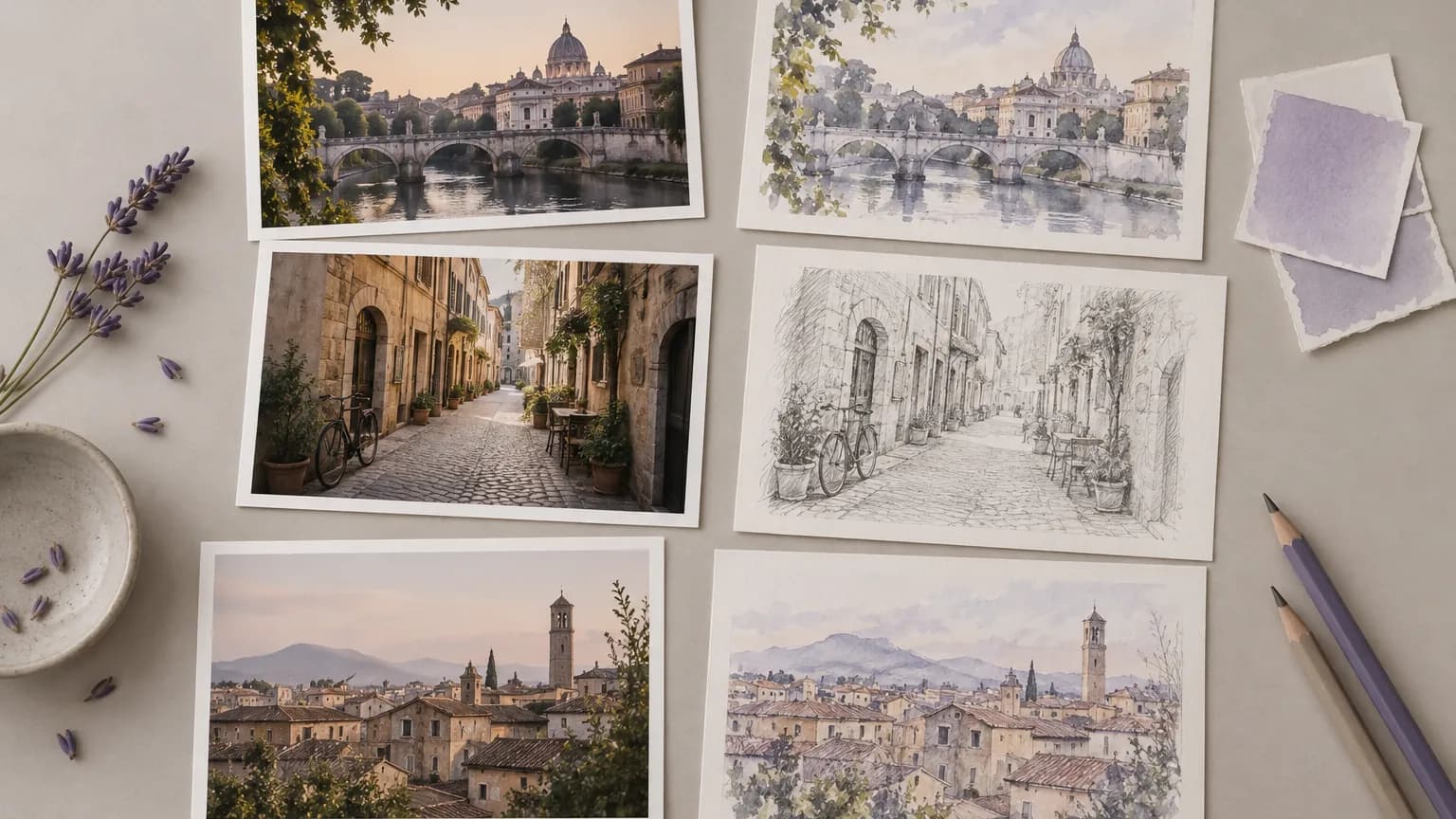
A creative director is weighing visual directions before a shoot. Use existing photos for concept studies, then assess whether the ideas are worth developing in the production brief.
Restyle an image
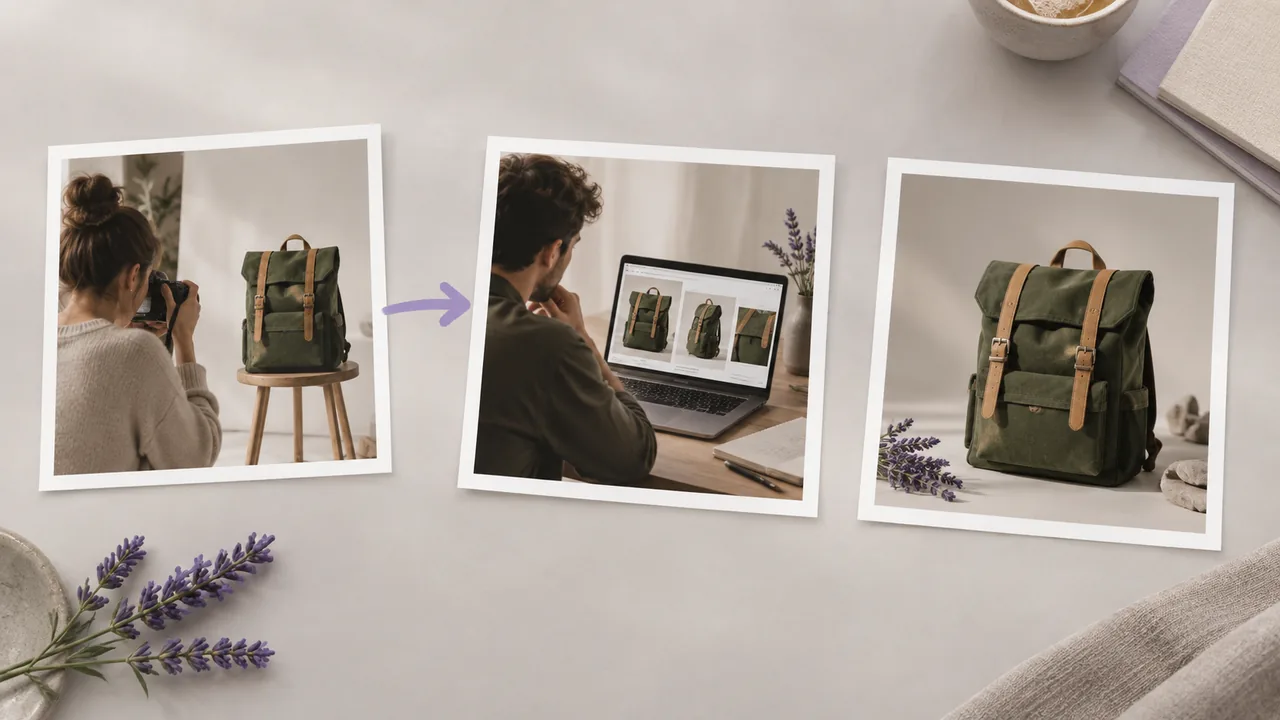
A shop is testing an illustrated campaign treatment. Review packaging, lettering and shape carefully, and distinguish the proposed artwork from photography that documents the real product.
Restyle an image
| Source image | Choose a sample or upload a source image. This form uses an image to guide the restyle. | |
|---|---|---|
| Upload guidance | Follow the accepted-file and size guidance shown by the current upload control. | |
| Output | A square 1K PNG image. This form uses fixed output settings; prepare the final crop and layout separately. | |
| Review priorities | Compare the main subject, composition and lettering with the source image. | |
| Further processing | Upscaling and background removal are separate tasks; this style request does not promise either operation. | |
| Request cost | Check the requirement shown for your account before you start a generation. Current plan details are on the pricing page. | Verified 2026-10-12 |
| Plan options | Astorie lists a free plan with no credit card required. Check current access and allowances for the request you want to make. | Verified 2026-10-12 |
| Commercial use | Paid-plan outputs may be used commercially under the applicable provider terms and input rights. Free-plan generations are for non-commercial evaluation. | Verified 2026-10-12 |
| Uploads and privacy | On standard plans, uploads, prompts and outputs may be used for training. Provider data policies also apply; enterprise opt-out requires a written agreement. | Verified 2026-10-12 |
Explore these image models in separate canvas workflows. Consult each guide for its reference inputs and editing controls before developing another treatment.
AI style transfer creates a new interpretation of a source image in a chosen visual treatment. For example, you can explore how a photo reads as watercolor or a pencil drawing.
Yes, the pricing page lists a free plan without a credit-card requirement. Review the current cost shown in your account before trying a restyle, and see pricing for the included allowance.
Paid-plan generations are eligible for commercial use under Astorie's policy, while provider restrictions and your rights to the source image still apply. Free-plan outputs are for non-commercial evaluation. Check the commercial-rights guide before using a restyle in ads, products or client work.
Describe the features you want to retain and start from a clear source image. Compare the result with the original, paying attention to faces, labels and proportions. Rewording the prompt can guide another attempt, but it cannot guarantee an exact match.
Return to the style form with a source image and one visual idea to explore.