33 Guides

AI How-To Guides

Step-by-step guides for creating images, videos, audio, and more with the best AI models. Each guide includes prompt examples, parameter settings, and expert tips.

Image

How to Generate AI Art & Illustrations

Create professional-quality AI art and illustrations using the best image generation models. Choose a model below for a step-by-step tutorial with optimized prompts.

5 model guidesView

How to Create AI Product Photography

Generate studio-quality product photos without a photoshoot. Choose a model below for tailored prompts and parameter settings.

3 model guidesView

How to Design Social Media Graphics with AI

Design eye-catching social media visuals in seconds. Each guide covers platform-specific dimensions, styles, and prompt techniques for different AI models.

3 model guidesView

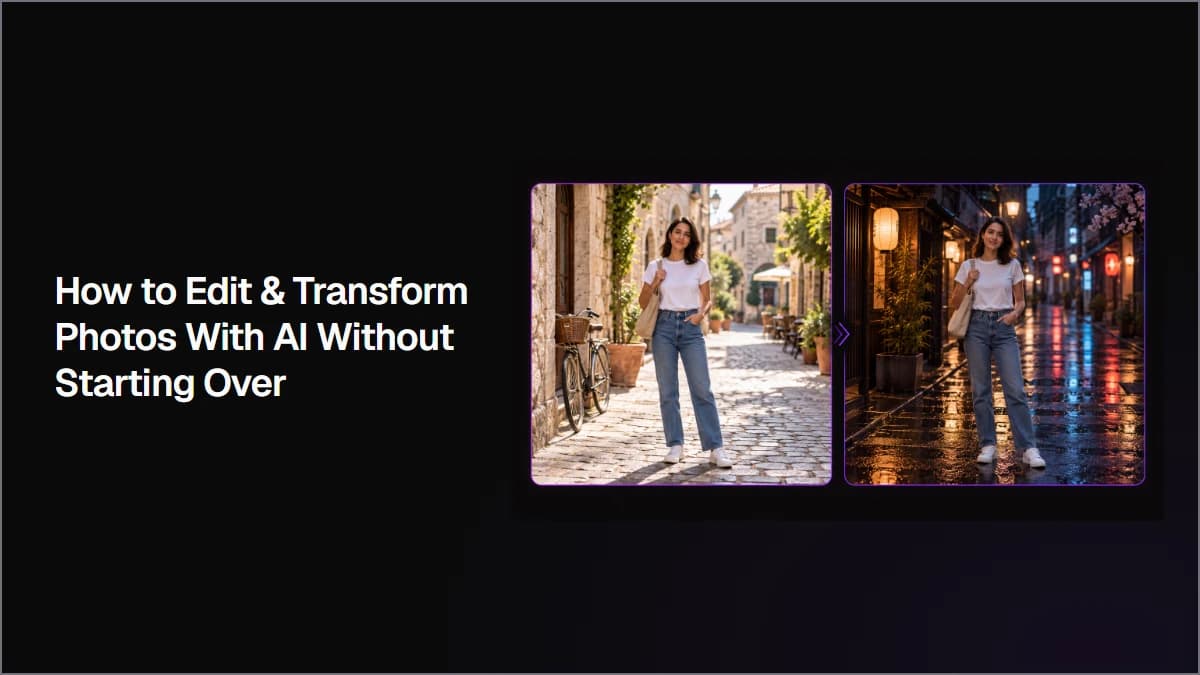
How to Edit & Transform Photos with AI

Edit photos using natural language instructions. Upload an image, describe changes, and let AI handle the rest. Choose a model below for editing-specific workflows.

3 model guidesView

How to Create AI Brand Visuals

A brand designer ships a quarter's worth of social, blog hero, and presentation imagery in one canvas — palette and aesthetic locked across hundreds of generations. On Astorie, build a brand reference (palette swatch + spokesperson portrait + tone-of-voice prompt) once, fan it out into Midjourney, FLUX, and Imagen 4 image nodes, and re-run the canvas every time the campaign brief shifts. Pick a model below to walk through the quarterly brand visual refresh — campaign hero, social posts, blog headers, deck imagery — that stays stylistically aligned without round-tripping through Figma.

3 model guidesView

How to Create AI Ad Creative

A performance marketer fans one concept into 30 ad assets — multiple aspects, copy variants, CTAs — without a Figma round-trip for typography. On Astorie, drop the brief into a reference node, fan out to Ideogram (the only model that handles in-image text reliably), FLUX, and Nano Banana 2 image nodes, then re-run for every platform. Output is a paid social A/B test matrix: 1:1, 4:5, 9:16, 16:9 statics with on-image headlines + 3-5 CTA variants per concept. Pick a model below to walk through the matrix your media buyer is staging tomorrow.

3 model guidesView

How to Generate a Consistent AI Character

A creator builds an AI persona once on Nano Banana 2, then uses Flux Kontext for outfit and scene swaps without losing the face. On Astorie's canvas, anchor a canonical reference portrait, then fan out to Nano Banana 2 (face-locker), Flux Kontext (outfit/scene edits while preserving identity), and Runway Gen4 Image nodes for situational variants. Output is a 12-pose AI influencer character sheet: front/three-quarter/profile portrait, plus wardrobe and location swaps generated from the same anchor. Pick a model below to walk through the canonical-reference workflow your character series depends on.

3 model guidesView

How to Create AI Storyboard Frames

A director drafts a shot list as image nodes laid out left-to-right, then feeds the strongest frames straight into Seedance or Kling for motion tests — the board becomes an animatic. On Astorie's canvas, pin a character reference and a style reference once, then fan 8-12 GPT Image, Midjourney, or FLUX nodes across the canvas, one per panel. Output is a commercial-ready storyboard or short-film pre-viz where every panel reads as one project. Pick a model below to walk through the board-to-animatic flow your client review actually expects.

3 model guidesView

How to Create AI App Store Screenshots

A mobile founder ships pixel-perfect App Store and Google Play screenshots with on-image headline copy and feature callouts — no Sketch, no Figma. On Astorie's canvas, drop a brand reference and a UI screenshot, then fan out to Ideogram (the only model that handles in-image text reliably), GPT Image 1.5, and Nano Banana 2 nodes. Output is 5-8 marketing screenshots at the required Apple and Google dimensions, with localized headlines that render legibly when quoted in the prompt. Pick a model below to walk through the install-converting screenshot set your launch needs.

3 model guidesView

How to Turn an Image Into a 3D World

A concept artist generates a clean interior reference on Nano Banana 2, then turns it into a navigable scene where the camera can orbit and capture matched-angle stills. On Astorie's canvas, drop the reference image into a world node (or chain Flux as an alt-look reference), capture 5-10 angles, and feed each as a starting frame into Sora 2 video nodes for shots that all share the same world. Note: Astorie does not export navigable worlds as glTF or USD — captured stills are the deliverable. Pick a model below to walk through the image-to-world workflow.

3 model guidesView

How to Create a 3D Scene From a Prompt

A director with no concept frame describes a location ("foggy alley at dusk, neon signs, wet cobblestones") and gets a navigable Marble or World Labs scene in minutes. On Astorie's canvas, type the location prompt into a world node, optionally chain a Nano Banana 2 or Flux concept frame in front to strengthen image conditioning (World Labs is weaker on text alone), then capture stills and route them into Sora 2 video nodes. Treat output as a spatial mood board, not a finished mesh export. Pick a model below to walk through the text-to-3D pre-viz workflow.

3 model guidesView

Video

How to Create AI Video Ads

Generate professional-quality video ads without a production crew. Choose a model below for ad-specific prompts, aspect ratios, and pacing tips.

4 model guidesView

How to Animate Still Images with AI

Bring any photo or illustration to life. Upload an image and let AI generate natural motion, camera movements, and cinematic effects.

3 model guidesView

How to Generate AI Music Videos

Produce music video visuals without a film crew. Generate cinematic scenes, abstract visuals, or narrative sequences that match your track's mood and tempo.

2 model guidesView

How to Create AI Talking Head Videos

Create natural-looking talking head videos by syncing audio to a portrait. Choose a lipsync model below for workflow-specific guidance.

3 model guidesView

How to Create AI Product Videos

A DTC founder takes one legal-approved product still and ships paid-social-ready video the same afternoon: a hero spin, a lifestyle insert, and a tight detail loop. Astorie's canvas turns that shot list into one workflow — drop the product image into a reference node, fan out to Seedance 2, Runway Gen4 Turbo, or Hailuo 02 image-to-video nodes, and render 1:1, 9:16, and 16:9 cutdowns from the same source. Pick a model below to walk through the SKU launch flow your performance marketer is actually expecting.

3 model guidesView

How to Create an AI Short Film

An indie filmmaker drafts a 3-5 shot narrative short on the canvas — same protagonist, same world — over a weekend, before booking any crew. Use Astorie's storyboard generator to lock a character reference, fan out shot frames to Sora 2, Kling 3, or Google Veo 3.1, and chain last-frame to first-frame so cuts read as one continuous scene. The result is a festival-bound pre-viz reel cinematic enough to greenlight the production round. Pick a model below to walk through the workflow that fits your script.

3 model guidesView

How to Create Multi-Shot AI Videos

A brand video team builds a wide → close-up → reverse sequence where the spokesperson is the same person on shot one and shot eight. Lighting holds, location holds, character holds. Drop a reference portrait into the canvas, fan out 5-8 shot prompts to Sora 2 Pro Storyboard, Kling 3 multi-shot, or Seedance 2 nodes, then chain the timeline straight into NLE export. Pick a model below to walk through the multi-cut sequence your editor will not have to re-time once it lands in Premiere or Resolve.

3 model guidesView

How to Extend AI Video Clips

An editor inherits a 5-second AI clip that needs to be 12 seconds for the cut — extend it without re-prompting from scratch. On Astorie's canvas, drop the original clip into a video-to-video node, chain Pixverse Extend, Wan 2.6, or Runway Aleph downstream, and tail the new motion into the rest of the timeline. The result is an approved hero shot lengthened to fit a 15-second ad, or a B-roll insert seamlessly looped — all without losing the look of the original. Pick a model below to walk through your extension flow.

3 model guidesView

How to Edit Existing Video With AI

A brand team has source footage that needs reskinning for a seasonal campaign — preserve motion and timing, swap the look. On Astorie's canvas, route the source clip into Runway Aleph for camera-faithful style transfer, Wan VACE Video Edit for reference-driven re-renders, or Kling O3 Video Edit for character/scene swaps. Each model preserves the original timing so cuts line up with your existing edit. Pick a model below to walk through the seasonal restyle, character swap, or template re-render your campaign actually needs.

3 model guidesView

How to Create AI Videos With a Reference Character

An AI influencer producer keeps "Mia" identical across a 12-week content series — same face, jaw, hairline shot to shot. On Astorie's canvas, pin a character sheet to a reference node, then fan out to Vidu Q2 Subject Ref (1-7 reference images), Kling O3 Reference, or Seedance 2 Omni nodes. Each video clip pulls from the same identity anchor so the AI talent reads as one person across episodes, fashion looks, and locations. Pick a model below to walk through the recurring spokesperson or AI influencer build your content calendar already depends on.

3 model guidesView

How to Use a 3D World for Video Shots

A cinematographer captures matched-angle stills from a Marble or World Labs scene and feeds each as a starting frame into a Sora 2, Kling 3, or Runway Gen4 video node — the camera moves change, the world doesn't. On Astorie's canvas, build a five-shot sequence (wide → medium → close-up → reverse → tag) where the location reads as one space across cuts. The world is the spine; each video clip is a derived take. Pick a model below to walk through the spatial-reference video shot workflow.

3 model guidesView

Audio

How to Generate AI Background Music

Generate custom music tracks that fit your project perfectly. Describe the mood, genre, and tempo — AI handles the composition.

2 model guidesView

How to Create AI Voiceovers

Generate studio-quality voiceovers in any language. Type your script, pick a voice, and generate natural-sounding narration in seconds.

2 model guidesView

How to Clone a Voice With AI

A podcaster or course creator clones their own voice from a 30-second sample, then generates new narration without re-recording. On Astorie's canvas, drop a clean reference clip into an audio node, route it into ElevenLabs Voice Cloning, Fish Audio S2-Pro voice cloning, or Minimax Voice Design, and chain the cloned voice into downstream script-to-speech, dubbing, or lip-sync nodes. Use this for founder-voice training narration, course modules, or localizing existing video. Only clone voices you own or have permission to use. Pick a model below to walk through the cloning workflow.

2 model guidesView

How to Create an AI Podcast Intro

A podcast host commissions a 12-second branded intro — voice tag plus 6-second music bed plus whoosh transition — entirely on the canvas without hiring an audio producer. On Astorie, drop a script into an ElevenLabs Eleven v3 voice node, generate a matching theme via Suno V5 or Minimax Music, then chain Sound Effects v2 for transitions and route everything into the audio mixer. Output is a weekly show intro and outro with TTS host name, theme music in the right genre, and SFX transitions. Pick a model below to walk through the show-bumper workflow.

2 model guidesView

How to Generate AI Dialogue

An animation team scripts a 4-character scene — natural turn-taking, distinct voices, emotion tags — without booking voice actors. On Astorie's canvas, set up a script node with speaker turns, route it through ElevenLabs Eleven v3 Dialogue (the dedicated multi-speaker endpoint), Fish Audio S2-Pro multi-speaker, or Minimax Speech, and use inline tags like [whispers], [laughs], [excited] for emotional delivery. Output is dialogue ready for a multi-character animated short, audio drama, or interactive prototype. Pick a model below to walk through the multi-speaker production flow.

2 model guidesView

How to Create AI Sound Effects for Video

A video editor lays whoosh, impact, ambience, and UI sounds over an AI-generated cut so it stops sounding like a silent draft. On Astorie's canvas, route the locked picture into Hunyuan Foley for video-to-audio Foley, or feed concrete prompts into ElevenLabs Sound Effects v2 ("close metallic door slam in narrow concrete hallway, short reverb"). Stack a Minimax Music atmospheric bed underneath, then mix everything into the timeline before NLE export. Pick a model below to walk through the final sonic pass on a 30-60 second product or narrative video.

2 model guidesView

Tools

How to Upscale Images to 4K with AI

Enhance image resolution up to 4x without losing detail. Choose an upscaler below for model-specific tips and quality comparisons.

2 model guidesView

How to Upscale AI Video to 4K

An editor takes a softly rendered Sora, Seedance, or Kling clip and ships a 4K master to YouTube or broadcast — without regenerating the shot. On Astorie's canvas, route the locked clip into the video-upscale tool node downstream of the original generator (Seedance 2, Sora 2, or Kling 3), set 2x for safe defaults and 4x only on hero shots. Stack sparingly: one 2x pass beats stacking 2x then 2x. Final pass before NLE export. Pick a model below to walk through the upscale flow paired to your source generator.

2 model guidesView

How to Remove Backgrounds From Images

Get pixel-perfect background removal in one click — product photos, portraits, logos, and complex scenes. Ecommerce ops gets clean PNG cutouts of every SKU for the PDP, then composites them onto AI-generated lifestyle scenes without a photographer. On Astorie's canvas, route the still through Bria RMBG for a precise alpha cutout, hand the cutout to Nano Banana 2 or Flux Kontext for a chained edit (drop the subject onto a generated lifestyle background), then pass into a video node for animation. The deliverable is marketplace-ready cutouts plus AI lifestyle composites. Pick a model below to walk through the cutout-to-composite pipeline.

3 model guidesView

How to Sync Lips to Audio With AI

A marketer takes a brand spokesperson portrait + ElevenLabs-generated script and ships a 30-second talking-head ad with no on-camera talent. On Astorie's canvas, route the portrait into a lip-sync tool node, send the audio track from ElevenLabs Eleven v3 alongside, and pick Kling Avatar (tight talking head), OmniHuman (presenter with gesture and torso), or Kling O3 Video Edit for restyle. Most lip-sync models cap at 30-60 seconds per call, so chunk longer scripts. Pick a model below to walk through the UGC explainer or dub workflow.

2 model guidesView

How to Extract Frames From AI Video

A director pulls the strongest frame from a 5-second AI video clip and uses it as the reference image for the next shot in the sequence. On Astorie's canvas, route the source clip (Seedance 2, Kling 3, etc.) into the frame-extraction tool node, scrub to the chosen timestamp, then chain the extracted still into a Nano Banana 2 image edit or directly into the next video node as a starting frame. Output is a reference-locked frame for next-shot starting frames, image-edit chains, or hero stills from approved video takes. Pick a model below to walk through the frame harvest workflow.

2 model guidesView