

Lesson introductions
Prepare a short talking-head segment to introduce a lesson. Keep the speech focused and review it beside the learning material.
Astorie canvas workflow
Bring a portrait and speech audio to a compatible avatar model on the canvas. Choose the model, inspect its inputs and review the resulting clip. The illustration shows the workflow; it is not a playback demo.
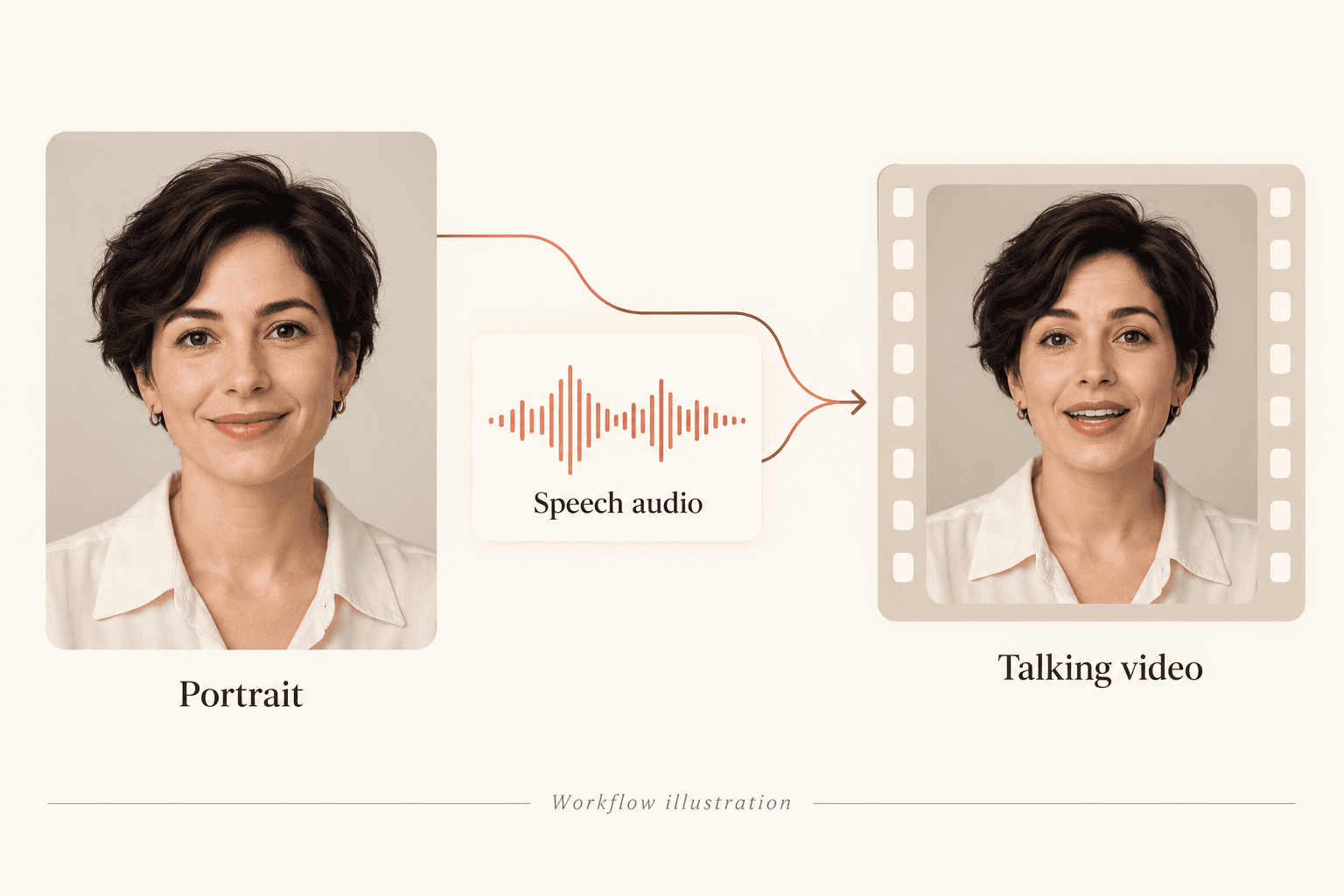
Use a clear single-person portrait with an unobstructed face. Obtain the necessary permission before using a recognizable person.
Use an appropriate speech recording or a separate speech-generation workflow. Review the pronunciation, pace and audio quality before using it to drive the portrait.
Choose a compatible talking-avatar model and provide the portrait and audio using its current input controls. Check its limits and credit requirement before running.
Watch and listen to the result. Check mouth motion, facial details, timing and unwanted movement; revise the input or request another take where needed.
Prepare a short talking-head segment to introduce a lesson. Keep the speech focused and review it beside the learning material.
Use a permitted presenter portrait and approved speech to explore an introduction. Review any product or brand claims before distribution.
Reuse an approved portrait as a reference for later requests. Compare every new take; the same input does not guarantee identical appearance or motion.
| Input | A portrait and speech audio, subject to the chosen avatar model requirements. | |
|---|---|---|
| Output | A generated talking-head video requiring visual and audio review. | |
| Where it runs | The native Astorie canvas; this page does not replace the model input controls. | |
| Model differences | Supported formats, duration, language handling and costs vary. Read the active model details before generating. | |
| Identity and voice | Use material you have permission to use. Voice cloning is not a required step in this workflow. |
No. A portrait is a still image. A talking-avatar request also uses speech audio in a compatible canvas workflow to generate video.
Use a recording you have permission to use, in a format accepted by the chosen model. Check the current input requirements and review the recording before generation.
No exact-match guarantee applies. Inspect lip sync, facial details, expression and timing throughout the generated clip.
Those limits depend on the selected model and settings. Check the current model details instead of assuming one fixed output for every avatar request.
Bring a clear portrait and reviewed speech audio to the canvas.