

AI camera control
Explore a camera move from an image
Try the studio starting frame or upload your own image, then choose a motion prompt. The arrows illustrate motion direction; they are not a measured camera path or a video preview.
What this tool does
Camera language describes how you want the viewpoint to move in a generated clip. A slow push can bring attention toward the subject; a pan can explore a scene; a pull-out can suggest more surrounding space. Treat the description as a creative request, not a measured virtual-camera path.
The inline tool accepts a starting image and an editable motion prompt. It does not expose a numeric camera trajectory, lens setting or guaranteed duration. Model interpretation can change subject details or geometry, so inspect the whole clip before using it.

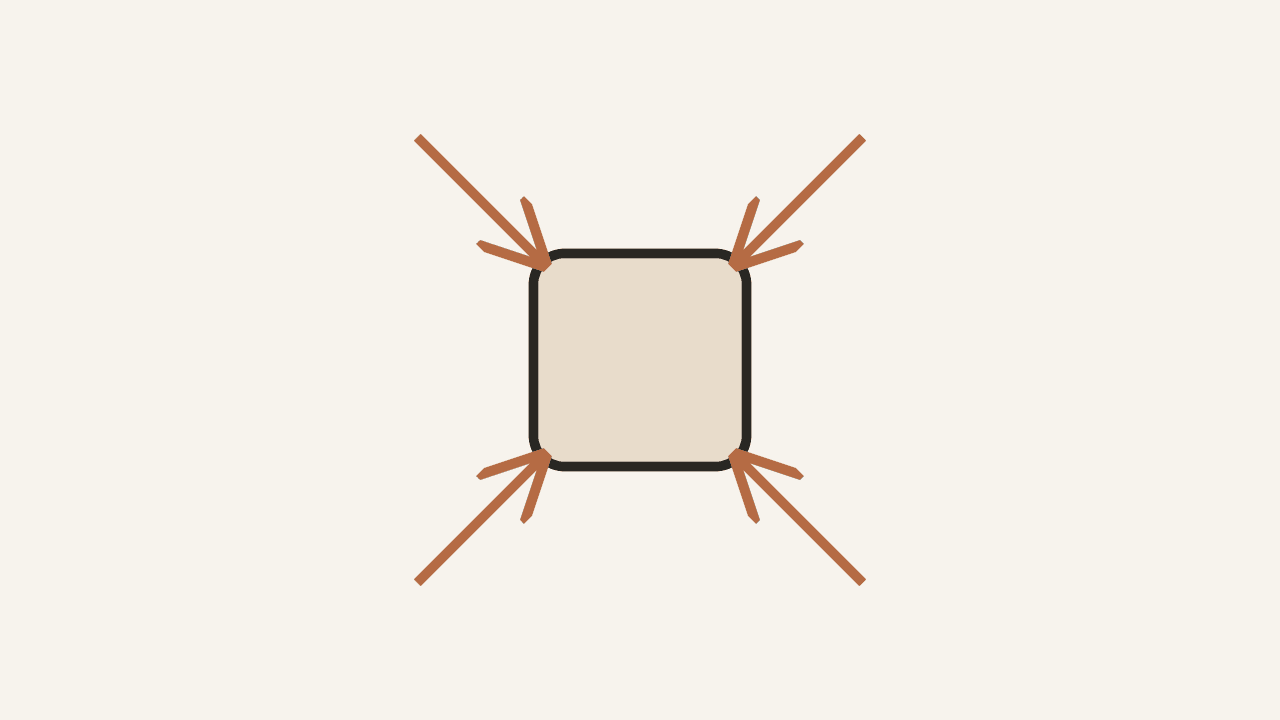
Choose a movement to describe
These diagrams explain prompt direction. The model interprets the request; exact paths, speed and framing are not guaranteed.


When to use it
Explore a gentle push toward a subject in a still composition.
Try a slow pan to study how a scene might read in motion.
Request a restrained pull-out for an opening or closing shot idea.
Compare alternative motion requests from the same starting image.
Develop a rough motion reference for a storyboard discussion.
Generate separate shot ideas, then review how they fit into your intended sequence.
How to use it in Astorie
Choose a clear starting image and a single shot intention. Identify the subject and the part of the composition you want the viewer to notice.
Add the image through Starting frame (required). Select a starting prompt or write one camera-move request in Describe the camera move.
Keep the request focused. Describe the direction and a restrained pace without contradictory instructions such as a static shot and a push-in at the same time.
Select Generate camera-move video and inspect the result in the canvas. Review movement, subject details and background changes; simplify or revise the request if the interpretation does not fit.
Explore separate video model workflows
These guides describe models available in separate canvas workflows. They do not identify the model or controls used by the inline tool above.
sora-2
video
Read the current model guide for its supported inputs, motion behavior and available settings. Review the actual node before planning a shot.
kling-3
video
Read the current model guide for its supported inputs, motion behavior and available settings. Review the actual node before planning a shot.
runway-gen4
video
Read the current model guide for its supported inputs, motion behavior and available settings. Review the actual node before planning a shot.
google-veo
video
Read the current model guide for its supported inputs, motion behavior and available settings. Review the actual node before planning a shot.
Troubleshooting
The move feels too fast: request gentler motion and simplify the shot description.
The subject changes during the move: use a clearer starting frame and reduce competing action requests; review the next take rather than assuming identity is locked.
The background distorts: try a smaller, simpler motion request and check whether the scene has enough clear visual structure.
Several moves compete: request one main motion per clip and compare the takes separately.
The move differs from the request: remove conflicting prompt language and try a revised description. Generative interpretation is not precise camera tracking.
Frequently asked questions
Are these precise camera controls?
No. The inline tool uses an image and a motion prompt. It does not provide a measured trajectory, numeric camera speed or exact lens control.
Can I combine several moves?
Start with one clear motion request. If you need a push followed by a pan, consider separate takes and review how the shots work together.
How do I compare moves across shots?
Use clear starting images and consistent descriptions, then inspect the generated movement in each take. Matching wording does not guarantee identical timing or geometry.
Does this use a starting image?
Yes. Add the image through Starting frame (required), then describe the motion you want to explore. Review both the subject and background throughout the clip.
What if the result ignores my request?
Remove contradictory instructions and simplify the motion. Check the next take against your intended shot; the output remains a generative interpretation.
Related docs
Related AI Tools
Explore these separate finishing tools when your project needs them.
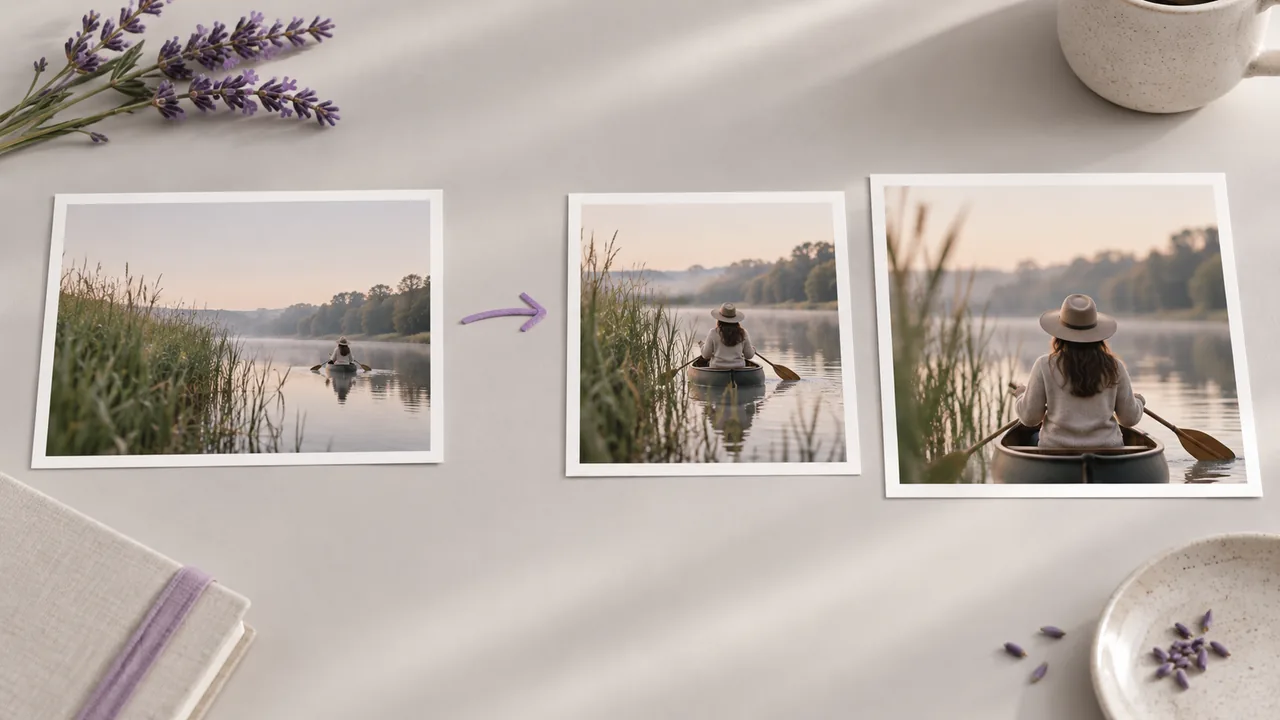
AI Video Upscaling
Open the dedicated tool and check its current input requirements and output settings before using it.
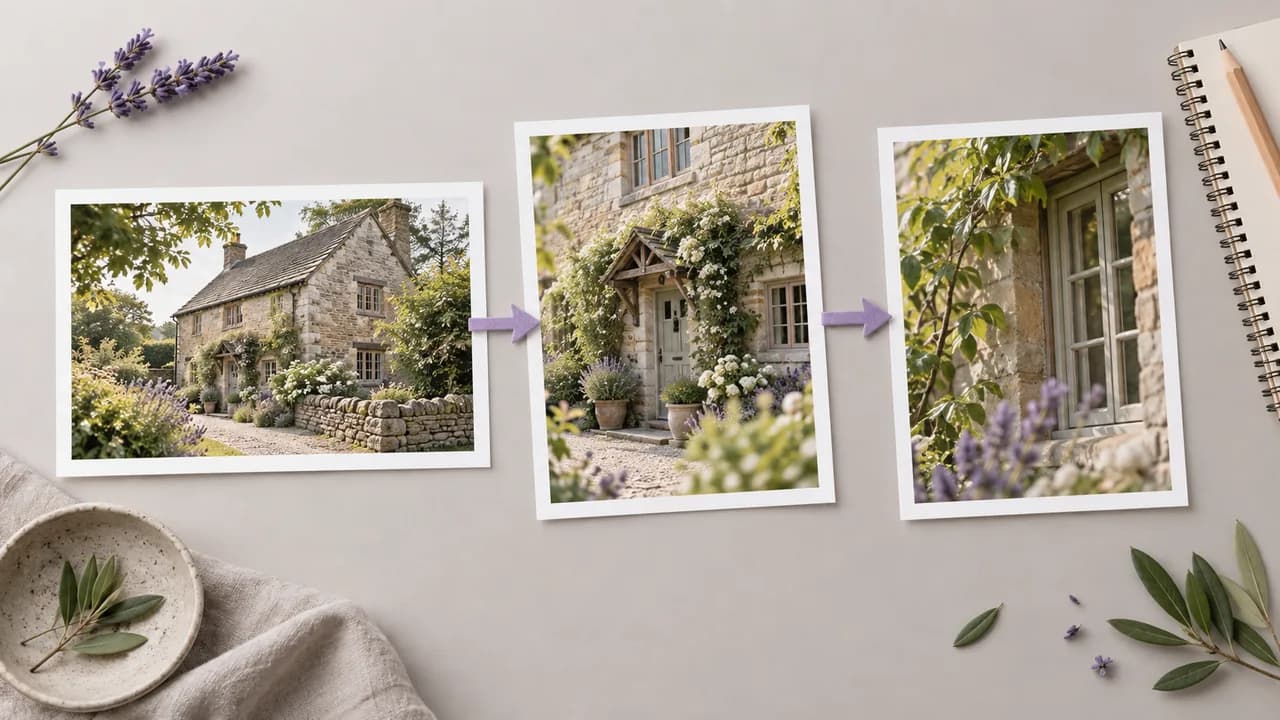
AI Image Upscaling
Open the dedicated tool and check its current input requirements and output settings before using it.
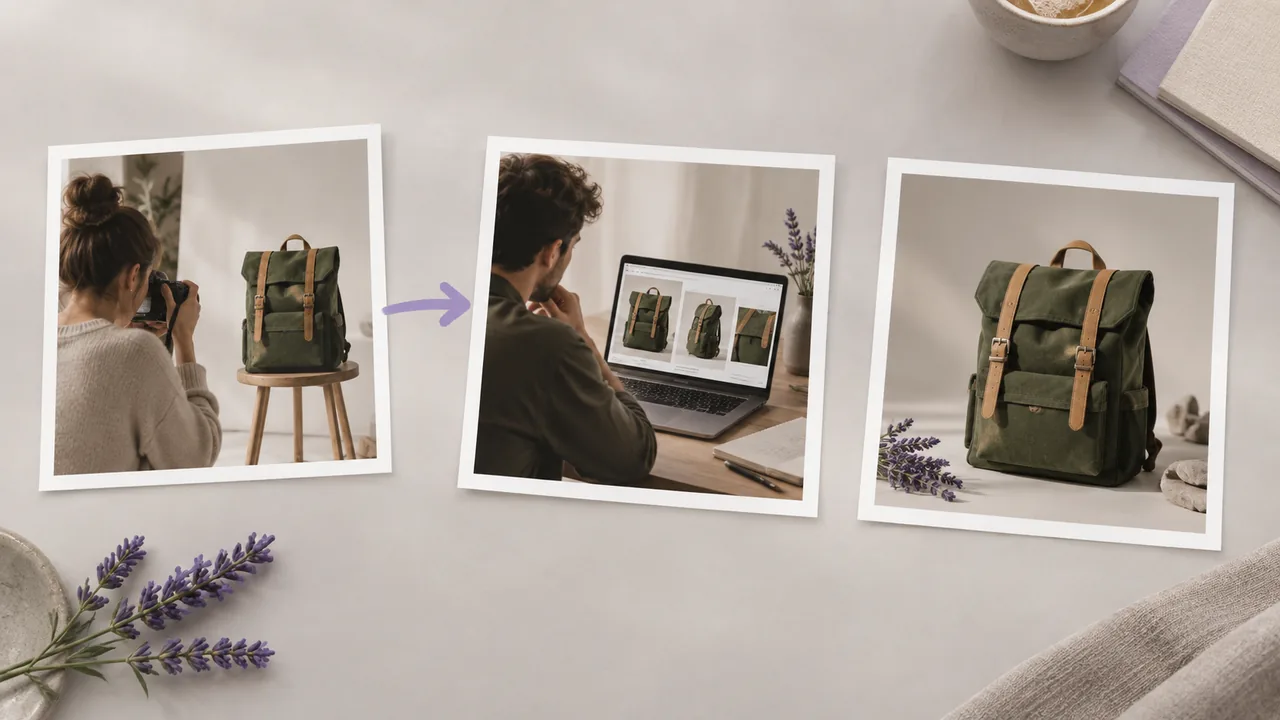
AI Background Removal
Open the dedicated tool and check its current input requirements and output settings before using it.
Explore one clear camera move
Start with an image and a focused motion request, then review the complete generated take.