Separate visual ingredients
A vase and a flower reference
- Use the glass vase as the main object.
- Use the sunflowers for the floral arrangement.
- Describe one shared viewpoint and lighting treatment.
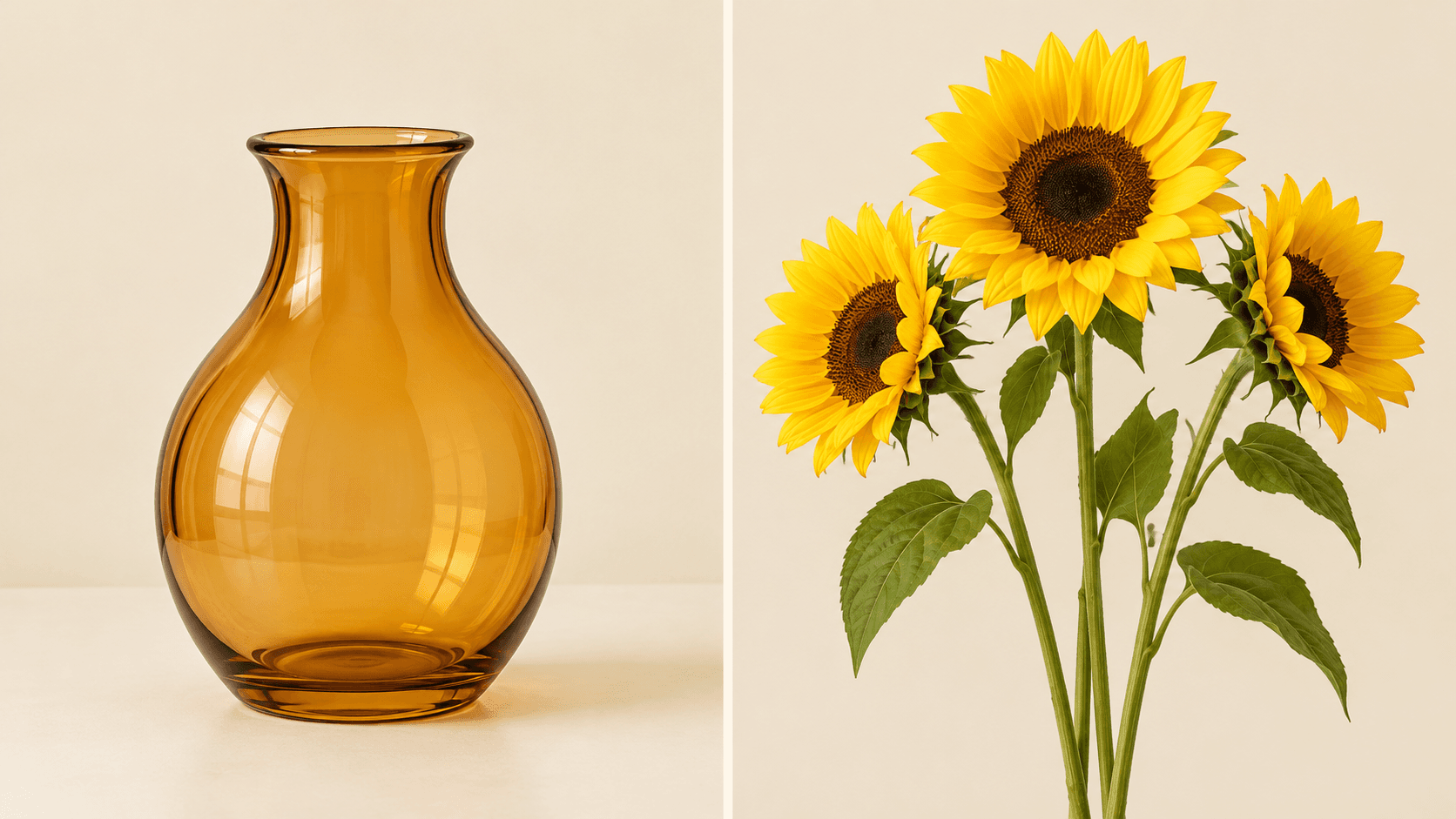
Choose a board containing separate pictures and describe how they should combine. This demo accepts one board image; use Open multi-image canvas below to work with separate uploads.
Decide what to take from each source, then review whether the new scene combines those ideas clearly. Page images are Image Gen concept illustrations, not verified outputs from this Astorie generator.
A vase and a flower reference
Review how the ingredients fit
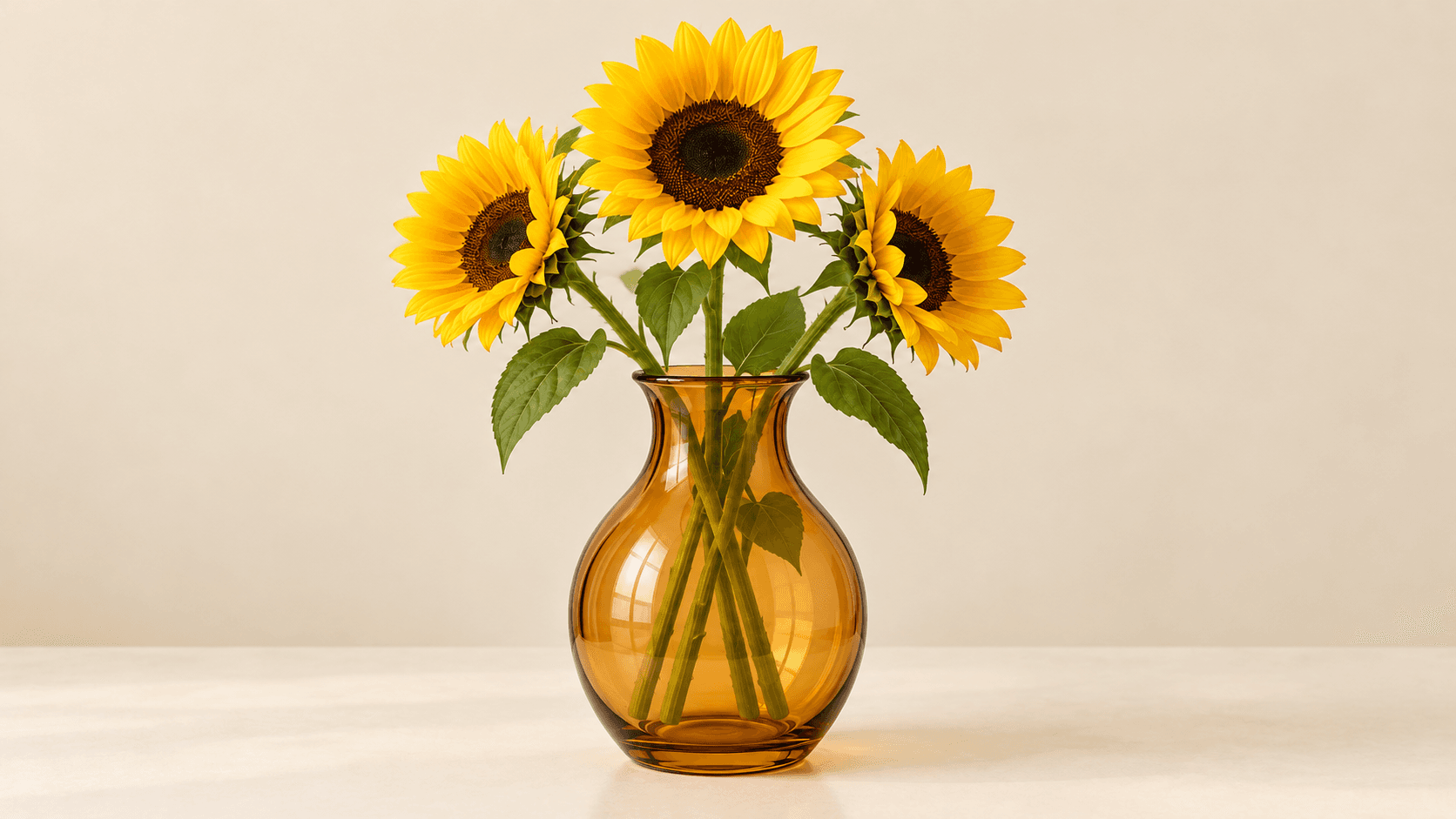
These steps use the one-board demo. For separate source files, open the canvas and follow the Image Node guide.
Choose a sample board or arrange your pictures in one clearly separated board and upload it. Keep each source readable and identify its role in the prompt.
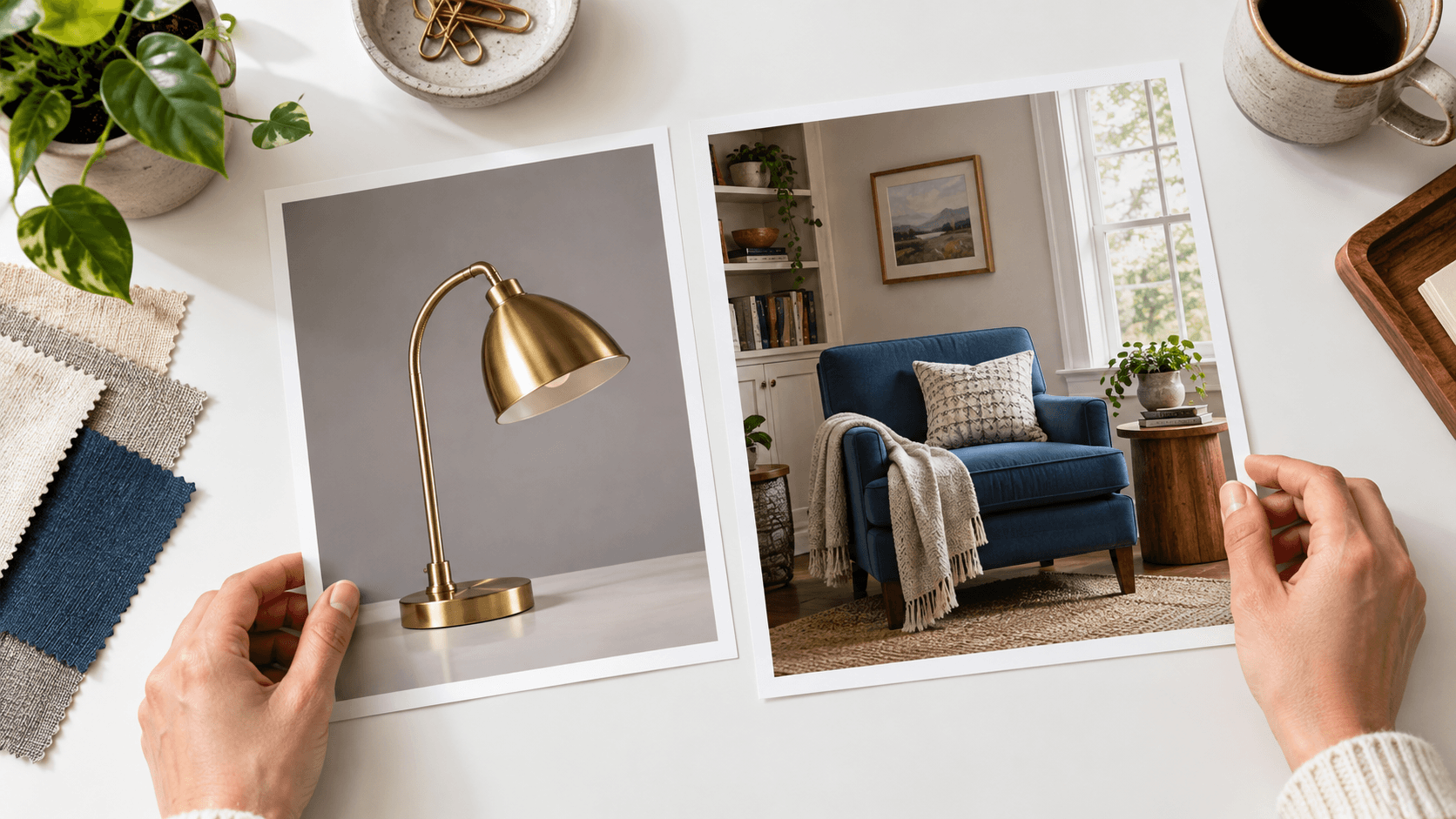
Choose Place in scene or Warm atmosphere. Edit Describe your blend to identify the subject, setting, visual style and details that should carry through.
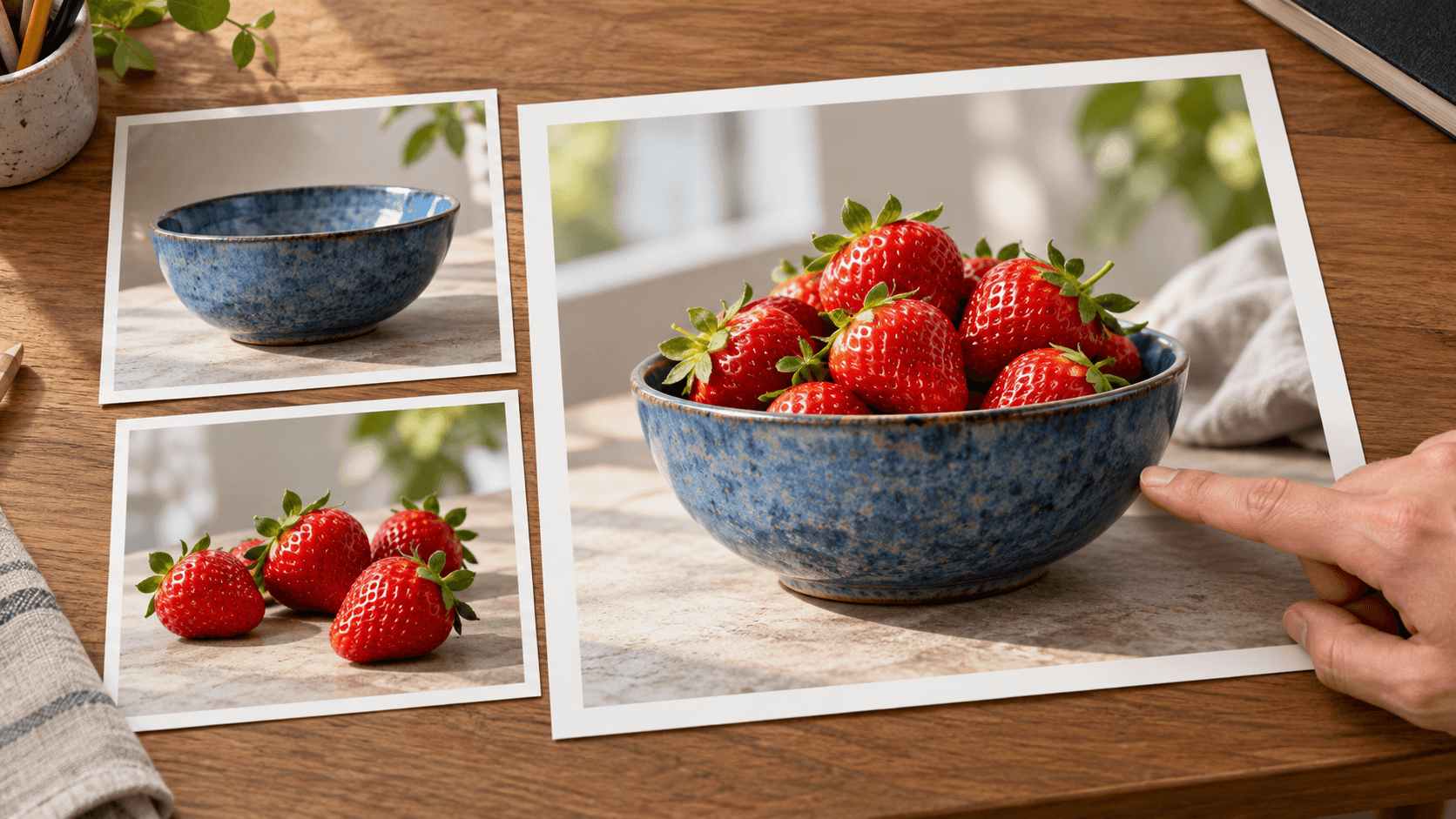
Select Generate blend and sign in if prompted. Compare the new scene with every source element for shape, placement, perspective, light and important details.
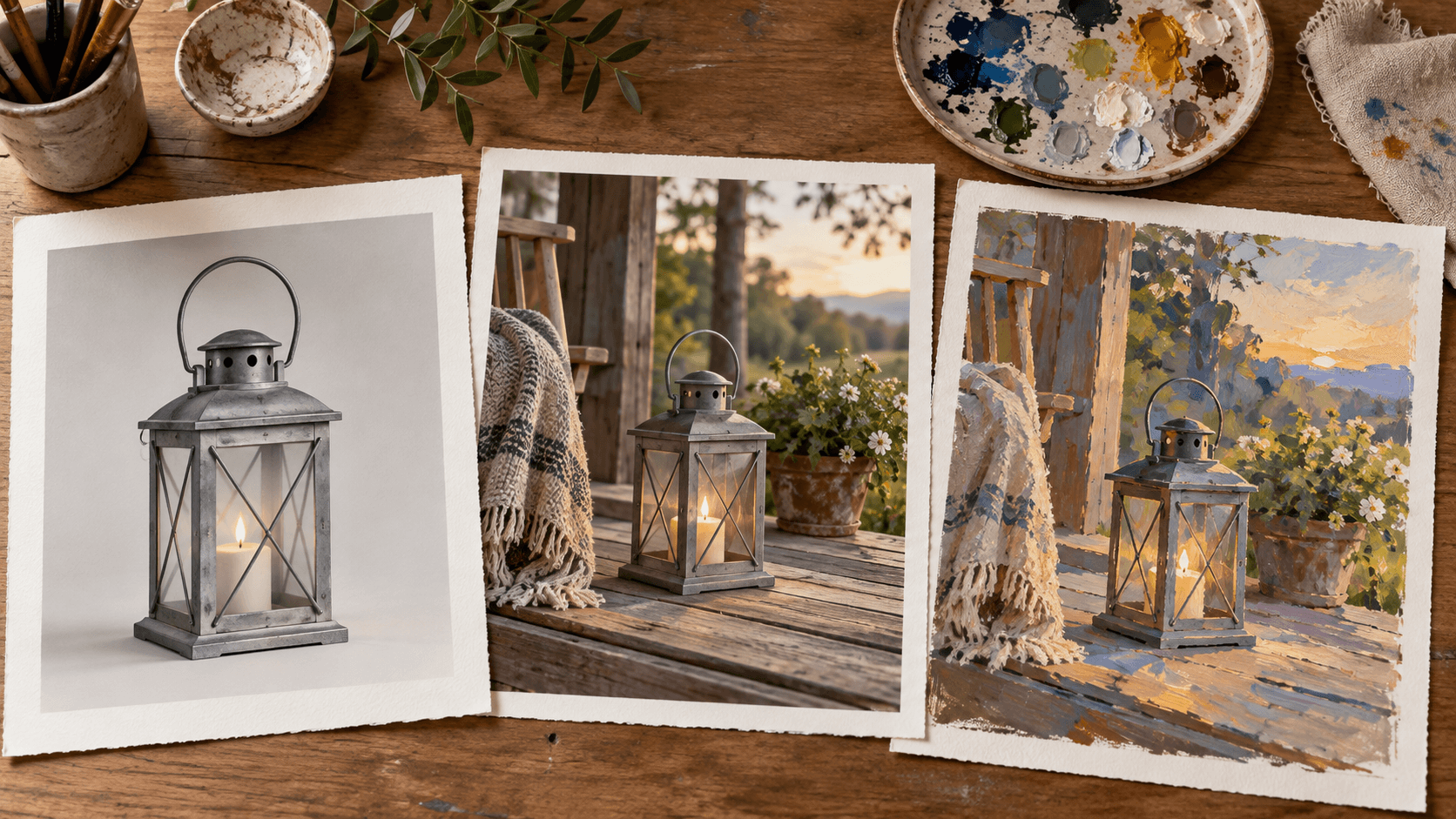
A clear role for each picture helps define the combination. These are creative requests to inspect, not exact blend controls.
Identify the object or figure that should remain the focal point. Ask for its important shapes and colors, then check the actual result.
Try a board blendUse another picture for the environment. Describe where the subject belongs and compare its scale and perspective with the scene.
Try a board blendRequest a shared light direction and softness. Inspect highlights, reflections and contact shadows for conflicts between the source ideas.
Try a board blendUse a painted treatment when the goal is an illustration. Name which source shapes matter as surface details become simpler.
Try a board blendChange one relationship at a time, such as subject size or placement. Keep the original references available while comparing new candidates.
Try a board blendSign in and open or create a canvas project to supply separate source images to a compatible Image node. Reference support depends on the model; this demo uses one board.
Open multi-image canvasAdapt these suggested combinations to references you have permission to use. Name each source’s role rather than asking the model to guess.
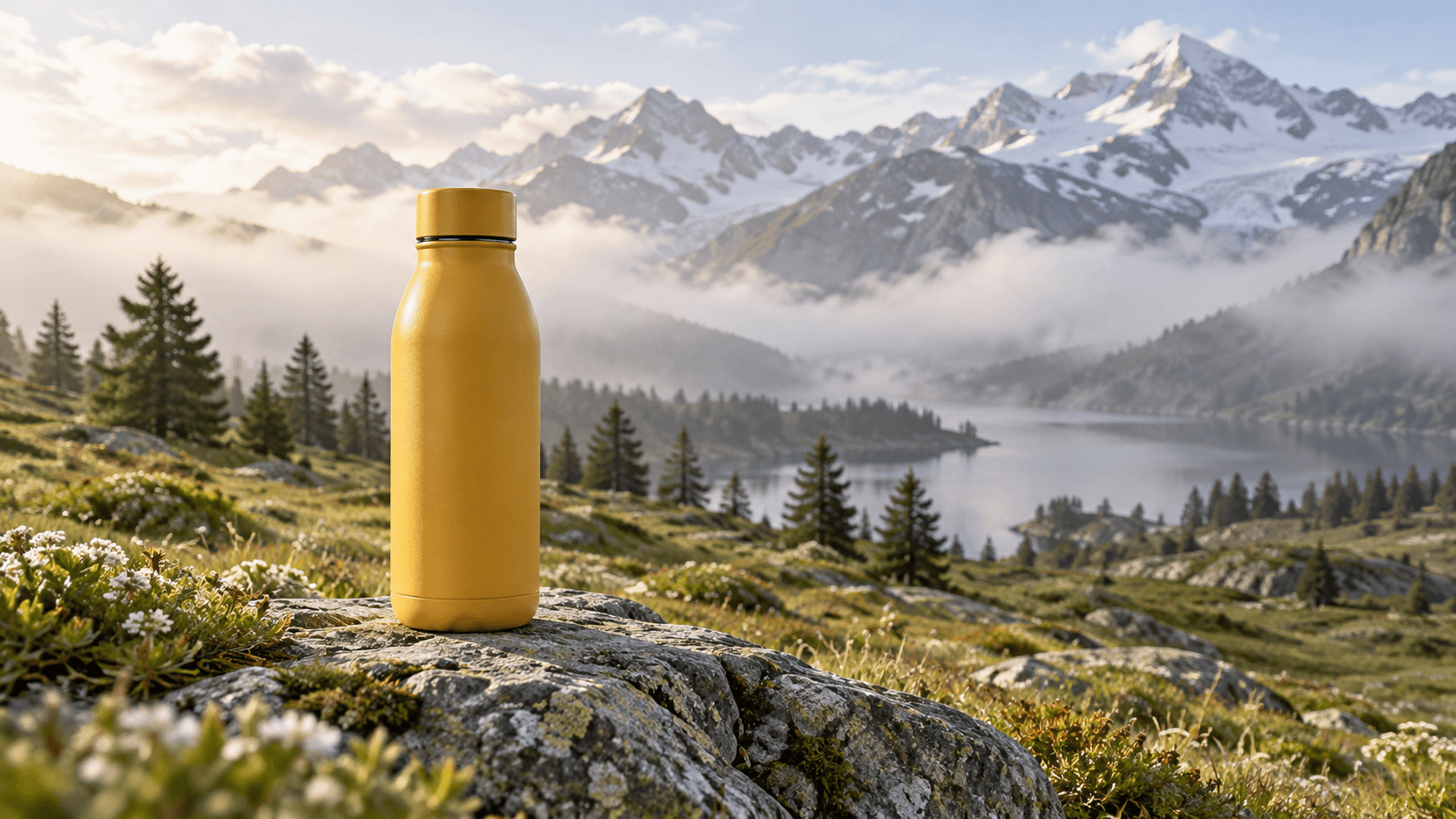
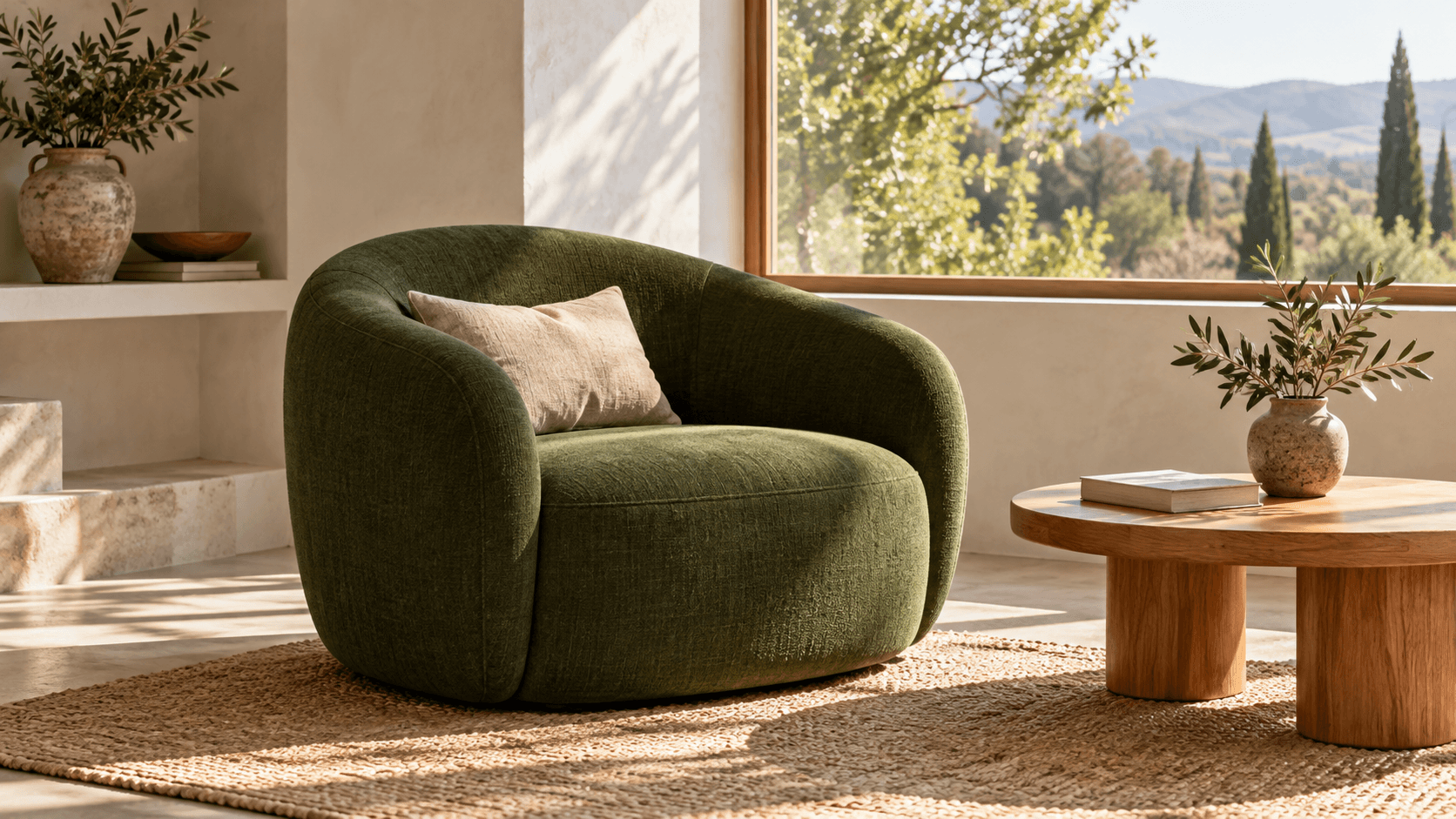
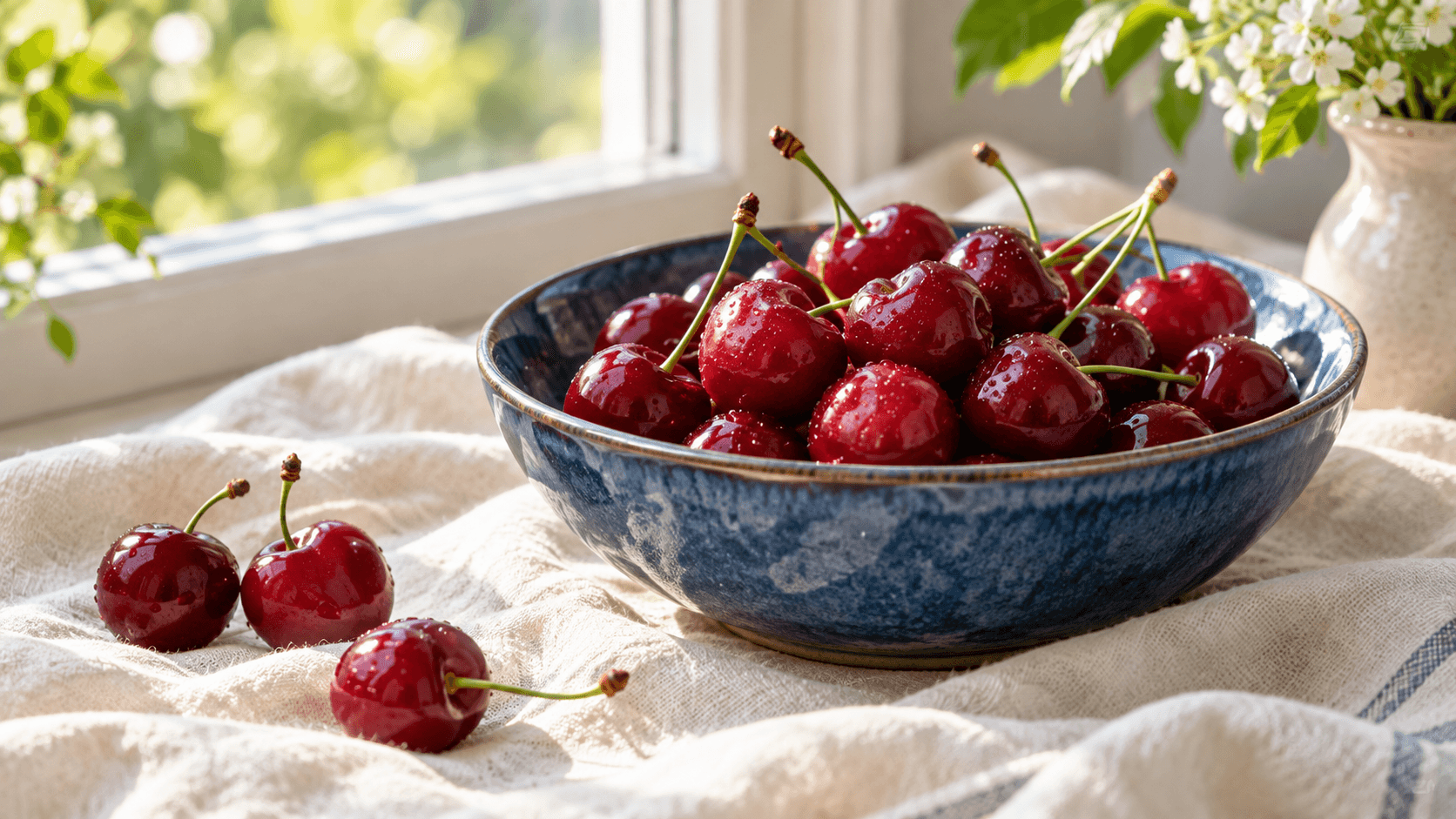
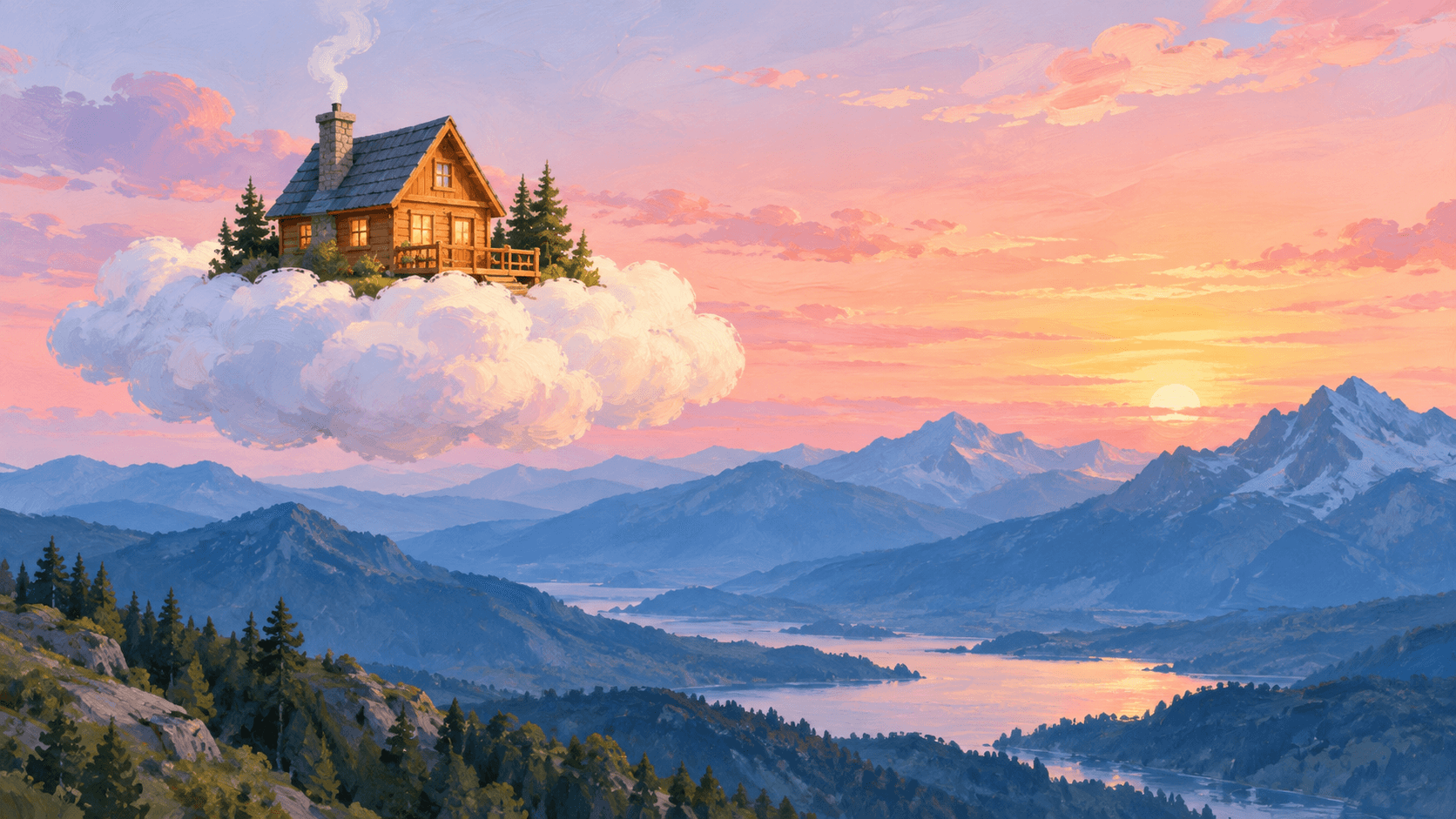
Use the combination to explore a visual direction, then assess it against the details that matter for the final placement.
Explore how a selected object might sit in a new environment. Review color, proportions and commercially important details before moving the candidate into a design.
Explore a blend
Combine a decorative object with a room reference to discuss a possible arrangement. Review scale and spacing; a generated study is not a measured room plan.
Explore a blend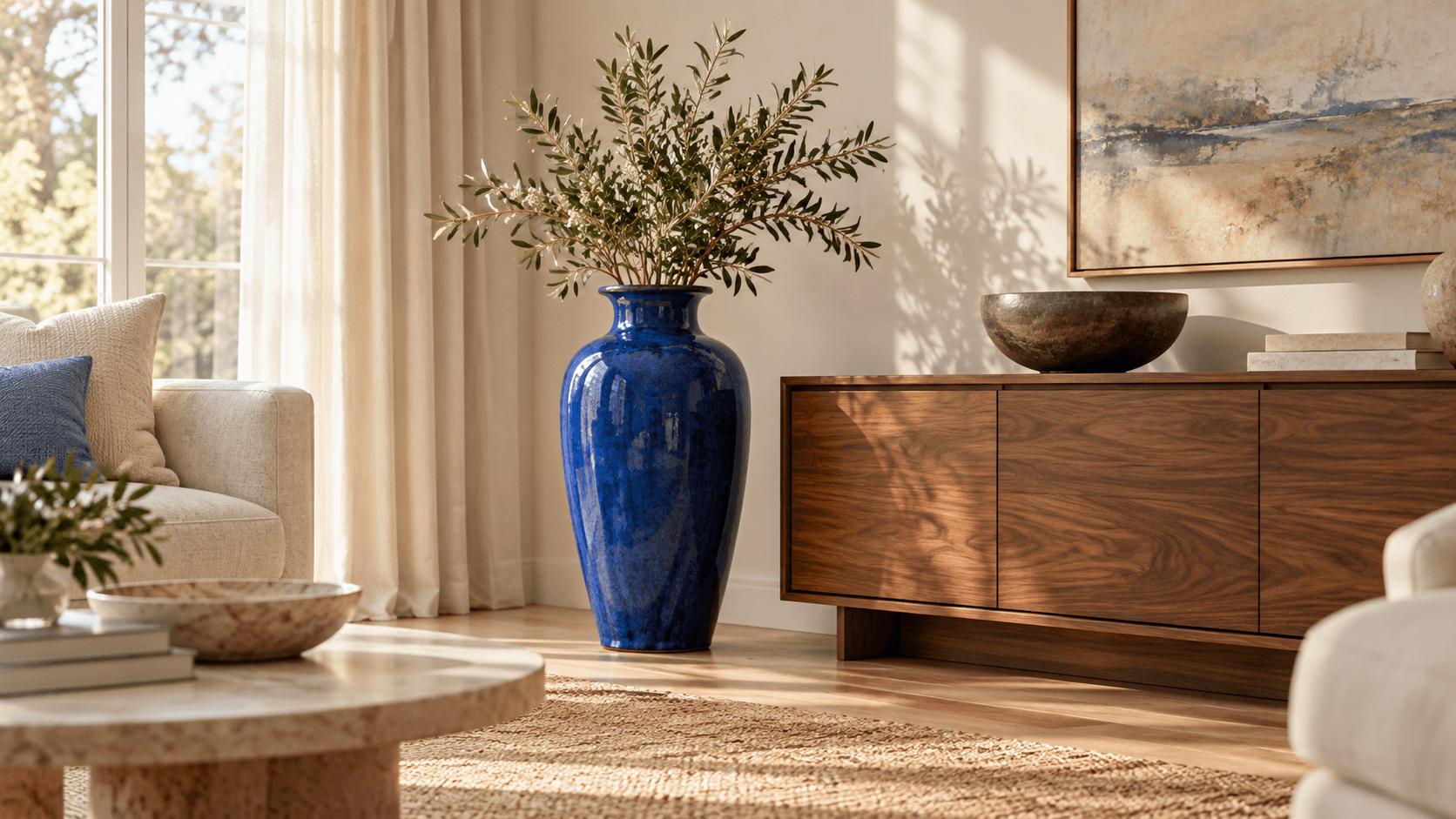
Explore tableware and ingredient combinations for a food visual. Inspect object contact and surface details before selecting a scene.
Explore a blend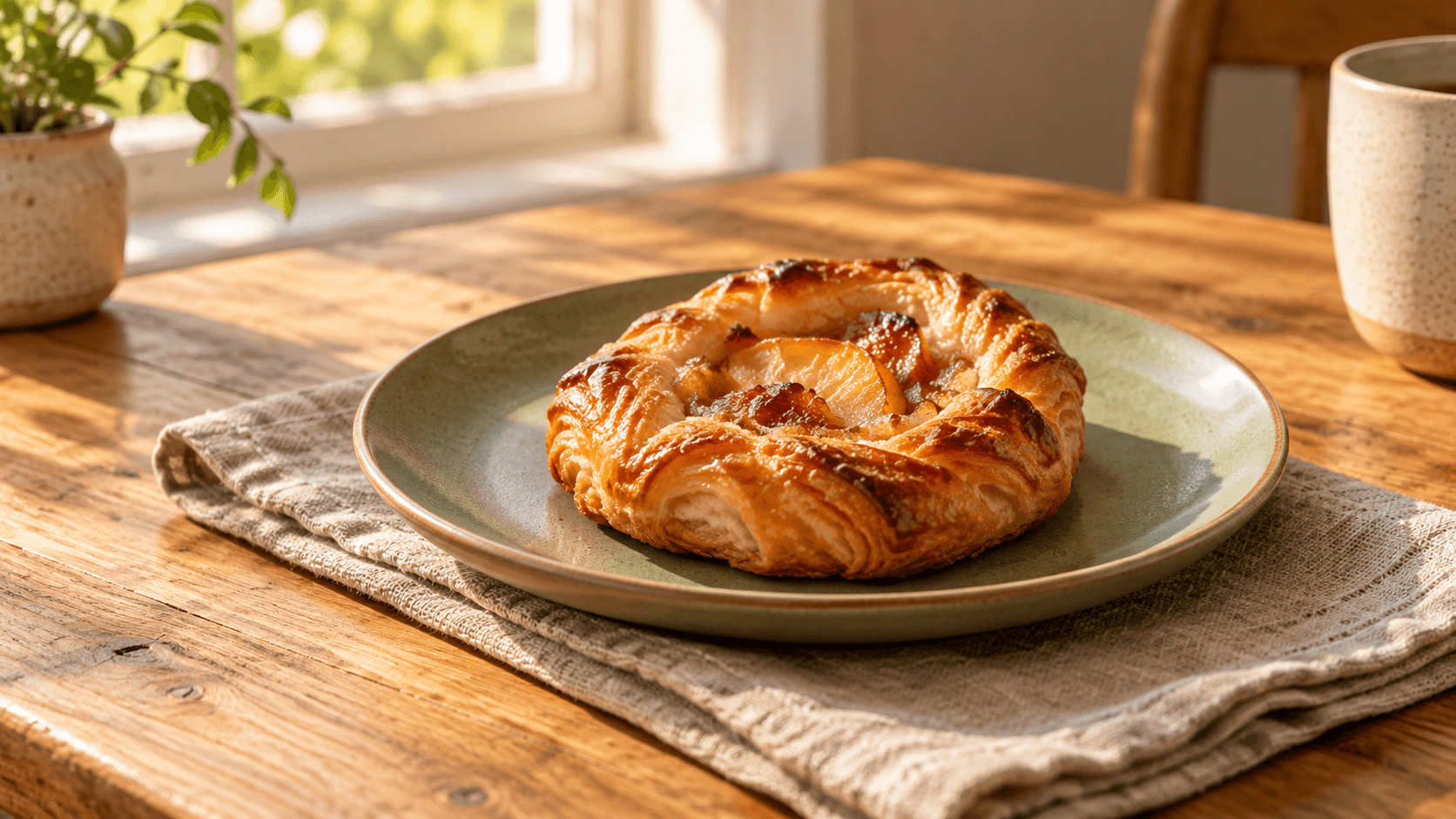
Bring two visual motifs into one illustrative scene. Judge how clearly the image communicates the editorial idea at the intended crop.
Explore a blend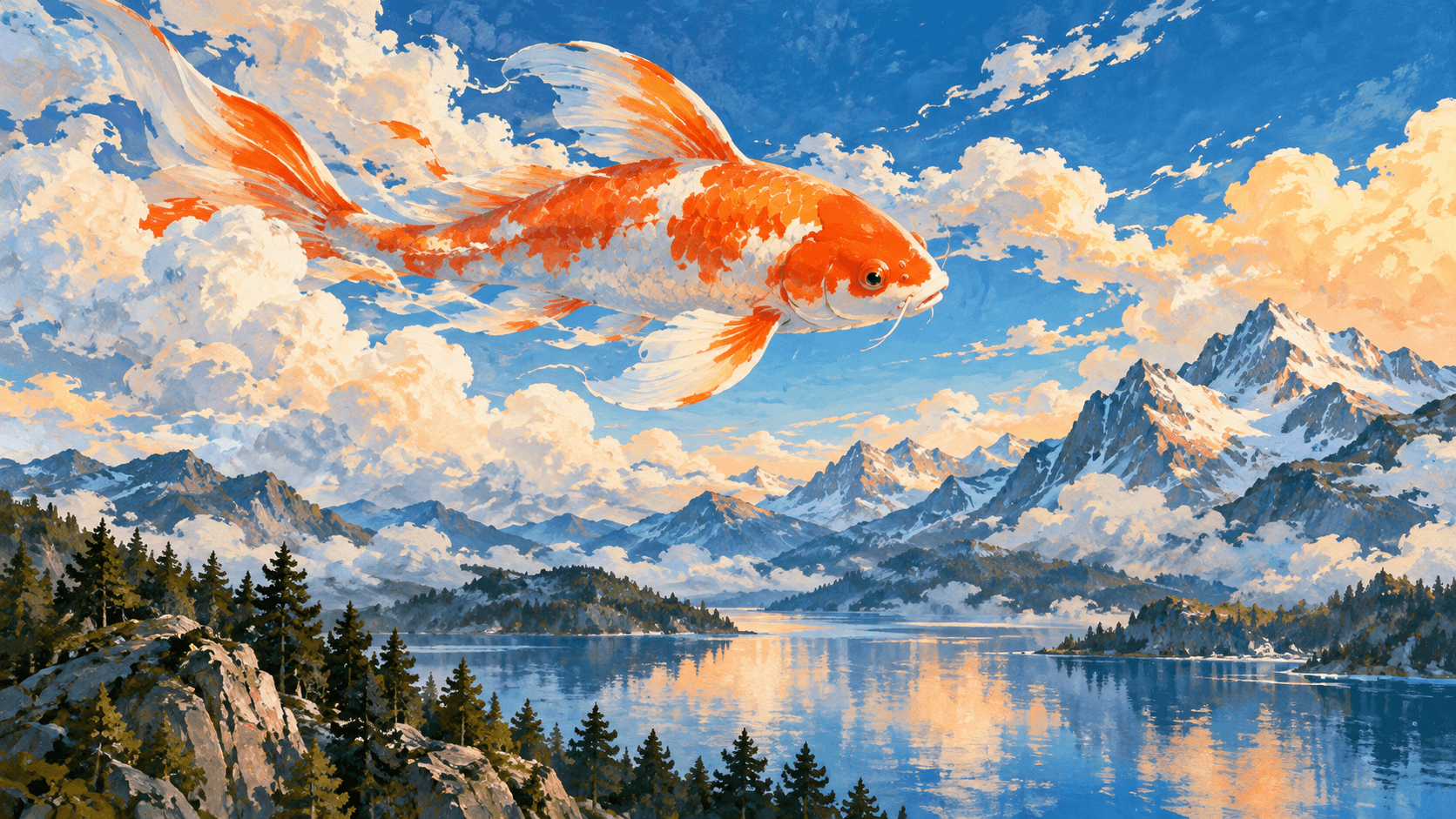
Combine an approved product concept with a botanical mood reference. Agree on the direction before developing final campaign assets.
Explore a blend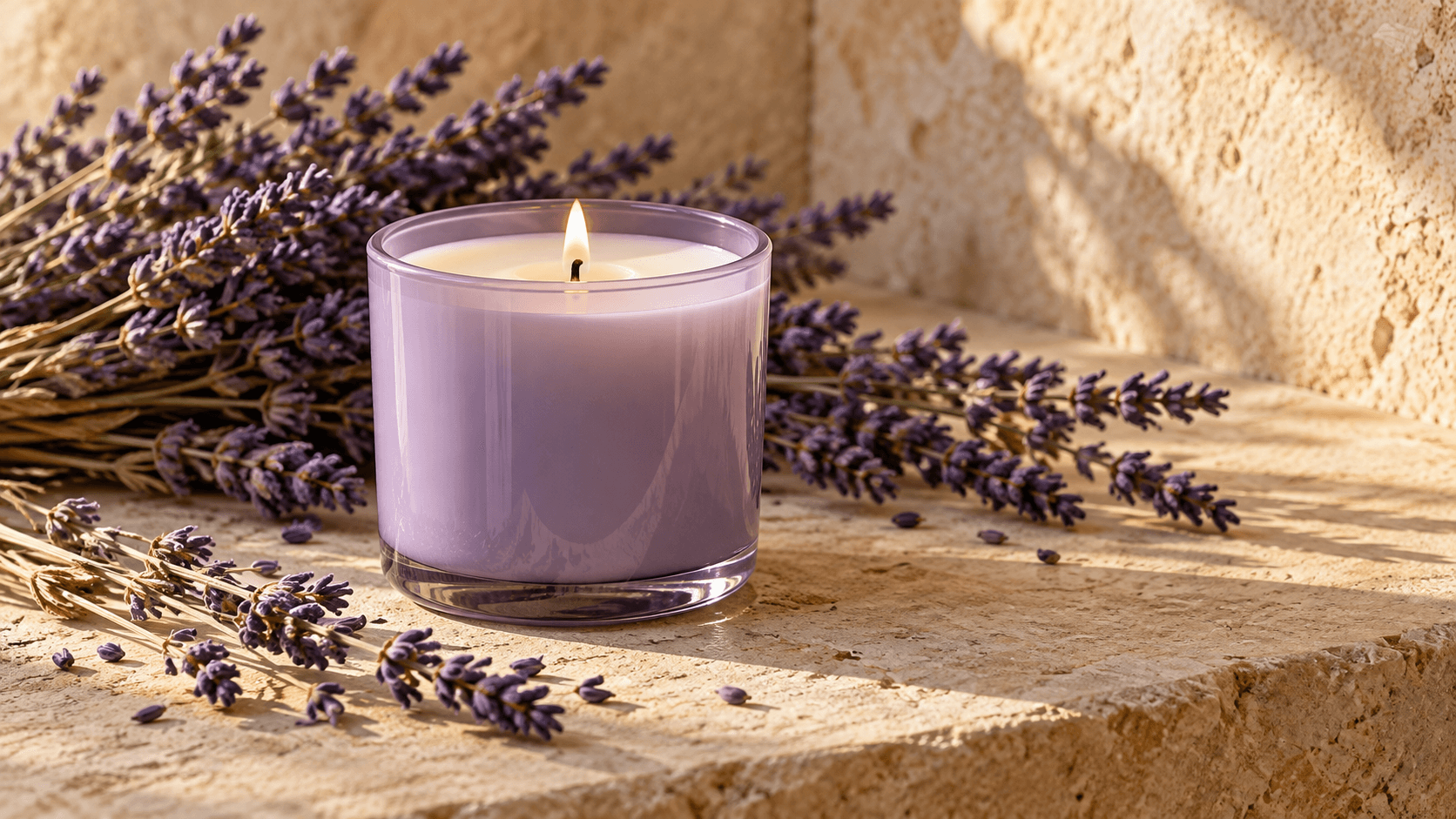
Explore a clear arrangement of two subjects with space for later typography. Add final copy in your design workflow after reviewing the generated image.
Explore a blend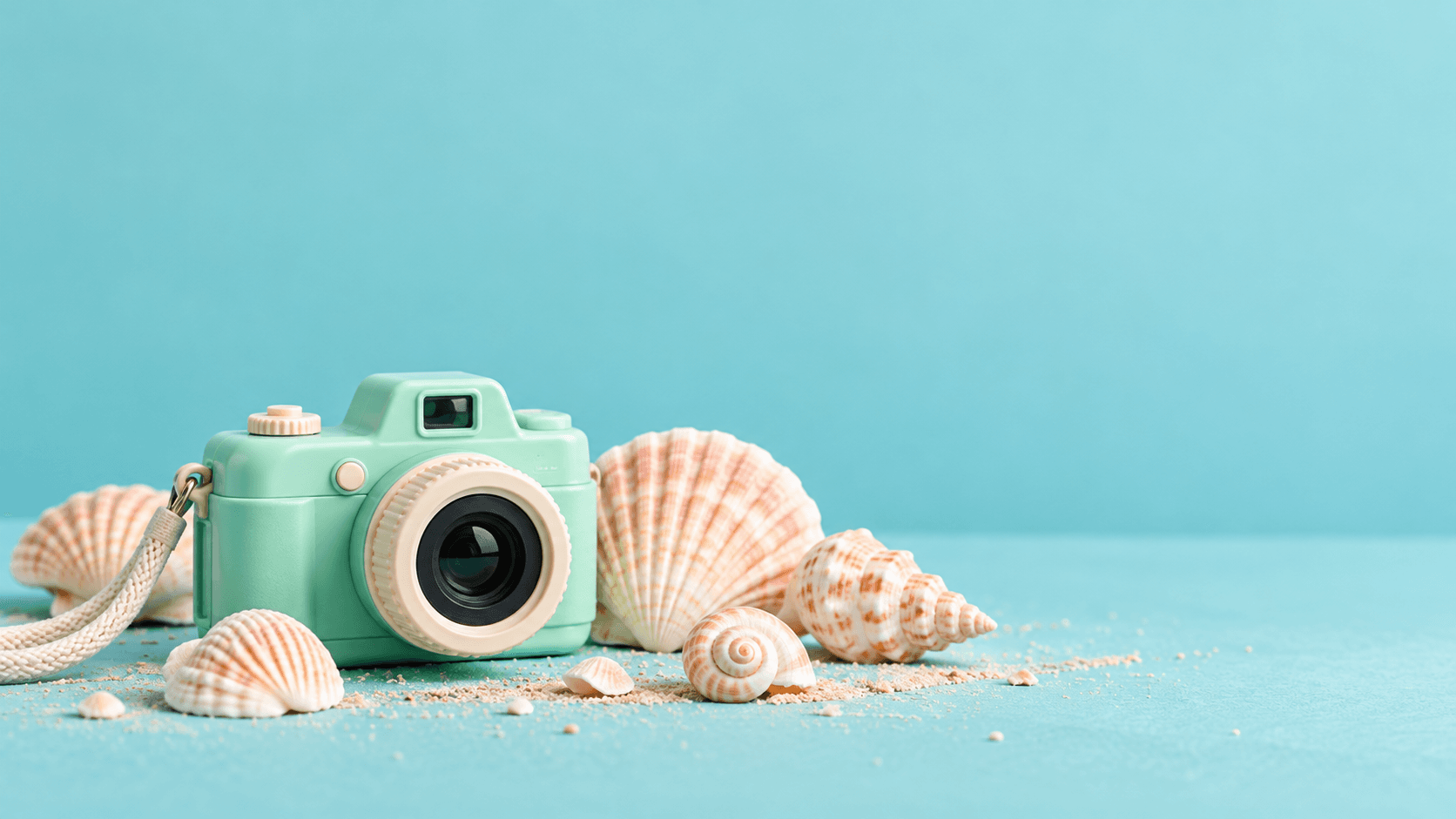
Choose the workflow that matches how you want to supply the sources.
| This demo | One selected or uploaded reference-board image containing separate pictures. It does not accept separate image files in the same request. | |
|---|---|---|
| Separate-image workflow | Sign in and open or create a canvas project, then add an Image node that supports multiple references and connect the source images with a brief. Available reference inputs depend on the model. | Verified 2026-10-14 |
| Controls here | Two blend prompts and an editable brief. This form does not expose layer opacity, a blend-strength slider, local masks or multiple upload slots. | |
| Output here | A generated still image saved to a personal canvas project. | |
| Review boundaries | Source details, identity, geometry, lettering and exact placement can change. A generated blend is not a guaranteed pixel-preserving composite. | |
| Request cost | Check the credit requirement shown before generating. | |
| Free plan | A free plan is listed with no credit card required. Check your current account allowance. | Verified 2026-10-14 |
| Commercial use | Paid-plan generations have commercial rights subject to provider terms and input rights. Free-plan outputs are for personal, non-commercial evaluation; upgrading applies to new generations. | Verified 2026-10-14 |
| Upload data use | Default terms permit using uploads, prompts and outputs for training and improvement. Provider policies apply. Enterprise opt-out requires a written agreement; learned or derived information may persist after source removal. | Verified 2026-10-14 |
Use these current catalog links to research reference support on the canvas. Their presence does not identify this demo’s active model or prove a specific blending result.
Catalog checked 2026-10-14. Check each model’s reference inputs, controls and provider terms.
Browse image modelsIt generates one new scene from the separate pictures shown in a single reference board and a written brief. You can explore subject placement, shared lighting or a painted combination, then compare the result with the source ideas.
No. This demo accepts one board image. Use Open multi-image canvas for separate files, then choose a compatible Image node and connect the source images with a prompt.
Place the source pictures in clearly separated regions of one image. Keep the important subjects readable and describe which region supplies the subject, setting or style. Avoid tiny source images or overlapping pictures that obscure details.
No. This form generates an interpretation of the visual ingredients. It does not expose layer opacity or pixel-preserving compositing controls; use a separate compositing workflow when those controls are required.
No. Object shapes, text, identity and placement may change or be omitted. Review the candidate against every reference before using it.
Paid-plan outputs have commercial rights subject to provider terms and your rights to every source. Free-plan outputs are for personal, non-commercial evaluation. Review the current commercial-rights policy before paid use.
Default terms permit uploads, prompts and outputs to be used for training and improvement, and provider policies apply. Enterprise opt-out requires a written agreement. Read the current upload-data policy before supplying sources.
Try a reference-board blend here. For separate images, sign in and open or create a canvas project, then connect sources to a compatible Image node.