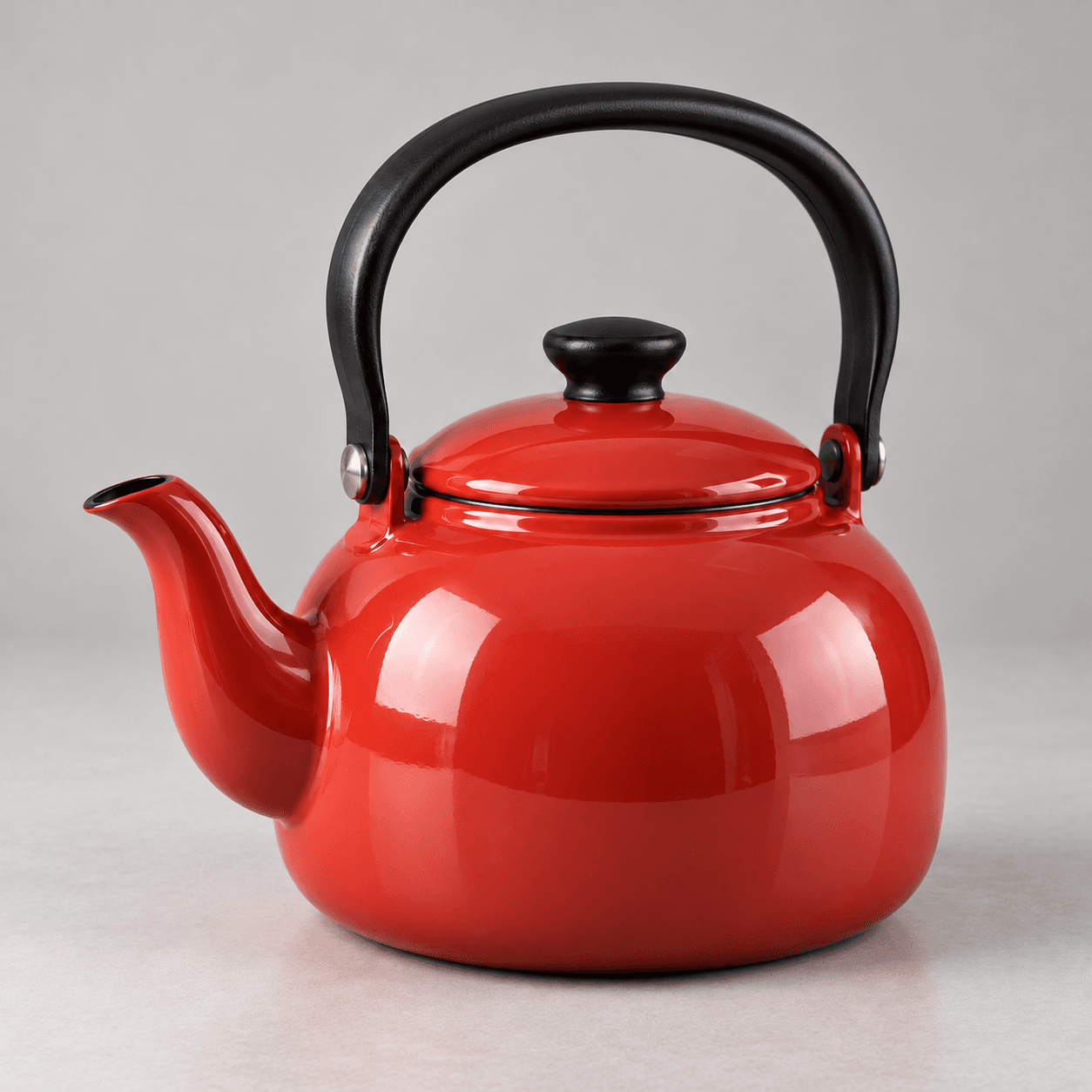
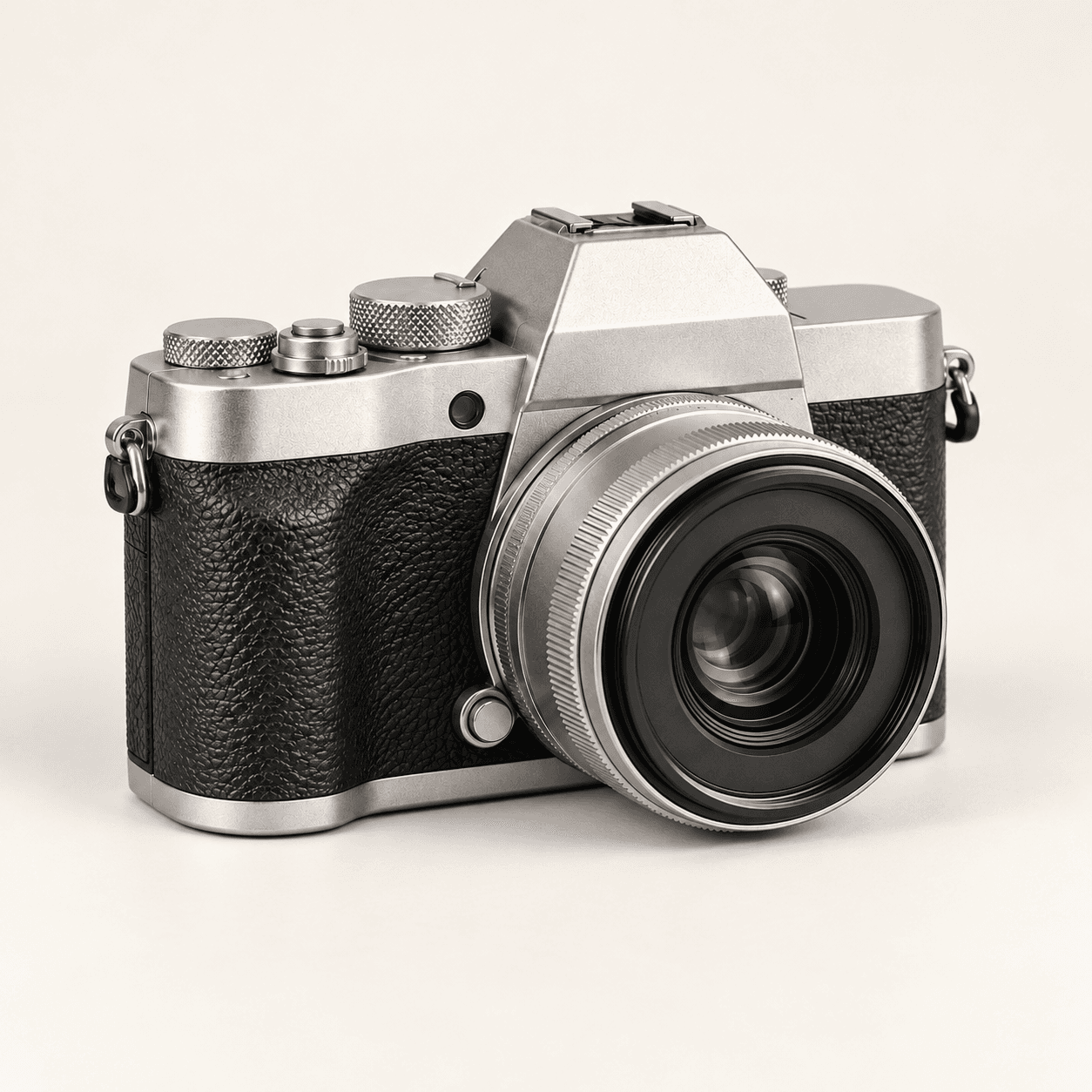
Dim reference
Notice what the shadow obscures
- The face and navy shirt sit in low light.
- The background is readable but subdued.
- Existing skin and fabric texture give the edit a starting point.
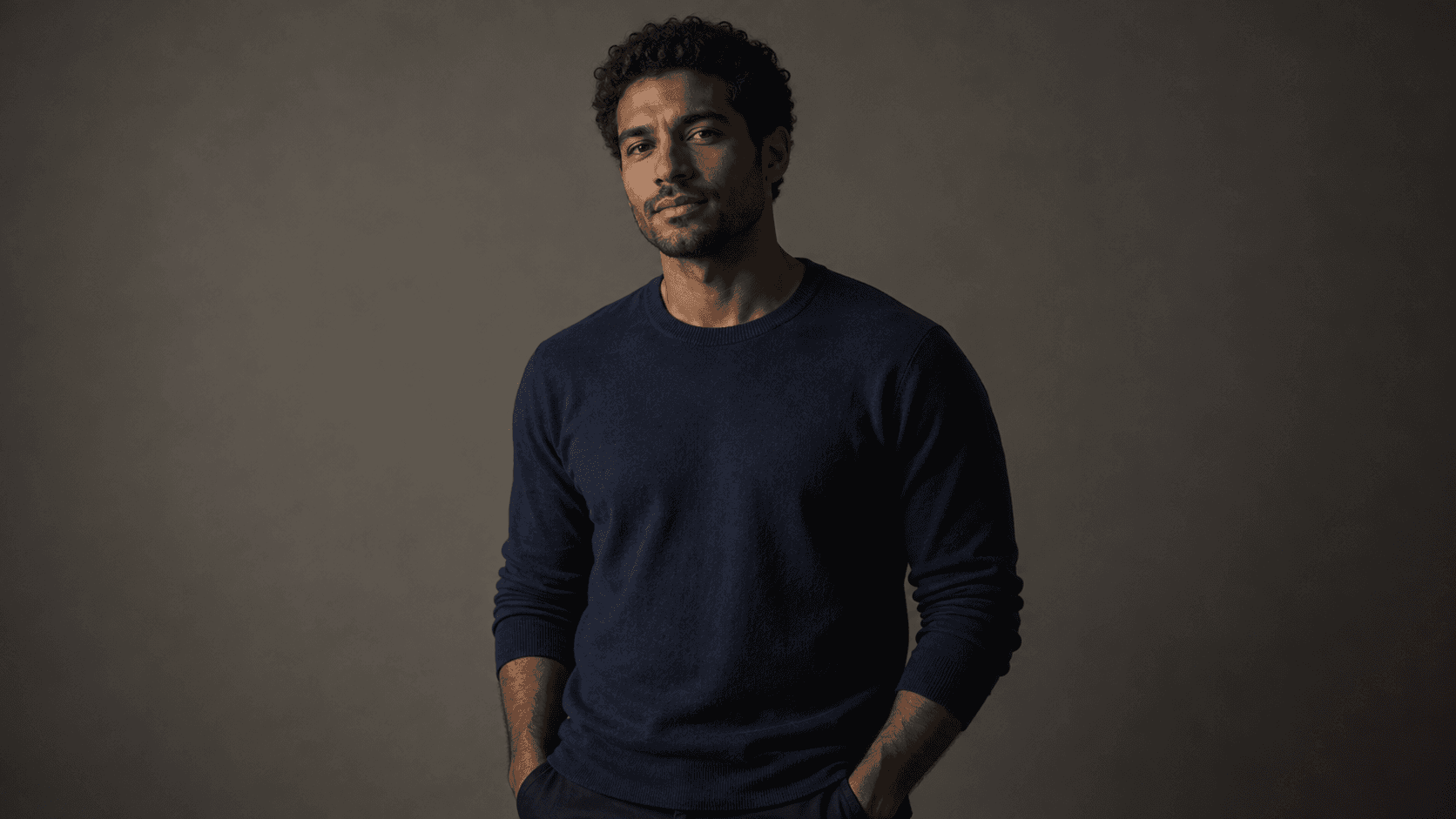
Choose a sample or upload a reference, select a lighting direction and describe the change. Compare the generated image with your original.
A brighter image should still have shape, texture and believable color. Page images are Image Gen concept illustrations, not verified outputs from this Astorie generator.
Notice what the shadow obscures
Judge more than the overall brightness
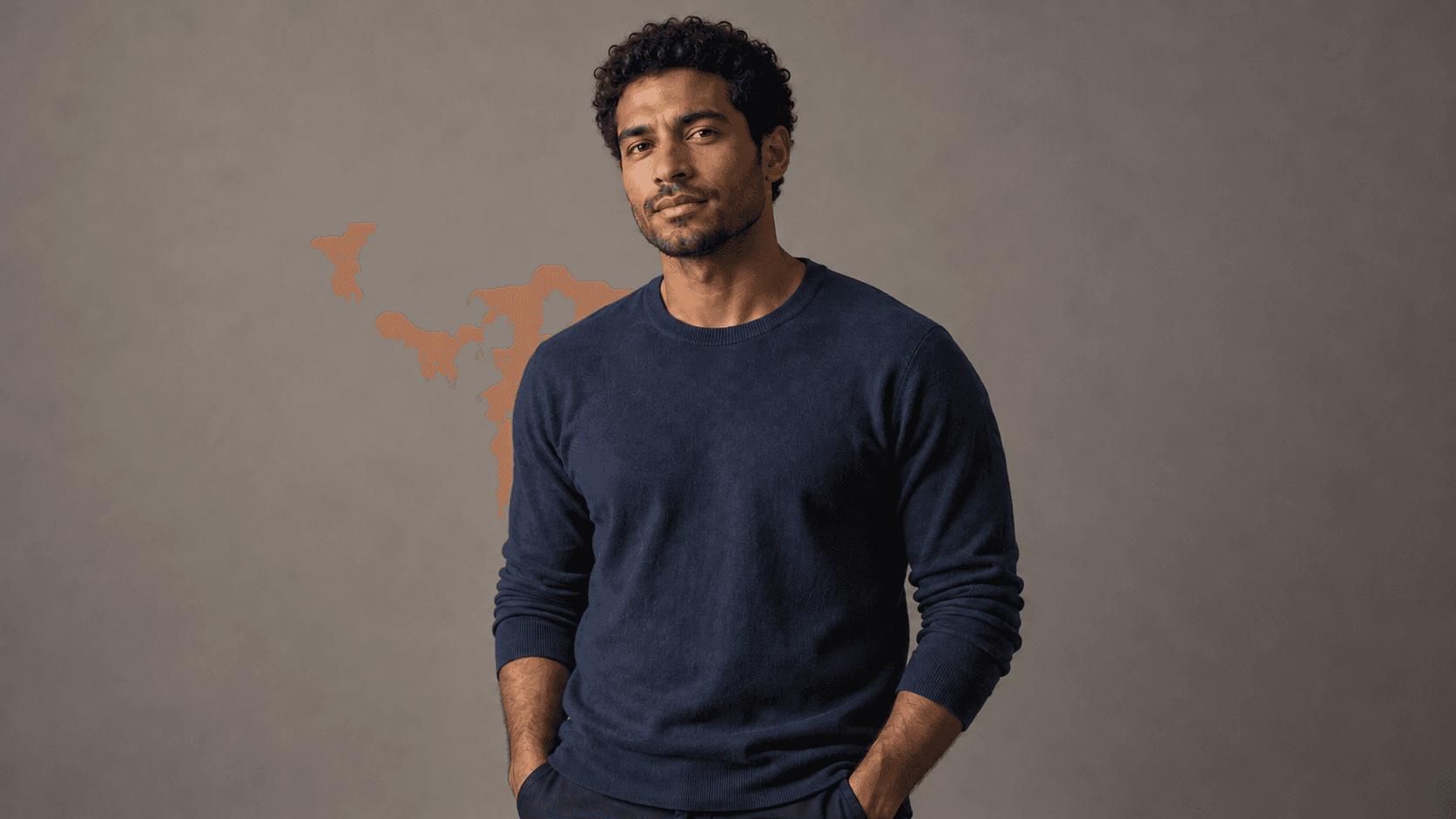
Start with a readable source and describe the lighting you want to change.
Use a sample or upload an image you have permission to use. A dim image with visible subject detail is a better starting point than an almost black frame.
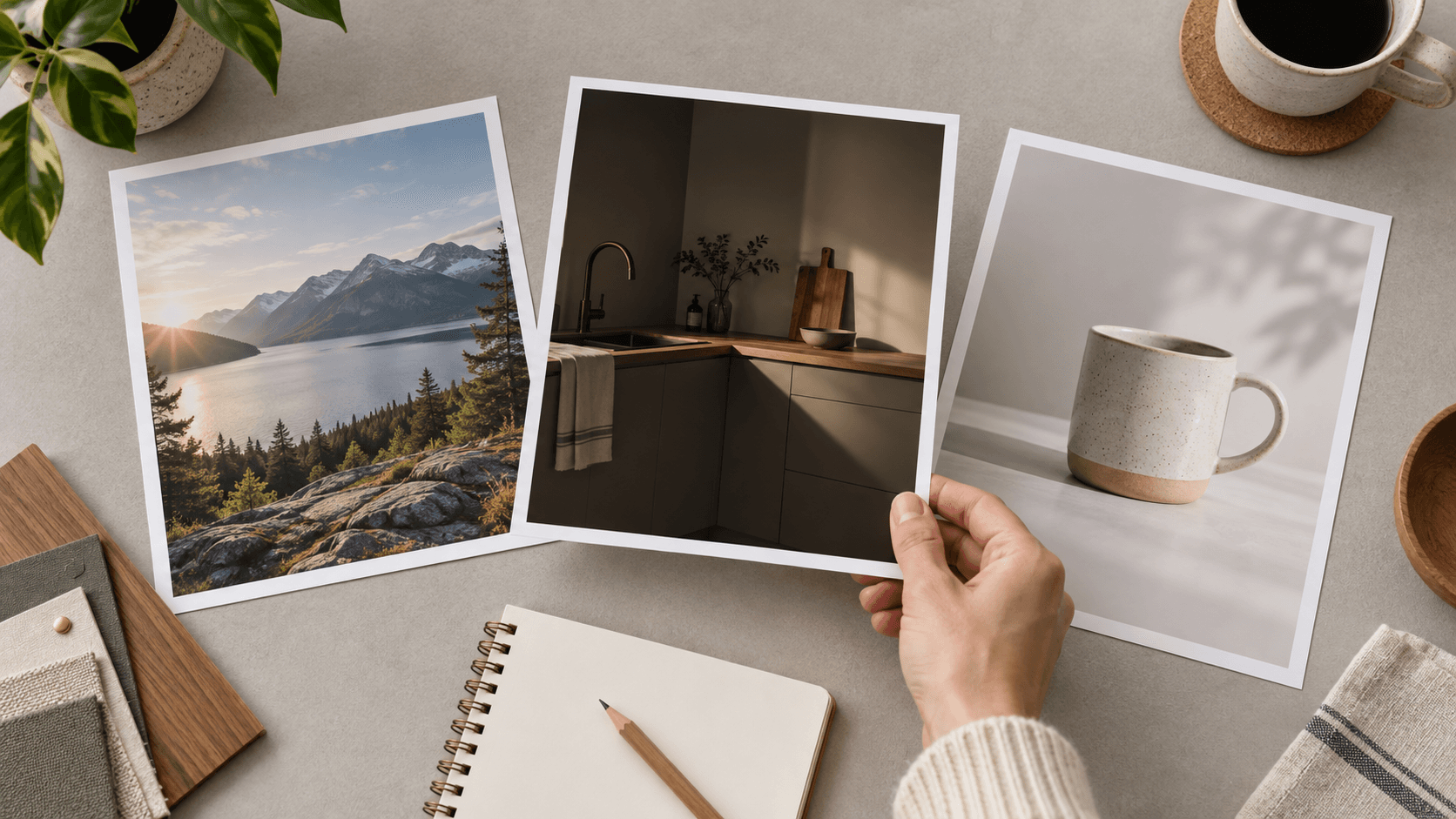
Select Lift shadows, Balanced light or Soft daylight. Edit Describe your lighting to identify dark areas and any colors or textures you want to retain.
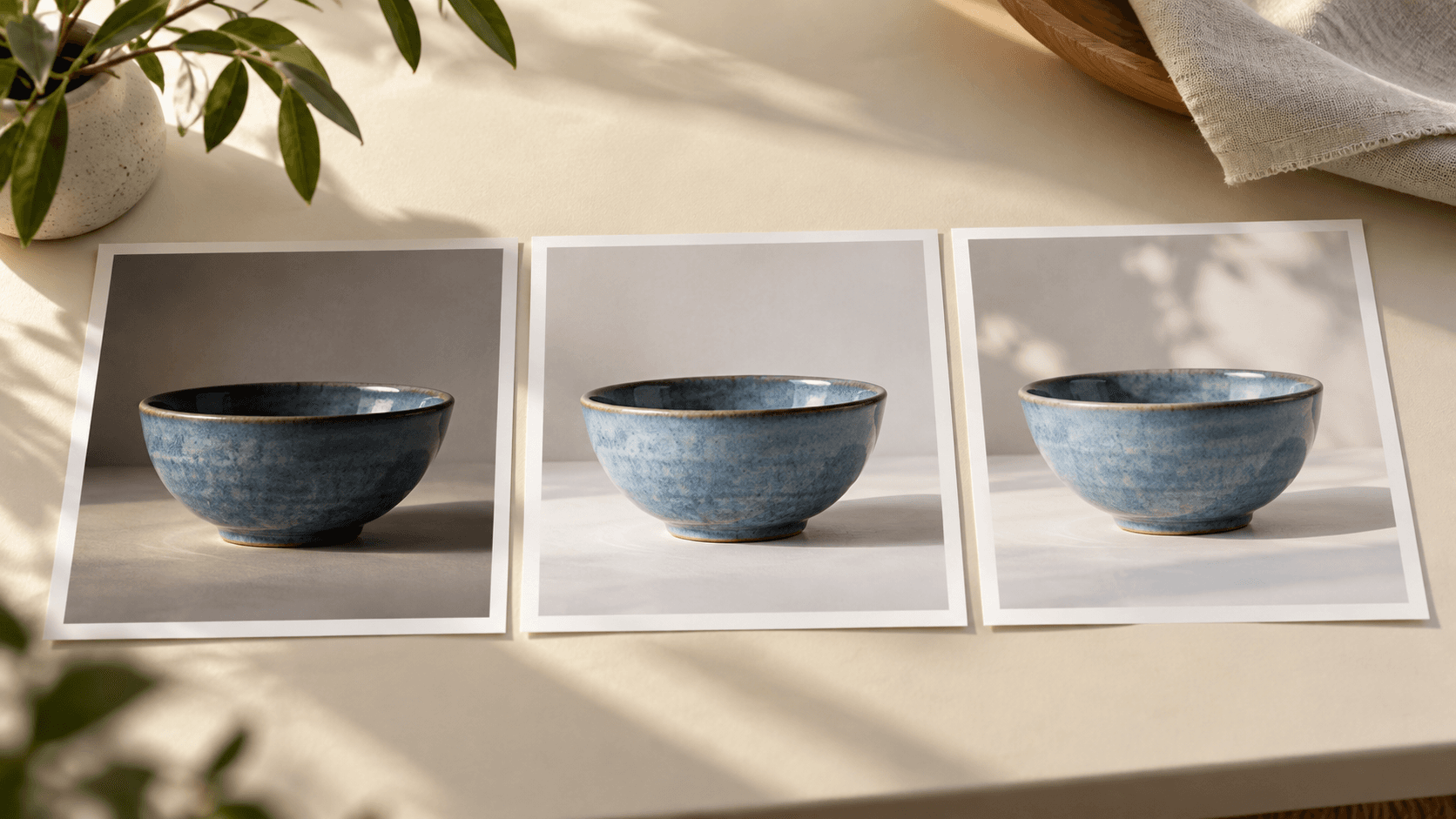
Select Generate brighter version and sign in if prompted. Compare the result with the source, checking bright surfaces, shadows and subject details before using it.
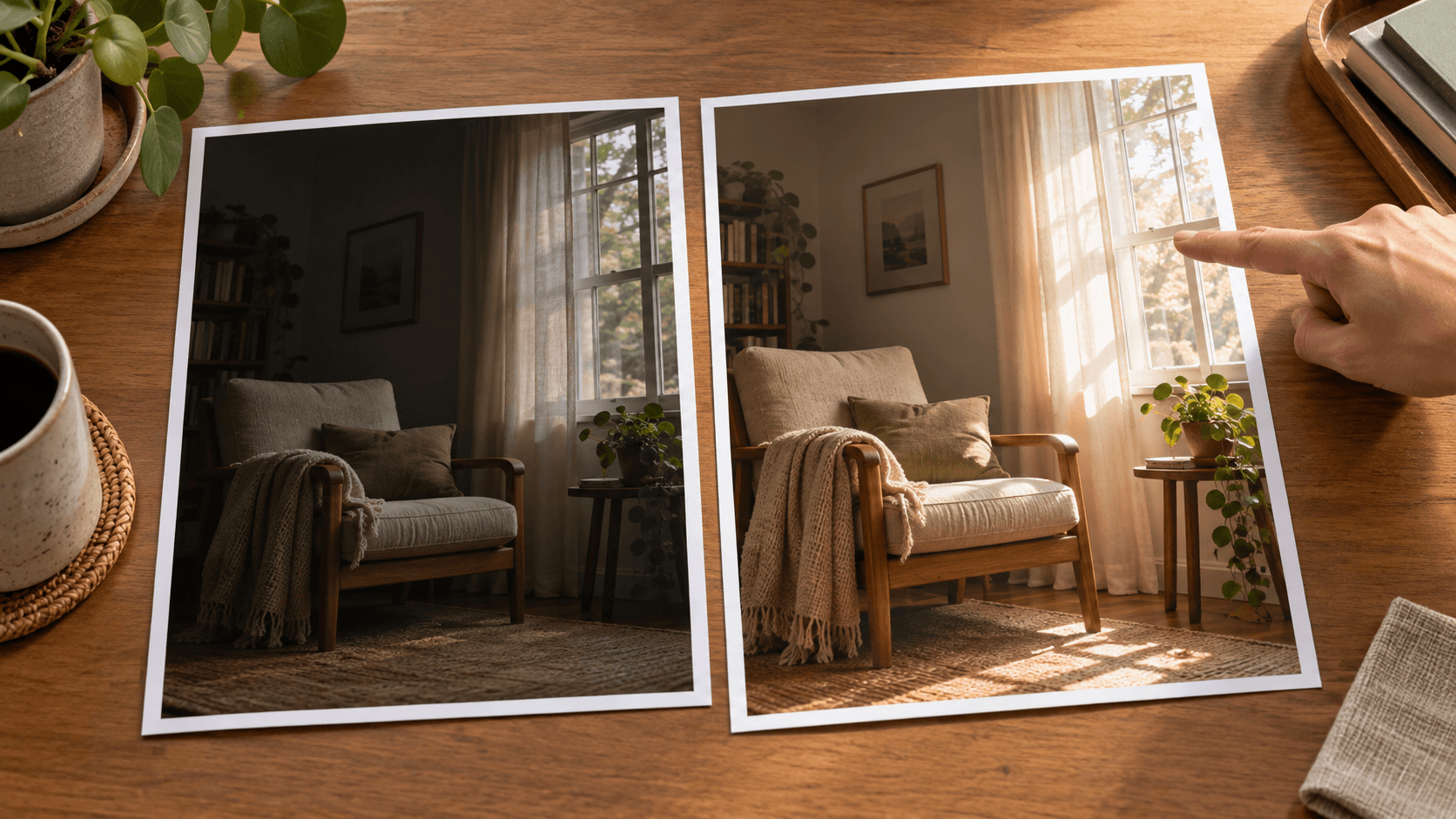
These requests guide generation; they are not separate exposure, masking or color-calibration controls.
Name the shadowed subject or corner rather than asking for everything to become equally bright. Keep some shadow depth to give the scene shape.
Try a lighting briefAsk for a moderate overall lift when the whole scene feels dim. Review pale surfaces and reflective objects as well as the main subject.
Try a lighting briefRequest broader daylight when hard contrast distracts from the scene. Check that the softer interpretation still has depth.
Try a lighting briefMention the original skin tone, fabric or product color. Compare the result carefully; a prompt is not a guarantee of color accuracy.
Try a lighting briefAsk for readable wood grain, fabric weave or ceramic glaze. Watch for smoothed surfaces and invented fine detail.
Try a lighting briefIf the first result is too bright or too flat, make a smaller lighting request. Keep comparing new candidates with the original source.
Try a lighting briefAdapt these lighting requests to your reference. The images illustrate possible visual directions.
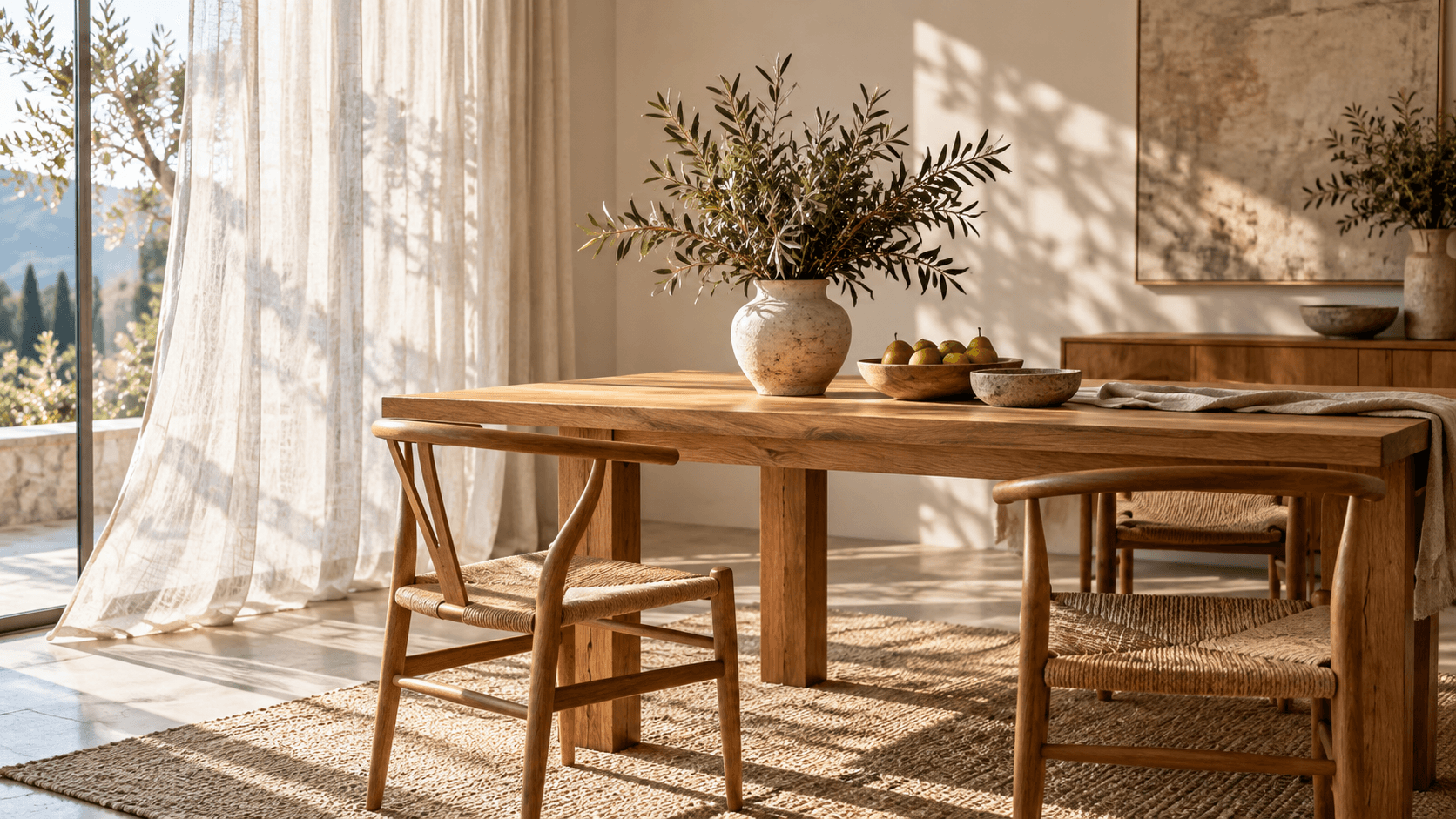
Choose a result for its intended placement, then review the subject details that matter there.
Explore a lighter portrait treatment while asking for the original skin tone and natural texture. Inspect the face and hairline for changes before selecting a candidate.
Explore portrait light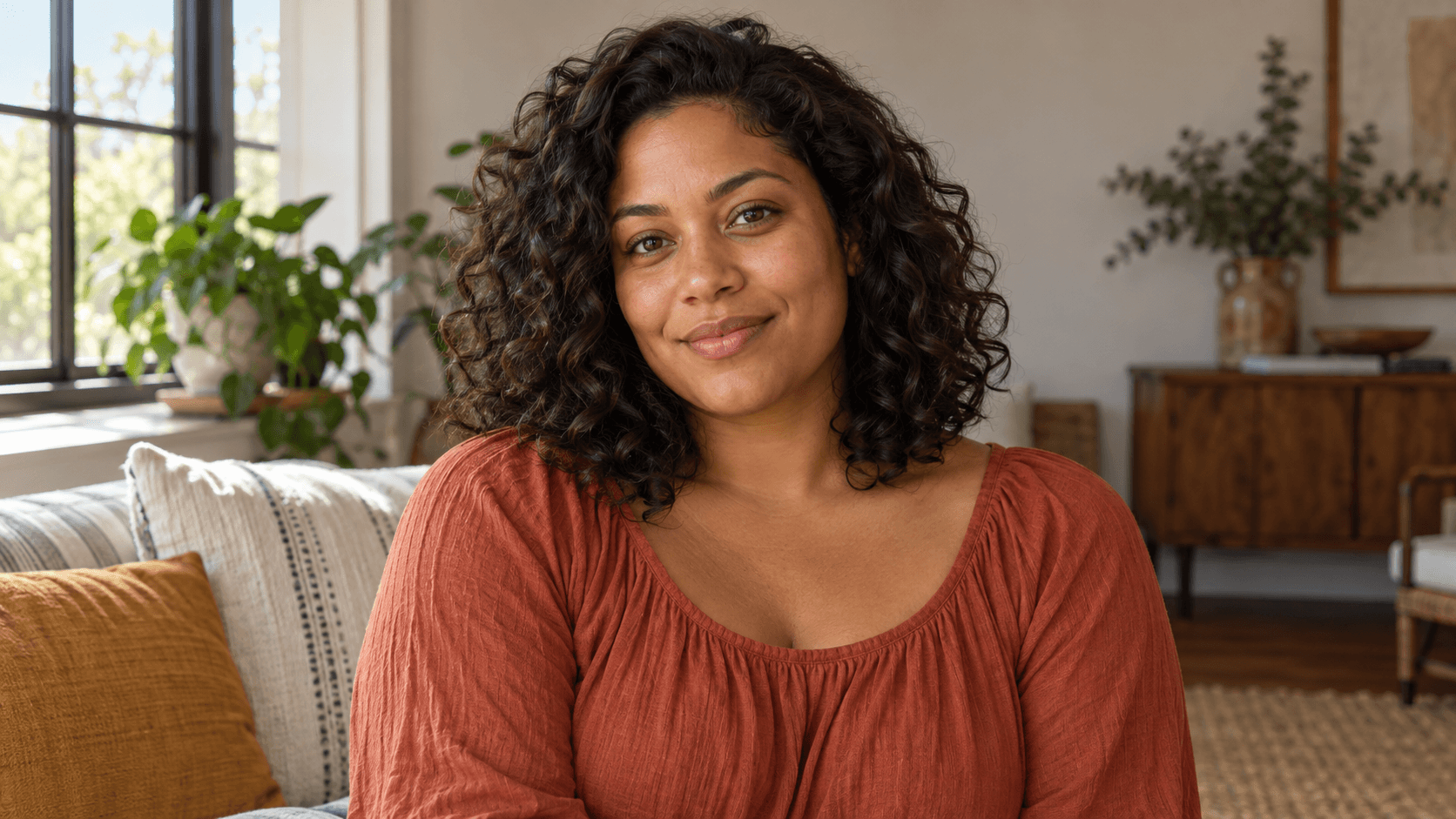
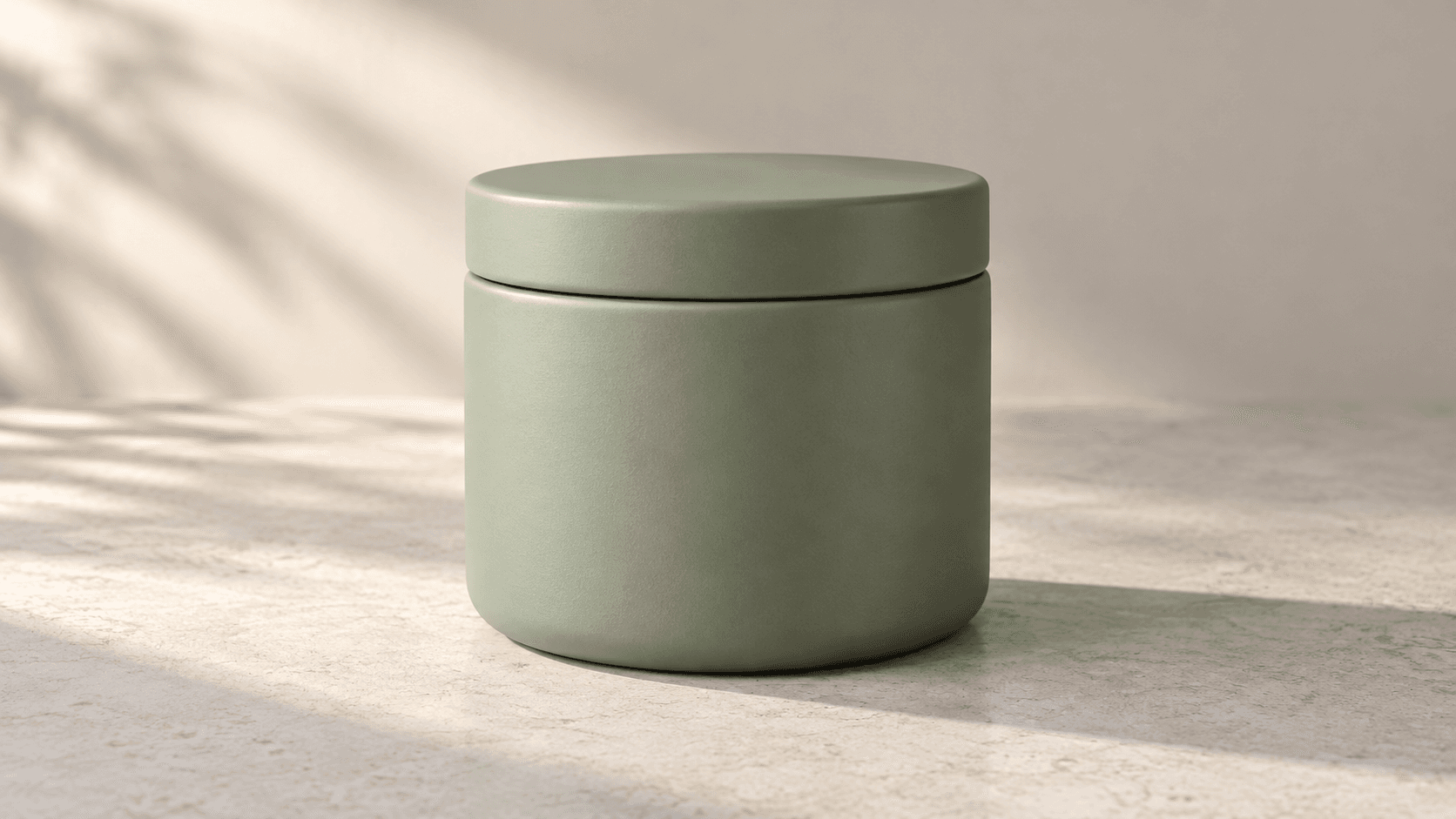
Make a dim product concept easier to read. Compare color, silhouette, seams and material texture; generated edits can alter commercially important details.
Explore product light
Try gentler light in a room reference for a presentation or mood study. Review furniture placement and window detail before incorporating the image into a design.
Explore interior light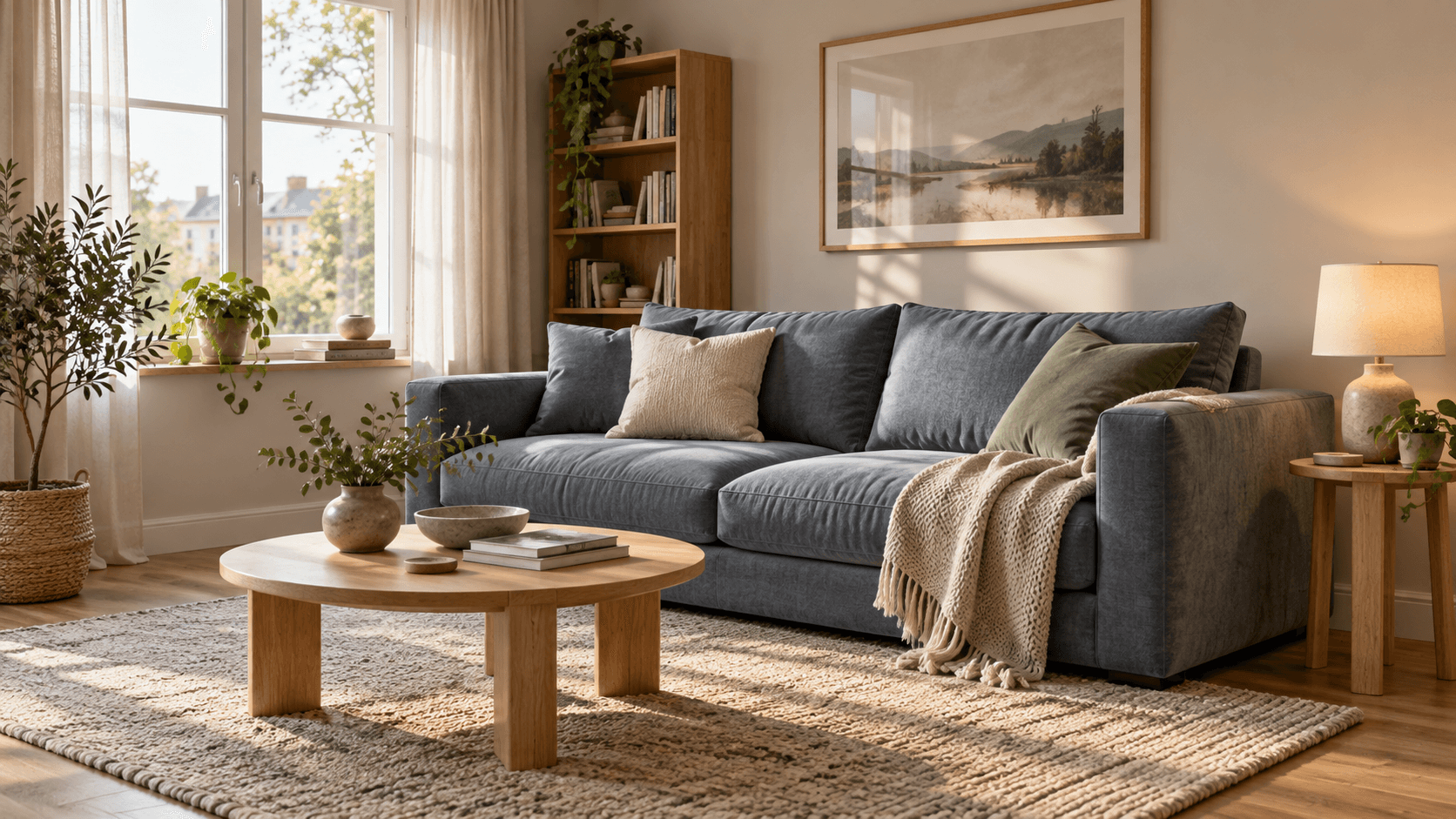
This workflow generates a lighting interpretation from an image and a prompt. Review it as a new image.
| Input | One selected sample or uploaded image. A reference is required. | |
|---|---|---|
| Controls | Three lighting presets and an editable prompt. This form does not expose an exposure slider, EV value, local mask or batch controls. | |
| Output | A generated still image saved to a personal canvas project. | |
| Detail limits | Generation may change shapes, faces, lettering and fine texture. It cannot reliably recover detail absent from a black shadow or clipped highlight. | |
| Precision editing | For measured exposure adjustments, RAW processing or pixel-preserving correction, use a dedicated photo editor. | |
| Request cost | Check the credit requirement shown before generating. | |
| Free plan | A free plan is listed with no credit card required. Check your current account allowance. | Verified 2026-10-15 |
| Commercial use | Paid-plan generations have commercial rights subject to provider terms and input rights. Free-plan outputs are for personal, non-commercial evaluation; upgrading applies to new generations. | Verified 2026-10-15 |
| Upload data use | Default terms permit using uploads, prompts and outputs for training and improvement. Provider policies apply. Enterprise opt-out requires a written agreement; learned or derived information may persist after source removal. | Verified 2026-10-15 |
These catalog links support separate workflow research. They do not identify the model behind this form or establish a tested brightening result.
Catalog checked 2026-10-15. Compare reference support, editing controls and provider terms.
Browse image modelsHere, it is a reference-based image generator for exploring brighter lighting. Upload a picture and describe the light you want; the result is a generated interpretation rather than a numeric exposure adjustment.
It can attempt a brighter interpretation when the source has readable visual information. It cannot reliably recover details that were never captured, and it may invent details in deep shadows.
No. A lighting request can also change facial features, object shapes, lettering or texture. Compare the whole image with your source, especially when identity or product accuracy matters.
Ask for a modest lift, natural contrast and retained highlight texture. Inspect bright windows, white clothing and reflective surfaces; reduce the requested change if those areas lose detail.
No. This form uses a reference and a prompt to generate an image. Use a dedicated photo editor when you need measured exposure changes, RAW controls or pixel-preserving correction.
Paid-plan generations have commercial rights subject to provider terms and your rights to the input. Free-plan outputs are for personal, non-commercial evaluation. Review the current commercial-rights policy before paid use.
Default terms permit uploads, prompts and outputs to be used for training and improvement, and provider policies apply. Enterprise opt-out requires a written agreement. Read the upload-data policy before supplying a photo.
Choose your reference, make a focused lighting request and compare the brighter interpretation with the original.