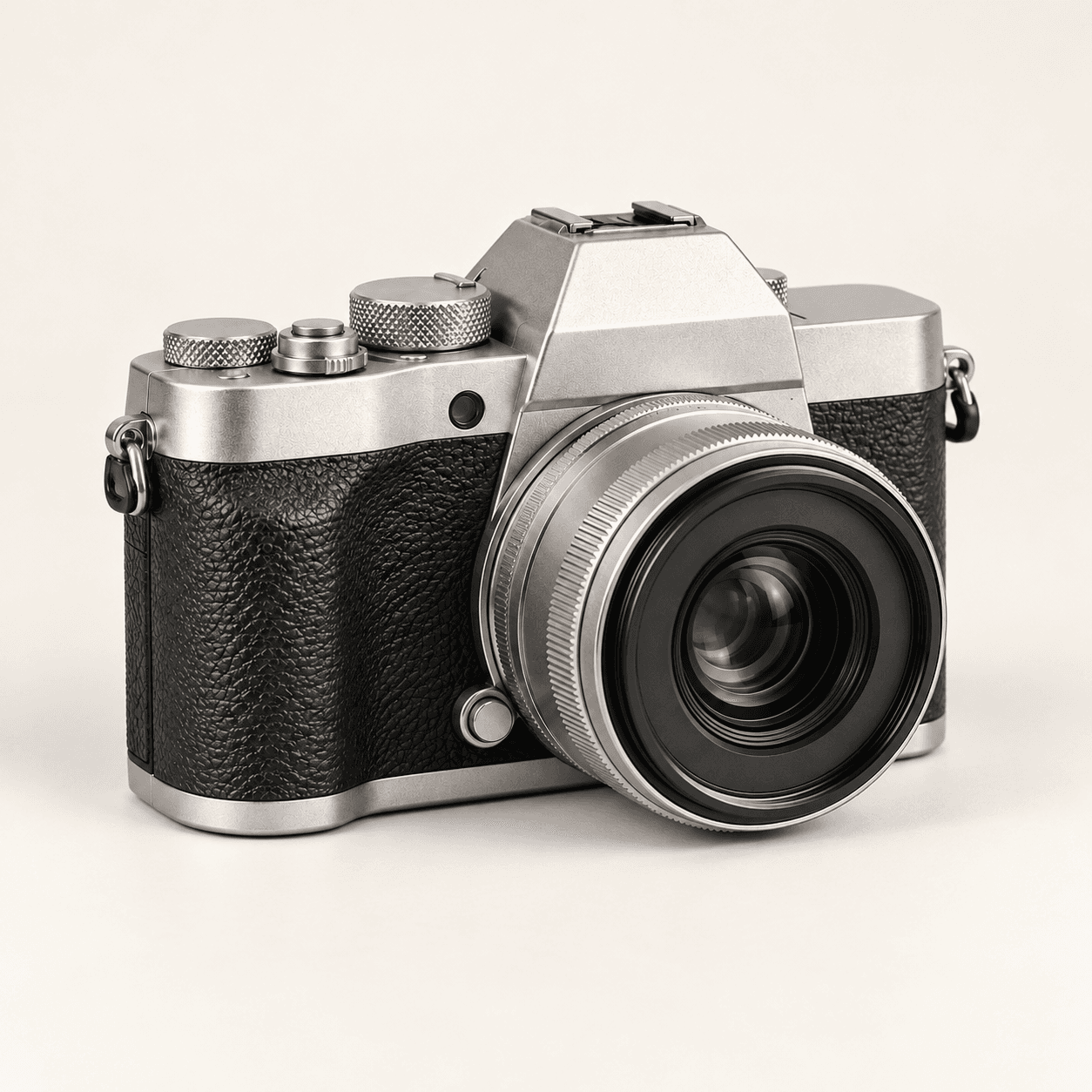
Source reference
Set the details to compare
- Notice the body proportions, woven fabric and end caps.
- Use the orange loop and top button as visible landmarks.
- Keep this original as the reference for later requests.
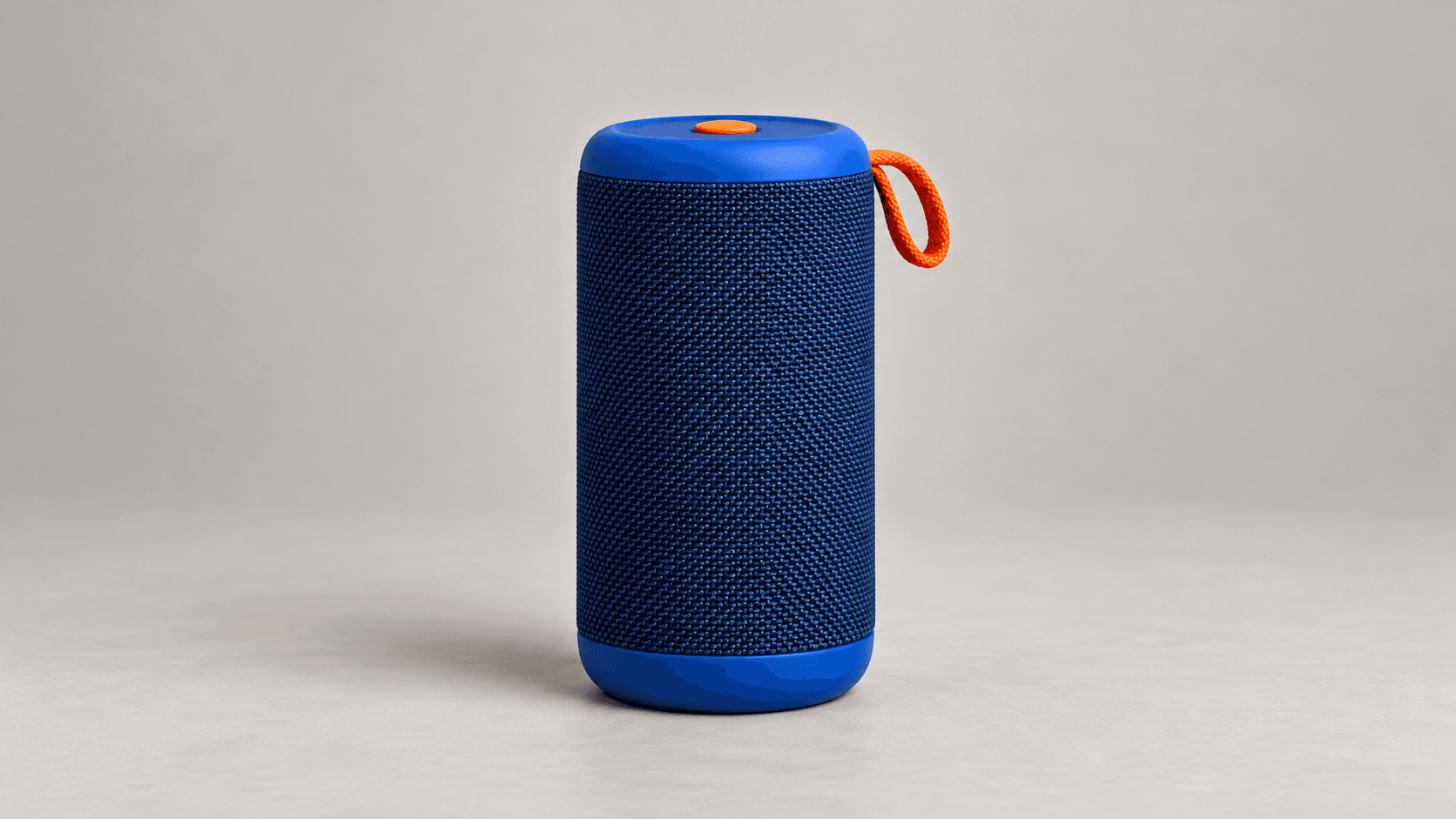
Choose the same reference for each request. Select an angle direction, describe the frame and generate one image at a time.
These Image Gen illustrations show proposed angle directions for a fictional speaker. They are not verified outputs from this Astorie form or evidence of a completed continuous spin. All preset thumbnails use the Blue speaker reference.
Set the details to compare
Check how the view changes
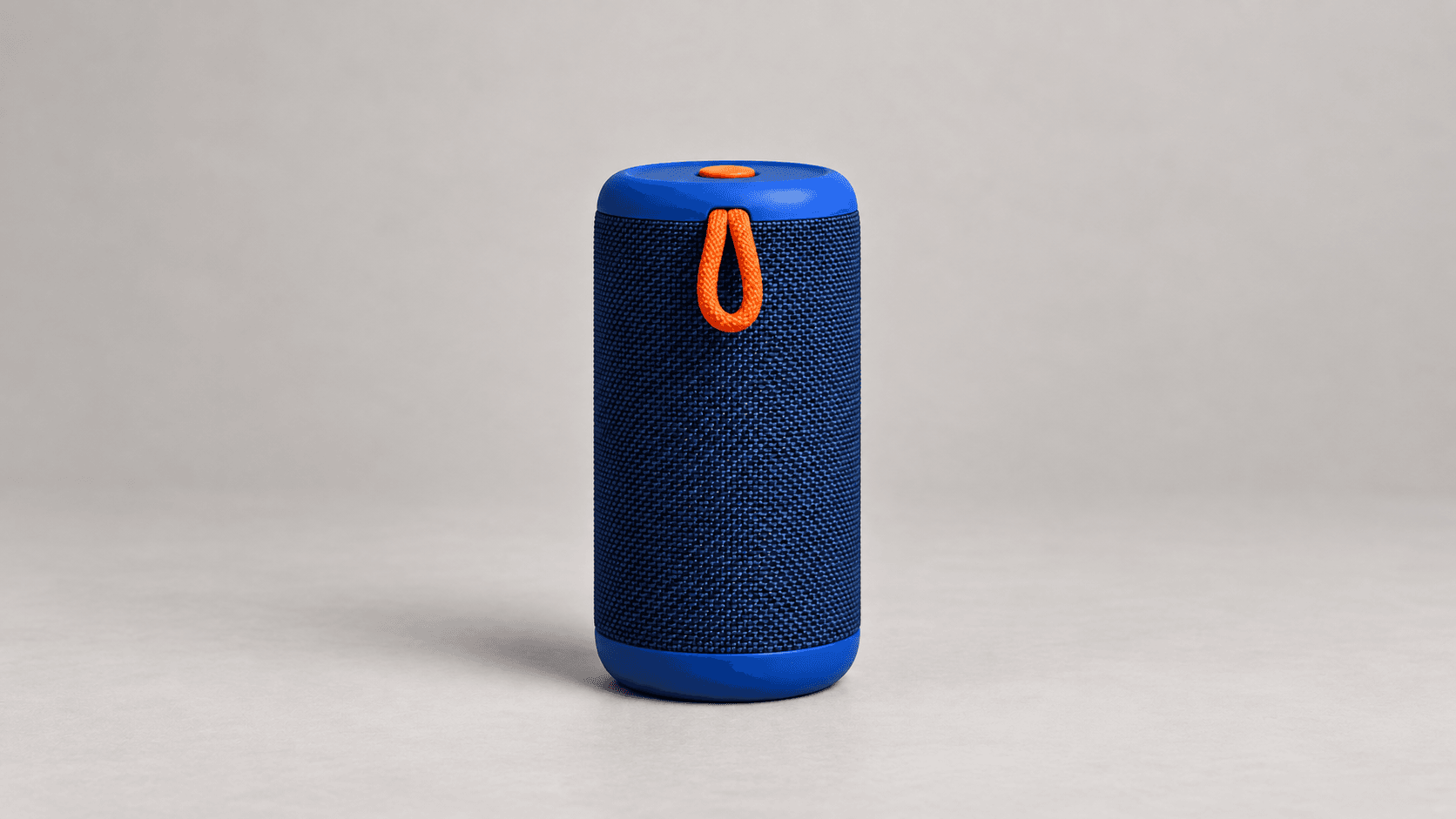
Plan an order first, then review each image before assembling the selected sequence elsewhere.
Select a sample or upload a clear reference. Choose a view direction, then edit Describe this frame for the next viewpoint. Keep the same source and framing brief across requests.
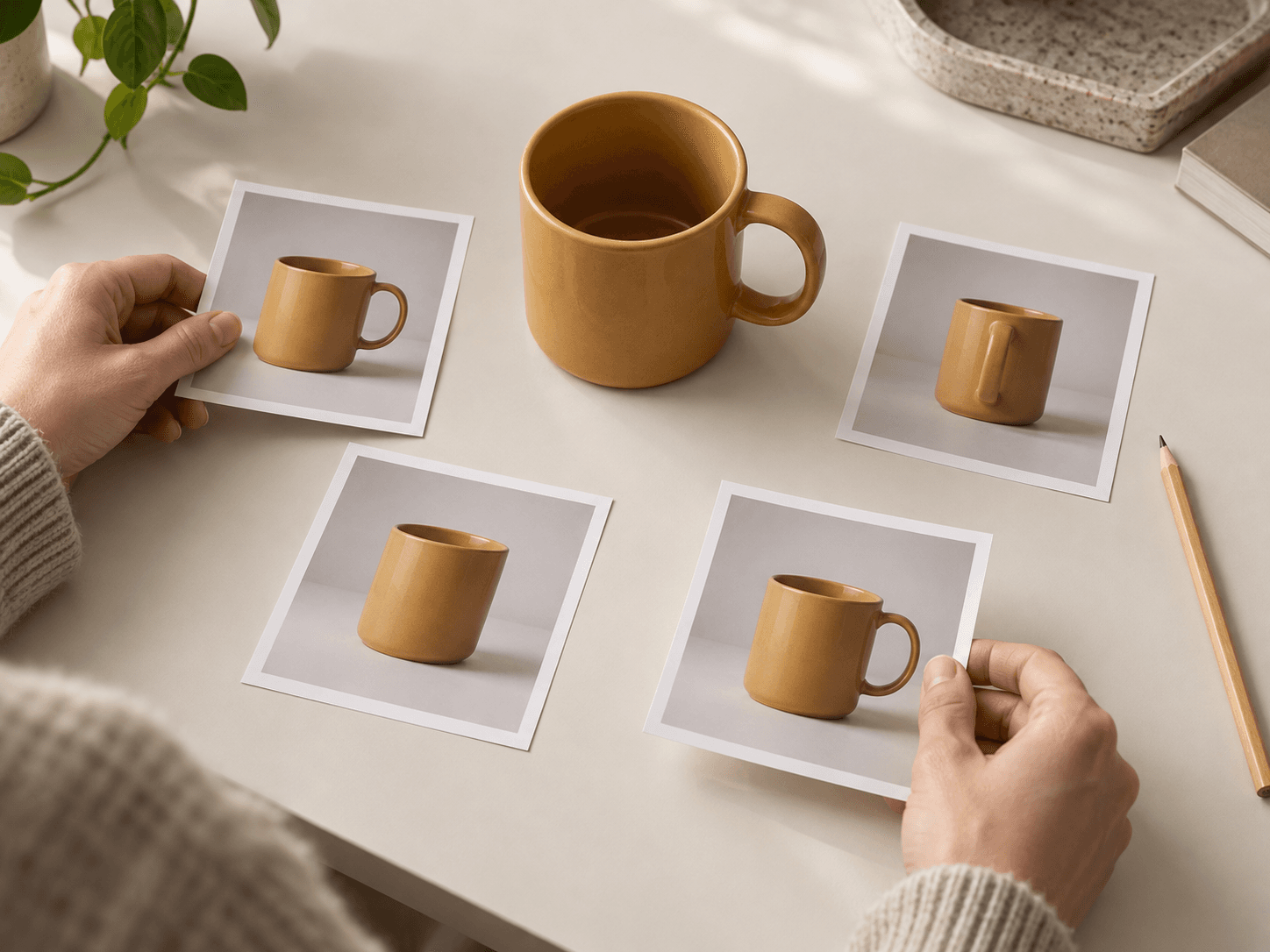
Select Generate one frame and sign in if prompted. Repeat for the remaining views. Check each image against the reference and its neighbors, then order your selected images in a separate spin-assembly workflow.
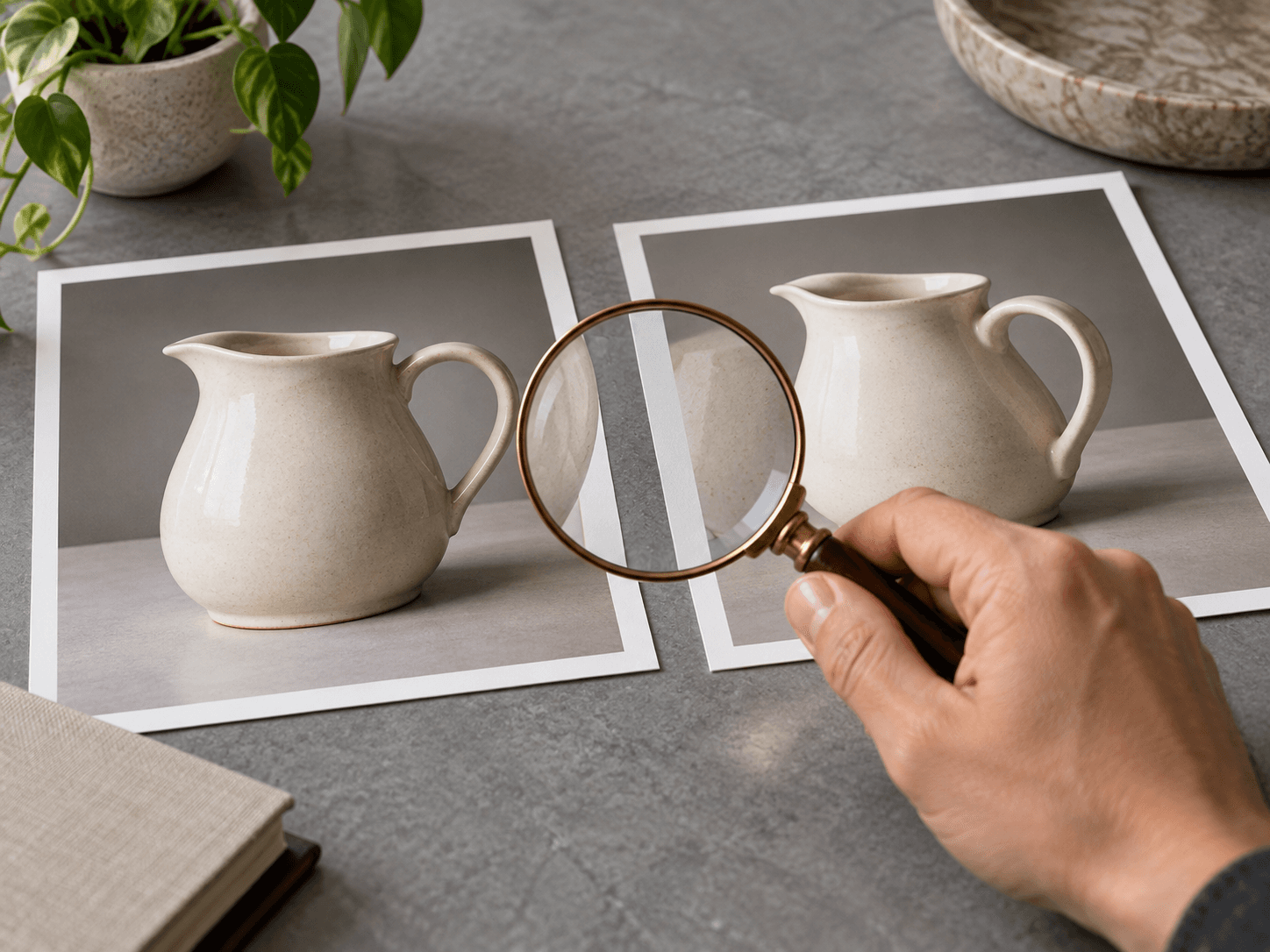
A shared reference and a repeated brief help organize the requests. The generated images still need continuity review.
Ask for the same camera height, subject scale, center position, backdrop and light. Compare the actual margins and contact shadow before accepting a frame.
Request a frame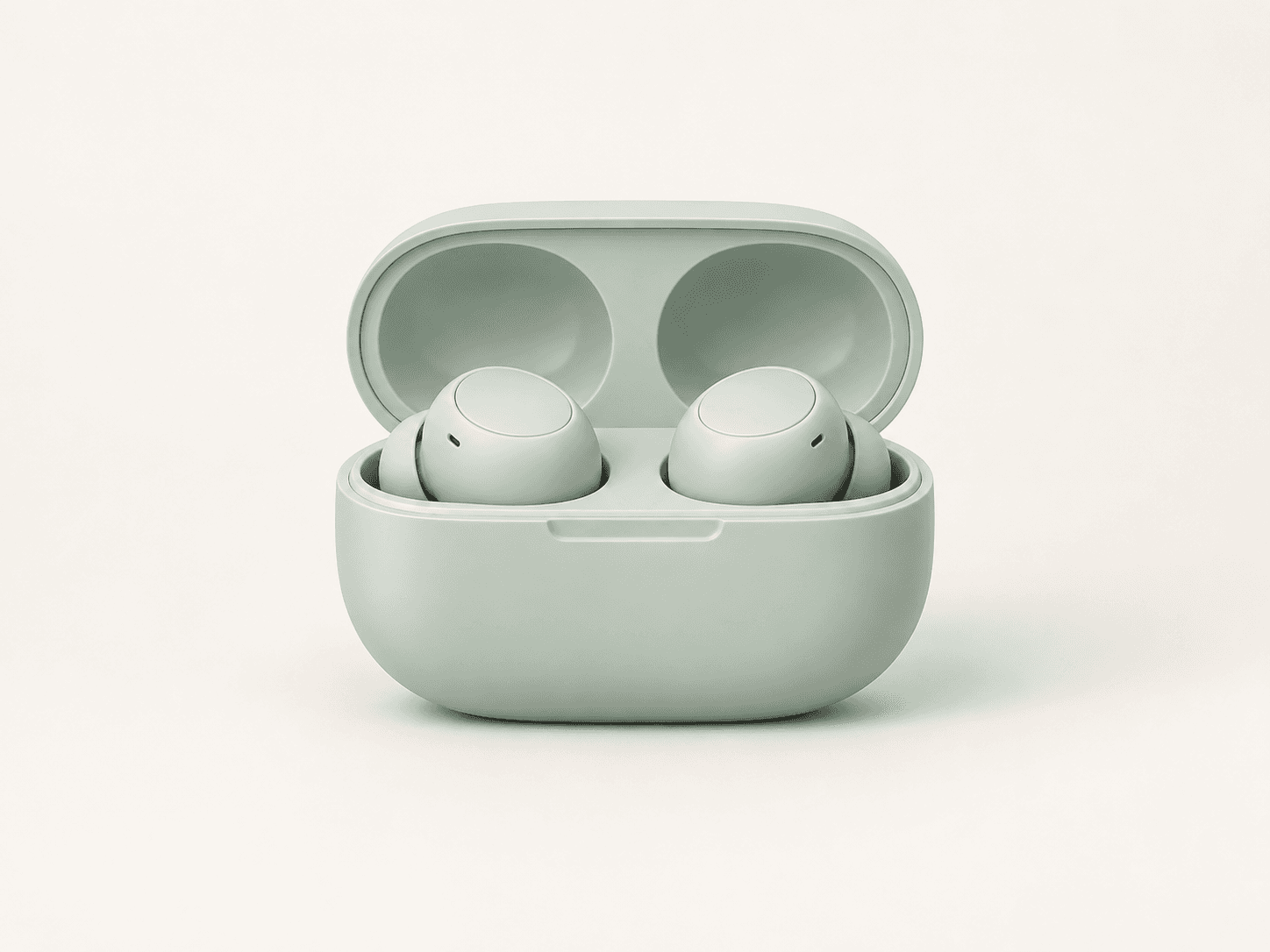
Choose landmarks such as seams, handles or color breaks. Watch for details that appear, disappear or change shape unexpectedly between neighboring frames.
Request a frame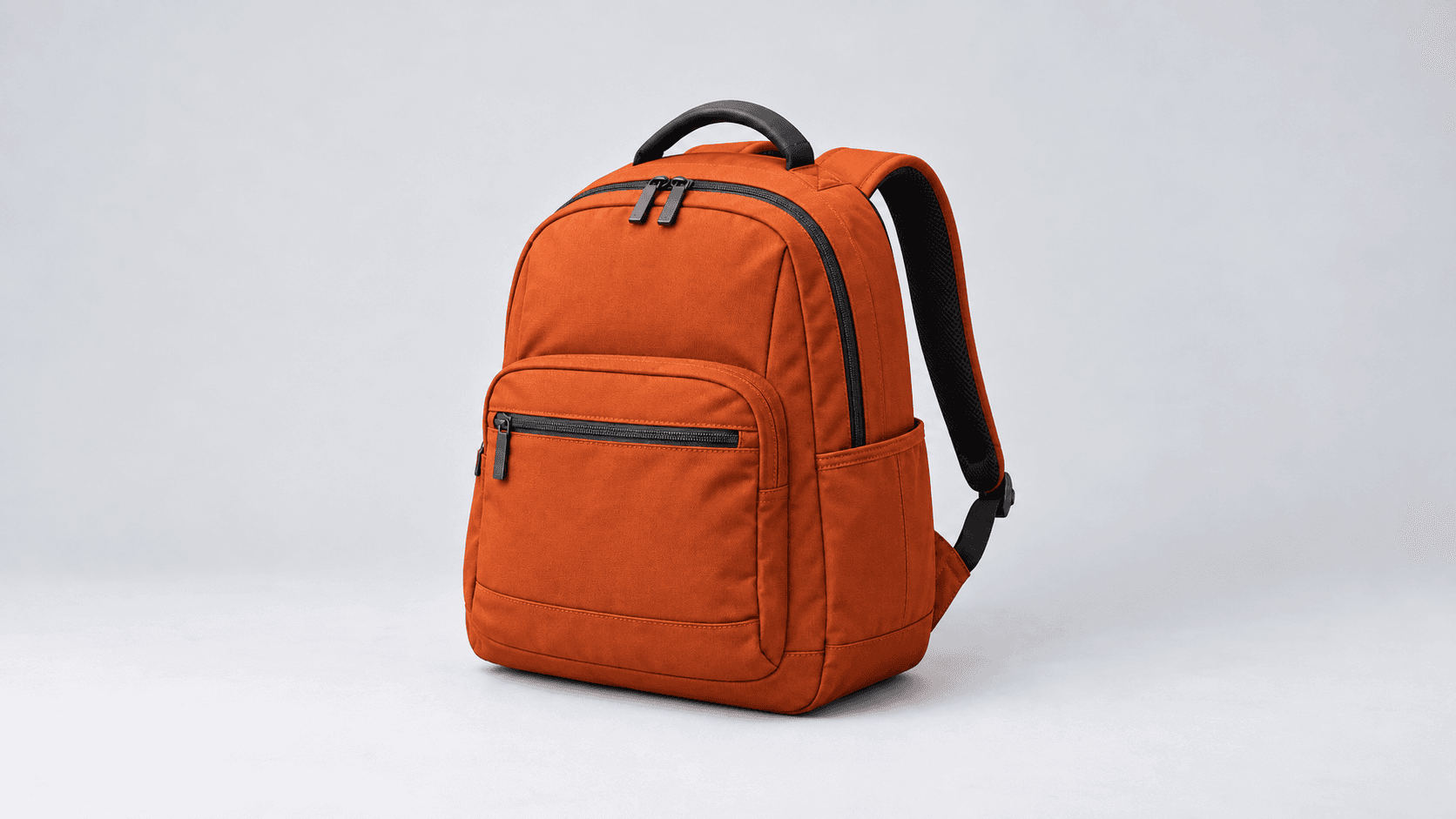
Use each brief for one image request. Choose the other views for your sequence separately.
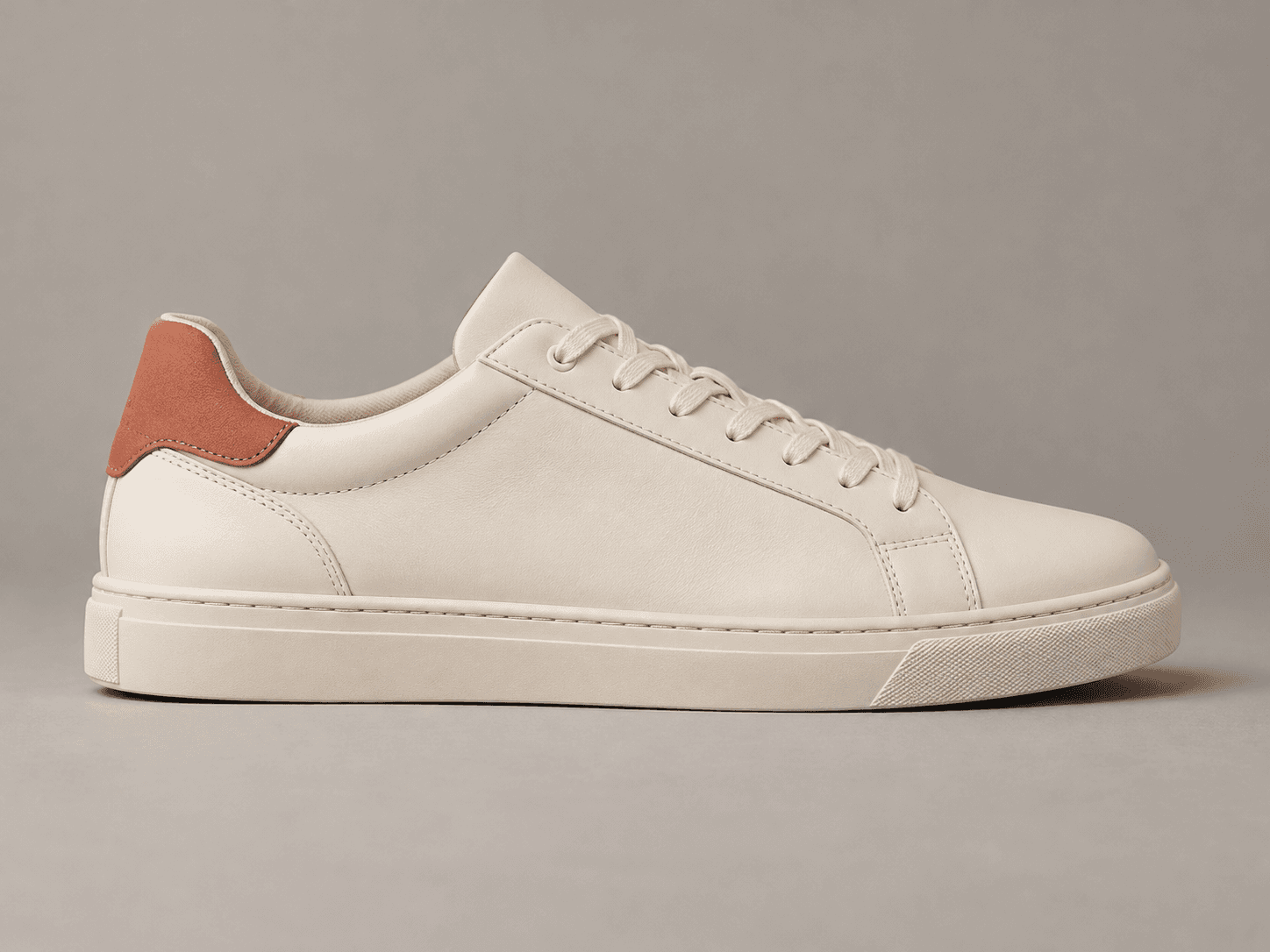
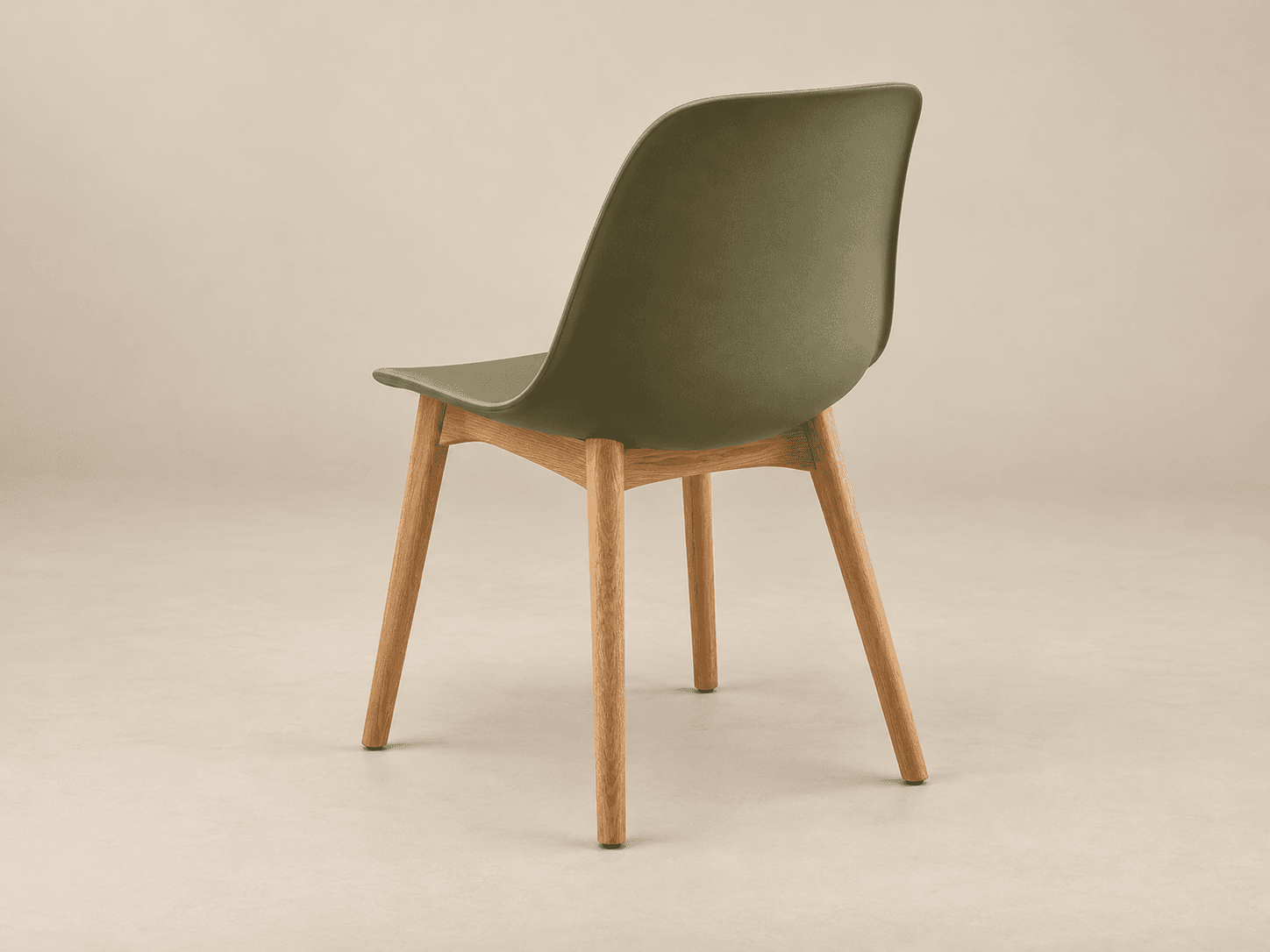
Use the generated views to explore a presentation, then decide whether the selected frames are consistent enough for the intended placement.
A store team is considering a rotating product display. Explore the required views and check them against the real item before assembling any customer-facing sequence.
Explore another view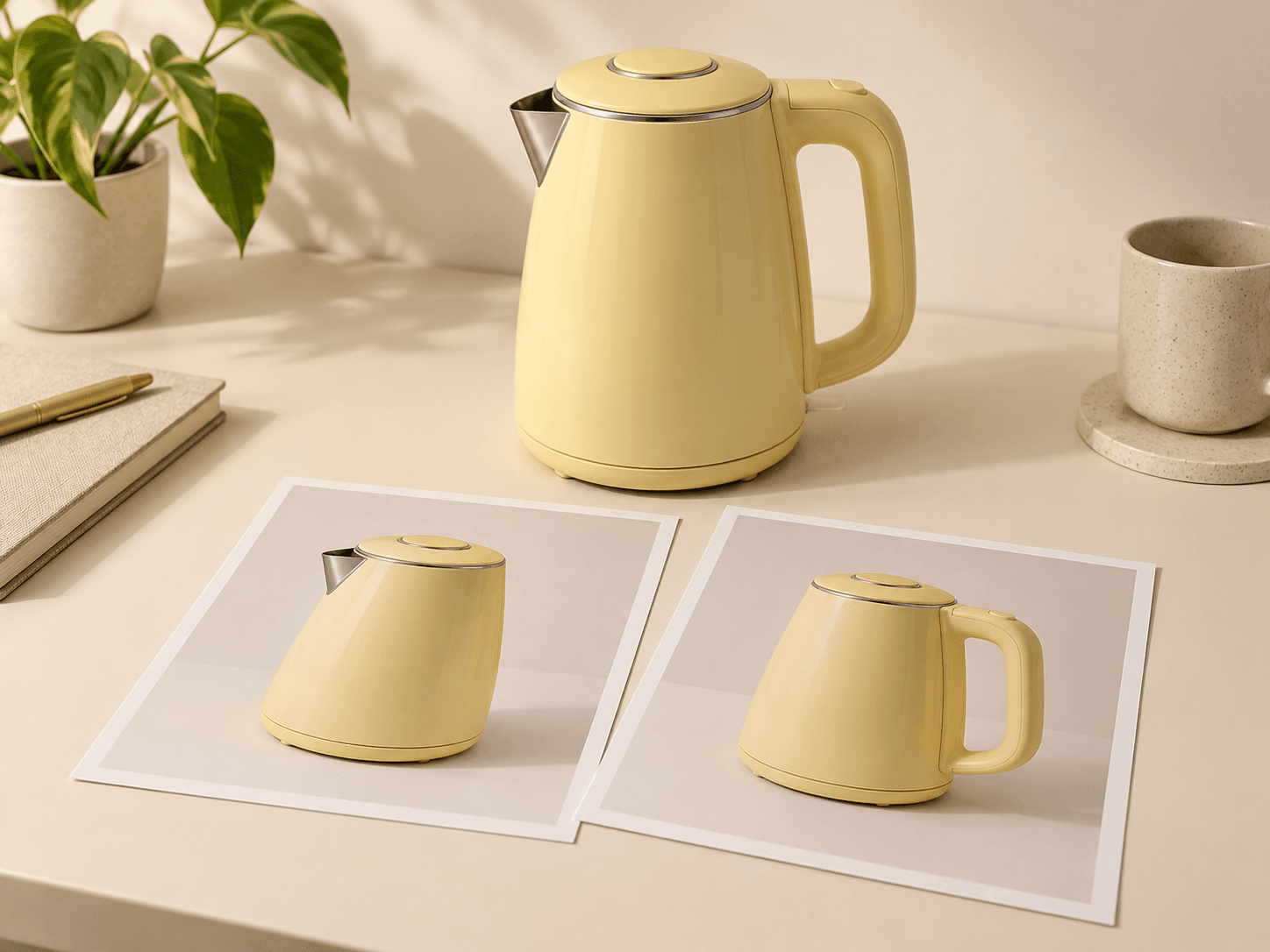
A design team wants to discuss a concept beyond its front view. Generate separate angles, identify speculative hidden details and agree on the design before further production.
Explore another view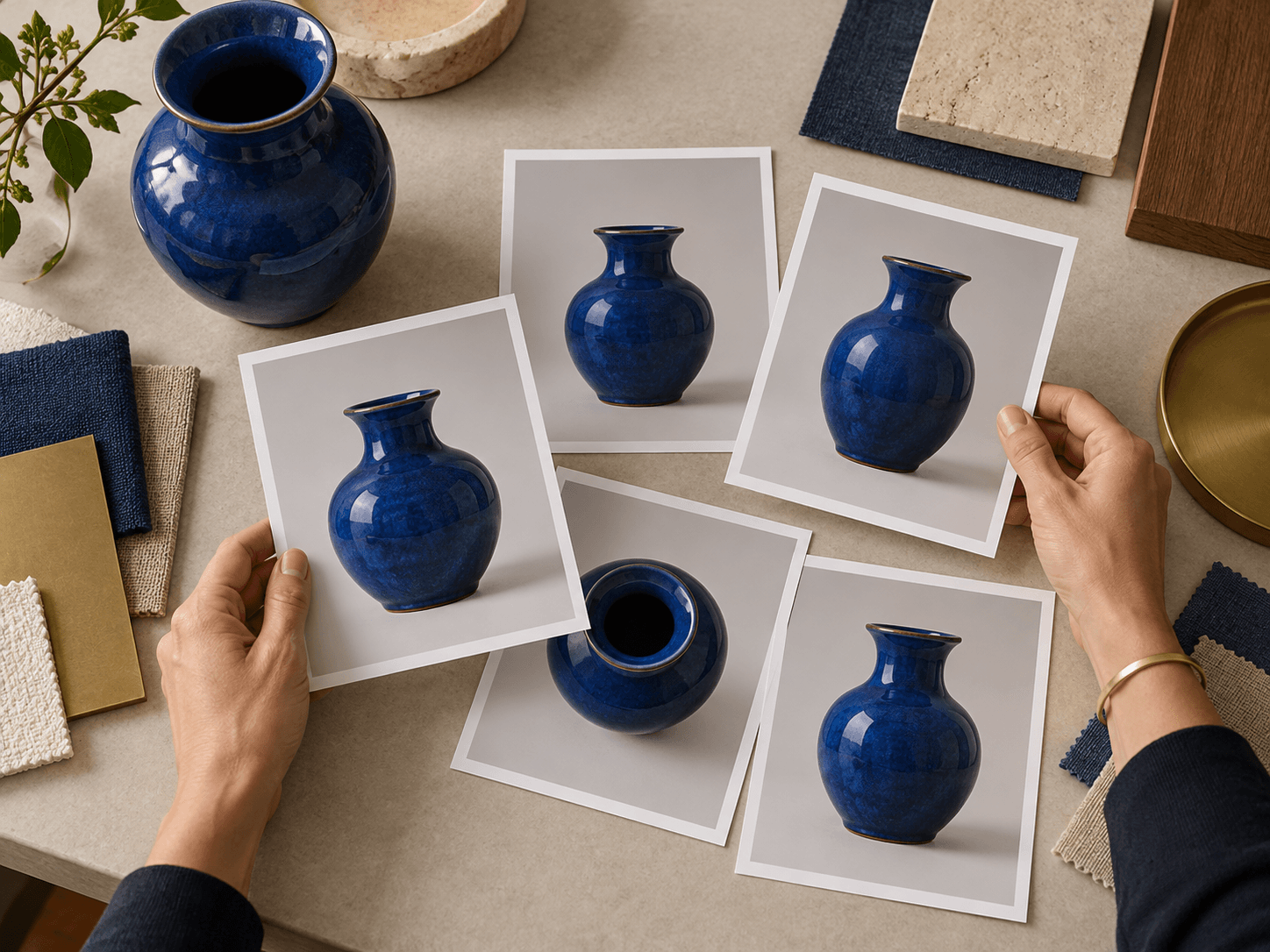
The form supplies individual still-image candidates for a workflow you organize and review.
| Reference | Choose one sample or upload a subject image. Use the same approved source across frame requests. | |
|---|---|---|
| Per-request output | One generated image showing the requested view. Each additional view requires a separate request. | |
| View controls | Four prompt presets and an editable brief. Requested directions and degree values are descriptive prompts, not calibrated camera controls. | |
| Frame count | Choose your sequence length in your own plan. This form does not provide batch frame-count or angle-step settings. | |
| Continuity | Scale, geometry, texture and lighting can drift. Review neighboring frames and the loop transition before assembly. | |
| Hidden surfaces | Views absent from the reference may contain invented details. A single image does not establish an accurate reconstruction of every side. | |
| Assembly | Order and align the selected images in a separate workflow. This form does not package a frame ZIP, animated spin or interactive viewer. | |
| Cost | Check the current credit requirement before each request. See current plans and account allowances. | Verified 2026-10-14 |
| Commercial use | Paid-plan outputs have commercial rights subject to provider terms and source rights. Free-plan generations are for personal, non-commercial evaluation; upgrading applies to new generations. | Verified 2026-10-14 |
| Upload data use | Default terms permit using uploads, prompts and outputs for training and improvement. Provider policies also apply. Enterprise opt-out requires a written agreement; learned or derived information may persist after source deletion. | Verified 2026-10-14 |
These current catalog links support separate canvas research. They do not identify this form’s active model or establish frame-to-frame consistency.
Catalog checked 2026-10-14. Compare each model’s reference inputs, editing controls and provider terms.
Browse image modelsIt generates one still-image view per request. Repeat the workflow for the views you need, then review and order the selected images before assembling a spin separately.
No. The form has no batch sequence or angle-step control. Choose a direction and generate one frame at a time; plan and manage the sequence separately.
Edit Describe this frame with an intermediate viewpoint, such as a front-right three-quarter view. A degree value is a visual instruction rather than an exact camera setting, so inspect the returned view.
No. Generated geometry, proportions, framing and lighting may vary. Compare neighboring images and the last-to-first transition, then reject or repair frames that break continuity.
Not necessarily. A single reference does not show every surface. Generated hidden details may be invented; compare with approved photographs or design information when accuracy matters.
No. The output is an individual still image. Frame ordering, alignment and spin assembly happen in a separate workflow; the form does not export an interactive viewer, animation or 3D mesh.
Paid-plan outputs have commercial rights subject to model-provider terms and your rights to the source material. Free-plan generations are for personal, non-commercial evaluation. Read the current commercial-rights policy.
Not by default. Uploads, prompts and outputs may be used for training and improvement, and provider policies apply. Enterprise opt-out requires a written agreement; review the upload-data policy before supplying a reference.
Keep the reference and frame brief steady. Generate one view, compare the details and continue your sequence with the next request.