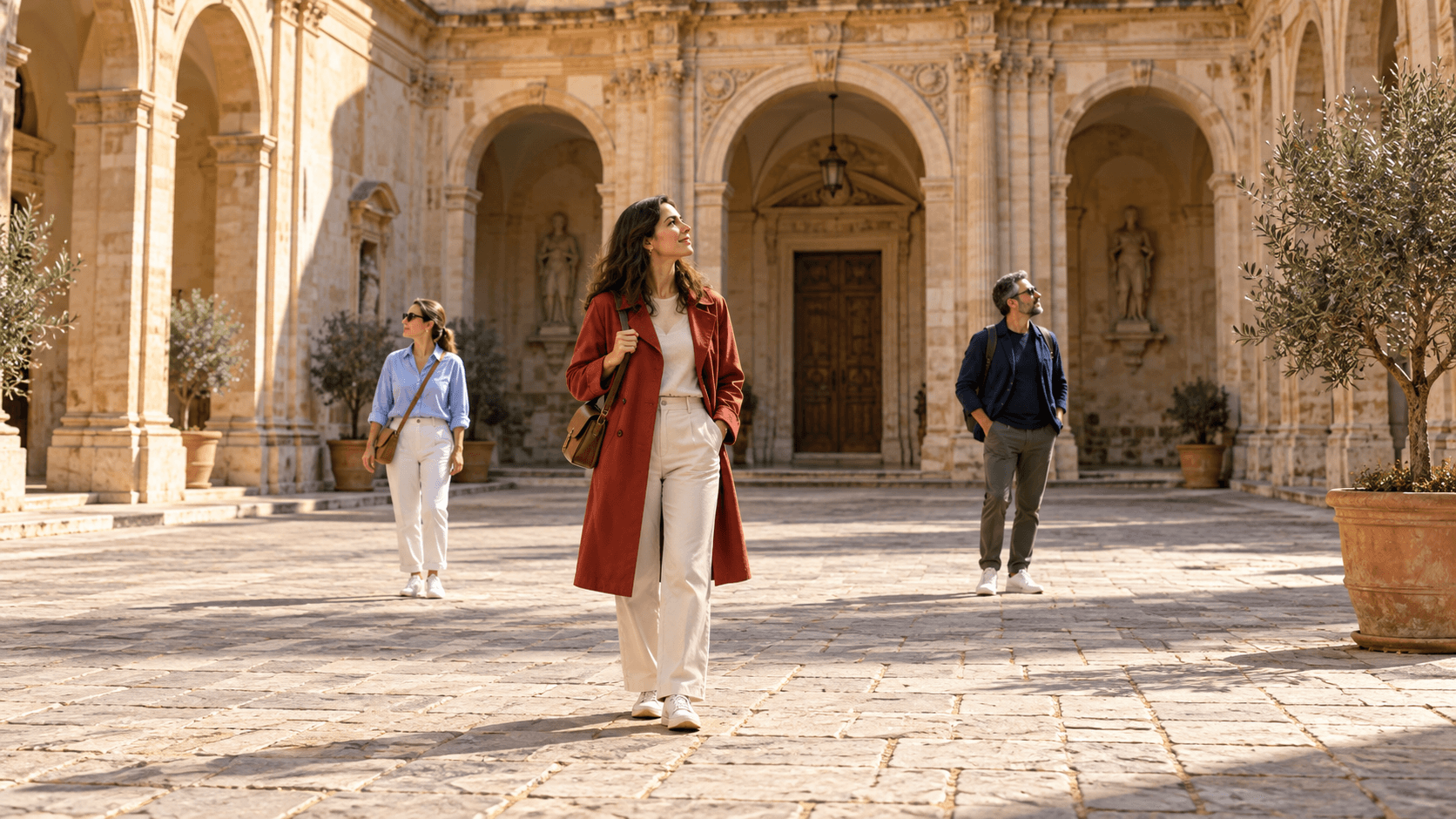
Three people in the courtyard
Decide who belongs in the final image
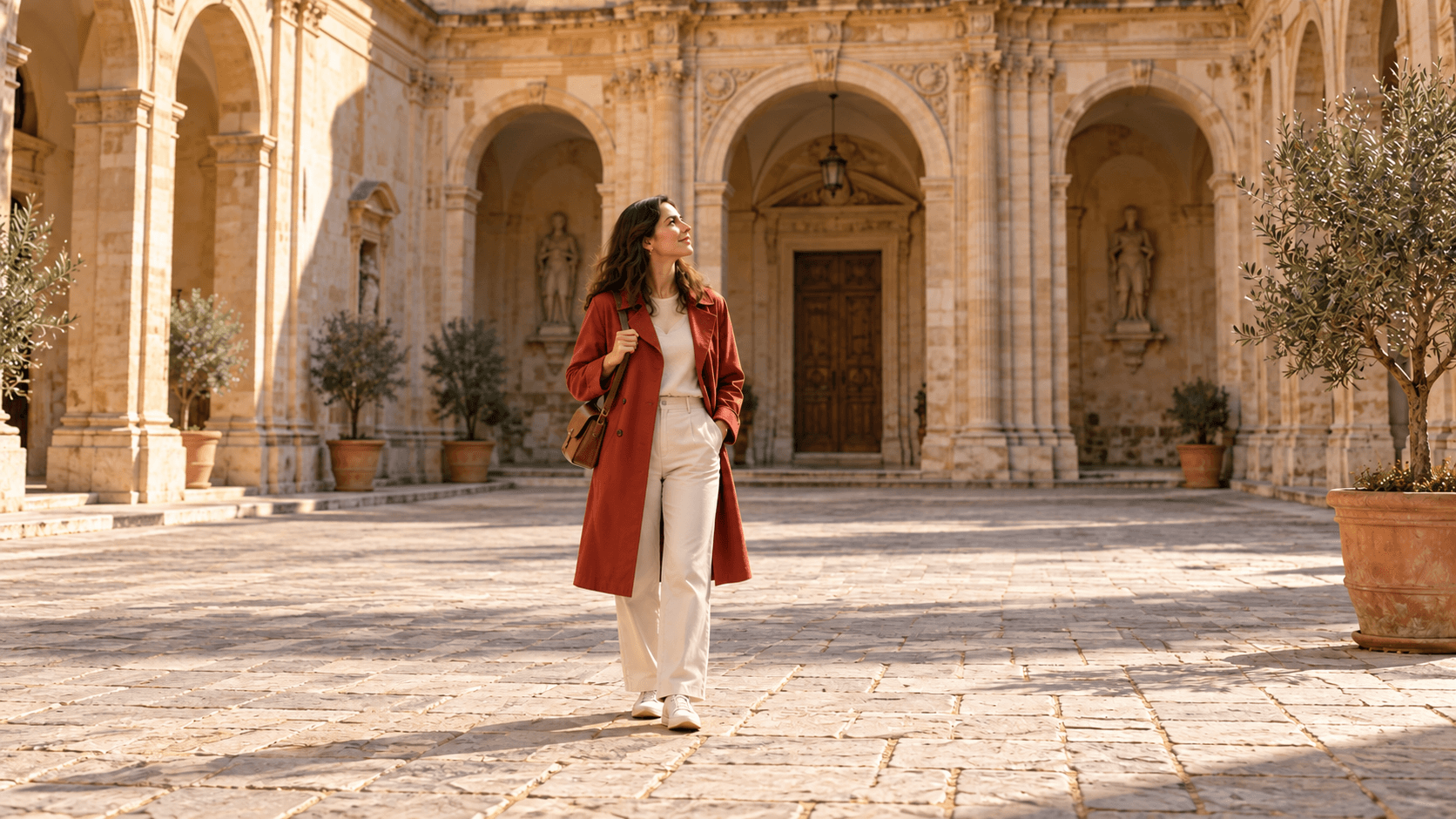
- The woman in red is the main subject.
- Two separate pedestrians stand behind her.
- Paving lines and shadows provide context for the edit.
Add a reference, choose a starting brief and identify the people to remove or keep. Edit the prompt to match your own image.
These Image Gen illustrations show proposed editing directions, not verified outputs from this Astorie form. All three preset thumbnails use the Courtyard reference.
Decide who belongs in the final image
Inspect the filled areas and the person you kept
Start with a clear reference and a specific description, then compare the generated edit with the original.
Select Courtyard reference or upload your own image. Choose a removal brief, then edit Describe who to remove with positions, clothing and the people to retain.
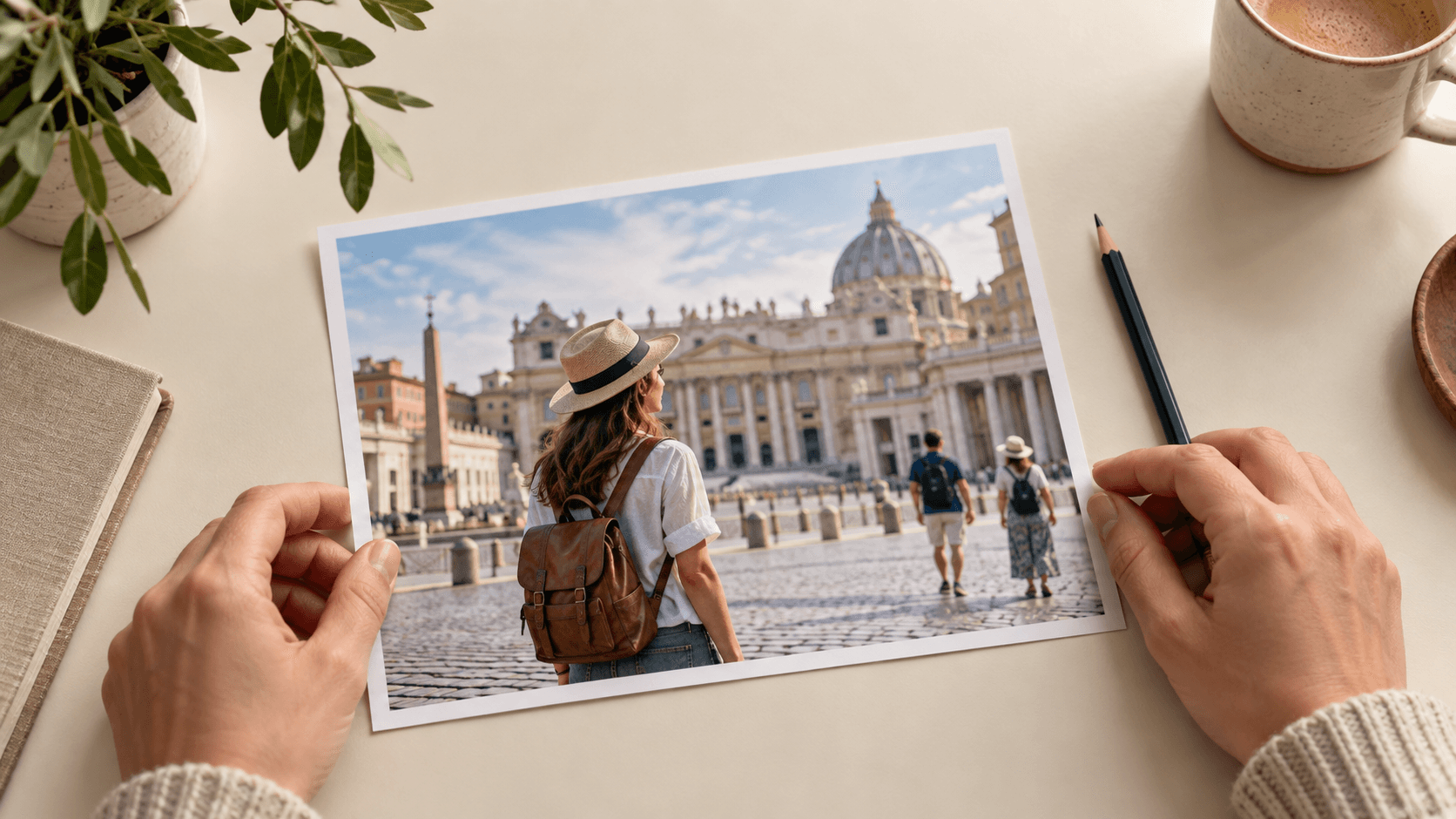
Select Generate edited image and sign in if prompted. Compare the filled background, shadows and retained subjects with your source before using the image.
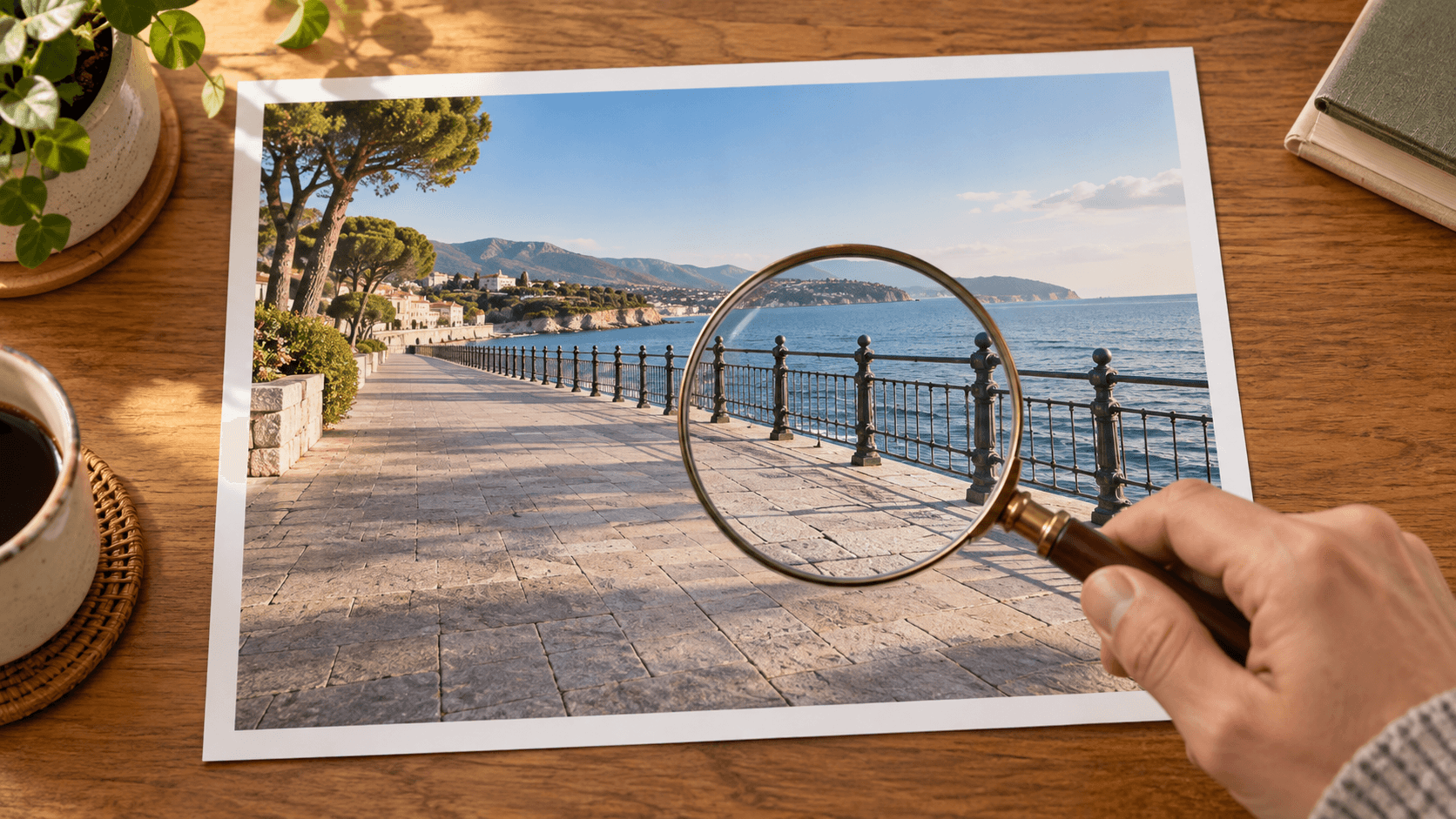
A useful brief identifies both the unwanted person and the details that matter around them.
Use position and clothing: “the adult on the right in navy.” State who should stay, especially when several people are close together.
Write a removal brief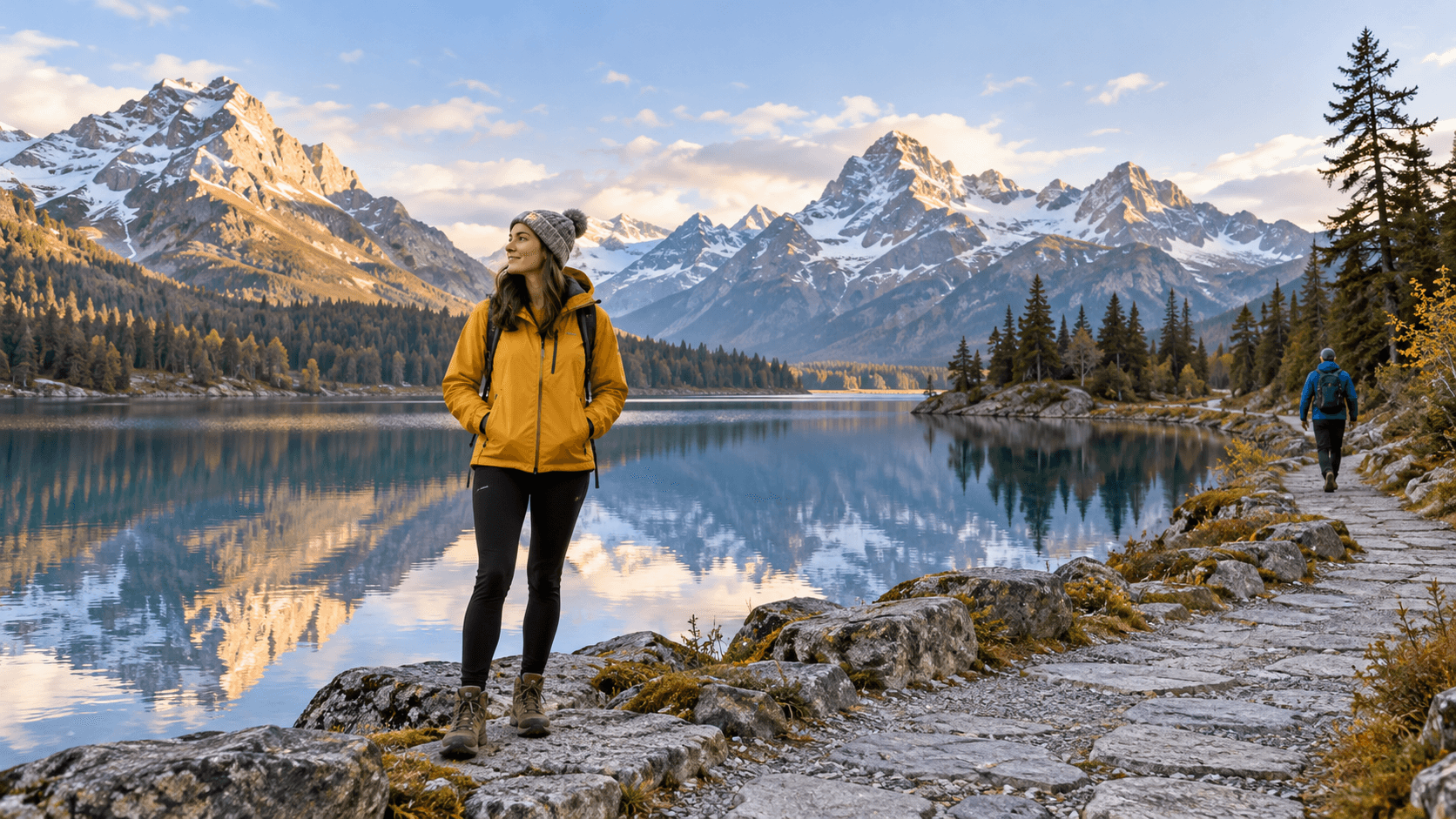
The hidden area is generated from visual context. Inspect repeating tiles, railings, furniture edges, reflections and shadows for broken patterns or leftover traces.
Write a removal brief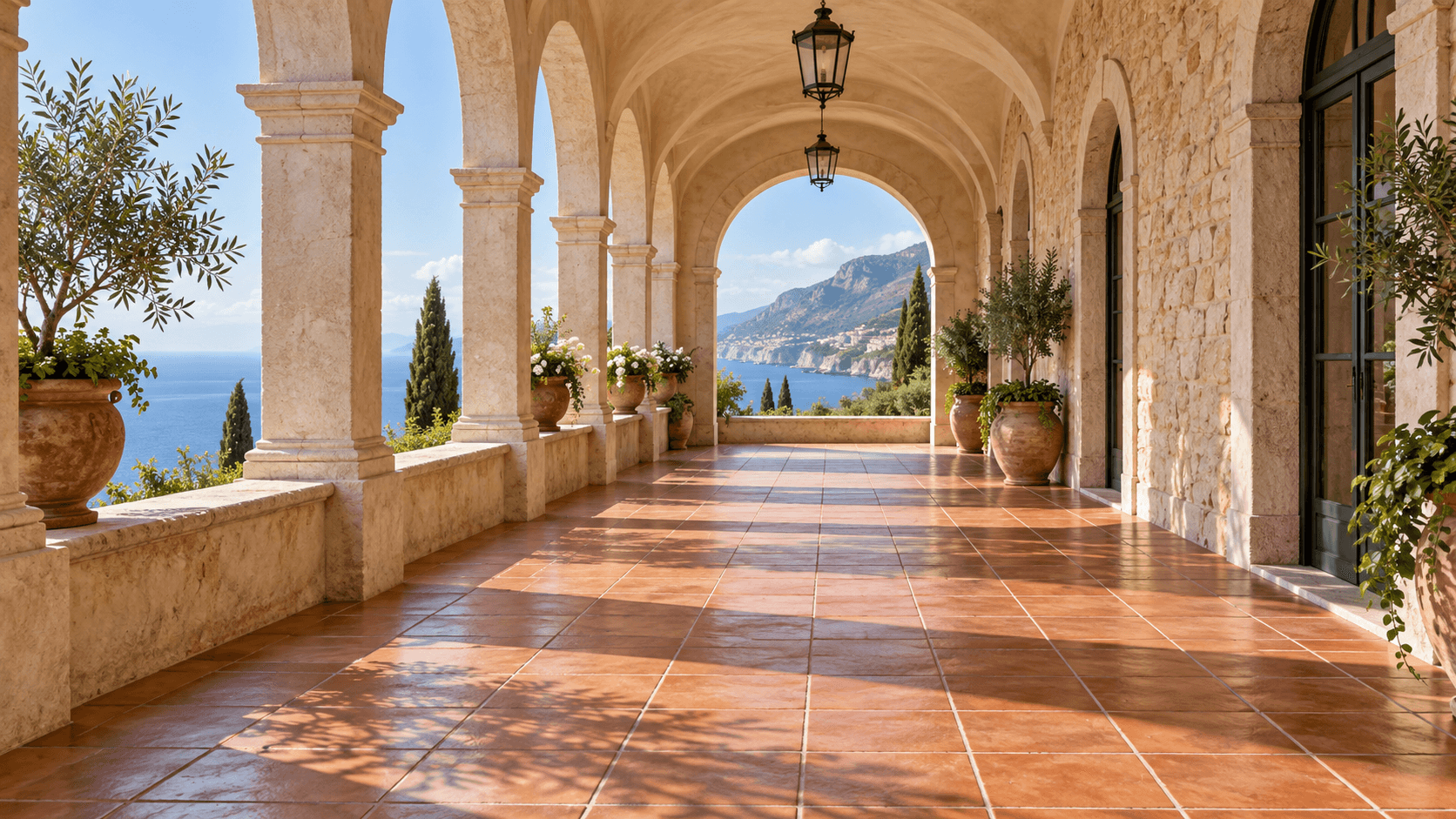
Adapt these example briefs to your source. The illustrations show possible directions for a reviewed edit.

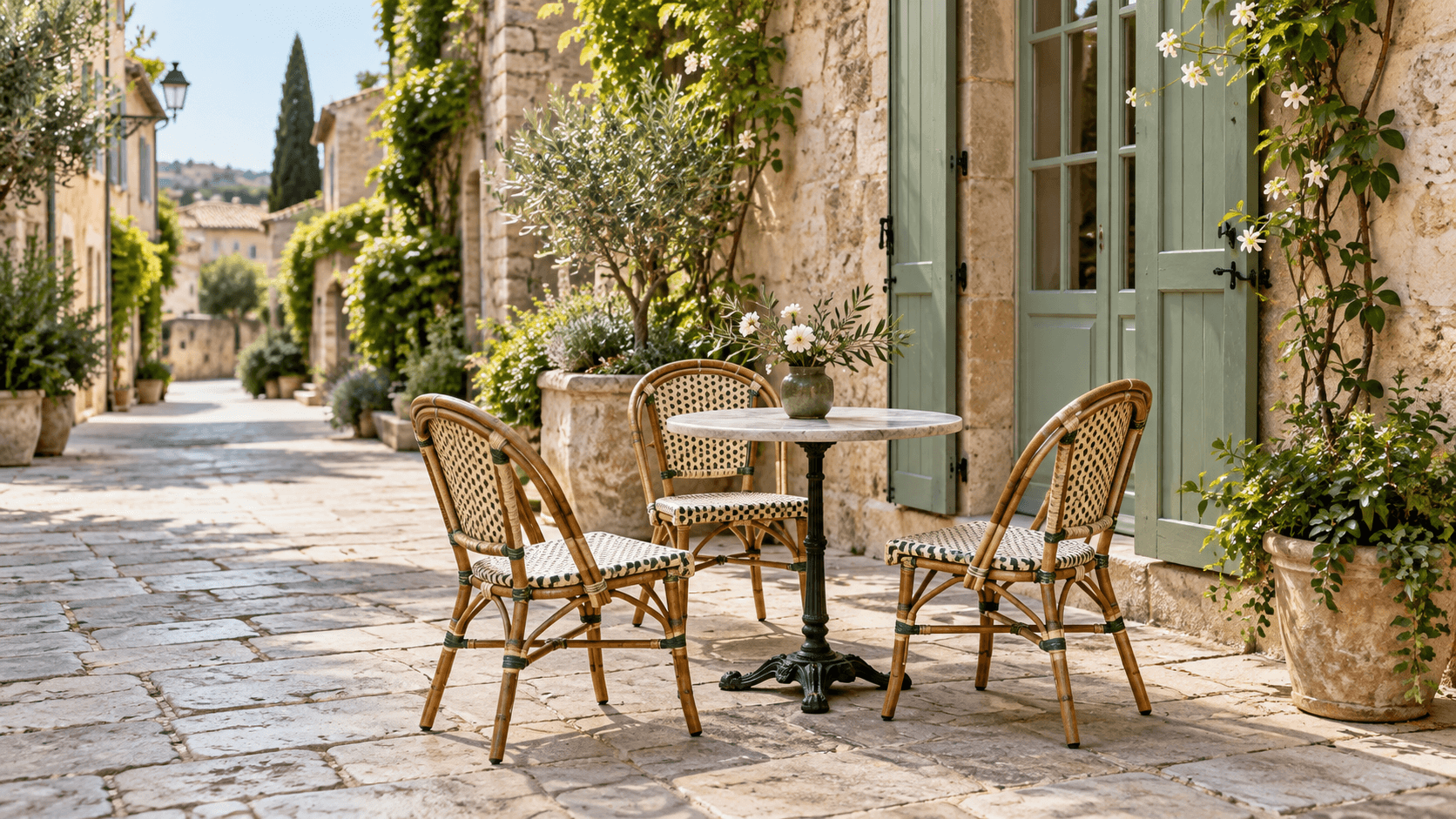
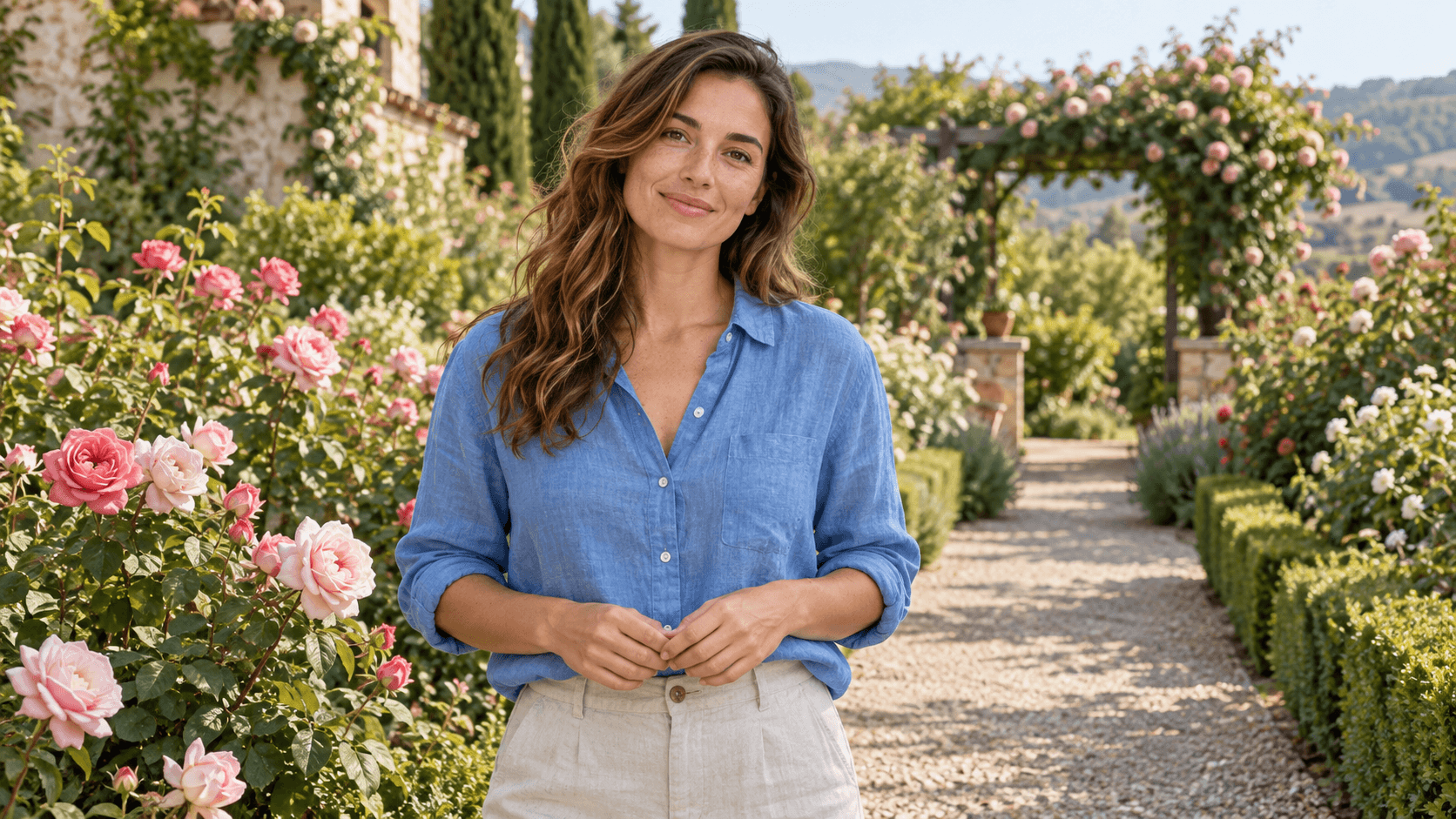
Choose an edited candidate that supports the purpose of the image, then check it against the source.
Clear distracting visitors from a holiday photo so the landmark is easier to see. Keep the original alongside your edit and inspect stonework, railings and reflections.
Start a people removal edit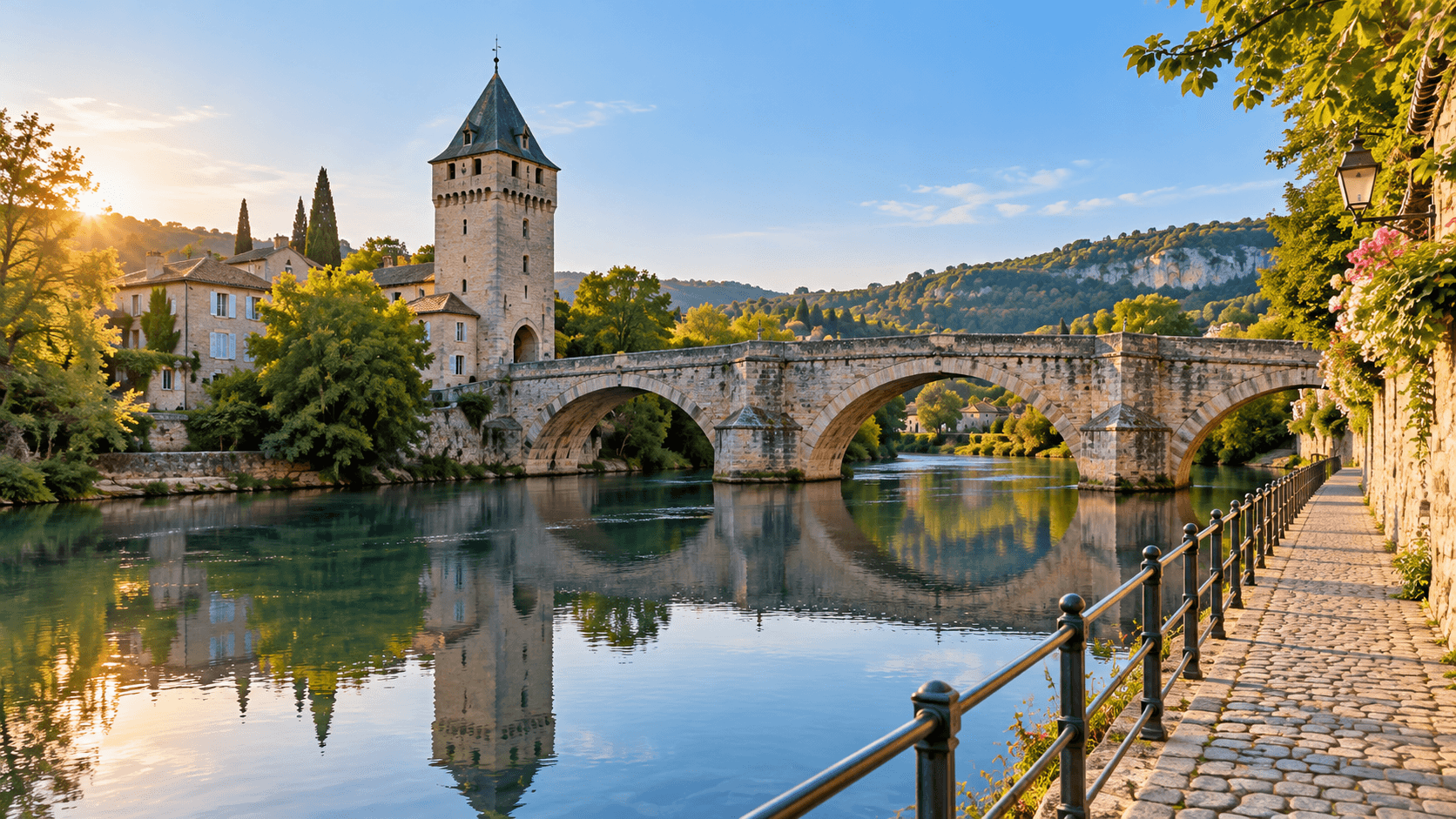
Explore a version of a space without visitors. Review furniture, floor patterns and proportions so the edit remains a useful representation of the setting.
Start a people removal edit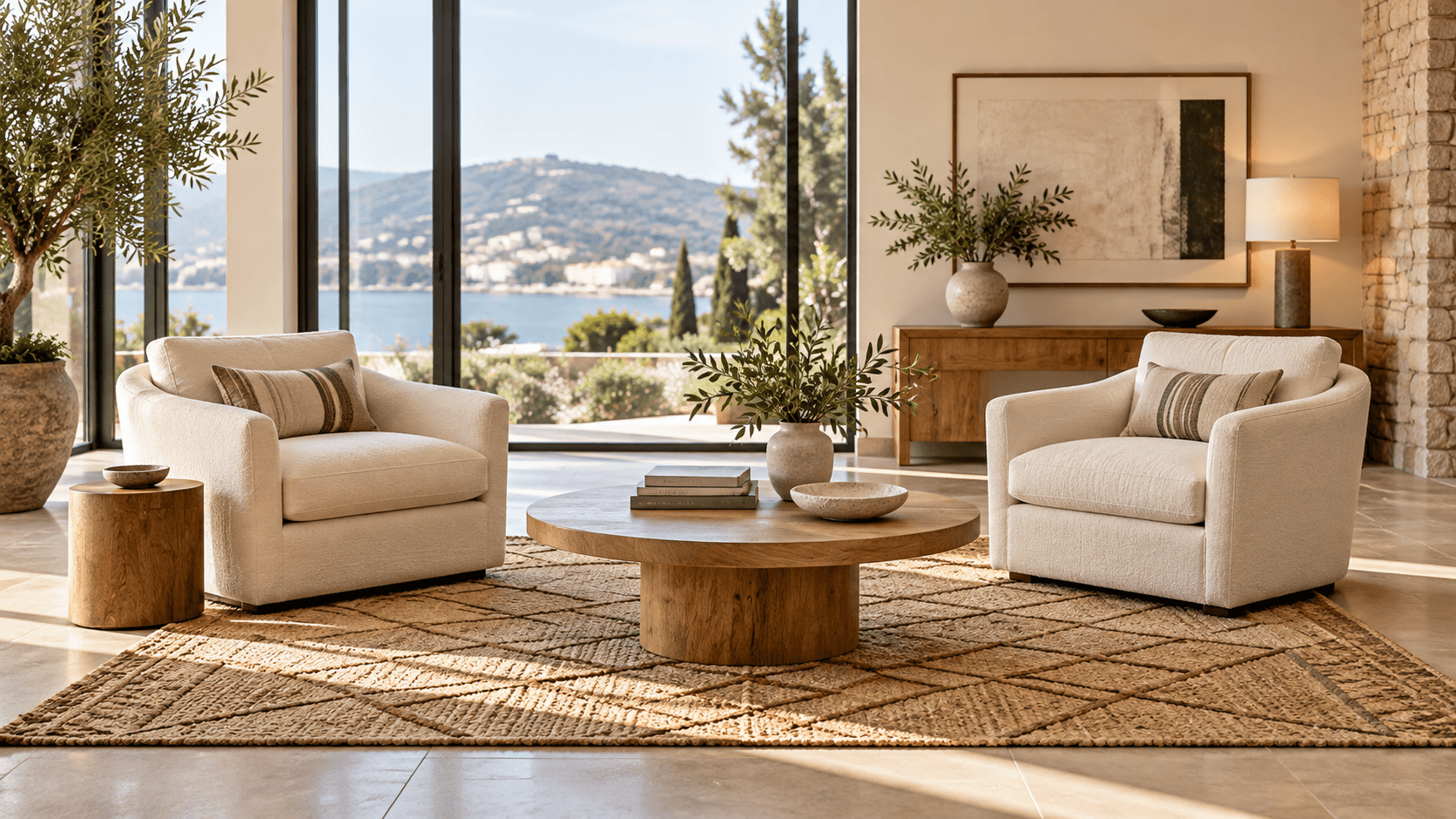
This form uses a reference image and a written request to generate an edited still image.
| Reference | One selected sample or uploaded image. A reference is required. | |
|---|---|---|
| Controls | Three starting briefs and an editable prompt. Identify people in words using their position and visible details. | |
| Selection | The form does not expose a selection brush, local mask or automatic person-selection control. | |
| Background fill | The edit generates plausible content where people were visible. It cannot recover the actual scene hidden behind them. | |
| Review | Check retained faces and bodies, repeating patterns, belongings, shadows and reflections. Exact preservation is not guaranteed. | |
| Cost | Check the current credit requirement before generating and review your account allowance. | Verified 2026-10-15 |
| Commercial use | Paid-plan outputs have commercial rights subject to provider terms and source rights. Free-plan generations are for personal, non-commercial evaluation; upgrading applies to new generations. | Verified 2026-10-15 |
| Upload data use | Default terms permit using uploads, prompts and outputs for training and improvement. Provider policies also apply. Enterprise opt-out requires a written agreement; learned or derived information may persist after source deletion. | Verified 2026-10-15 |
These catalog links support separate canvas workflows. They do not identify this form’s active model or prove a people-removal result.
Catalog checked 2026-10-15. Compare each model’s reference inputs, editing controls and terms.
Browse image modelsYou can request that in the editable prompt. Identify the person by position and clothing, name the people to retain, and compare every retained subject with your source.
Choose Remove everyone as a starting brief. Check the filled scene for remaining belongings, person-cast shadows and reflections, as well as changes elsewhere in the image.
The edit generates a plausible replacement based on the surrounding scene. It does not reveal the actual details that were hidden behind the person.
The form provides a reference image, preset briefs and an editable prompt. It does not expose a selection brush, local mask or automatic person-selection control.
Exact preservation is not guaranteed. Ask to retain the main subject, then inspect facial features, hair, hands, clothing, pose and nearby edges against the original.
Describe the target and retained subjects clearly, then inspect the result closely. Overlapping bodies and hidden architecture leave more content to reconstruct, and may need another request or further editing.
Paid-plan outputs have commercial rights subject to provider terms and your rights to the source material. Free-plan generations are for personal, non-commercial evaluation. Review the current commercial-rights policy.
Not by default. Uploads, prompts and outputs may be used for training and improvement, and provider policies apply. Enterprise opt-out requires a written agreement. Read the upload-data policy before supplying a reference.
Choose a reference, describe who to remove and compare the generated scene with your original.