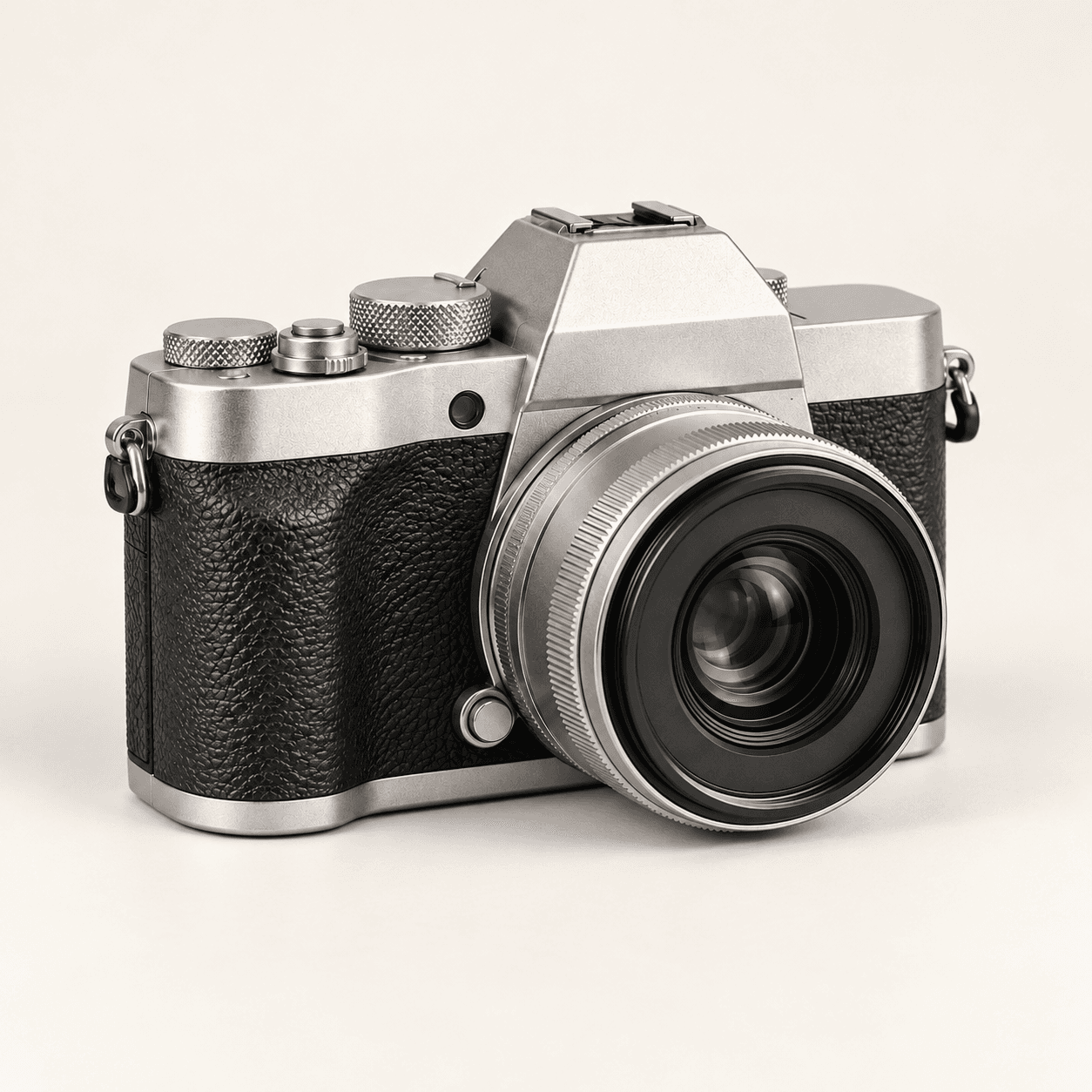
Portrait reference
Notice which details define the face
- Look at the expression, eye shape and mouth contours.
- Separate fine-line shadows from natural skin texture.
- Keep the original available for comparison.
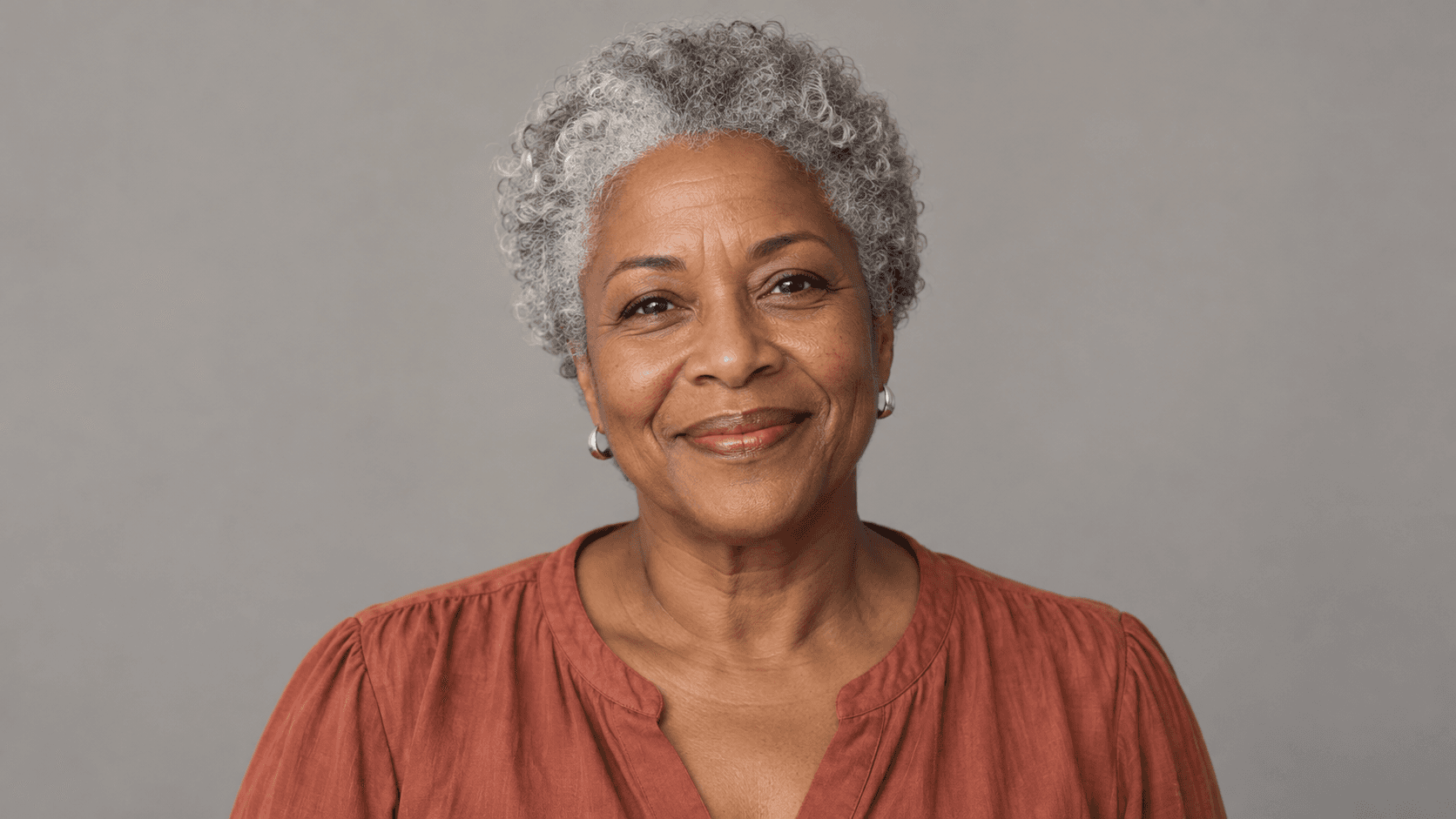
Choose a portrait and a retouch direction, then describe the lines you want to soften. This is a prompt-guided image edit; compare the generated face with your original.
Set a restrained retouch goal, then assess the face as a whole. Page illustrations use fictional adults and proposed edits; they are not verified outputs from this Astorie generator.
Notice which details define the face
Judge more than the line reduction
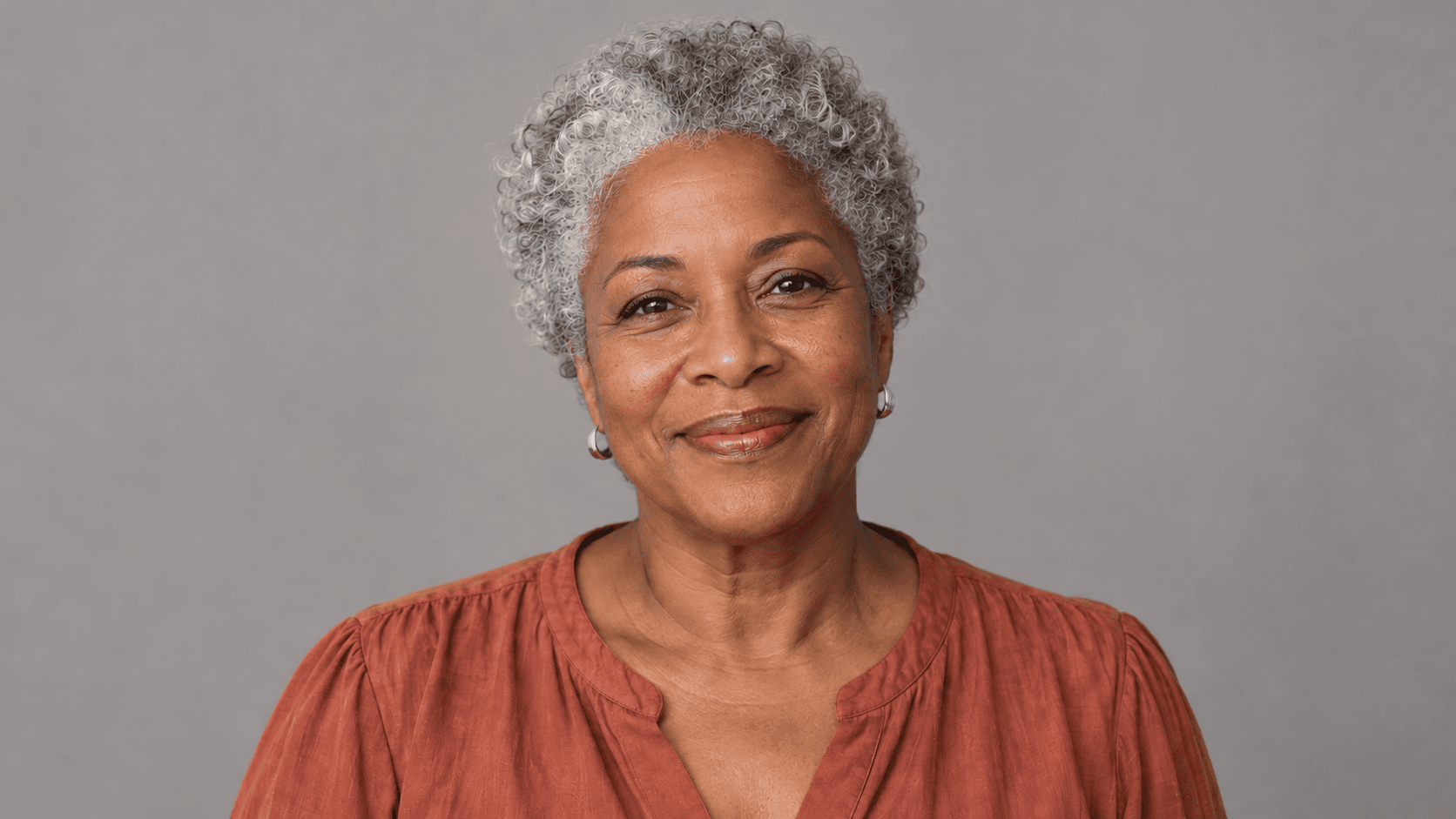
Begin with one clear source and a specific, modest retouch request.
Choose a sample or upload a portrait with visible facial detail. Even light and a clear face make comparison easier.
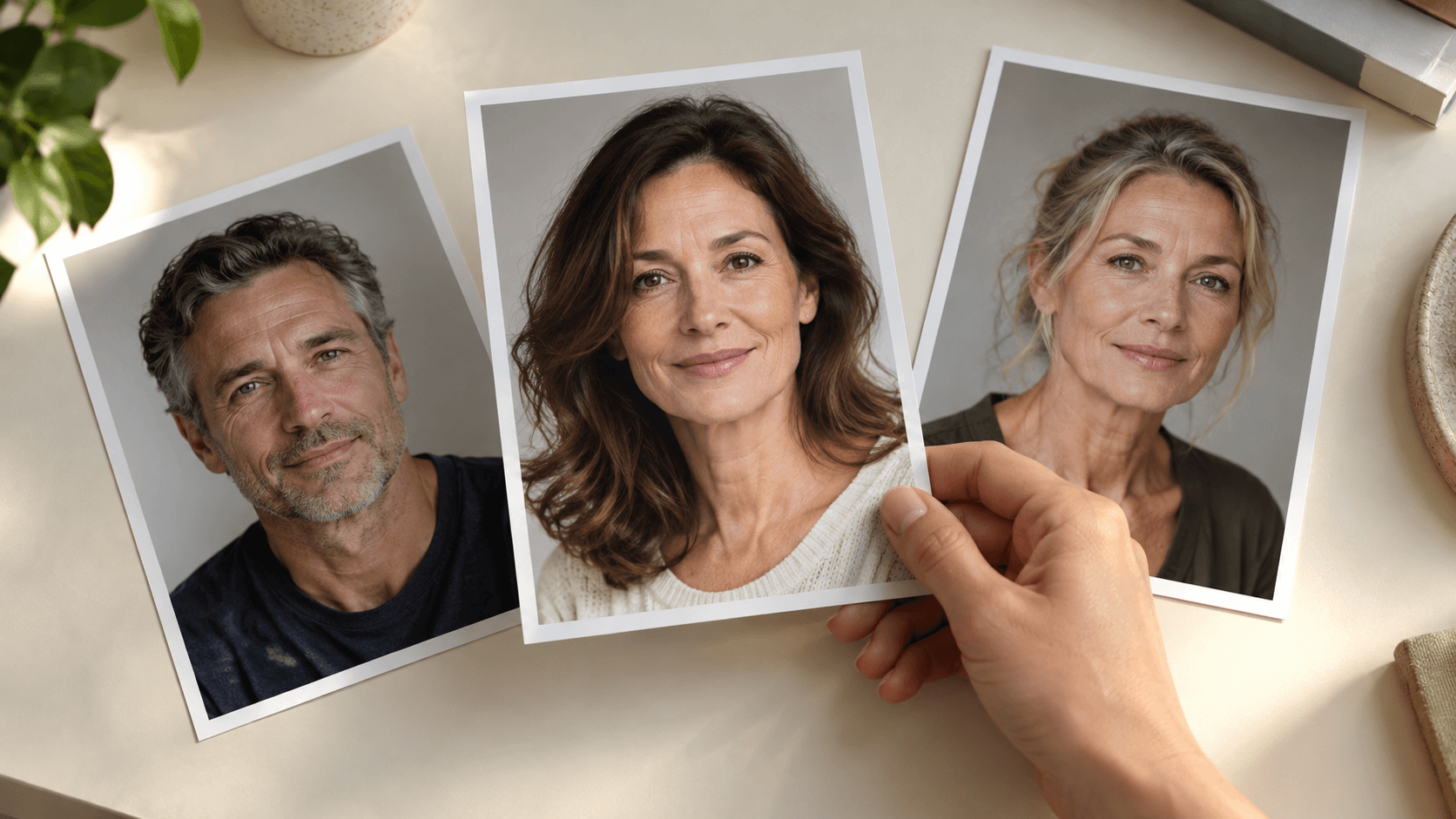
Choose Light touch, Balanced retouch or Soft portrait light. Edit Describe your retouch to name the areas to soften and the details that matter.
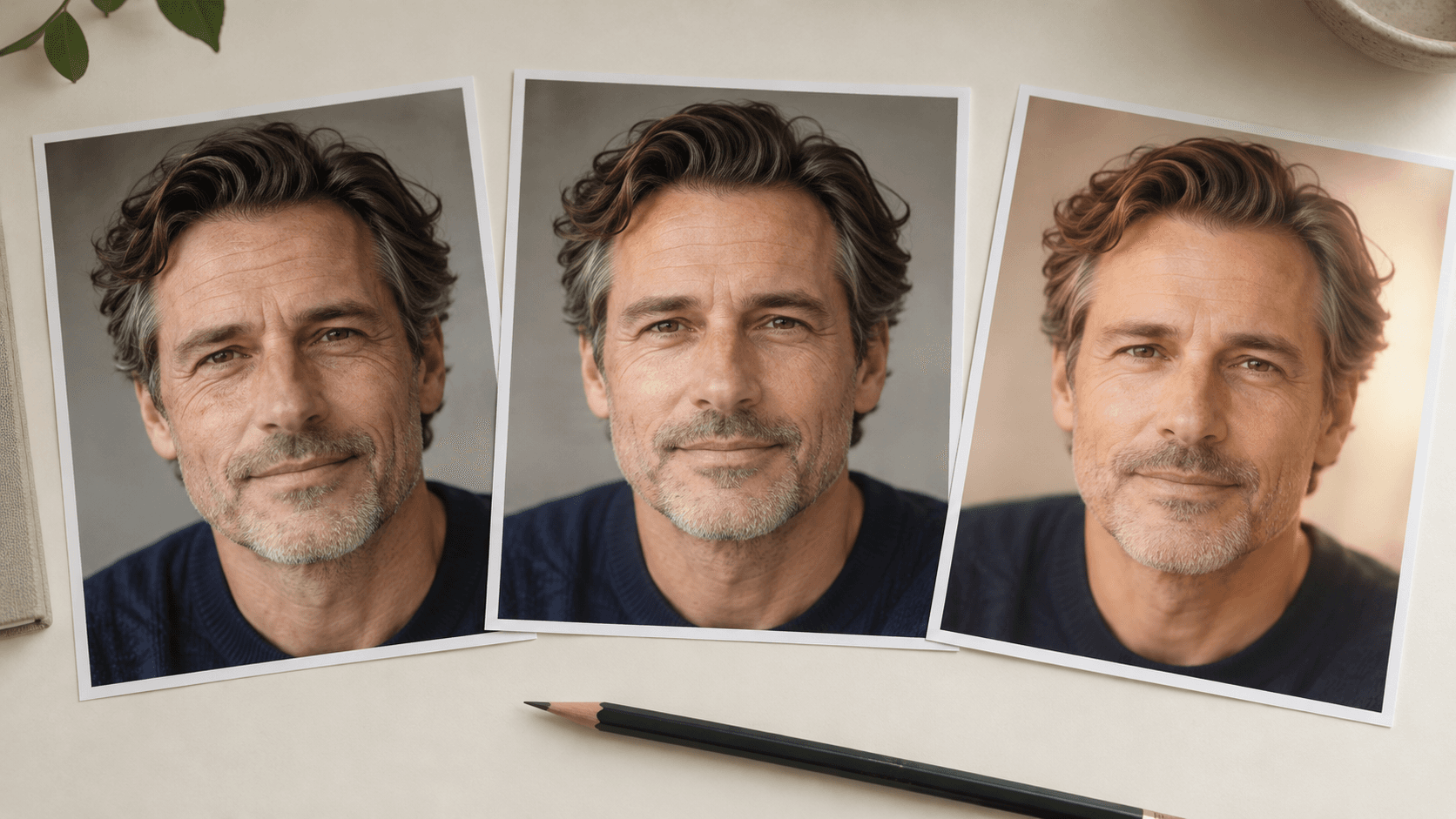
Select Generate portrait edit and sign in if prompted. Compare eyes, lips, skin tone, pores and expression with the original before selecting the result.
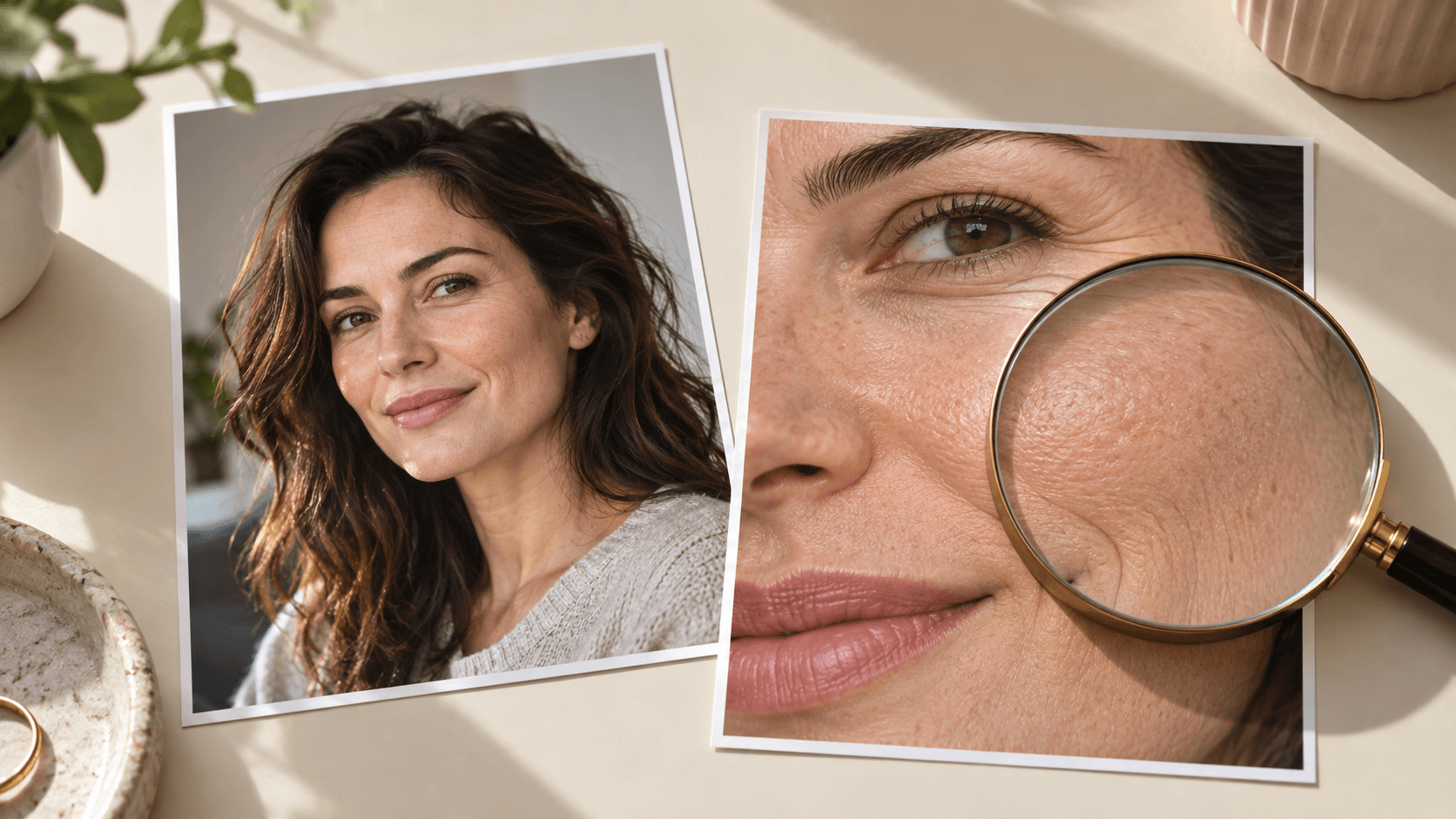
The reference and prompt guide generation. These are creative requests to review, not exact correction controls.
Ask for a small reduction in the appearance of forehead or eye-area lines. Compare the result with the amount of change you intended.
Try a portrait editName pores, freckles and natural texture in the prompt. Inspect the actual image for blur or an overly uniform finish.
Try a portrait editPrioritize the eyes, mouth and smile contours. A reduction in visible lines is not useful if the expression changes.
Try a portrait editTry broader softer light when hard shadows emphasize fine lines. Check that the edited lighting still suits the portrait.
Try a portrait editUse the same reference when revising your brief. Evaluate each candidate against the original rather than only the previous edit.
Try a portrait editRequest one focused adjustment at a time. Reduce the retouch request if the candidate changes skin tone, proportions or recognizable features.
Try a portrait editAdapt these suggested briefs to your own portrait. Choose the level of change with the person pictured and review the candidate at its intended size.
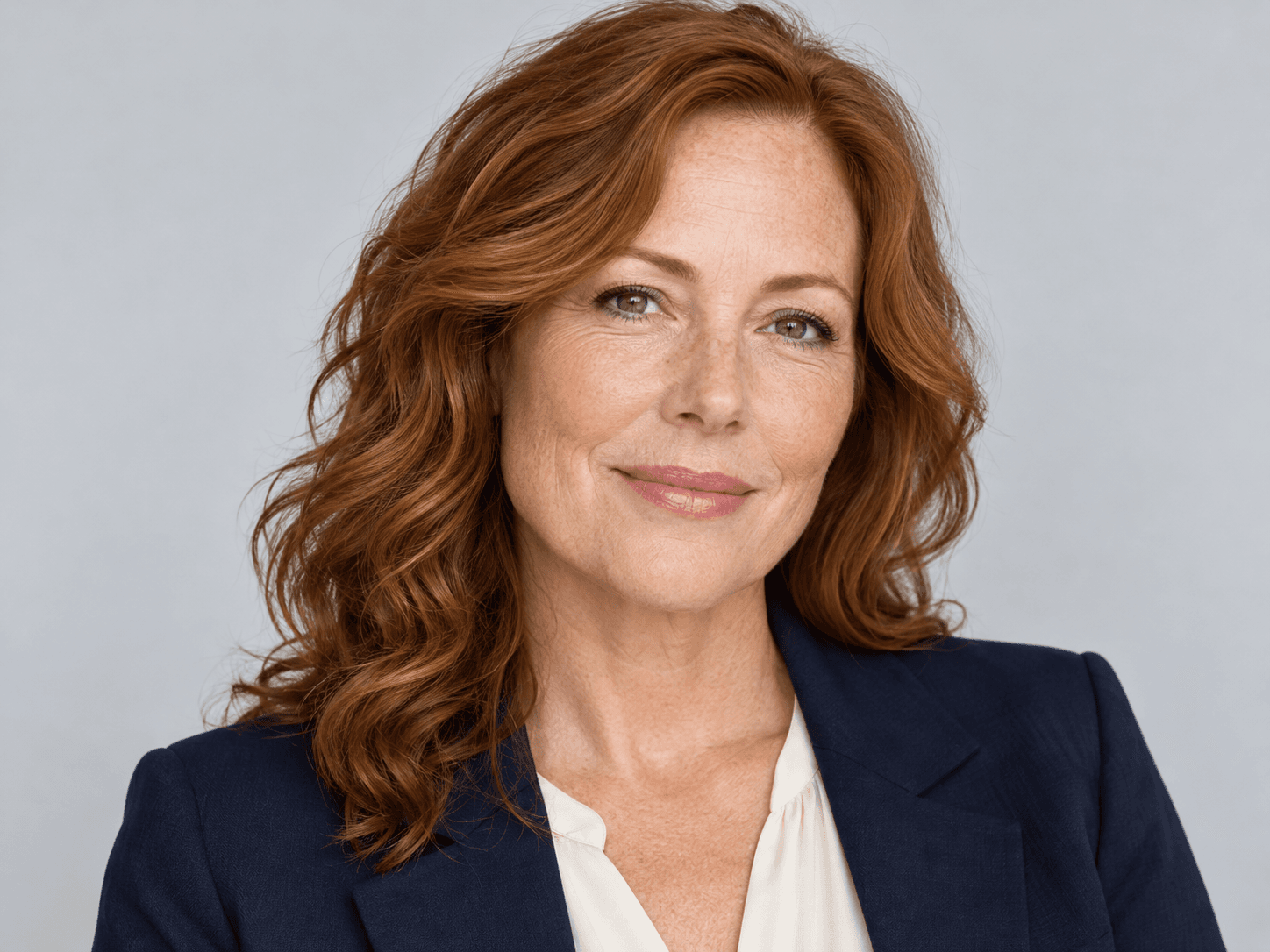
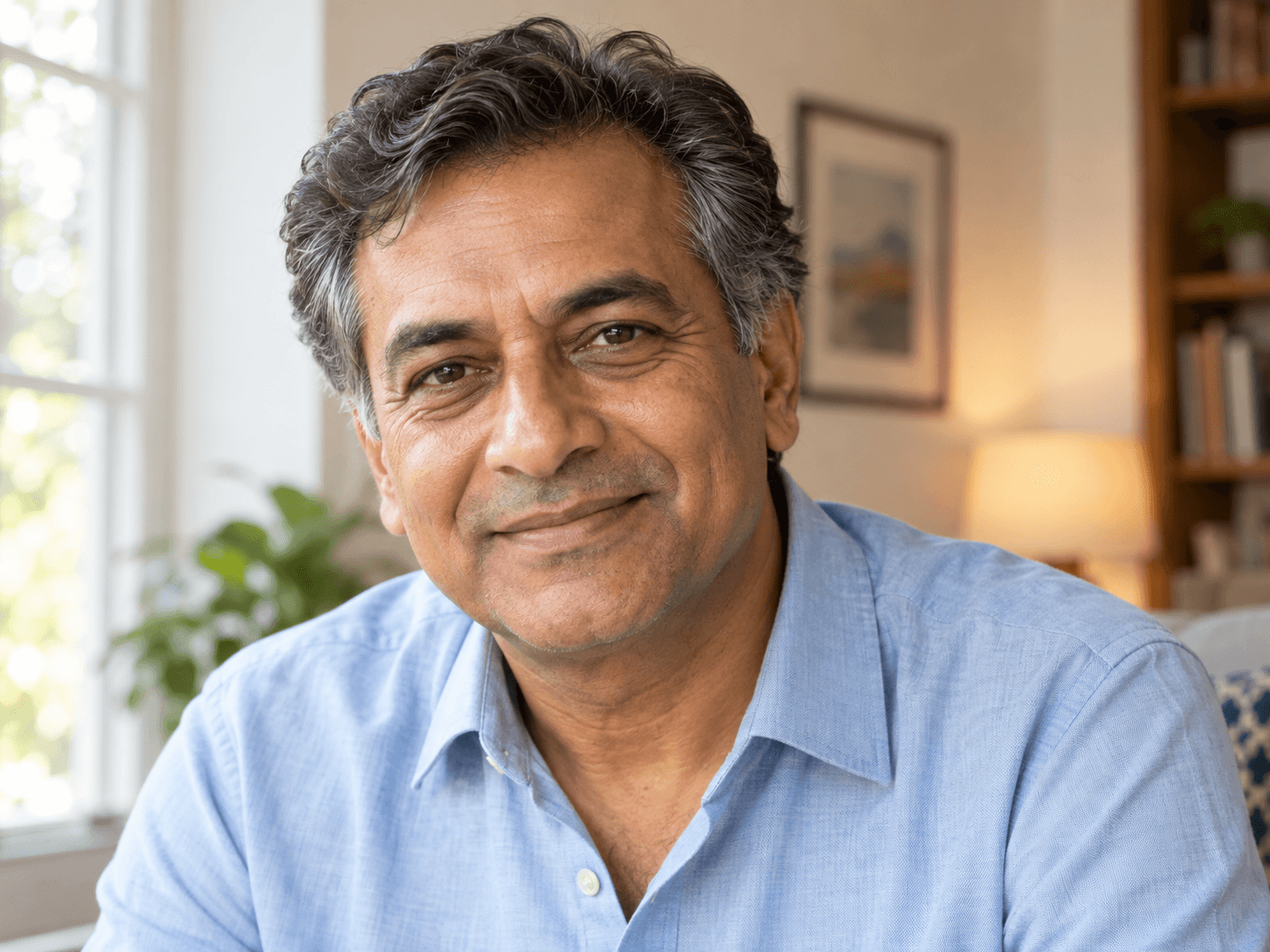
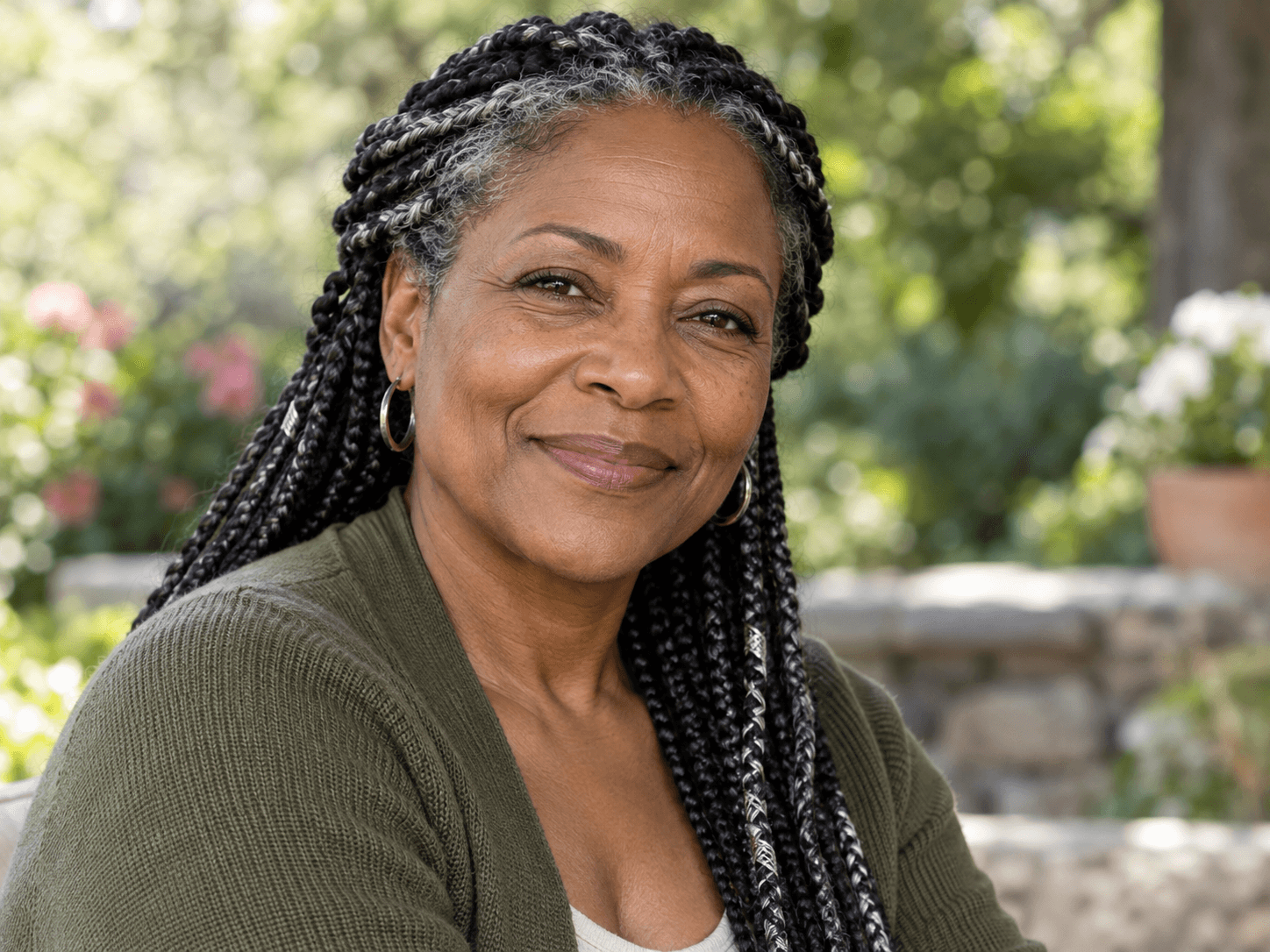
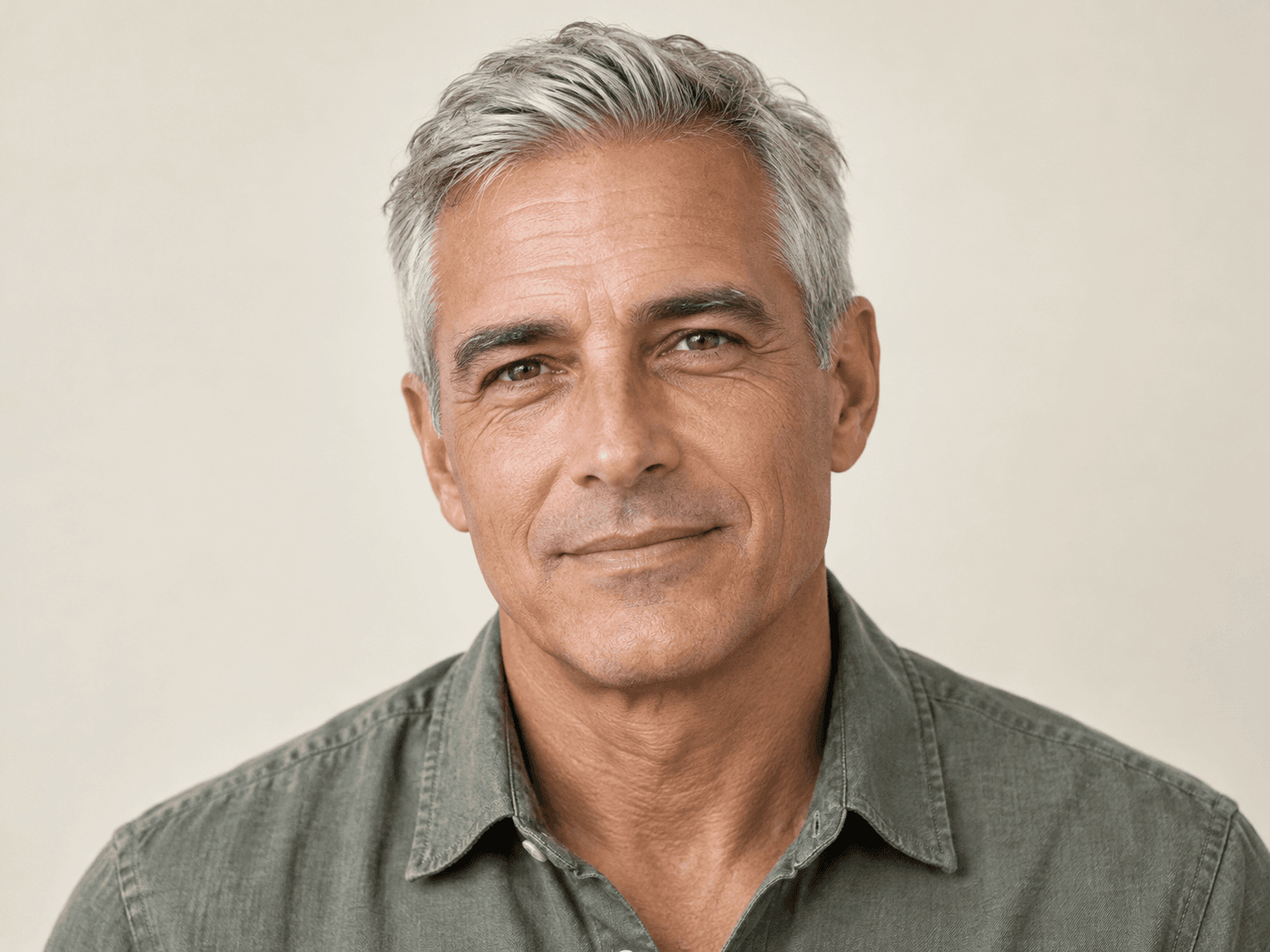
Agree on the amount of change before preparing an image for its final placement.
A client wants a lighter appearance for fine lines in a selected headshot. Agree on the retouch direction and check the candidate with the client before delivery.
Explore a retouch direction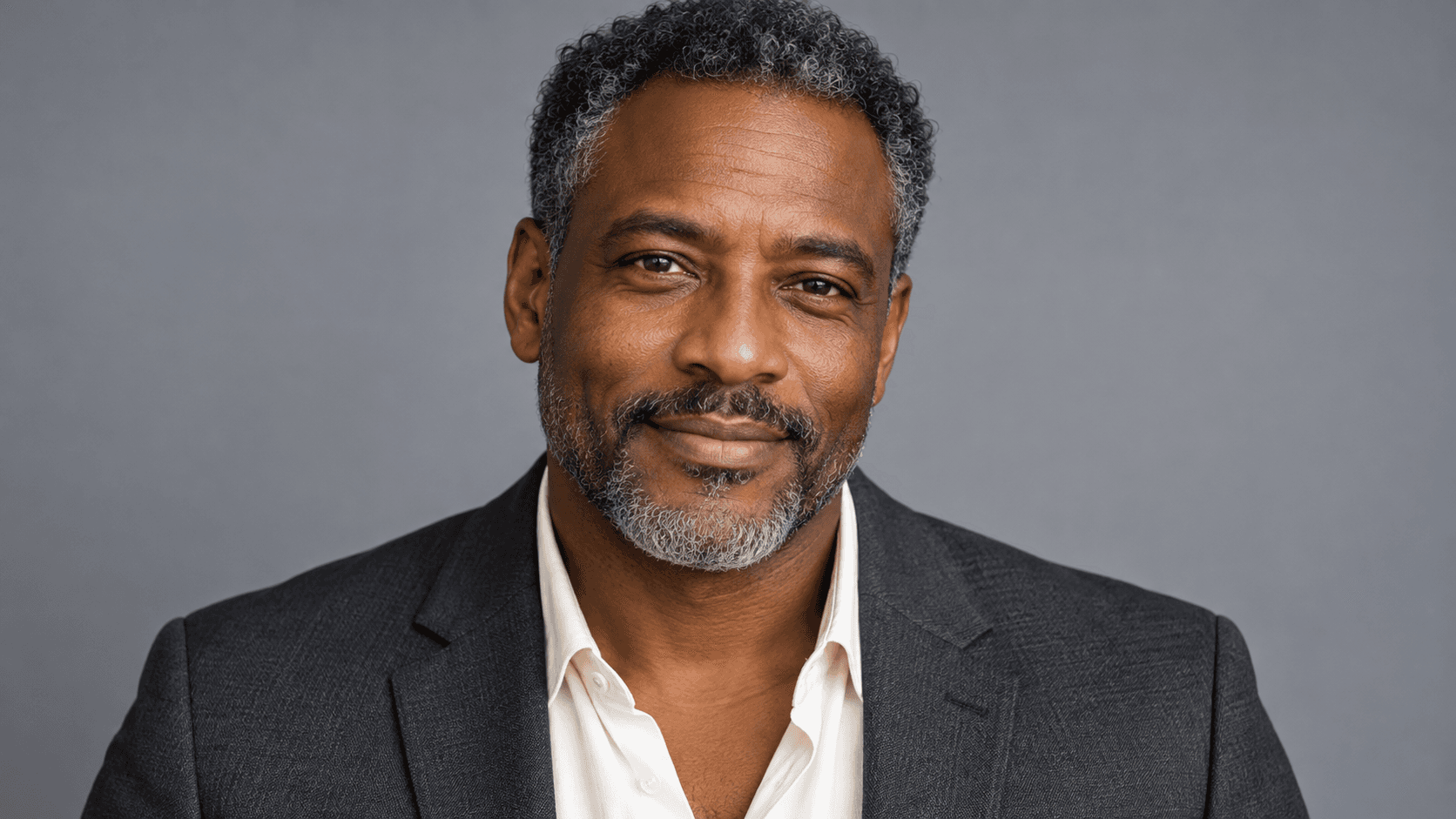
A person wants a small adjustment to a profile portrait. Review the edit at the display size and keep an unedited original alongside it.
Explore a retouch direction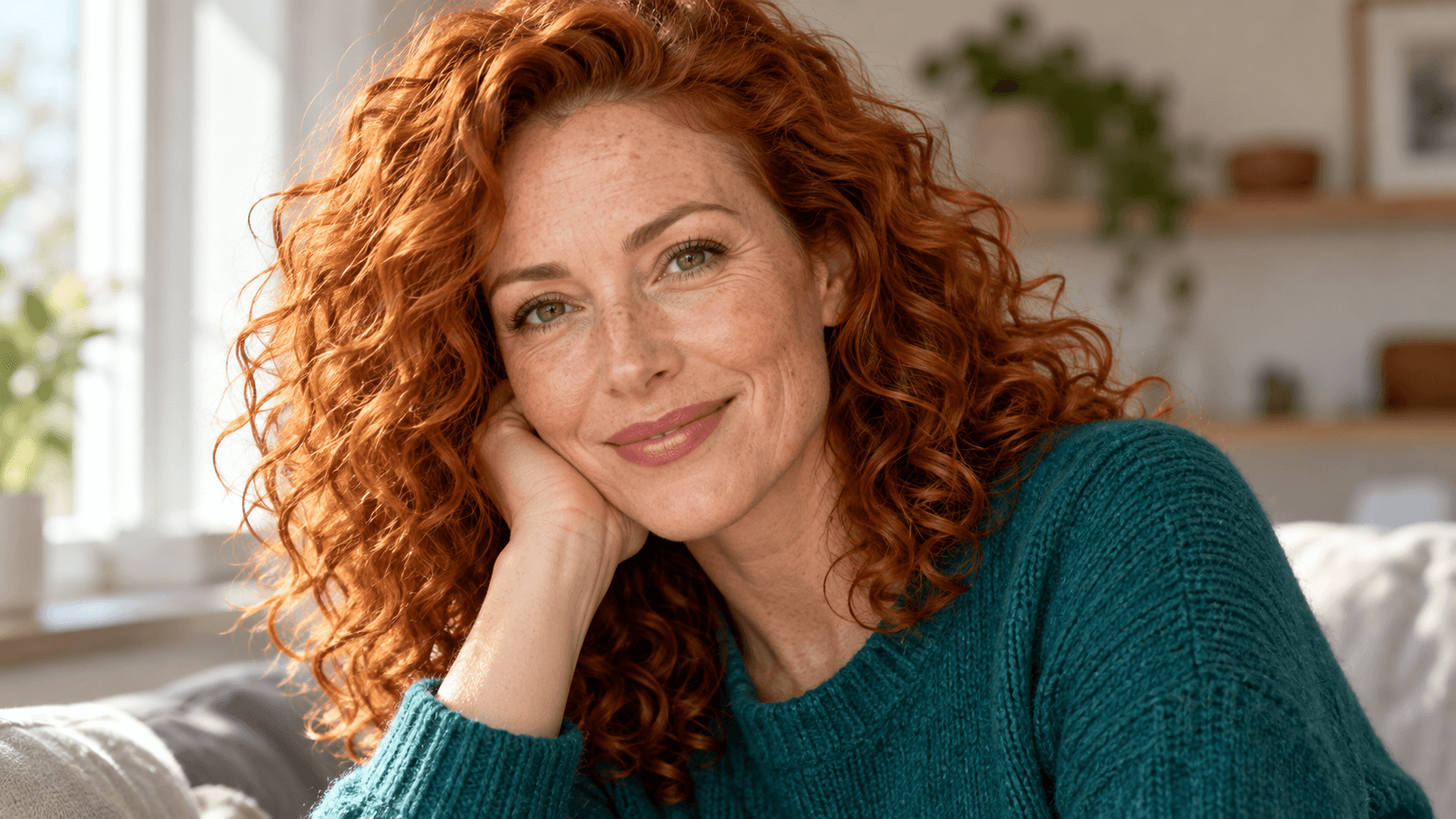
A family is selecting a photo for an album. Discuss retouch preferences with the people pictured and inspect every visible face after generation.
Explore a retouch direction
A creator needs a portrait for a biography or newsletter. Assess the expression, recognizable features and intended crop together.
Explore a retouch direction
A photographer is exploring softer light on an approved frame. Judge how the lighting change affects the face and the established portrait treatment.
Explore a retouch direction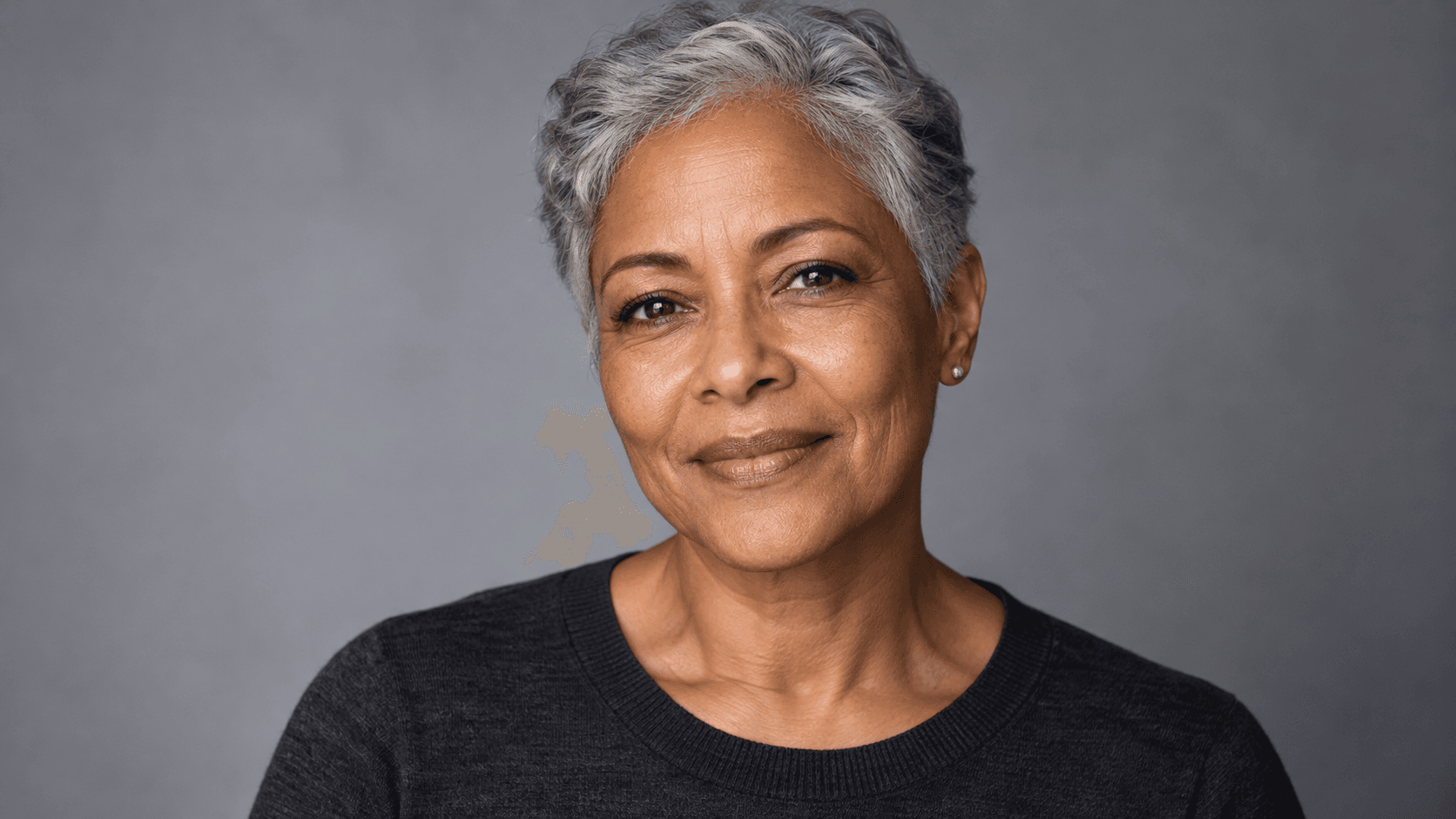
A selected portrait is heading into a larger print. Inspect facial detail at the intended size before accepting the retouch and preparing the print file.
Explore a retouch direction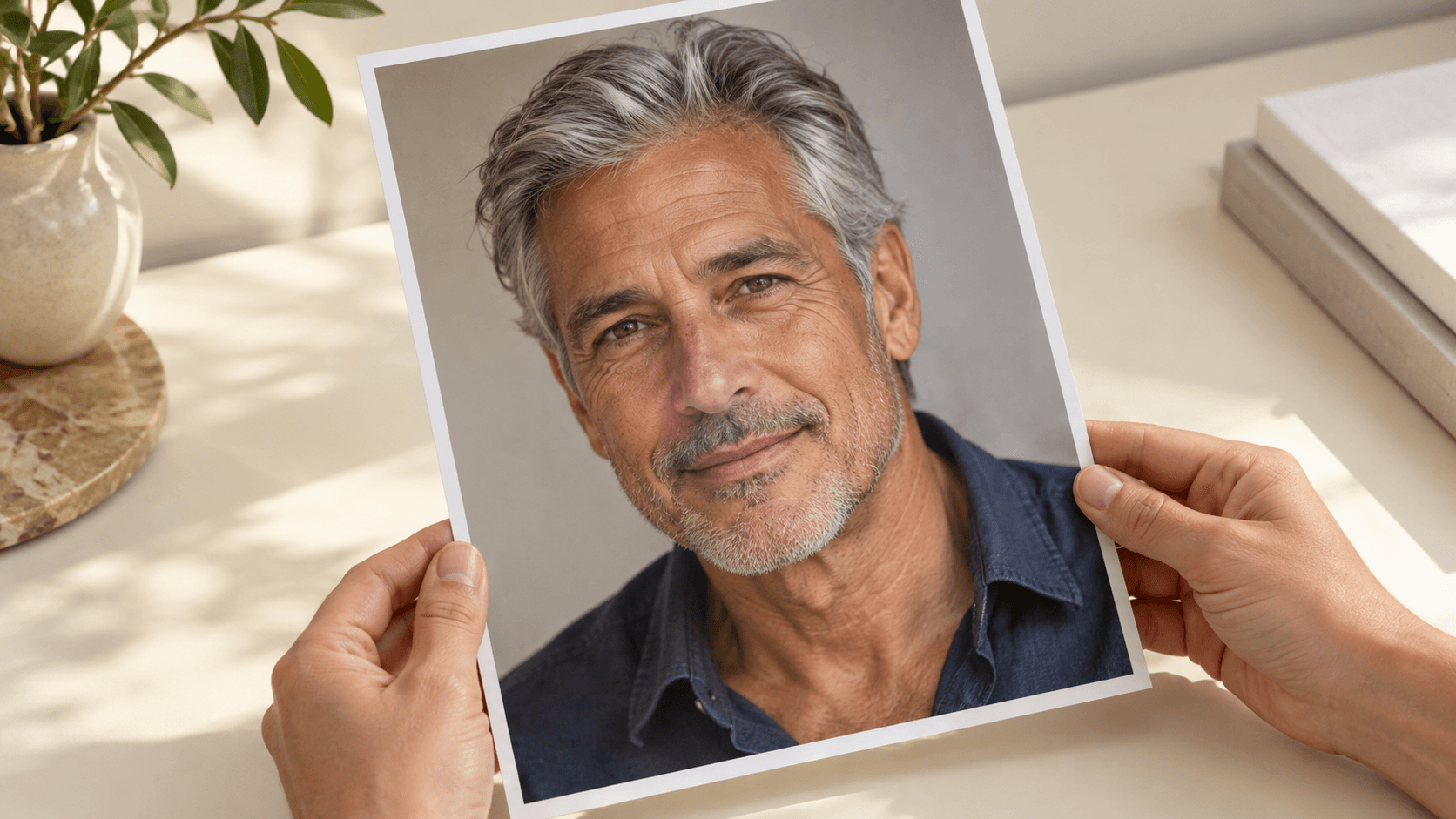
Use the form for a generated image edit, then check whether the candidate suits the portrait.
| Input | One selected sample or uploaded portrait. A reference image is required. | |
|---|---|---|
| Controls | Choose a retouch preset and edit the prompt. This form does not expose a local brush, mask or intensity slider. | |
| Output | A generated still image saved to a personal canvas project. Review it against the source before using it. | |
| Review priorities | Check facial proportions, expression, eye and lip detail, skin tone and texture. A precise identity or pixel match is not guaranteed. | |
| Scope | This page focuses on the appearance of facial lines in portrait images. Clothing creases and damaged-paper photo restoration need their own briefs and review. | |
| Request cost | Check the credit requirement shown before generating. | |
| Free plan | A free plan is listed with no credit card required. Check your current account allowance. | Verified 2026-10-14 |
| Commercial use | Paid-plan generations have commercial rights subject to provider terms and input rights. Free-plan outputs are for personal, non-commercial evaluation; upgrading applies to new generations. | Verified 2026-10-14 |
| Upload data use | Default terms permit using uploads, prompts and outputs for training and improvement. Provider policies apply. Enterprise opt-out requires a written agreement; learned or derived information may persist after source removal. | Verified 2026-10-14 |
Use these current catalog links for further canvas research. Their presence does not identify the model used by this form or prove a specific retouch result.
Catalog checked 2026-10-14. Compare reference inputs, editing controls and provider terms.
Browse image modelsIt generates a portrait edit from a reference and a written retouch brief. Ask for a gentler appearance of facial lines, then inspect the result for changes in expression, skin texture and recognizable features.
The form does not include a local brush or mask. You can name an area in the prompt, but inspect the whole portrait because generation may change other details.
Begin with Light touch and ask to retain pores, freckles and expression lines. If the candidate looks blurred or artificial, reduce the request and compare another version with the original.
An exact identity or pixel match is not guaranteed. Check facial proportions, eye shape, lip edges, hair, skin tone and expression before selecting the image.
This page is configured for facial lines in portraits. Clothing edits and damaged-photo restoration are different tasks; use a brief and review process suited to those subjects.
Paid-plan outputs have commercial rights subject to provider terms and your rights to the source material. Free-plan outputs are for personal, non-commercial evaluation. Get appropriate permission from the person pictured and review the current commercial-rights policy.
Default terms permit uploads, prompts and outputs to be used for training and improvement, and provider policies apply. Enterprise opt-out requires a written agreement. Read the current upload-data policy before supplying a portrait reference.
Choose a clear source and a modest retouch request, then compare the result with the face you started from.