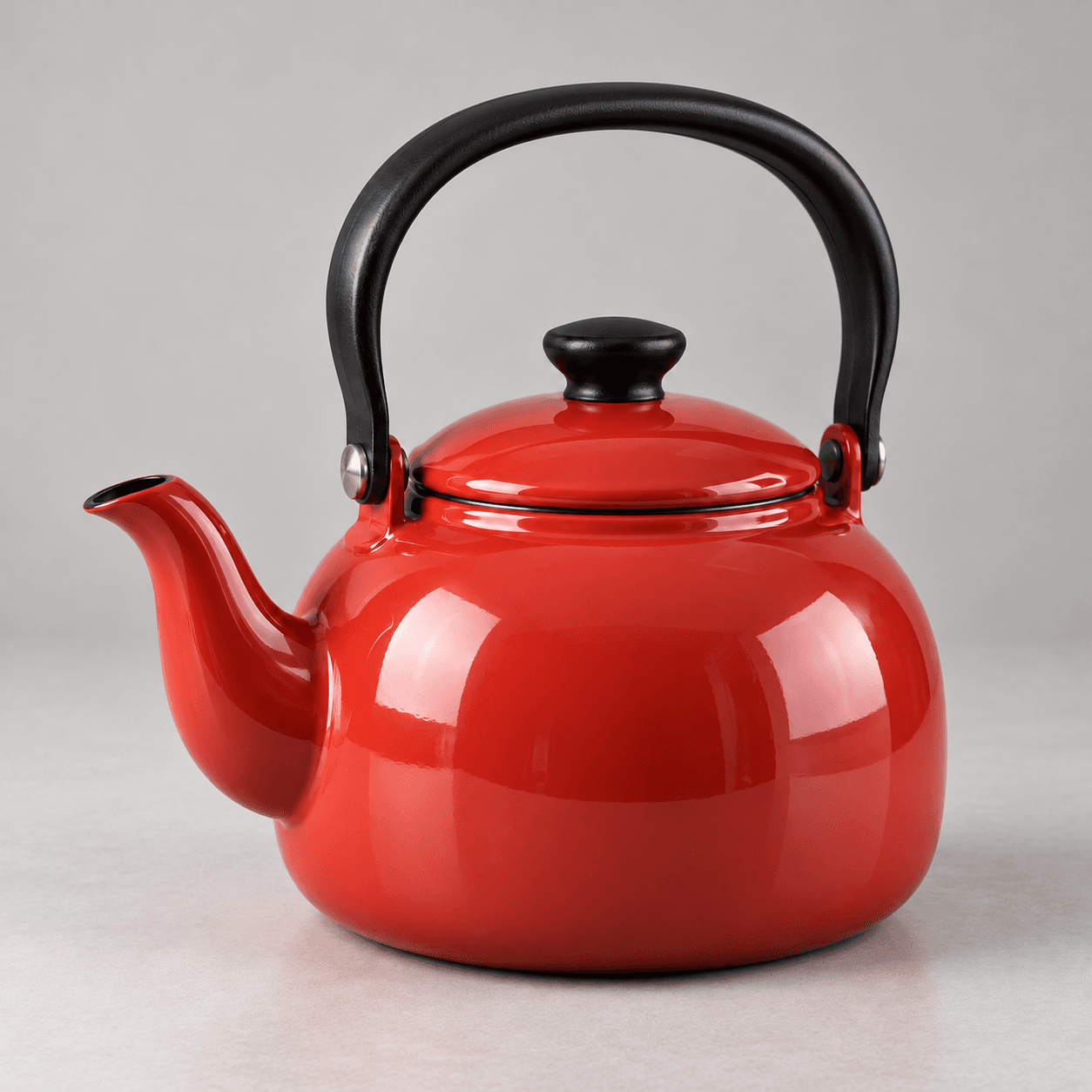
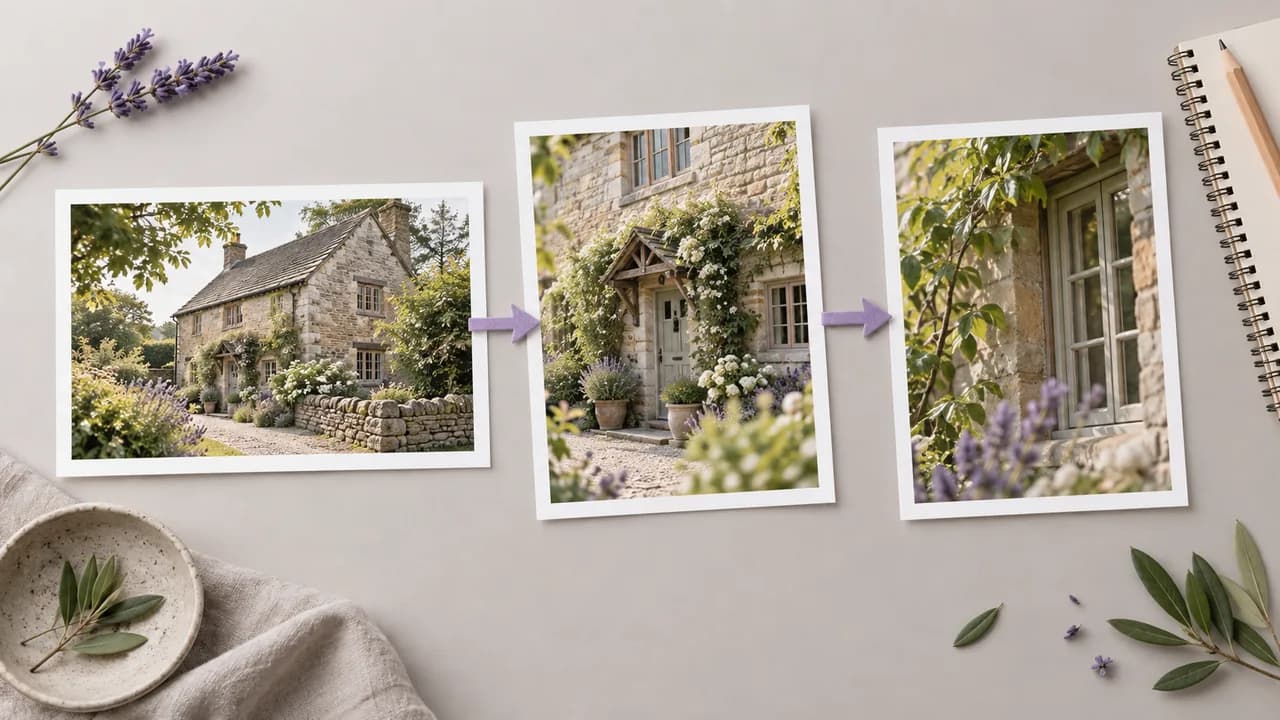
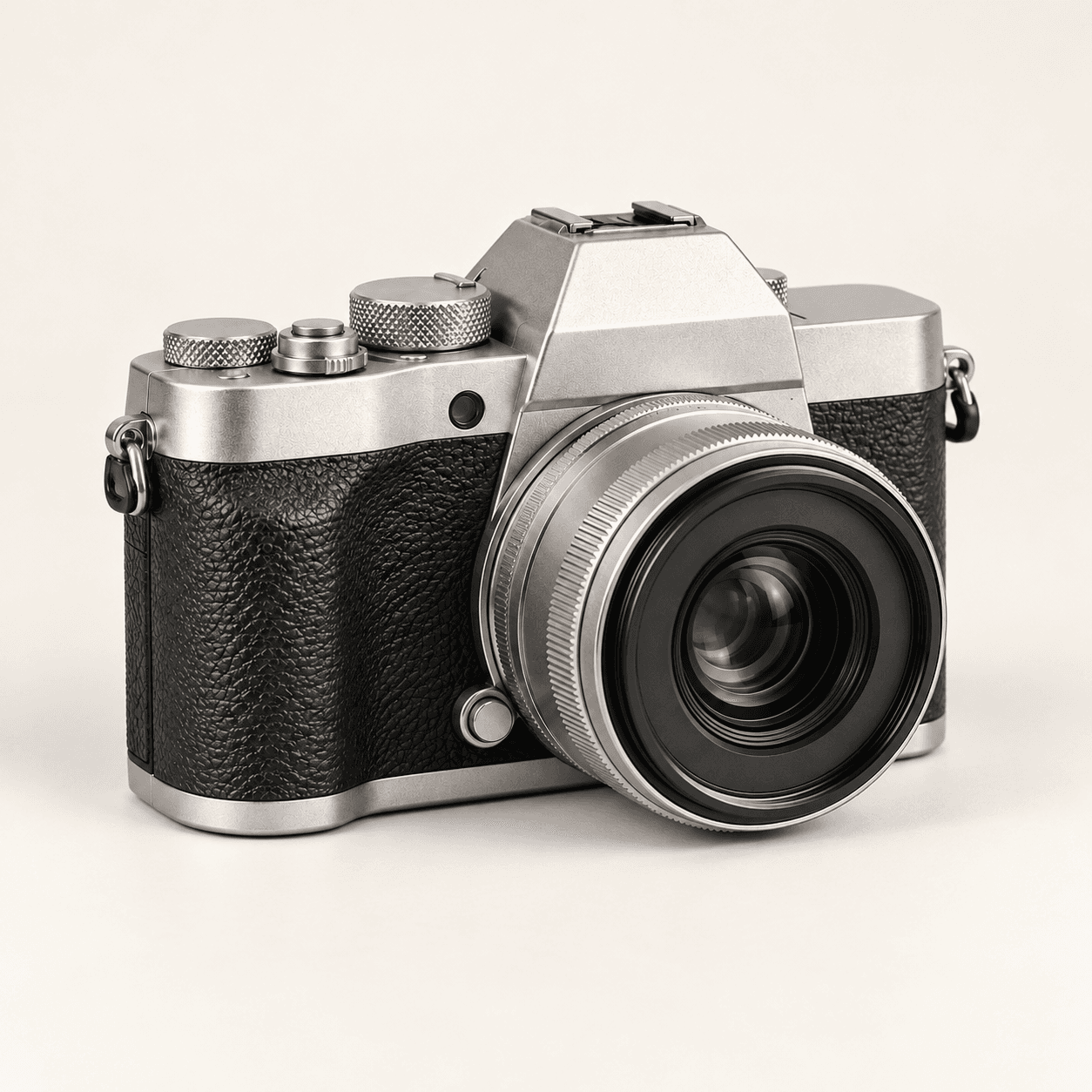
Noisy reference concept
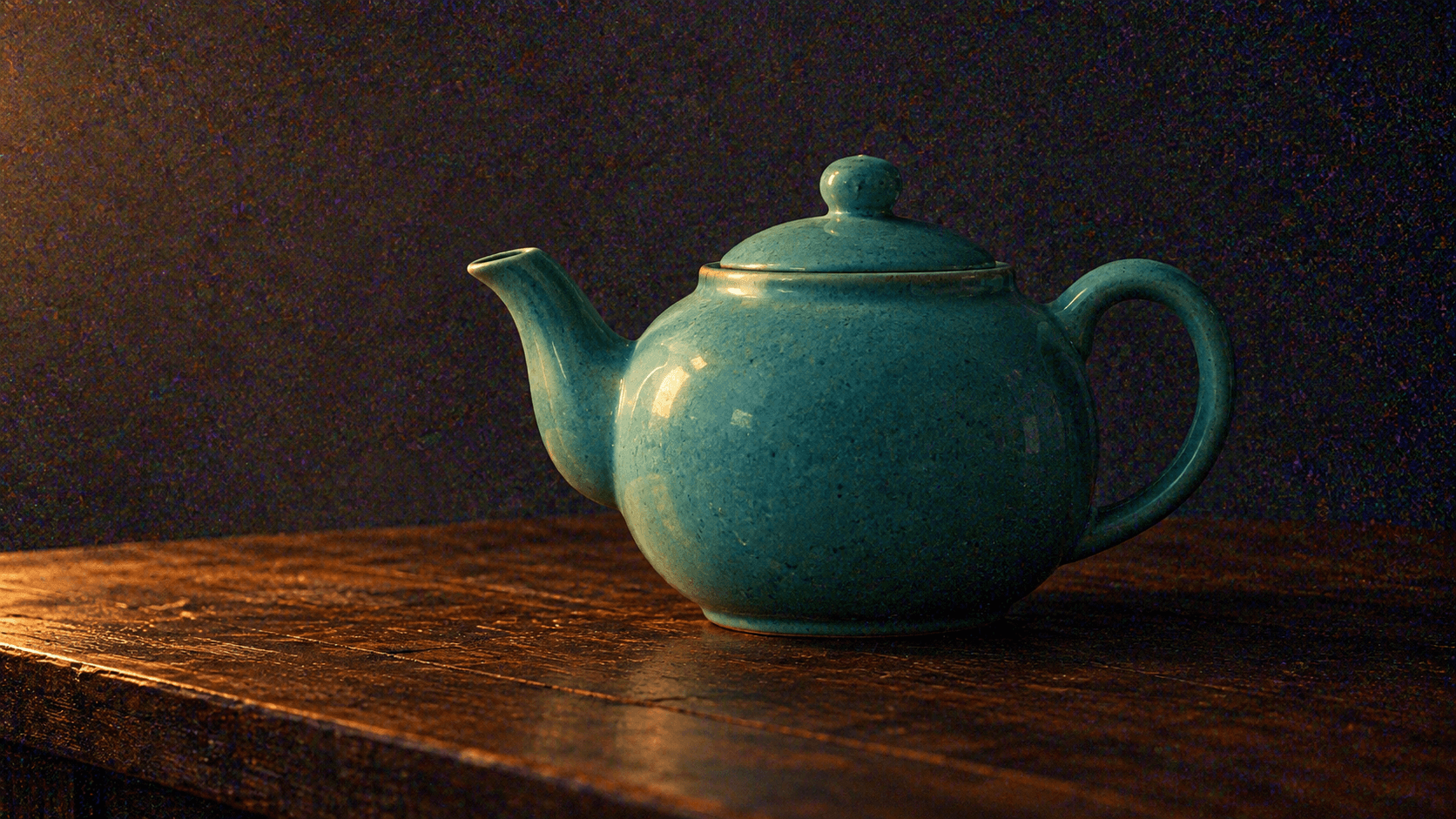
Identify the distracting texture
- Coarse grain competes with the teapot silhouette.
- Colored speckles appear in the background shadows.
- Keep the original available to check shape and light.
Choose a reference, select a cleanup direction and edit the brief. This uses reference-based image generation: it may redraw details rather than preserve the original pixels. Preset examples use the Low-light portrait sample.
A smoother-looking image is useful only if its important details still fit your brief. Page images are Image Gen concept illustrations, not measured denoising comparisons or tested outputs from this Astorie form.
Identify the distracting texture
Look beyond the smoother surface
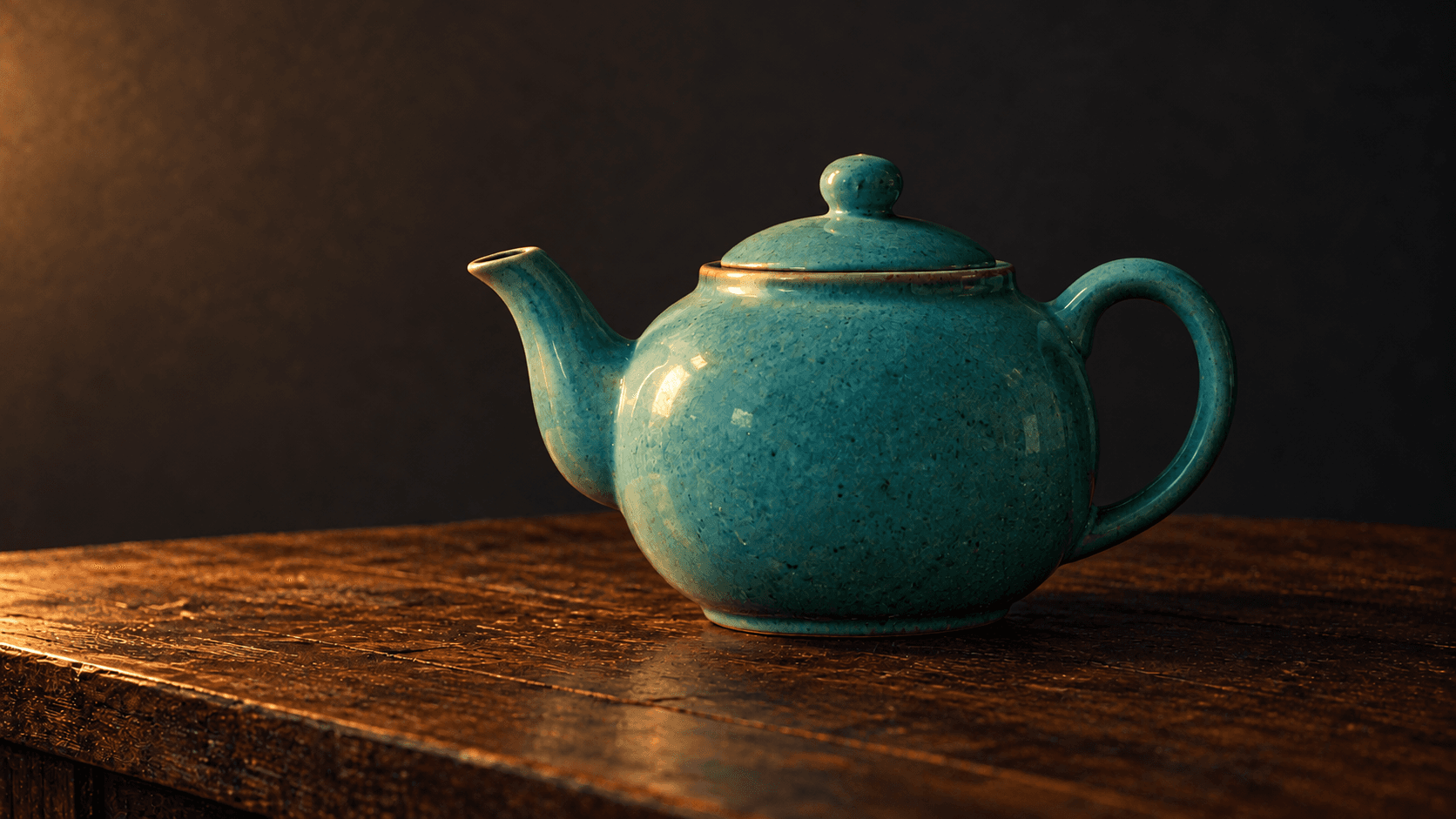
Start with one source and a focused request for the noise appearance you want to change.
Select Low-light portrait or upload an image you have permission to use. Keep the original for comparison and identify the grain or speckles that distract from the subject.
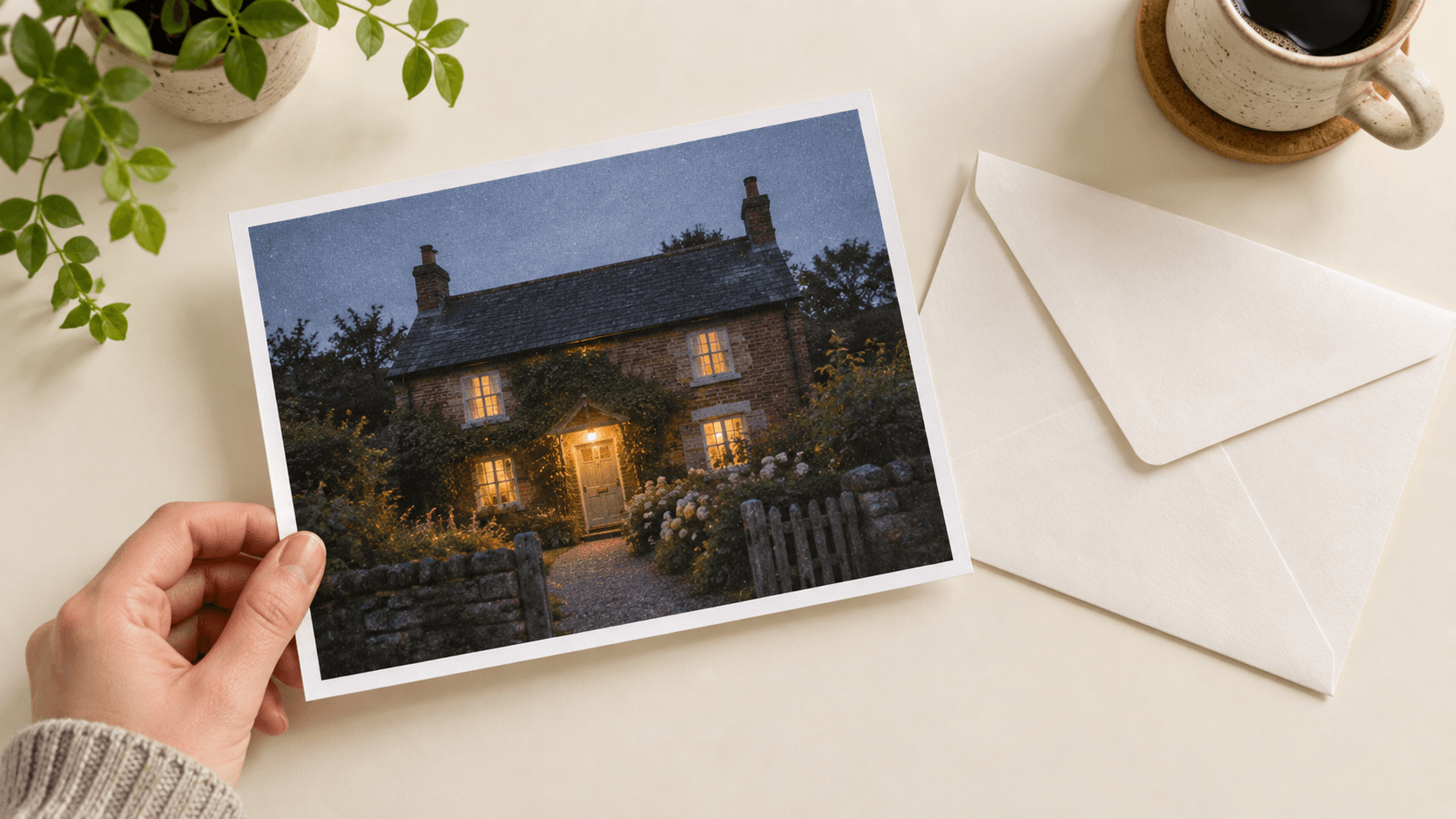
Choose Balanced cleanup, Keep texture or Shadow color cleanup. Edit Describe the cleanup to name the textures, shapes and lighting you want to carry through.
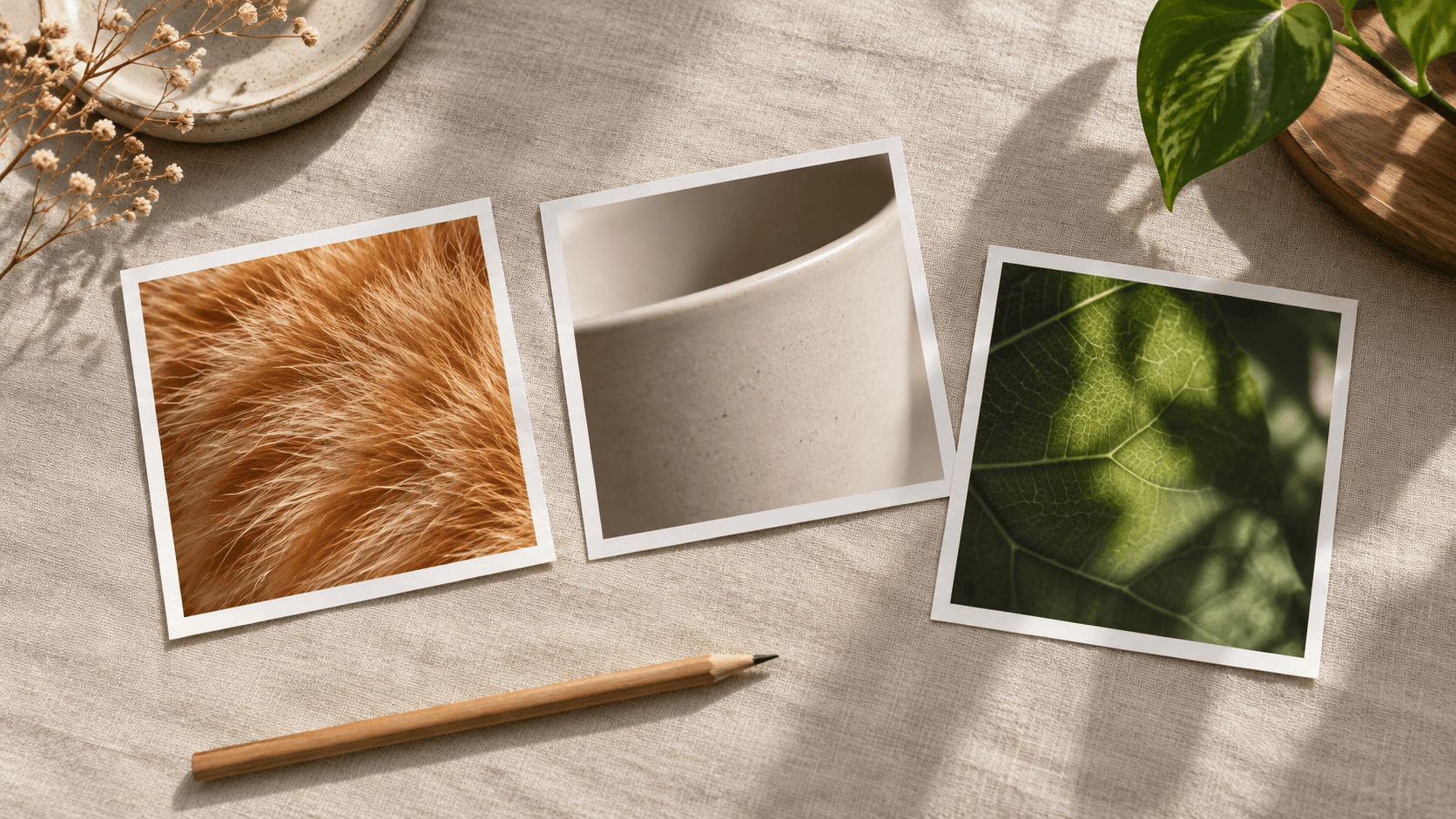
Select Generate cleaner version and sign in if prompted. Compare the new image with the source for subject features, material texture, edges and any lettering before using it.
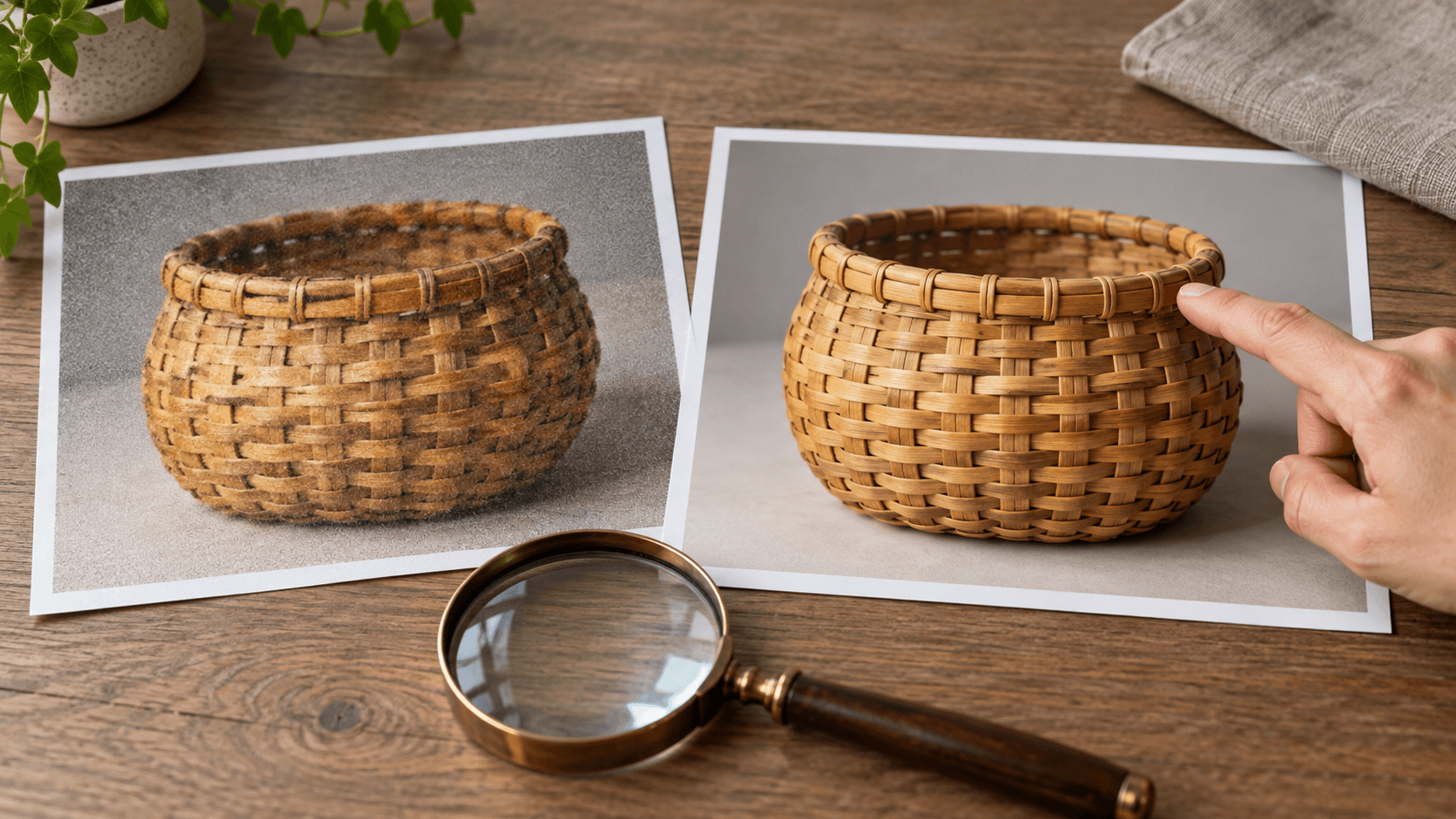
These are prompt directions to assess in the result, rather than separate technical denoising controls.
Describe coarse particles, mottled shadows or isolated speckles. A specific brief is easier to judge than a broad request to improve everything.
Try a cleanup briefIdentify skin, fur, fabric or metal brushing that matters. Check those areas when a smoother interpretation removes too much texture.
Try a cleanup briefAsk for the existing warmth and shadow depth. A cleaner-looking result does not need to become a brighter or flatter scene.
Try a cleanup briefCompare facial shape, product geometry and fine edges. Generation can redraw details even when the brief asks to keep them.
Try a cleanup briefCheck labels and lettering against the source. Do not accept plausible-looking replacement characters as a faithful cleanup.
Try a cleanup briefRefine the noise or texture request one step at a time. Use the original as the comparison point for each candidate.
Try a cleanup briefAdapt the subject, important textures and lighting to your reference image.



Use this workflow when you can inspect and accept changed details in a new image.
Explore a calmer-looking version of a low-light still life for a social layout. Review the crop, mood and object shapes before building the post around it.
Explore a cleaner version
Request less distracting texture in a plant or interior photograph. Check leaf edges, materials and any important scene detail before selecting a candidate.
Explore a cleaner version
Explore a cleaner interpretation of an illustration or concept image. Retain intentional painted strokes or film-like grain when they support the style.
Explore a cleaner version
Match the workflow to the kind of result you need.
| Input | One selected sample or uploaded reference image. An image is required. | |
|---|---|---|
| Method | Reference-based image generation guided by a preset and editable prompt. | |
| Output | A newly generated still image saved to a personal canvas project. | |
| Detail changes | Fine texture, faces, geometry and lettering may be redrawn. Original pixels are not preserved as a guarantee. | |
| Noise, blur and size | Visible grain, soft focus and low resolution are different issues. This form offers cleanup prompts, not a technical noise-strength control or a specified upscale operation. | |
| When to use another workflow | Use a dedicated editor when original-pixel processing is required. Keep source files for records and detail-sensitive work. | |
| Credits | Check the credit requirement displayed before generating. | |
| Free plan | A free plan is listed with no credit card required. Check your current account allowance. | Verified 2026-10-15 |
| Commercial use | Paid-plan outputs have commercial rights subject to provider terms and input rights. Free-plan outputs are for personal, non-commercial evaluation; upgrading applies to new generations. | Verified 2026-10-15 |
| Upload data use | Default terms permit uploads, prompts and outputs to be used for training and improvement. Provider policies apply. Enterprise training opt-out requires a written agreement; derived information may persist after source deletion. | Verified 2026-10-15 |
Explore these catalog links for separate reference-based canvas work. Check each model’s actual inputs and editing controls before choosing it.
Catalog checked 2026-10-15. These cards are not a denoising ranking and do not identify the model behind this form.
Browse image modelsIt generates a new interpretation from a reference and a cleanup brief. You can request less visible grain or speckling, then review the result against the original.
No. This is reference-based generation, so texture, geometry, faces and lettering may change. Use a dedicated editor when original-pixel processing is required.
Start with Balanced cleanup for a broad brief. Keep texture emphasizes natural surface detail, while Shadow color cleanup asks for less distracting colored speckling in dark areas. Each remains a prompt request to review.
No. Grain, soft focus and low resolution describe different problems. This form requests a cleaner-looking interpretation; the related AI Image Upscaler links to a separate enlargement workflow.
Yes, you can request subtle fine grain and intentional texture in the brief. Compare the result with the original because generation may still change other details.
Ask for plausible skin, hair, fur and material texture, and avoid a blanket request for perfectly smooth surfaces. Inspect important areas and reject candidates with unwanted smoothing or invented detail.
Paid-plan generations have commercial rights subject to provider terms and your rights to the source. Free-plan outputs are for personal, non-commercial evaluation. Review the current policy before paid work.
Choose one reference, name the noise appearance you want to change and compare the new interpretation with your original.