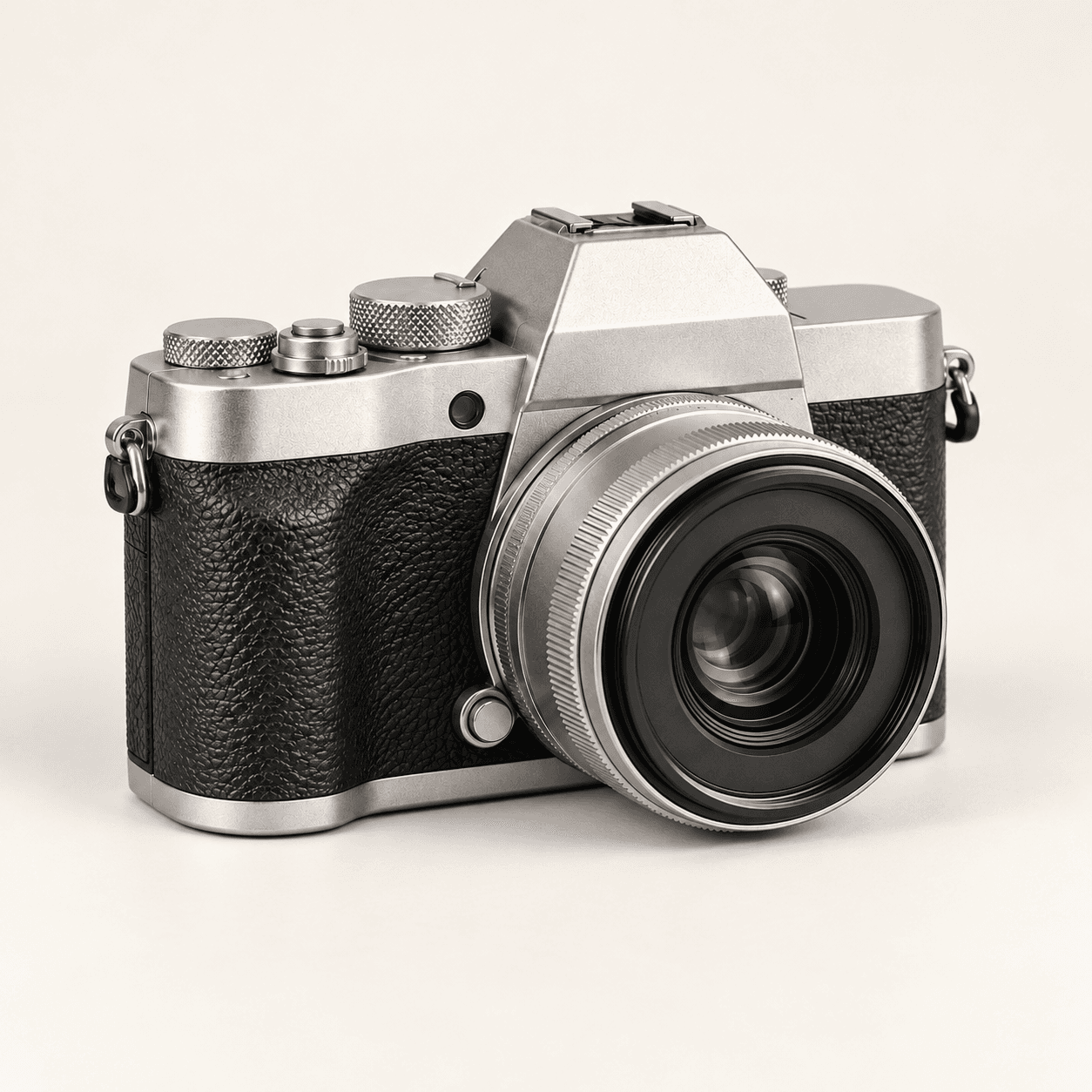
Reference photograph
Decide what defines the subject
- Identify the silhouette and the details worth retaining.
- Use a clear subject with a readable background.
- Decide which textures can become simpler shapes.

Choose a reference and a graphic style, then describe the shapes and colors you want. The generated result is a bitmap; SVG tracing and path editing are separate steps.
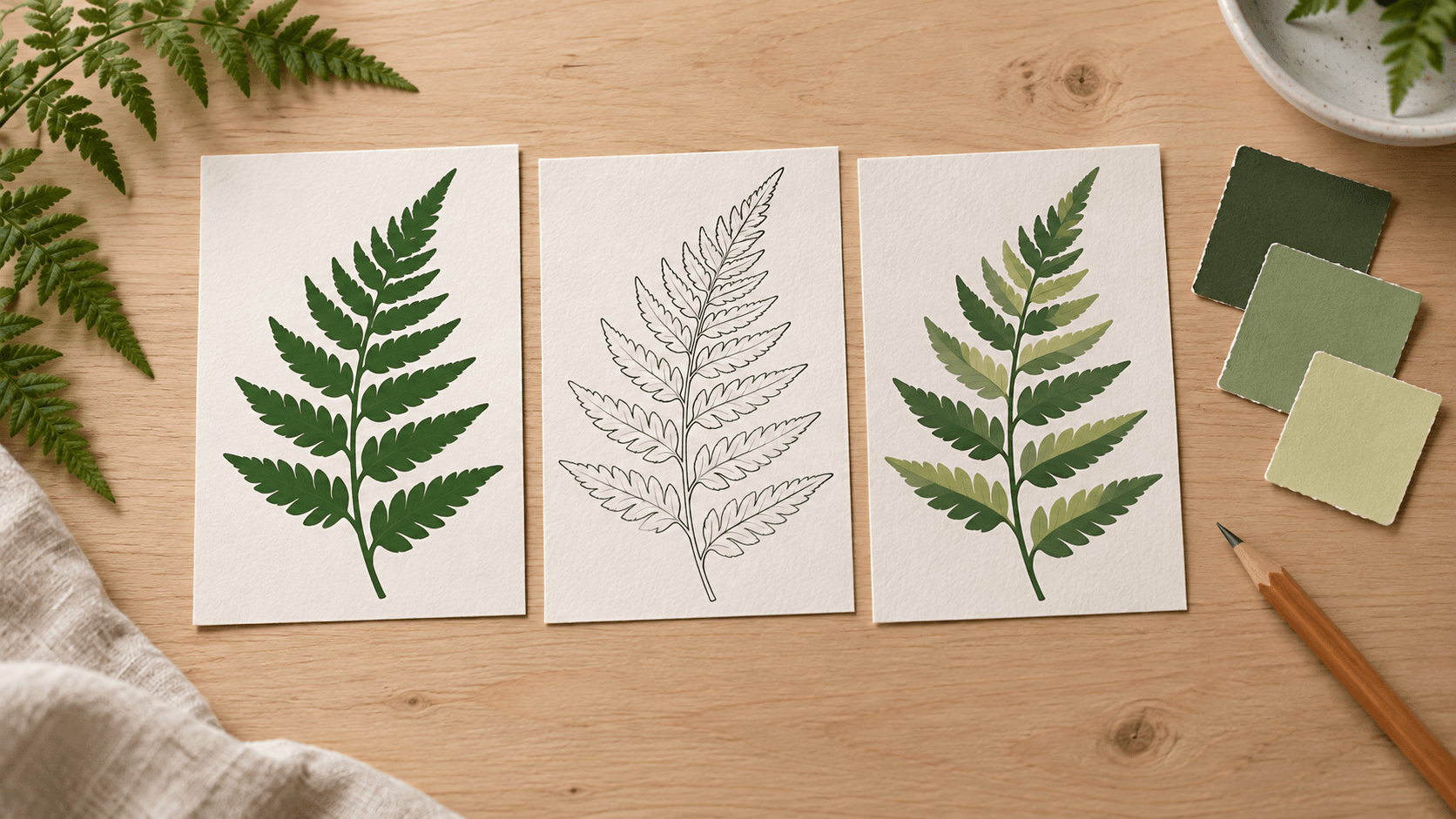
Flat shapes and a smaller palette can make a subject easier to read. These illustrations show proposed directions, not verified Astorie runs or editable vector files.
Decide what defines the subject
Review the graphic candidate

Begin with the visual direction, then decide how the bitmap will be used.
Choose a sample or upload your own image. A visible silhouette and a simple background give you a clearer starting brief.

Choose Flat color, Clean outline or Limited palette. Edit Describe your artwork to name the palette, important details and desired simplification.
Select Generate vector-style image and sign in if prompted. Review the bitmap at its intended size. For SVG delivery, trace and clean up the selected result in a separate vector workflow.

Describe the appearance you want to explore, then evaluate the result as a design candidate.
Ask for broad shapes and fewer fine details. Check that the subject remains readable when the artwork appears small.
Explore a graphic styleDescribe solid fills and the palette you want. Inspect the candidate for unwanted gradients, texture and extra color patches.
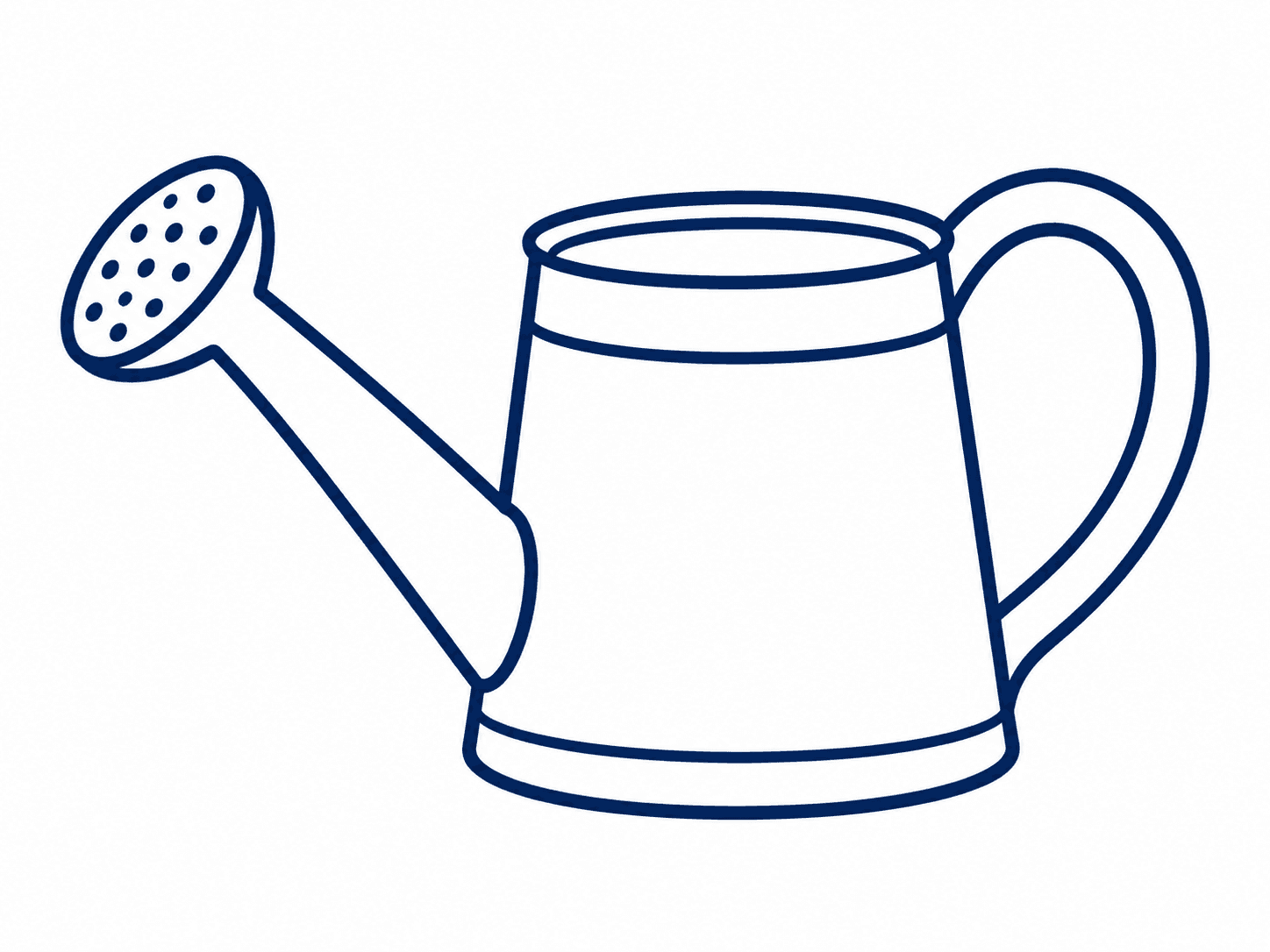
Explore a graphic styleExplore a line-art interpretation with a consistent stroke appearance. Generated lines are pixels; editable stroke properties require vector work.
Explore a graphic styleName a few colors and assign their roles. Review the actual image rather than assuming the request guarantees an exact color count.
Explore a graphic styleUse a source to guide the subject and framing. Compare the candidate with important shapes, proportions and distinguishing details.
Explore a graphic styleUse a preset as a starting brief. Tighten one request at a time when the image becomes too detailed or loses the source’s character.
Explore a graphic styleAdapt these suggested prompts to your own reference. The examples are raster illustrations of creative directions, not measured conversion results.



Choose the intended placement before generating. The bitmap is a concept or image asset; production formats may need further design work.
A designer needs a readable plant graphic for a landing page. Review it at the actual display size and fit it into the page’s palette.
Create a graphic candidate
A small brand is exploring a coffee-bean motif. Use the image to discuss direction, then prepare final artwork and production specifications in the packaging workflow.
Create a graphic candidate
An educator wants a simple visual sequence. Check the subject relationships and clarity; generated artwork still needs a content review.
Create a graphic candidate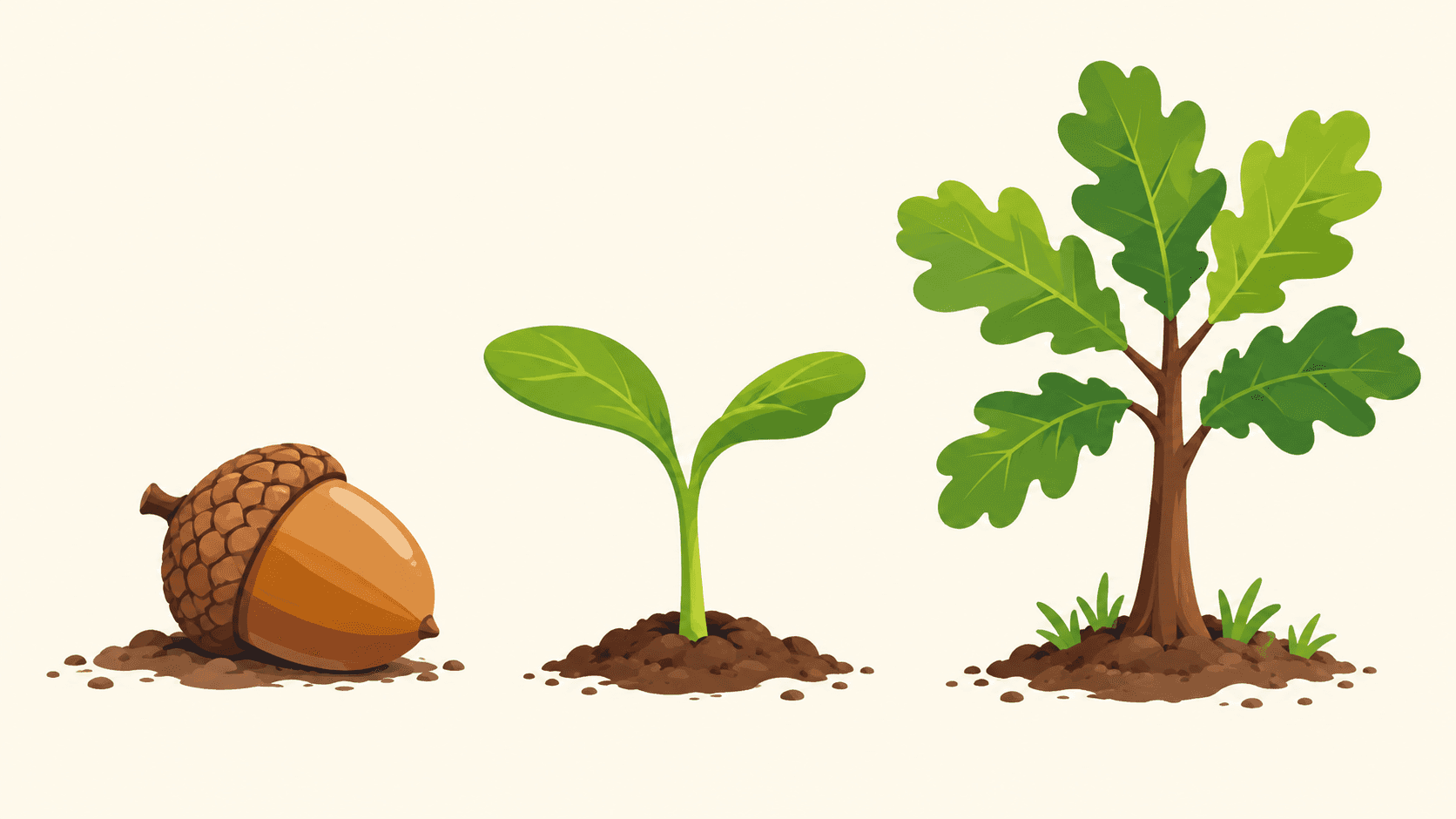
A creator is testing a bold citrus image in square and tall placements. Choose the graphic direction, then build each final crop and text layout.
Create a graphic candidate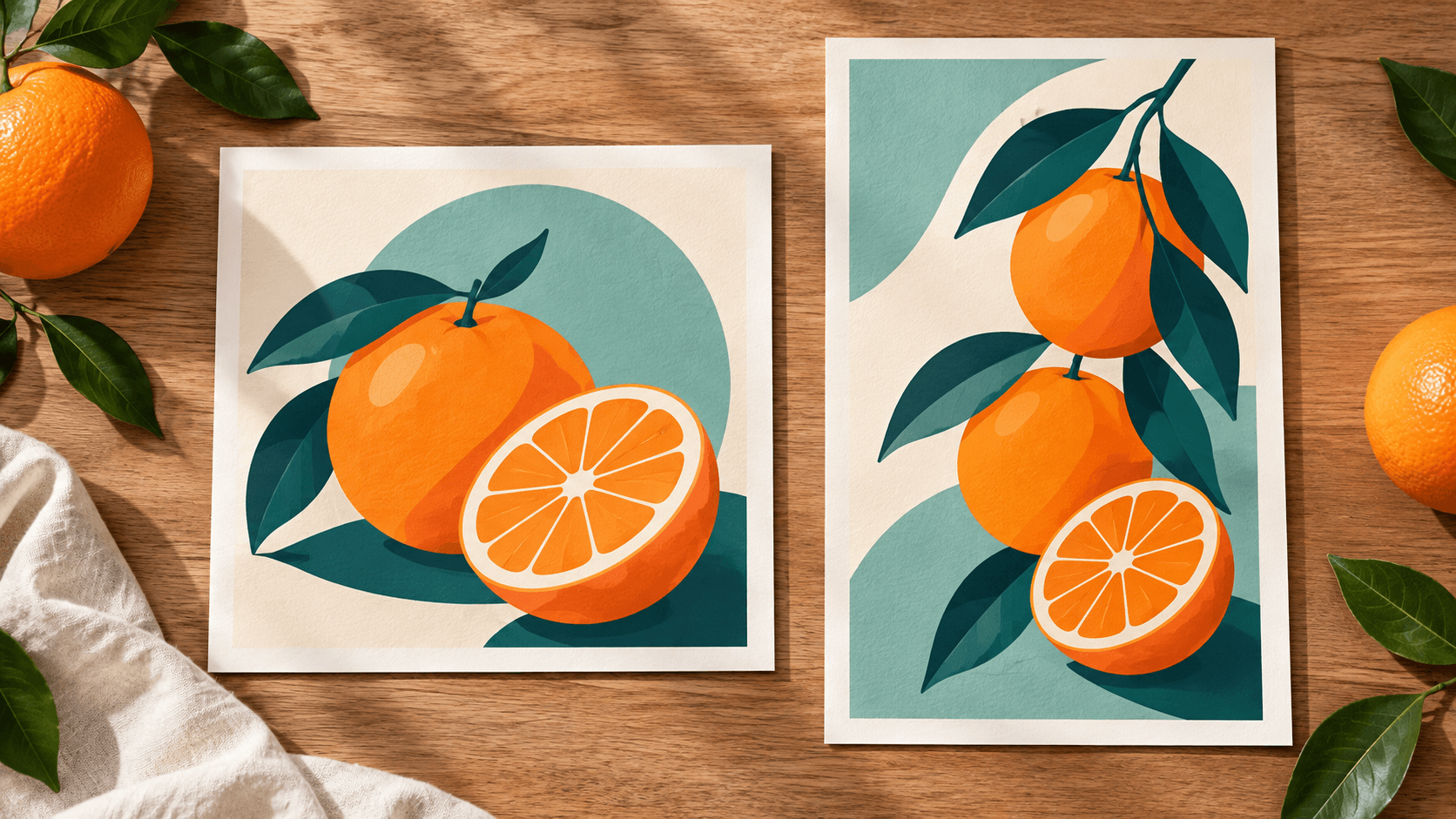
A maker wants simple bicycle accessories as sticker concepts. Check gaps and outlines, then prepare the cut path and print file separately.
Create a graphic candidate
An editor is looking for a restrained sailing image. Assess how the graphic supports the story and leaves room for the final layout.
Create a graphic candidate
Choose the workflow by the file you ultimately need.
| Starting image | One uploaded reference or a selected sample. A reference is required for this form. | |
|---|---|---|
| Creative controls | Choose a graphic style and edit the prompt. The form does not expose path, tracing or node-editing controls. | |
| Generated result | A raster image saved to a personal canvas project. It has pixels, not editable vector paths. | |
| SVG delivery | Use a separate tracing or vector-authoring workflow. Review paths, color regions, holes and small details before exporting SVG. | |
| Detail preservation | Simplification can change proportions, lettering and recognizable details. Compare the candidate with the source. | |
| Request cost | Check the current credit requirement shown before generating. | |
| Free plan | A free plan is listed with no credit card required. Check your current account allowance. | Verified 2026-10-14 |
| Commercial use | Paid-plan generations have commercial rights subject to provider terms and input rights. Free-plan outputs are for personal, non-commercial evaluation; upgrading applies to new generations. | Verified 2026-10-14 |
| Upload data use | Default terms permit using uploads, prompts and outputs for training and improvement. Provider policies apply. Enterprise opt-out requires a written agreement; learned or derived information may persist after source removal. | Verified 2026-10-14 |
These catalog links support separate canvas research. They do not identify this form’s active model or promise SVG conversion.
Catalog checked 2026-10-14. Compare each model’s own inputs and controls.
Browse image models
Compare models against a graphic brief.

Develop a shared direction across assets.
Review plan, provider and input-rights conditions.
Read how reference inputs and generated outputs may be used.
No. It generates a vector-style bitmap image. If your deliverable needs editable paths, trace or redraw the selected image in a separate vector workflow and inspect the exported SVG.
Simplified silhouettes, separated color areas and a restrained palette create the look. Those visual qualities do not change the file from pixels into vector paths.
Start with a clear subject, readable outline and limited background clutter. Small lettering, fine textures and overlapping shapes can become harder to preserve when you ask for simplification.
Use it as a design candidate first. Check originality and input rights, then create the final typography, paths, cut lines and production file required by the destination.
No exact match is guaranteed. Compare the generated proportions, gaps, lettering and distinctive details with the source before selecting the artwork.
Paid-plan outputs carry commercial rights subject to provider terms and input rights. Free-plan outputs are for personal, non-commercial evaluation; upgrading applies to new generations. Review the current commercial-rights policy for your use.
Default terms allow uploads, prompts and outputs to be used for training and improvement, and model-provider policies apply. Enterprise opt-out requires a written agreement. Read the current upload-data policy before supplying a reference.
Choose a reference and a graphic treatment, then inspect the bitmap before deciding on tracing or final layout.