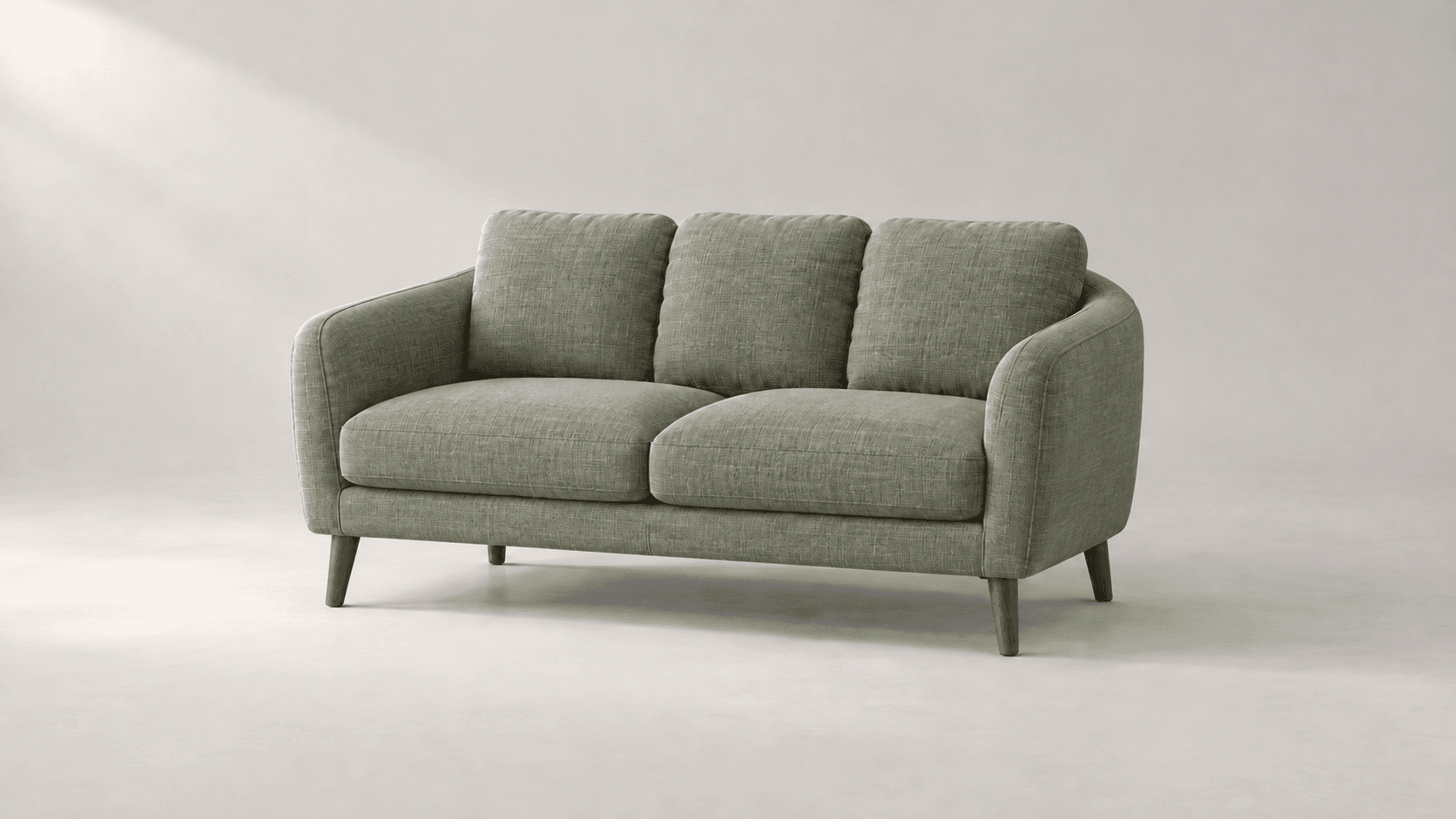
Original cream upholstery
Decide which surface should change
- Separate the fabric from the walnut legs and backdrop.
- Notice the seams, woven texture and shaded folds.
- Keep the original for a whole-image comparison.

Choose a reference and a color direction. Name the surface to change and the details to keep, then inspect the generated edit.
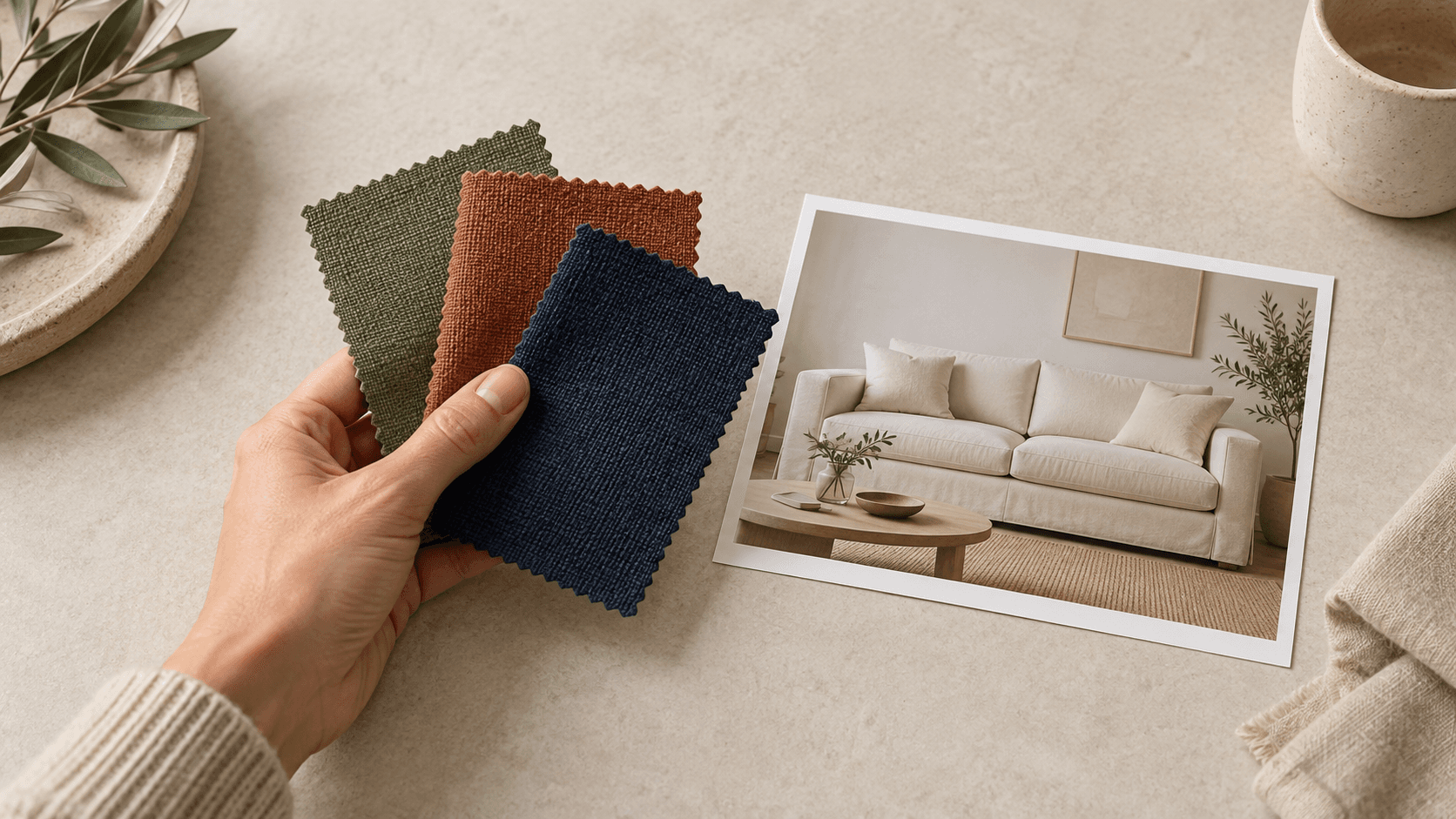
These Image Gen illustrations show proposed recolor directions, not screenshots or verified outputs from this Astorie form. Each preset thumbnail uses the Cream sofa reference.
Decide which surface should change
Review more than the overall hue
Use a focused brief for the color change, then inspect the result against your source.
Select Cream sofa reference or upload an image. Choose Sage green, Warm terracotta or Deep navy, then edit Describe the color change to specify the surface and color you want.
Select Generate recolored image and sign in if prompted. Compare material texture, edges, shadows and unchanged areas with the original before selecting the result.

The prompt guides a generated image edit. Name the material and nearby details that matter to your review.
Ask for the same linen weave, leather grain, paint finish or glaze while changing its color. Inspect the actual highlights, folds and surface detail afterward.
Write a recolor brief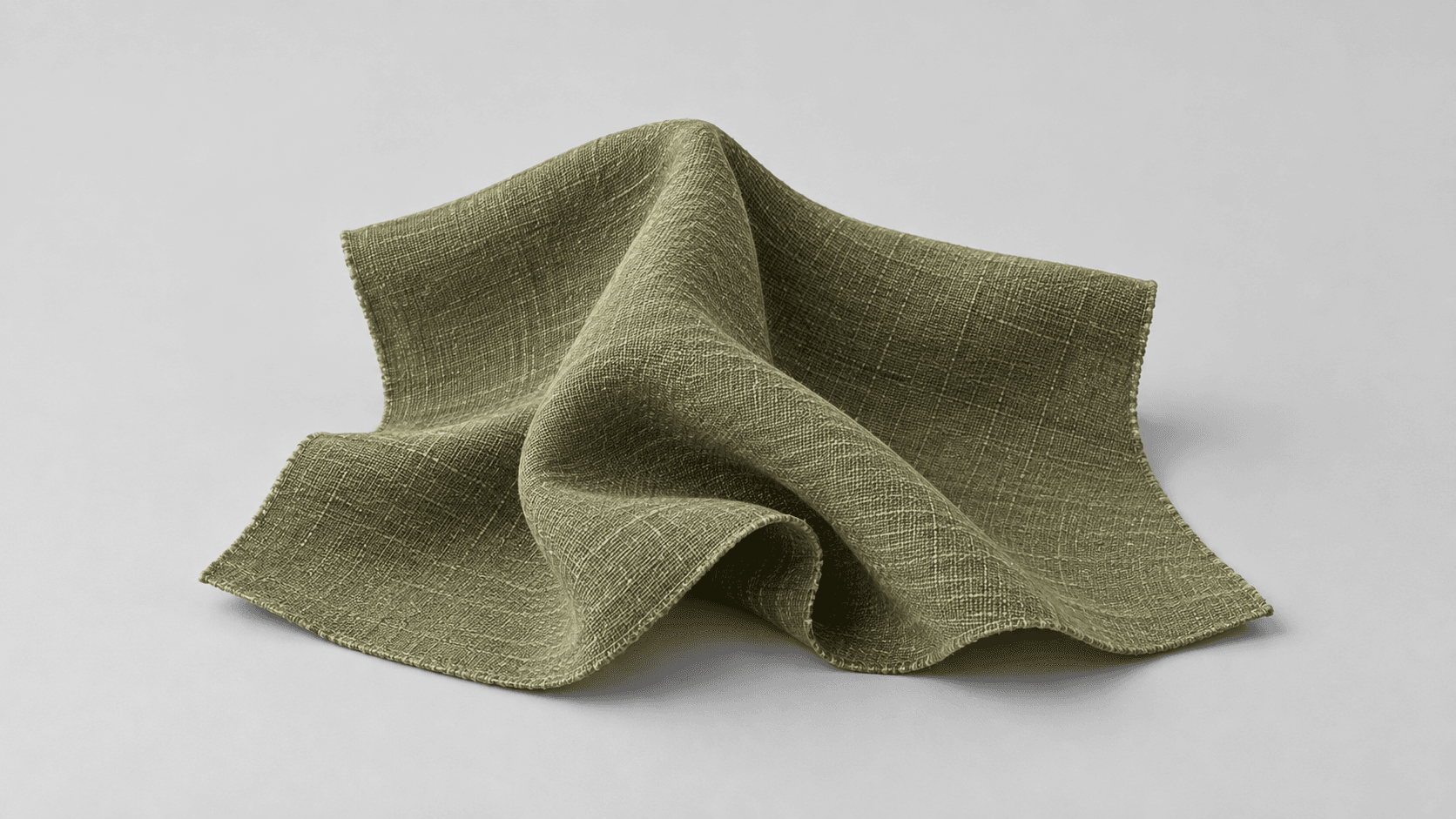
Separate the target surface from trims, hardware and background. Review the boundaries because a prompt does not provide an exact local selection.
Write a recolor brief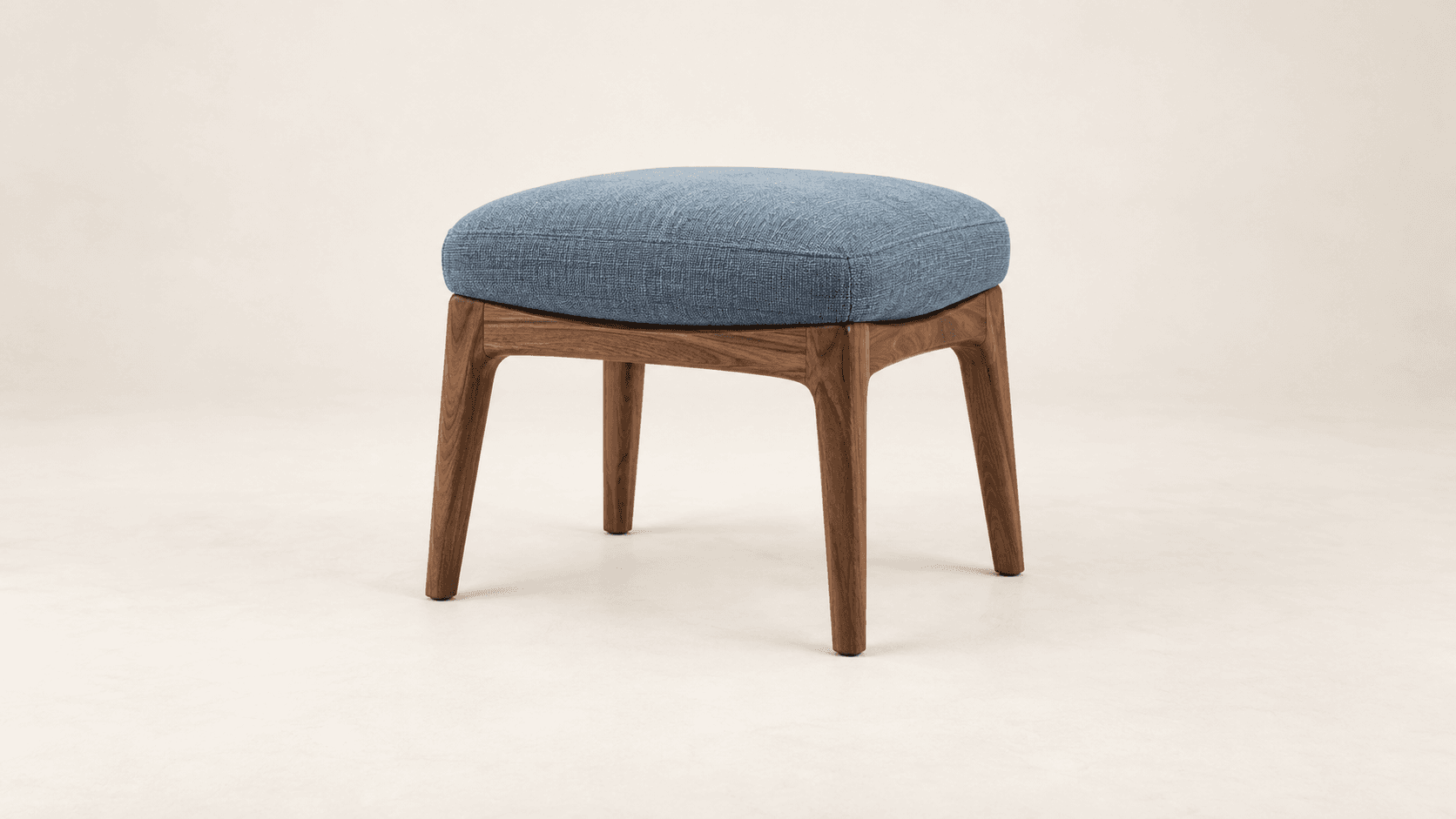
Adapt the target, color and details to your own source. These images illustrate possible visual directions.
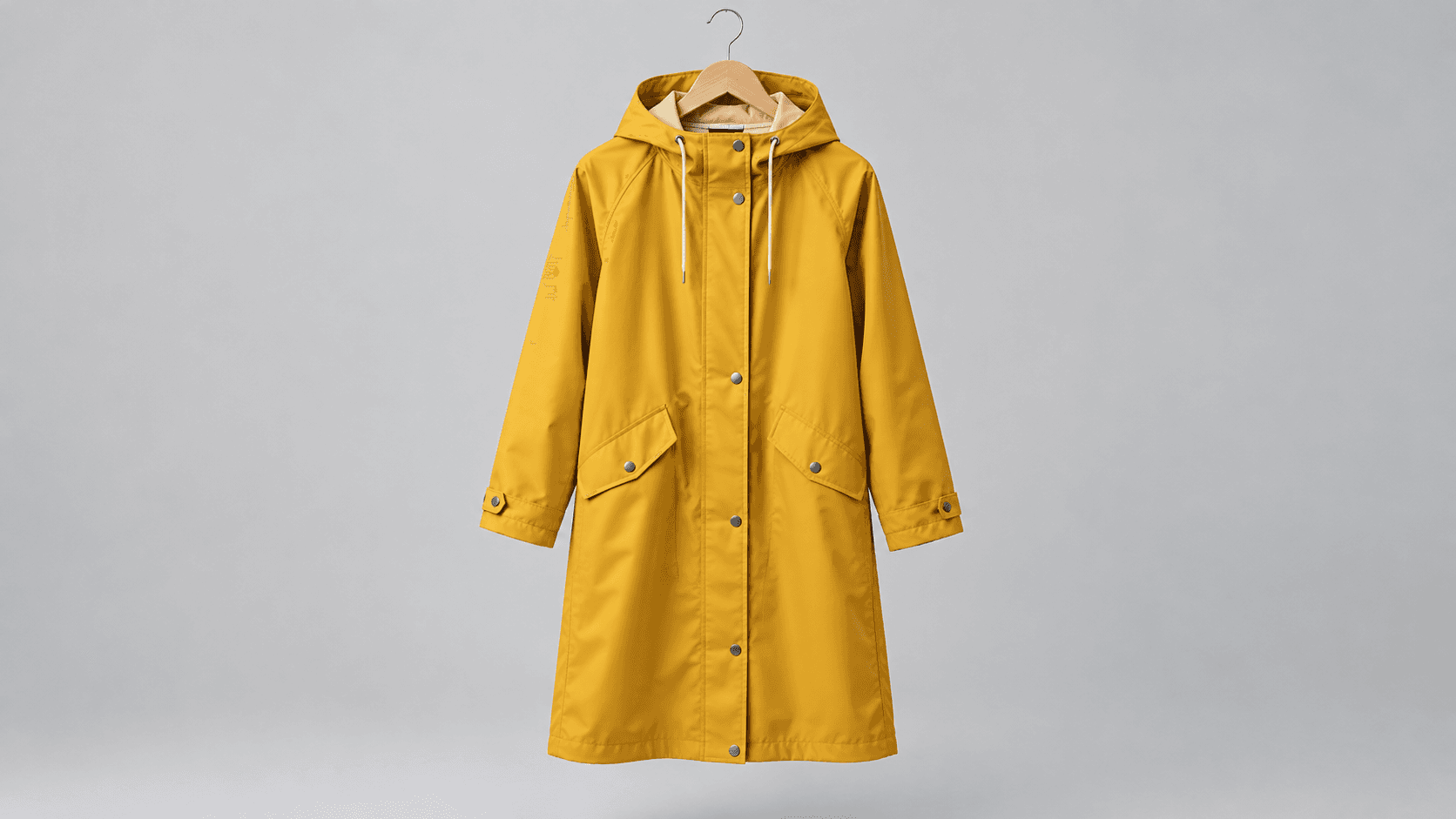

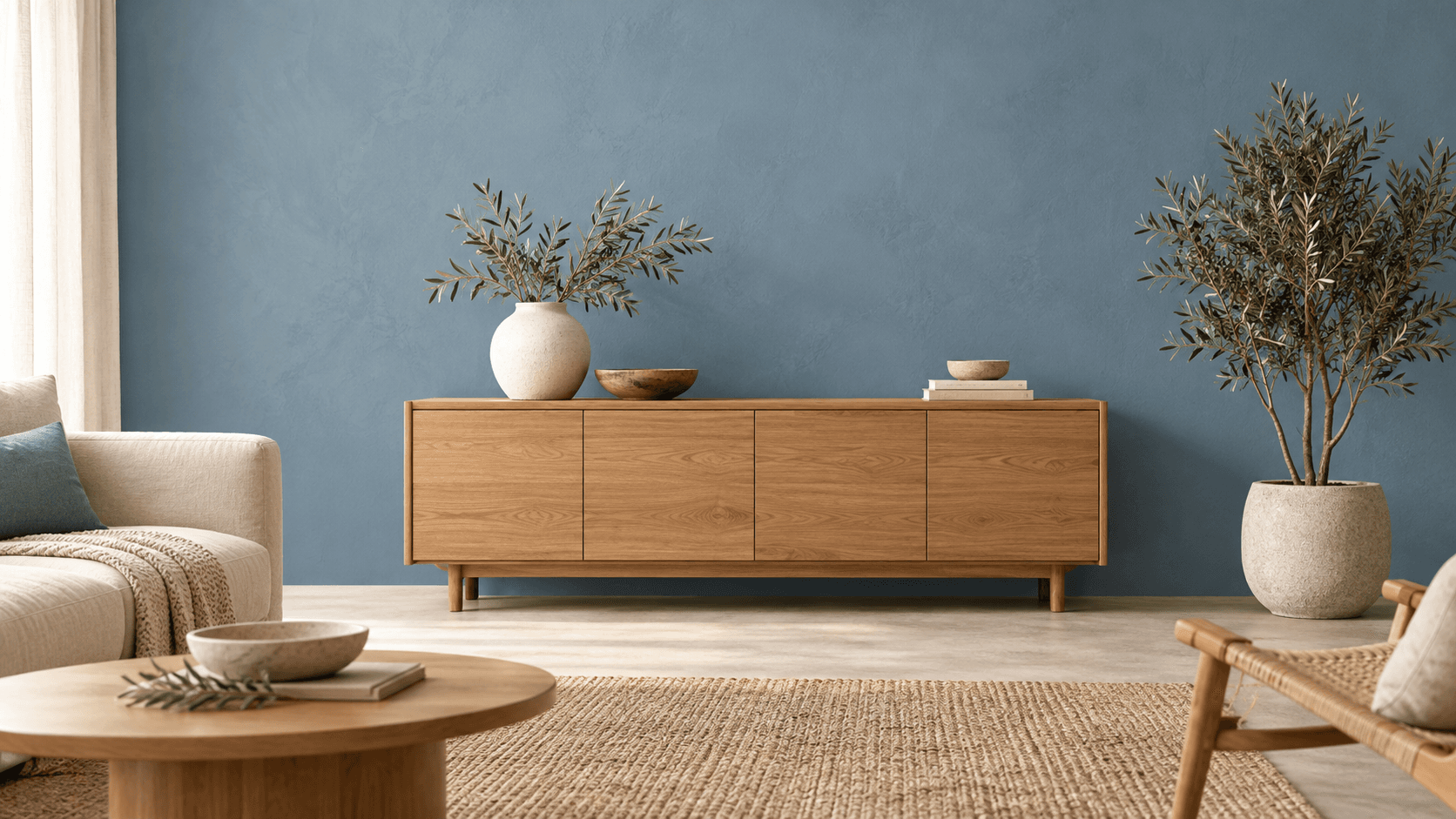
Use a recolored candidate to discuss the direction, then compare it with the real materials and requirements of the project.
A team is deciding which color direction to develop. Compare generated candidates with approved product references before treating any version as an accurate representation of a real variant.
Explore a new color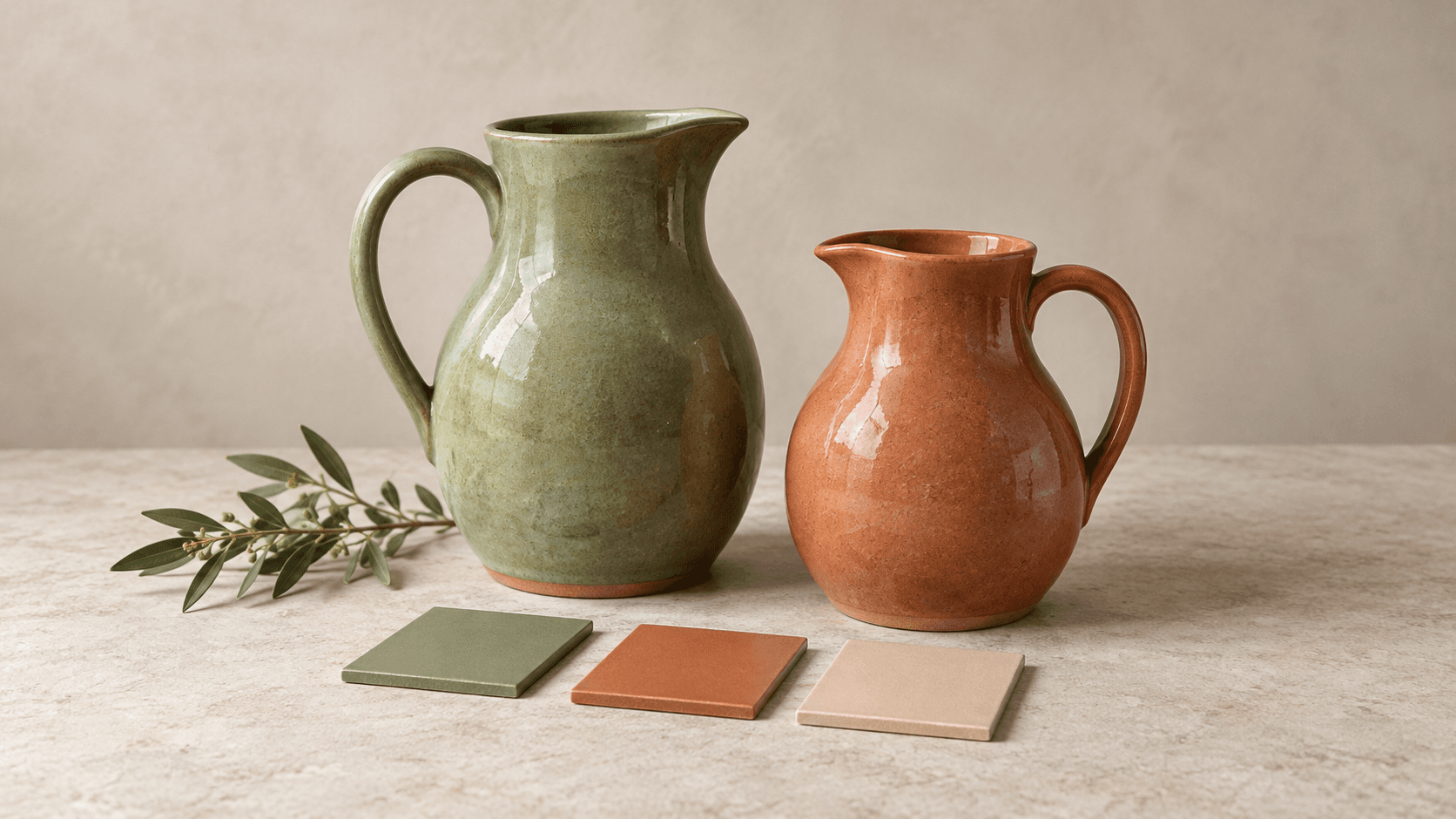
A designer wants to discuss a different wall or upholstery color. Use the image as a conversation starter, then confirm the choice against physical materials and the intended setting.
Explore a new color
Use the form for a reference-led image edit, then assess the actual color and surrounding detail.
| Input | One selected sample or uploaded image. A reference is required. | |
|---|---|---|
| Controls | Three color-direction presets and an editable prompt. The form does not expose a brush, local mask or calibrated color picker. | |
| Custom colors | Describe a color name or reference value in the prompt. An exact numeric color match is not guaranteed. | |
| Output | A generated still image, rather than an editable color-adjustment layer. | |
| Review | Inspect target surfaces, material texture, highlights, boundaries and areas you asked to keep. Shape and surrounding details may change. | |
| Cost | Check the current credit requirement before generating and review your account allowance. | Verified 2026-10-14 |
| Commercial use | Paid-plan outputs have commercial rights subject to provider terms and source rights. Free-plan generations are for personal, non-commercial evaluation; upgrading applies to new generations. | Verified 2026-10-14 |
| Upload data use | Default terms permit using uploads, prompts and outputs for training and improvement. Provider policies also apply. Enterprise opt-out requires a written agreement; learned or derived information may persist after source deletion. | Verified 2026-10-14 |
These current catalog links support separate canvas workflows. They do not identify this form’s active model or prove a specific recolor result.
Catalog checked 2026-10-14. Compare each model’s reference inputs, editing controls and terms.
Browse image modelsIt generates a new image from your reference and a color-change brief. Choose a direction or write your own, then review the target surface and the rest of the image.
You can request that in the prompt. Name the object or surface to recolor and the background details to retain, then inspect the actual boundaries and surrounding areas.
You can describe your target in the editable prompt, including a color name or value. Exact numeric matching is not guaranteed; compare the actual image with your approved color reference before production.
Exact preservation is not guaranteed. Ask to retain the material and lighting, then check weave, grain, reflections, folds and shadows for unwanted changes.
No. It uses a reference image, preset prompts and an editable brief. It does not expose a brush, local mask or calibrated color picker.
Yes, by generating each color direction in a separate request. Use the same source for comparison and inspect every candidate; the form does not provide a batch colorway export.
Paid-plan outputs have commercial rights subject to provider terms and your rights to the source material. Free-plan generations are for personal, non-commercial evaluation. Review the current commercial-rights policy.
Not by default. Uploads, prompts and outputs may be used for training and improvement, and provider policies apply. Enterprise opt-out requires a written agreement. Read the upload-data policy before supplying a reference.
Choose your reference, name the surface and target color, then compare the generated edit with the source.