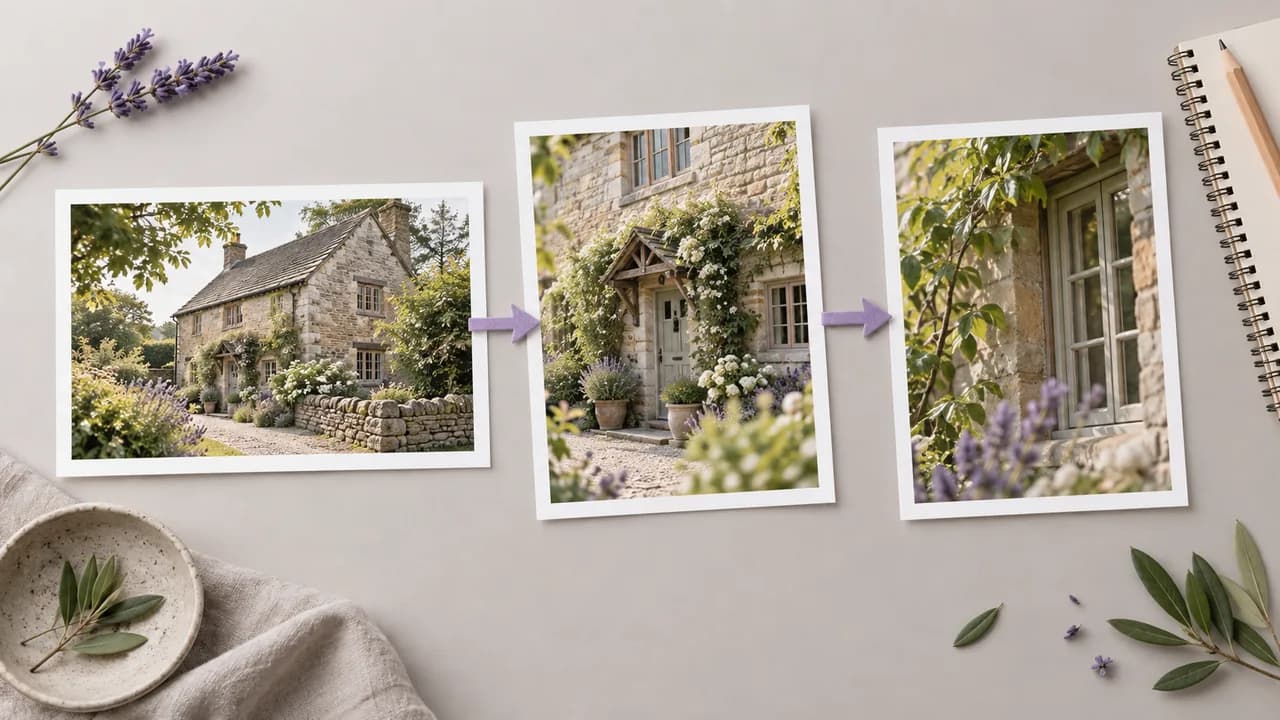
Start with the reference
Know which details matter
- Identify the main subject and its proportions.
- Note important lettering, colors and material details.
- Choose one change to explore before writing the prompt.
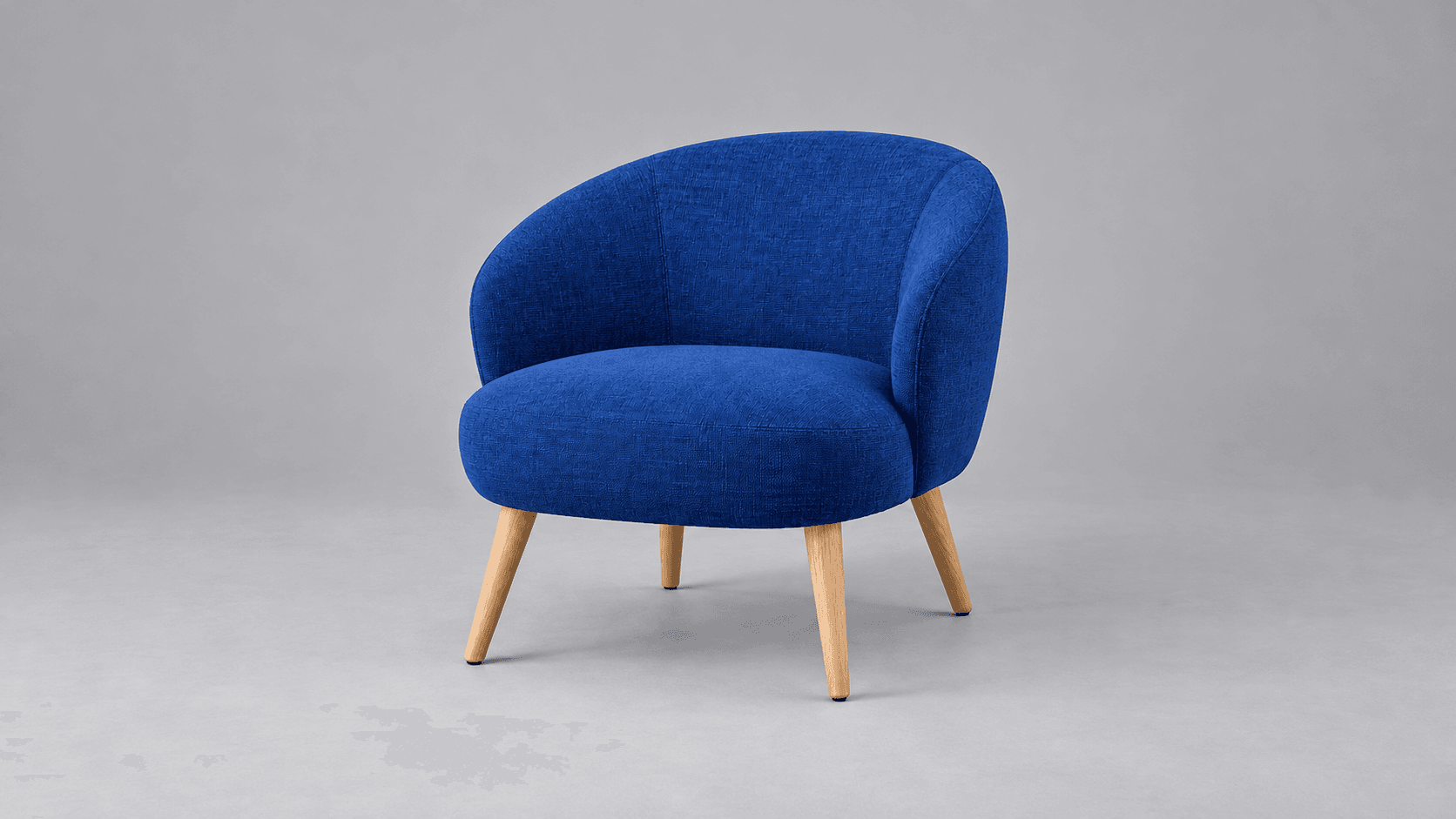
Choose a sample or upload a reference, then select a creative direction and describe what should change. Inspect the result against your starting image.
An image variation is a new interpretation of an existing picture. The illustrations on this page show proposed changes and workflows; they are not verified outputs from this Astorie generator.
Know which details matter
Judge the change against the source

Start with one change so you can judge what the new direction adds.
Choose a sample or upload the image you want to vary. Use a source with a readable subject and enough detail to judge the result.
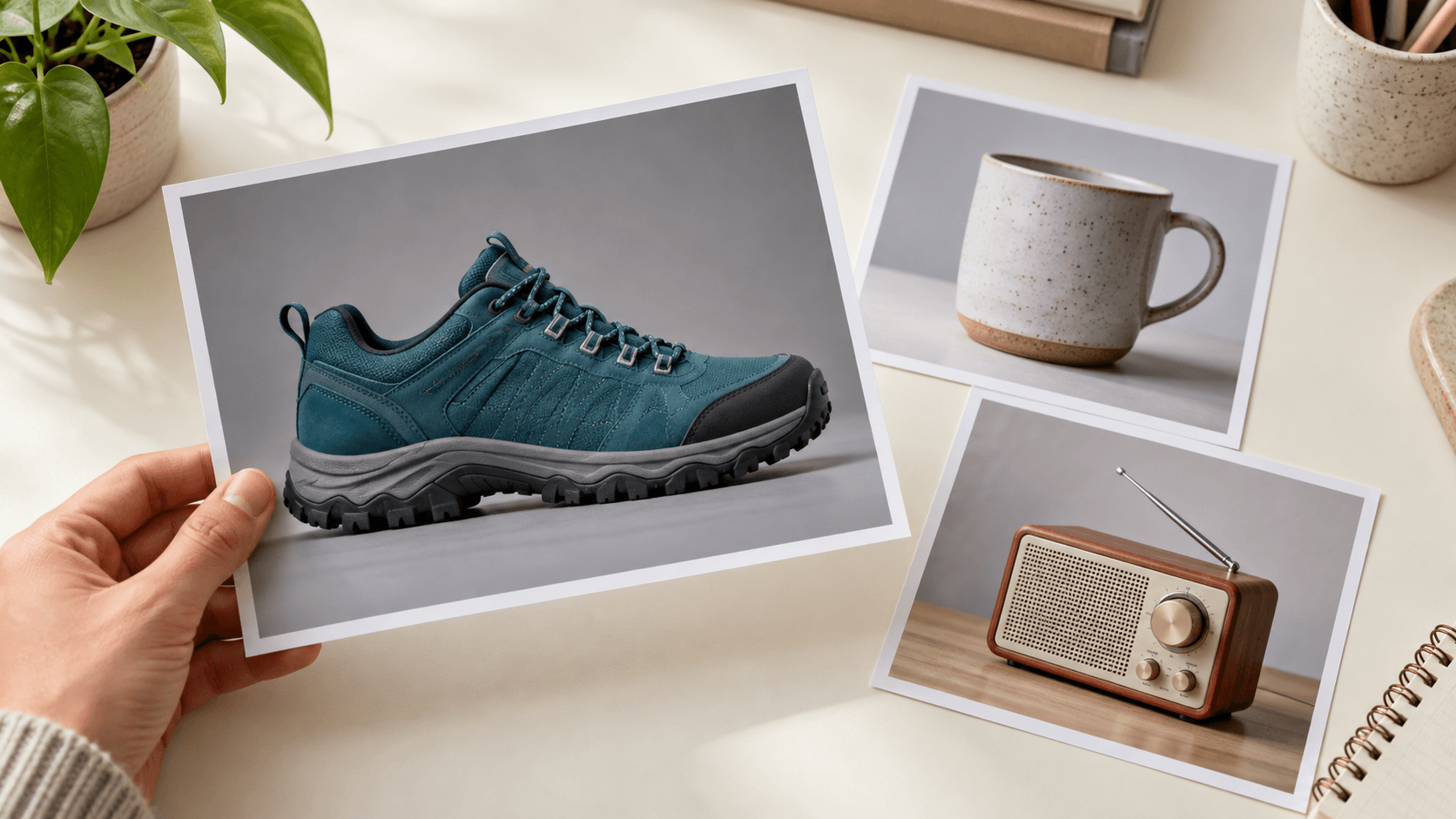
Choose a variation preset, then edit Describe your changes. Name the background, light or style you want and the important details you want to retain.
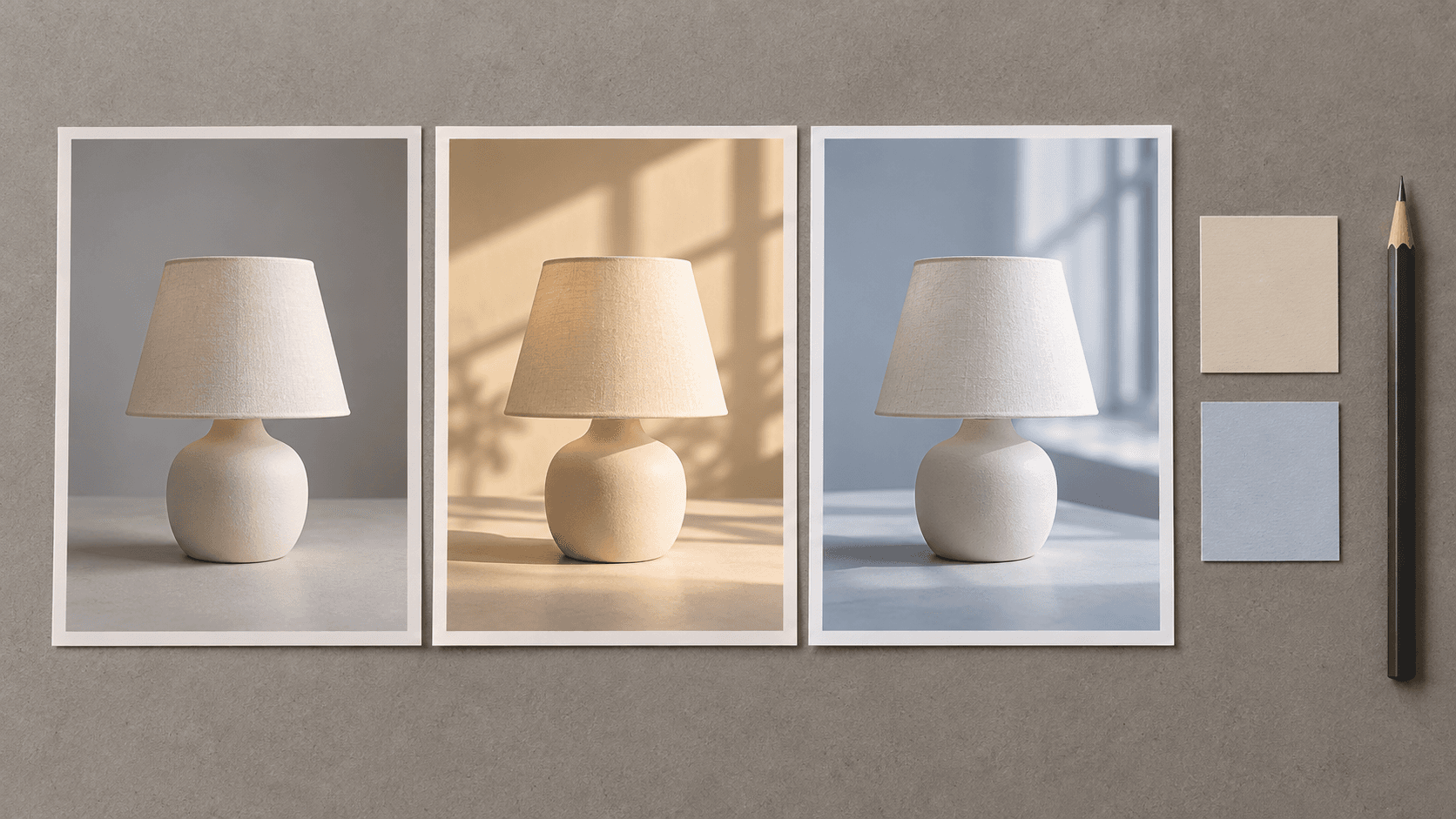
Select Generate variation and sign in if prompted. Compare the result with the reference, especially faces, lettering and product geometry. Refine the prompt if key details drift.
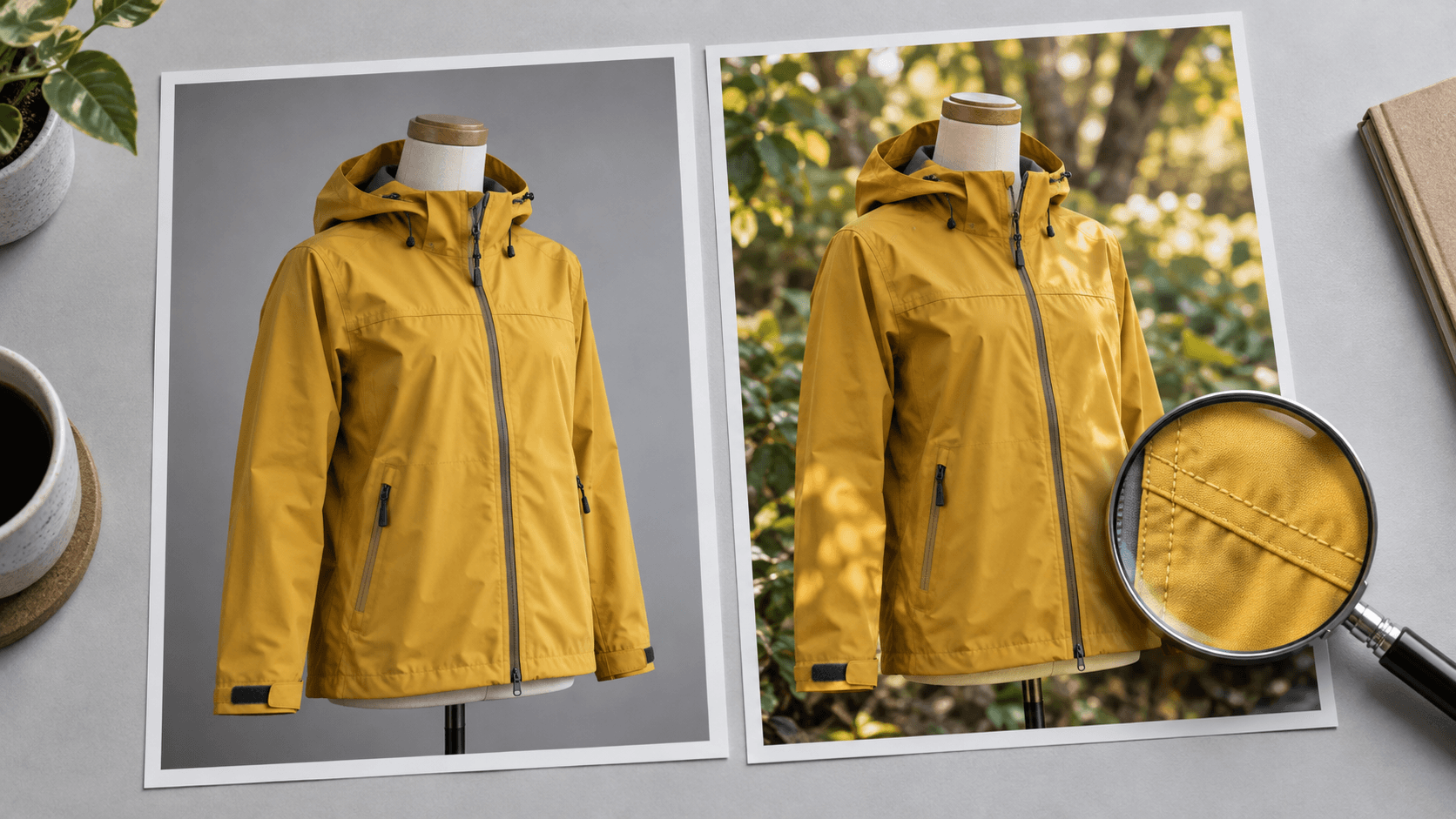
The reference, preset and prompt define the request. Use the result as a creative candidate to assess.
Explore a quieter backdrop or a new environment around the reference subject. Describe how the light and contact shadows should fit the scene.
Try an image variationCompare warm window light with a cooler, softer direction. Keep the framing request similar so the lighting change is easier to evaluate.
Try an image variationUse the original composition as a starting point for an editorial illustration. Specify the palette and texture instead of asking for a vague style change.
Try an image variationUse an uploaded photo or a sample to anchor the request. State which recognizable details matter; the reference guides generation without guaranteeing a match.
Try an image variationA preset fills the prompt with a starting direction. Edit the words to suit your subject and the change you want, rather than relying on the preset name alone.
Try an image variationThe public generator saves its result to a personal canvas project. Review the selected image there before developing it further.
Try an image variationAdapt these suggested prompts to your own reference. Each illustration shows a different subject and creative direction, not a verified run of this page’s generator.
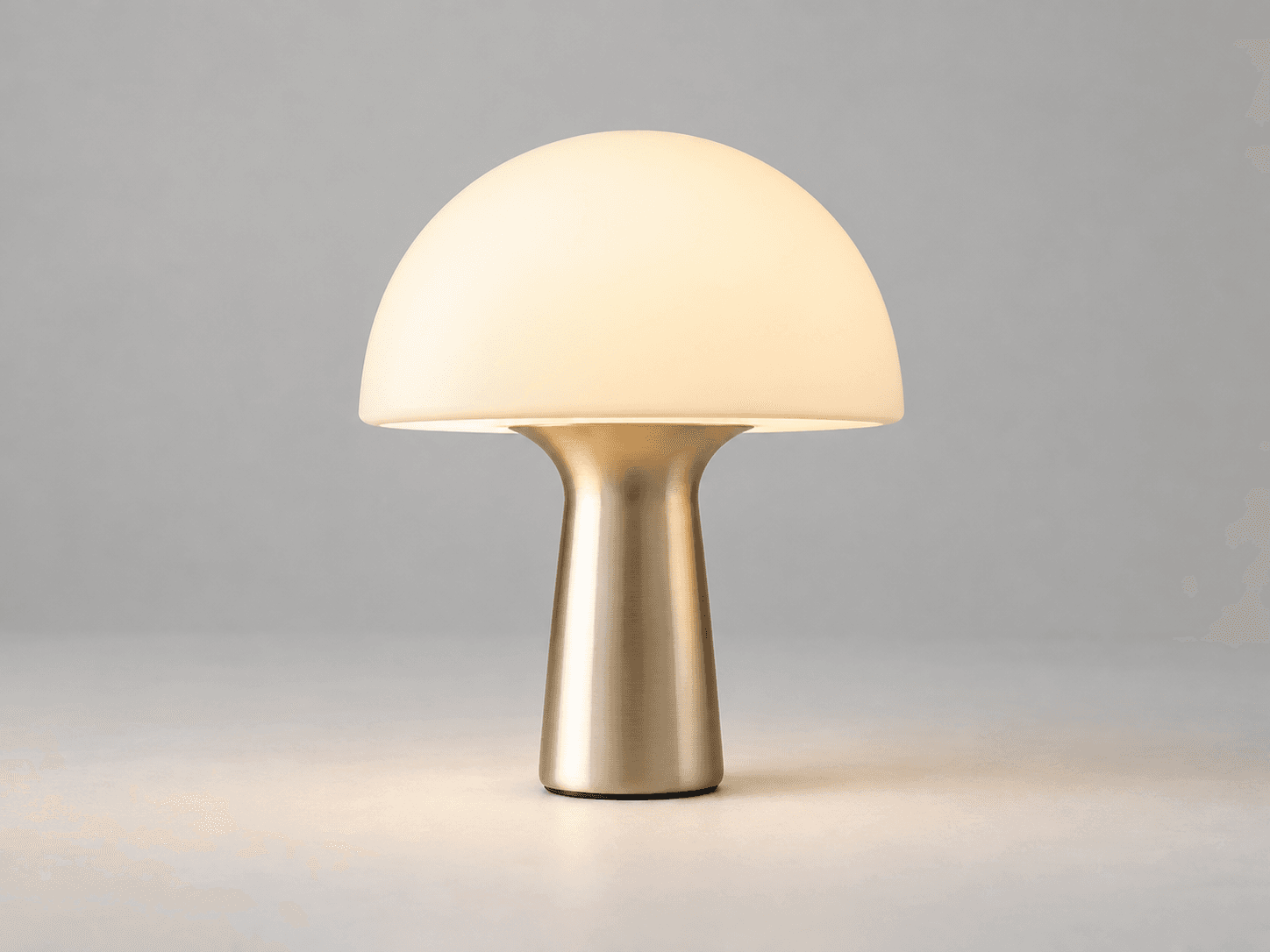


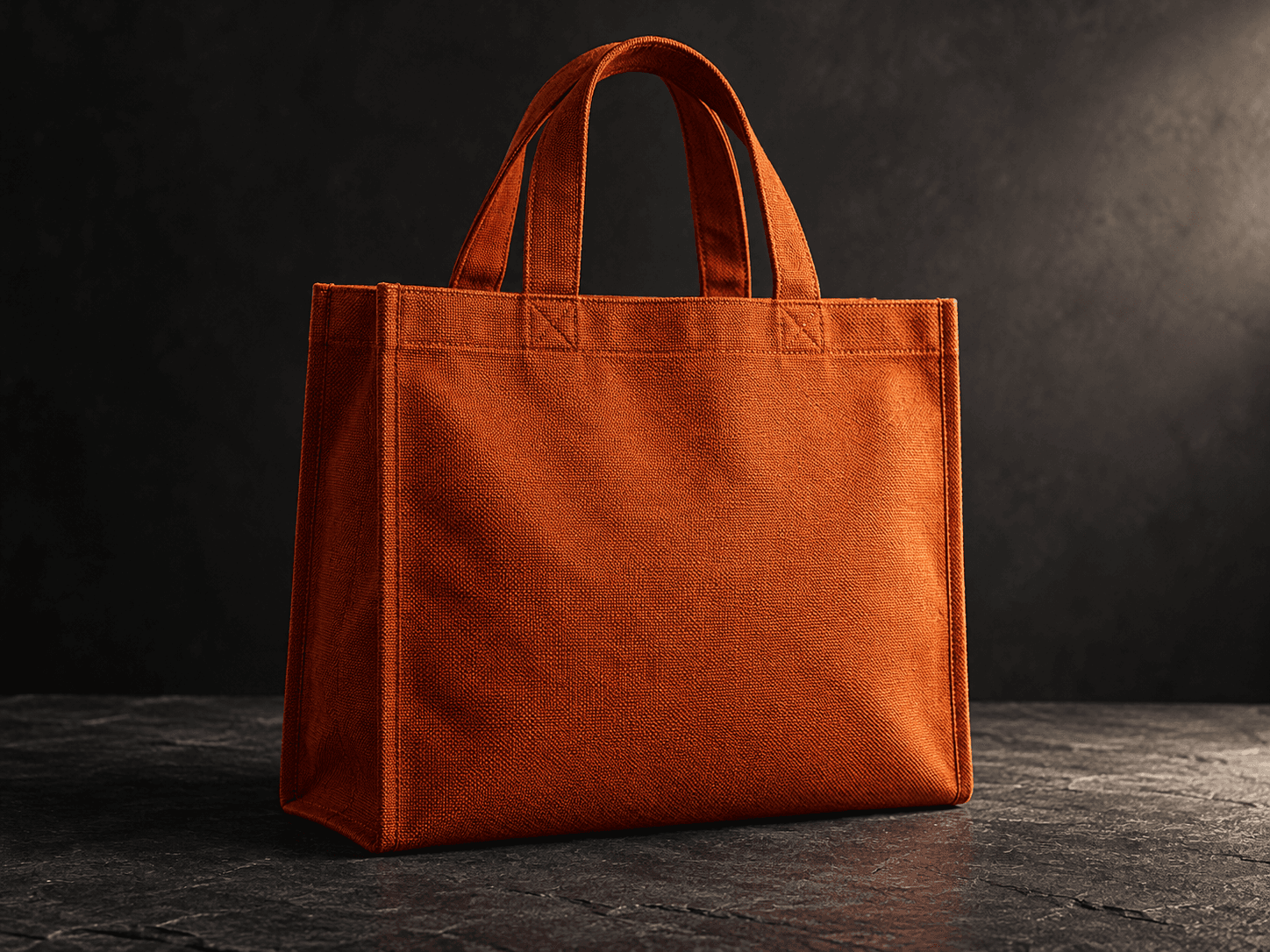
Choose a use case, decide what the image must communicate, and review the candidate at its intended placement.
An ecommerce designer has a packshot and wants to compare studio and lifestyle settings. Inspect the proposed scene alongside the actual product before selecting it.
Try an image variation
A marketer wants a new visual mood around an established subject. Change the light or backdrop, then check whether the result fits the campaign palette.
Try an image variation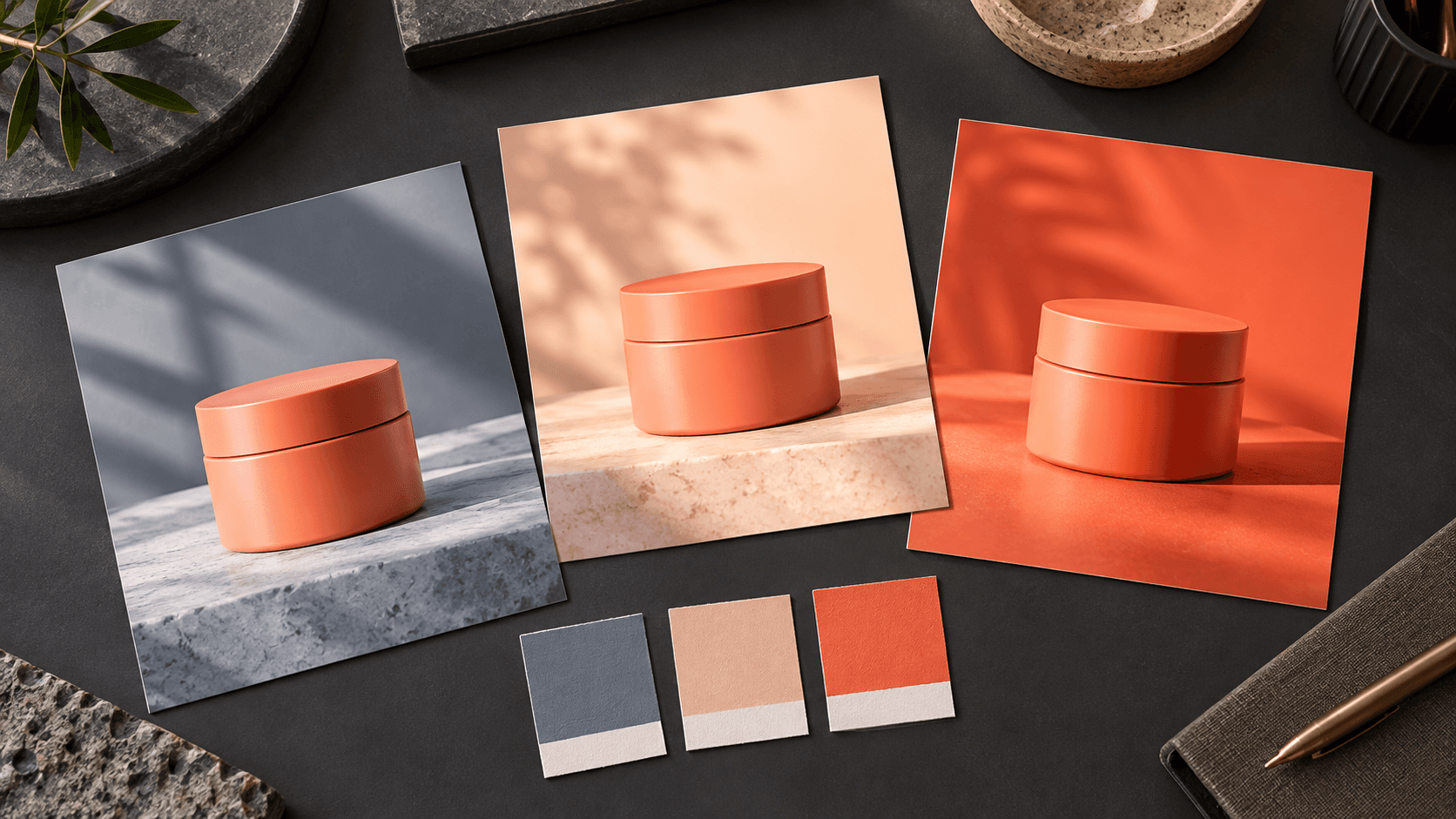
An editor is comparing photographic and illustrated treatments. Describe the rendering style and review whether the subject still communicates the story.
Try an image variation
A shop is planning seasonal imagery. Explore a setting around the source, keeping props restrained so the main subject remains legible.
Try an image variation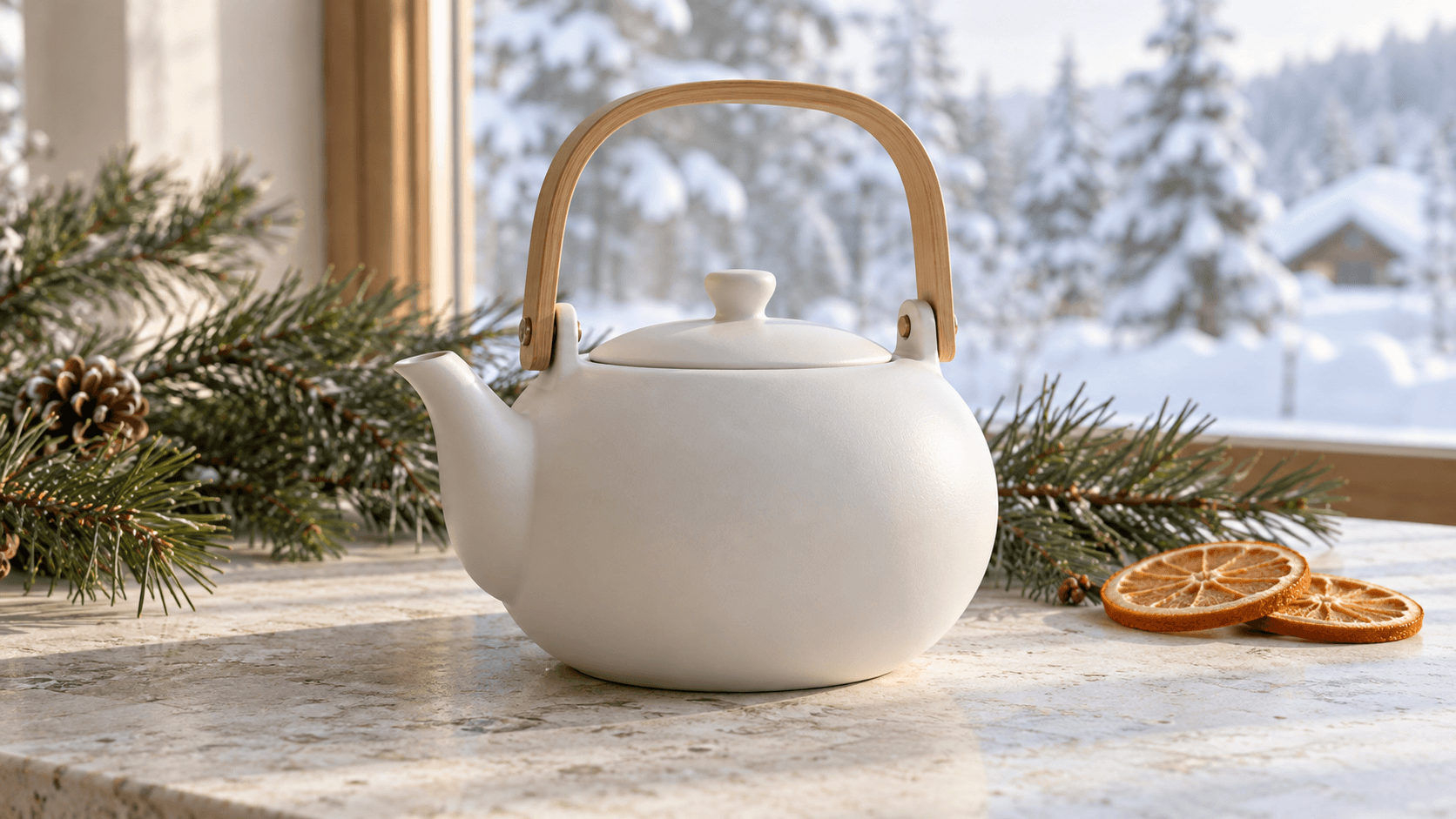
A seller needs a different presentation for a product listing. Assess identifying details and destination requirements before using a variation.
Try an image variation
A social designer wants another look for an existing image. Choose a candidate first, then prepare the final crop and layout for the placement.
Try an image variation
Use the controls shown here for the initial image. Additional model or output settings belong to their own canvas workflows.
| Starting image | One uploaded reference or a selected sample. A reference is required for generation. | |
|---|---|---|
| Creative controls | Choose a preset and edit the prompt to describe the intended change. | |
| Output | A generated still image saved to a personal canvas project; review it before selecting a final version. | |
| Detail preservation | Faces, text, shapes and colors may change. Compare the result with the reference. | |
| Model and output settings | The embedded form does not expose model, aspect-ratio or resolution selectors. Check controls in a separate canvas workflow when needed. | |
| Request cost | Check the credit requirement shown before starting a generation. | |
| Free plan | A free plan is listed with no credit card required. Consult your current account allowance. | Verified 2026-10-13 |
| Commercial use | Paid-plan outputs have commercial rights subject to provider terms and input rights. Free-plan output is for personal, non-commercial evaluation; upgrading applies to new generations. | Verified 2026-10-13 |
| Upload data use | Default terms permit use of uploads, prompts and outputs for training and improvement. Provider policies apply. Enterprise opt-out requires a written agreement; learned or aggregated information may persist after source removal. | Verified 2026-10-13 |
These current catalog models are starting points for further research. Their cards do not identify the model used by this embedded generator or guarantee support for every variation task.
Catalog checked 2026-10-13; inspect each model’s own inputs and controls before choosing.
Browse image modelsUse these guides and policies when evaluating a selected variation.
Learn how reference images and text connect on the canvas.
Review current plans and credit allowances.
Check plan, provider and input-rights conditions.
Read how uploaded images, prompts and outputs may be used.

Compare models by the requirements of your creative brief.

Develop a consistent direction across a larger project.
Yes. Choose a sample or upload a reference image. Use an image with a clear subject, then describe the change you want in the prompt.
No. A reference guides the generation but does not guarantee identical faces, lettering, shapes or colors. State which details matter and inspect each result against the source before using it.
Astorie lists a free plan with no credit card required. Check your account allowance and the requirement shown by the generator before starting; a free plan does not imply unlimited image variations.
Images generated on paid plans can be used commercially under Astorie’s terms, subject to the model provider’s terms and your rights to the reference. Free-plan generations are for personal, non-commercial evaluation. Upgrading applies commercial rights to new generations going forward.
Yes, under the default terms Astorie may use uploads, prompts and outputs to train and improve its own and affiliated models. Generations also go to third-party providers with their own data policies. Enterprise opt-out requires a separate agreement; deleting source files may not remove information already used in training or aggregated datasets.
No. A variation creates a new interpretation of the source. Upscaling prepares a selected image for a larger placement; use a dedicated upscale workflow when enlargement is the task.
Change one part of the brief at a time, such as the backdrop or lighting. Keep the remaining request similar, then compare each candidate with the original before deciding what to explore next.
Choose a reference, describe one creative change and review the result against your starting point.