
How to Turn an Image Into a Video With AI (2026)
Turn any still image into an AI video in 2026: prep the source, pick the right image-to-video model, prompt motion as a camera move, add start/end frames, then fan one image across Seedance 2, Kling 3, and Veo at once on the Astorie canvas and pick the best take.
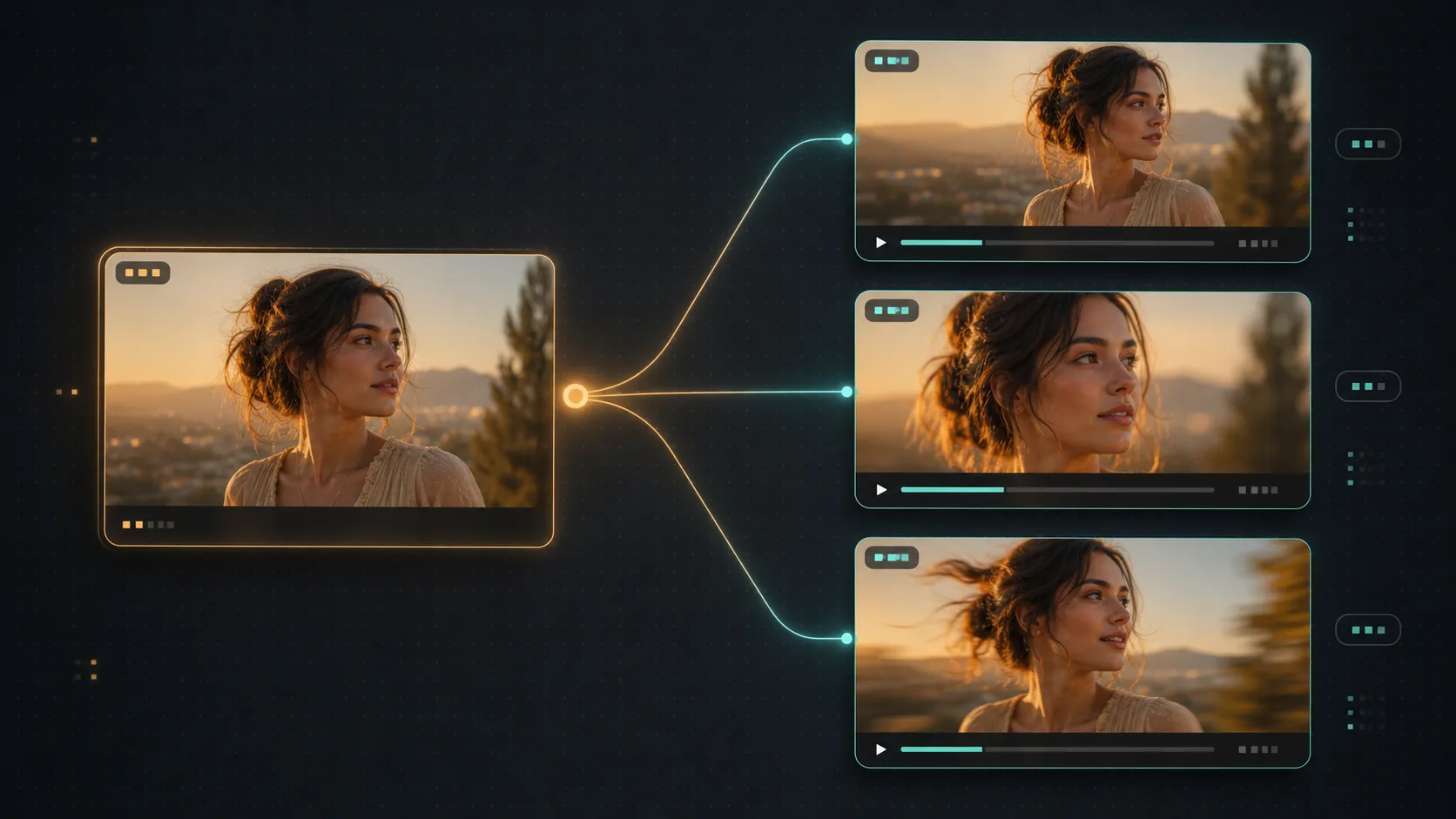
Workflow example
Three-shot product reveal, one still to finished video on Astorie: drop a Nano Banana 2 image node and generate the hero shot of the product on a marble counter, then pin the chosen take. Wire that one image into three image-to-video nodes set to different models — Seedance 2 Pro, Kling 3.0, and Veo — and paste "slow dolly-in from wide to medium close-up, hold on label, soft window light" into each. Run all three in parallel and compare the takes in the version tray. Pick the strongest motion, then duplicate that node twice for the other two shots ("macro pull-back from the cap to medium-wide" and "slow arc around the bottle, shallow depth of field"), each wired to the same image. Wire all three chosen takes into the NLE export node in order and export. Total elapsed time: roughly twenty minutes from blank canvas to finished sequence.
Recommended features
Related comparisons
Related reading
Seedance 2 Handbook: Variants, Best Workflows, and How to Use It on Astorie
Hands-on guide to Seedance 2 — variants, strengths, and the production workflows it fits on Astorie's canvas.
Kling 3 Guide: Variants, Use Cases, and How to Choose
Kling 3, O3, and Avatar variants — when to use each, on Astorie.
How to Build a Consistent AI Character Across Images and Video (2026)
A 2026 workflow guide to building a consistent AI character: lock a face reference with Flux Kontext, generate a character sheet, carry identity into video with Vidu, Kling, and OmniHuman, hold consistency across multi-shot sequences, and render hero frames at 4K — all on one Astorie canvas.
Ready to try it on the canvas?
Open Astorie and fan your prompt across every frontier model in one workflow.